Managing Your Inspections
Last updated: November 4, 2026
Use the Inspections page to find inspections, check their status, and open them for review.
Find an Inspection
Open Inspections from the left navigation.
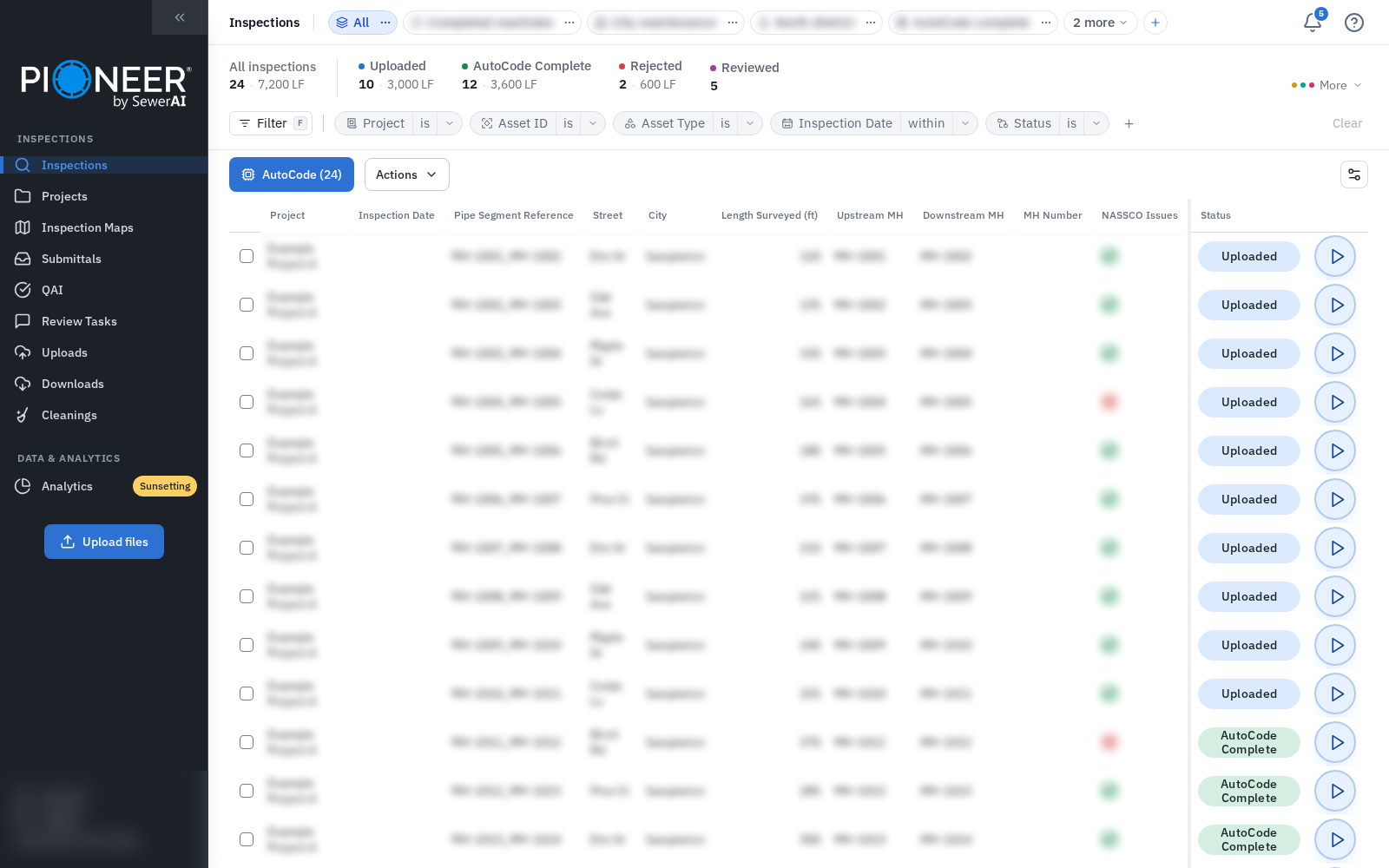
Select Filter and choose a field, such as Project or Asset ID.
Choose the value you want to find.
Select the play button at the right end of an inspection row to open it.
If your page shows individual filter fields and a funnel icon, use those controls to narrow the list.
Use the Status Cards
The cards above the table show inspection counts. Processing-status cards also show surveyed length. Select a card to filter by that status; select it again to remove that status filter.
Selected processing statuses combine with OR. For example, choosing Uploaded and AutoCode Complete finds inspections in either status.
Open More to see additional status cards. Reviewed tracks a separate review flag.

Choose Columns and Sort
Select Customize columns, the sliders icon above the table.
Search for the columns you need and select them.
Arrange the columns in the order you want.
In the new column picker, you can start with a PACP, MACP, LACP, or Default preset.
Select a sortable column heading to change the order of the rows. New records appear first by default.
Most accounts load more rows as you scroll. If your account shows page controls, use those controls to move through the results.
Check the Batch Before an Action
Tick individual rows to choose inspections. Check the action's count before you continue. With no rows ticked, bulk actions can use the full filtered list.
Changing a filter clears the row selection. SewerSheets has its own scope: it opens the first 150 matching inspections, using filters rather than ticked rows.
Check That It Worked
Confirm that the filters, status cards and visible rows match the inspections you want. If an expected project is missing, ask your account Admin to check your access.
Related Articles
Still Need Help?
Use the chat widget in PIONEER to contact our support team.
If you cannot access the chat widget, email help@sewerai.com.