SewerSheets for Bulk Data Editing
Last updated: November 4, 2026
Use SewerSheets to update inspection header data in a spreadsheet view within PIONEER.
Before You Start
You need Editor or Admin access to the inspections you want to edit with SewerSheets.
SewerSheets opens the first 150 inspections matching your filters. Ticked rows are not carried into the sheet. Narrow the filters to the records you want before opening it.
Open SewerSheets
Open Inspections.
Apply the filters for the data you want to edit.
Open Actions and select Edit with SewerSheets. If your page shows a separate SewerSheet button, select it instead.
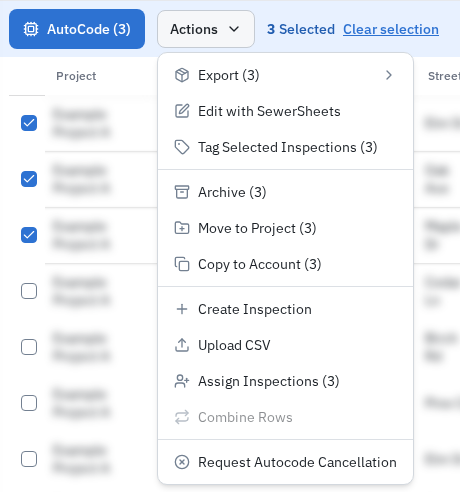
Edit and Check Values
Find the inspection and field you want to change.
Select the cell and enter the replacement value.
Wait for Saving changes... to finish.
Check the saved value in the inspection.
Changes save automatically. Red cells indicate validation issues, including missing or invalid values. The Issues column summarizes problems for each row.
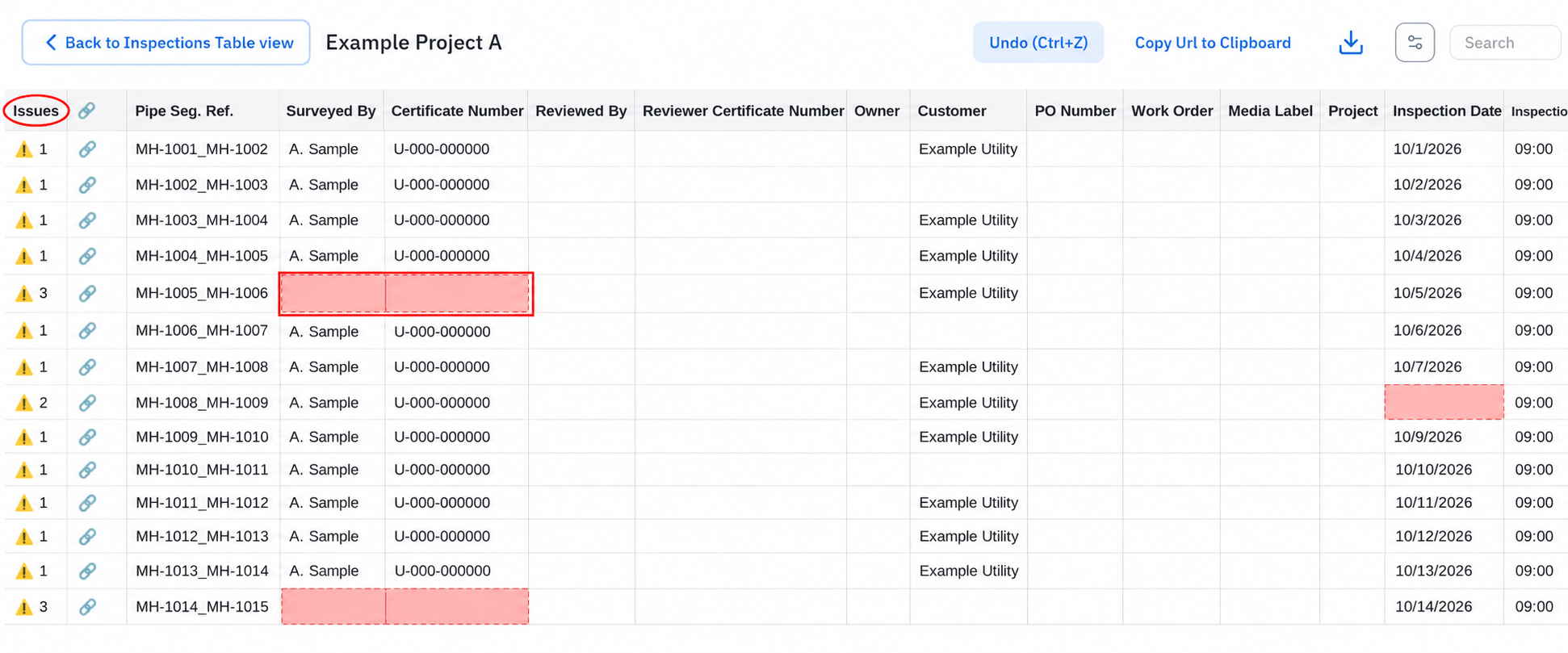

Use Editing Tools
Copy and paste cell values with Ctrl+C and Ctrl+V
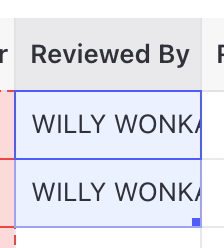
Drag the fill handle down to fill values vertically
Use Undo (Ctrl+Z) to reverse a cell edit in the open sheet. Reloading clears its Undo history
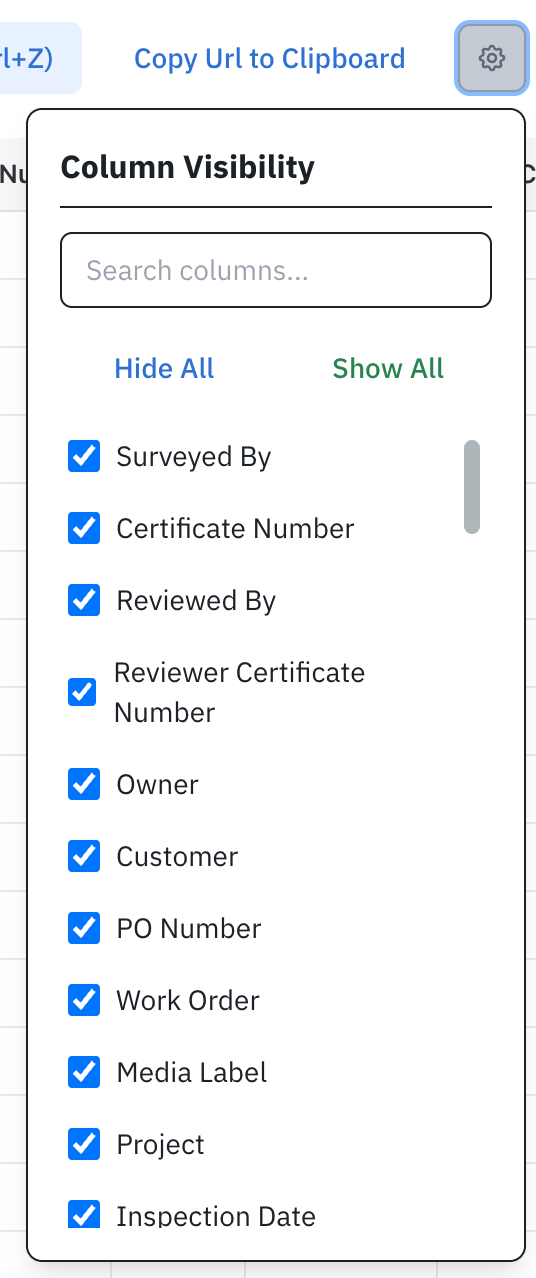
Use Column settings to choose visible fields
Use the link column to open an inspection

Use Copy Url to Clipboard to share the filtered view. The recipient needs their own access and editing permission.

The sheet's Download CSV exports the filtered data with all columns. The Inspections page's CSV export uses a different column selection.
Check That It Worked
Reopen a sample inspection and confirm the updated values. If a save fails, check which changes persisted and send Support the inspection link and exact error.
Related Articles
Still Need Help?
Use the chat widget in PIONEER to contact our support team.
If you cannot access the chat widget, email help@sewerai.com.