Assigning Work to a Field Operator and Starting Assigned Work
Last updated: January 29, 2025
PIONEER makes it easy to task work out to a specific truck operator and for that user to locate their assigned work.
Assigning from the Dashboard
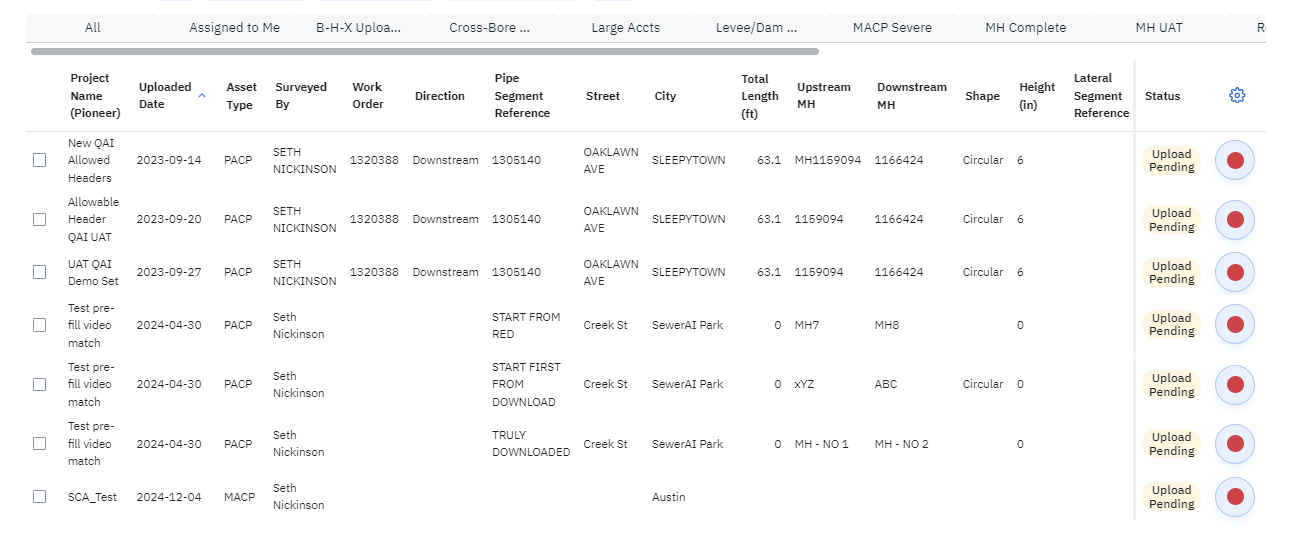
Typically dispatch managers assign pre-populated inspections loaded into PIONEER, also known as Prefilled Inspections. These show up as "Upload Pending" rows in PIONEER.
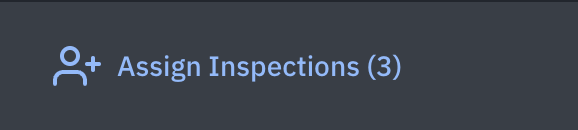
1) To assign work, filter or select inspection rows, and then click "Assign Inspections" in the overflow menu

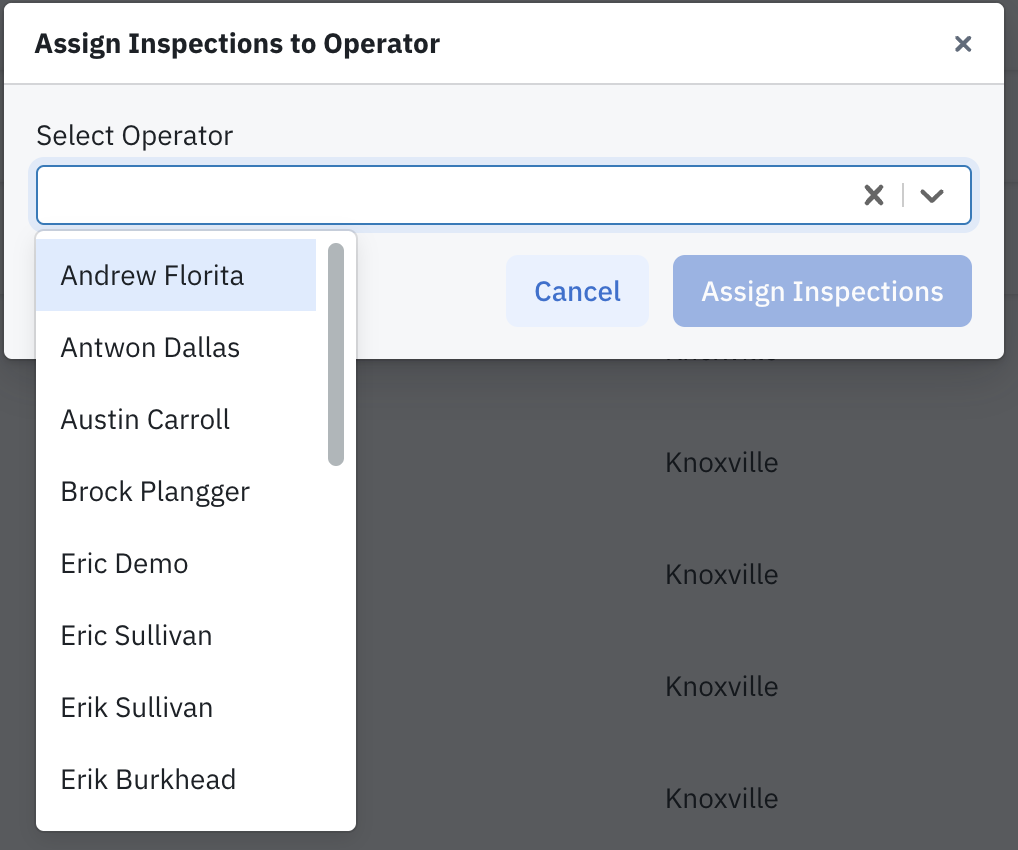
2) You will be prompted to select a user from a pulldown menu. This menu populates with all PIONEER users sharing the same Account access. The users must have a PIONEER seat license to appear
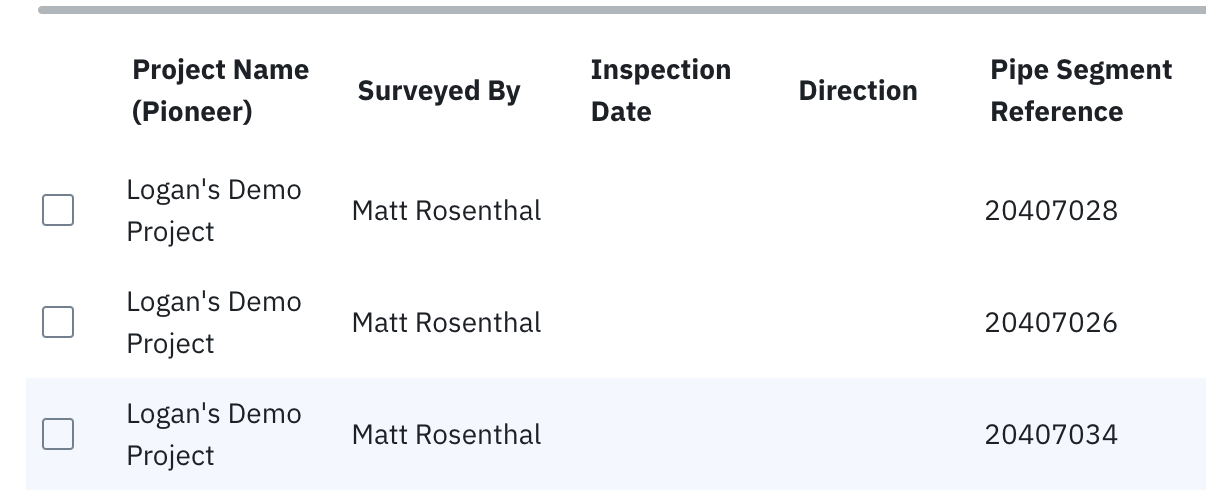
3) Once you select an operator name, that user will be entered into the Surveyed By field in the inspection header
Assigning from the Map
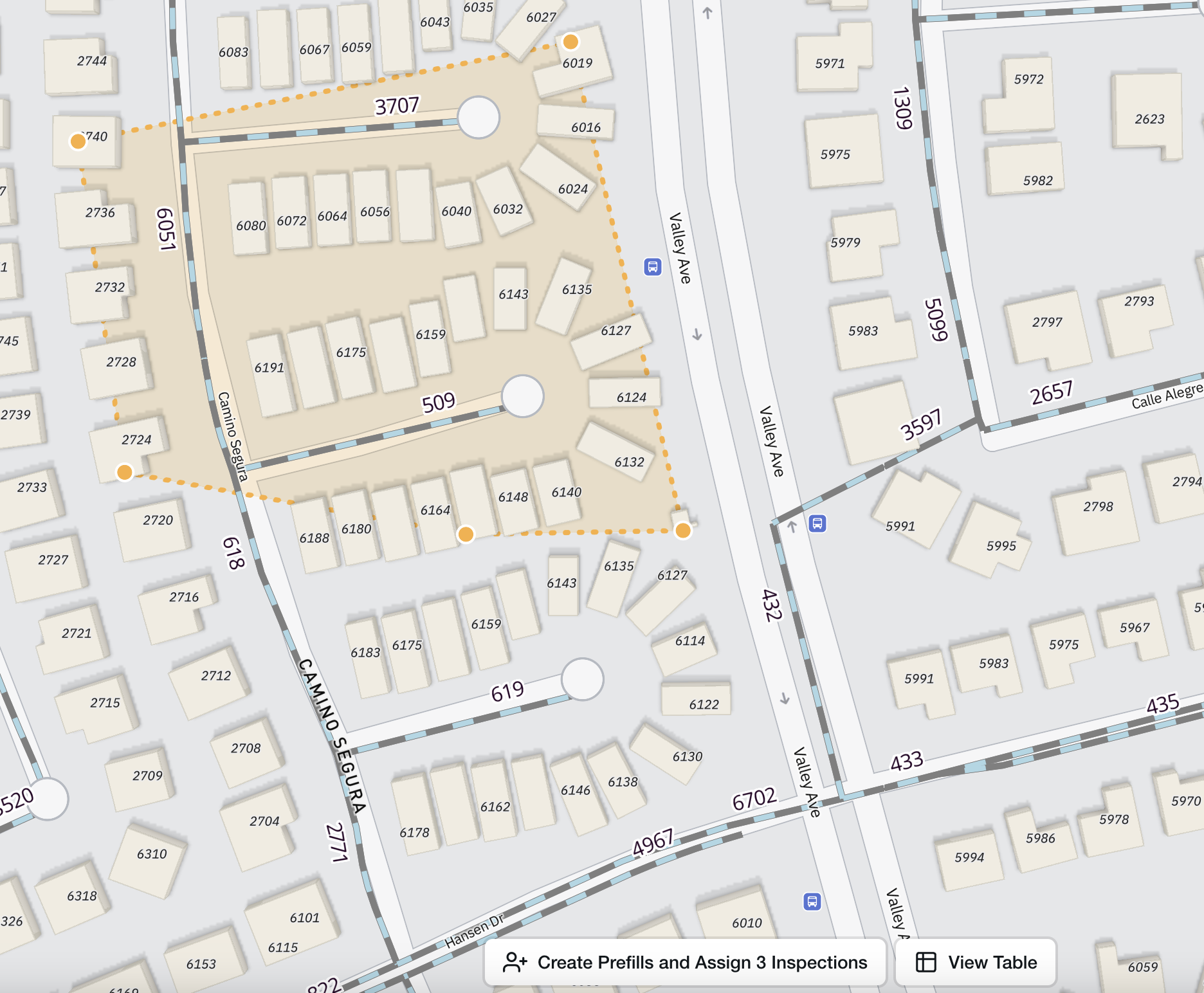
Select assets using the "pen" tool for outlining assets

Draw a polygon and double-click to close your shape
Click "Create Prefills and Assign 3 Inspections" at the bottom of the page. This action will pull through GIS data to a new inspection row.
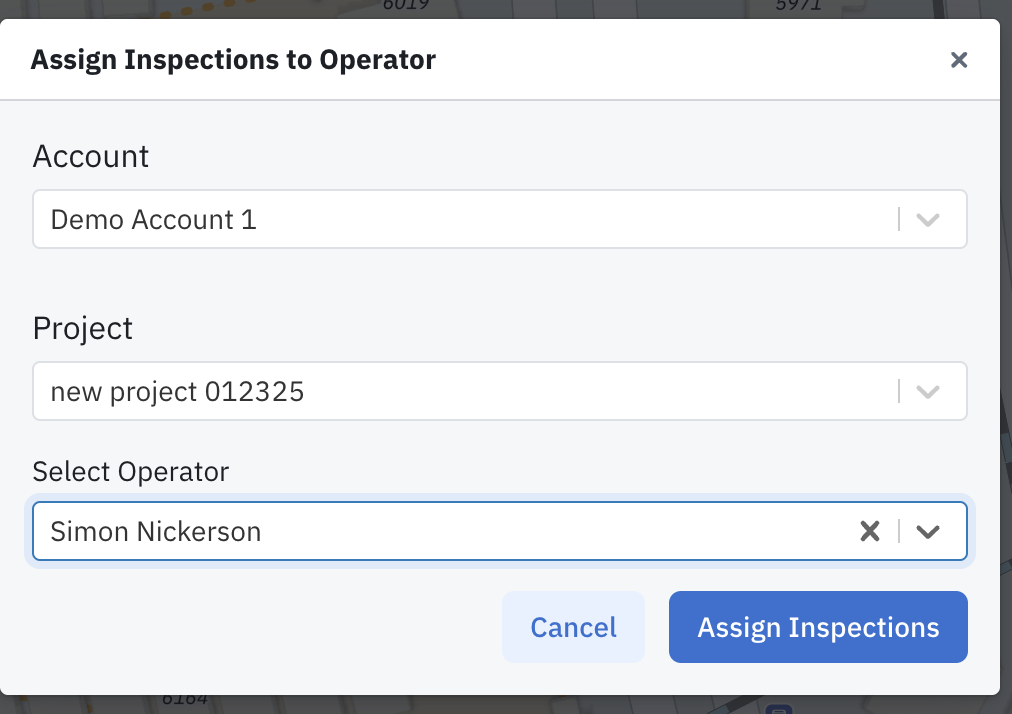
Select a Project and Operator. The Operator menu populates with all PIONEER users sharing the same Account access. The users must have a PIONEER seat license to appear
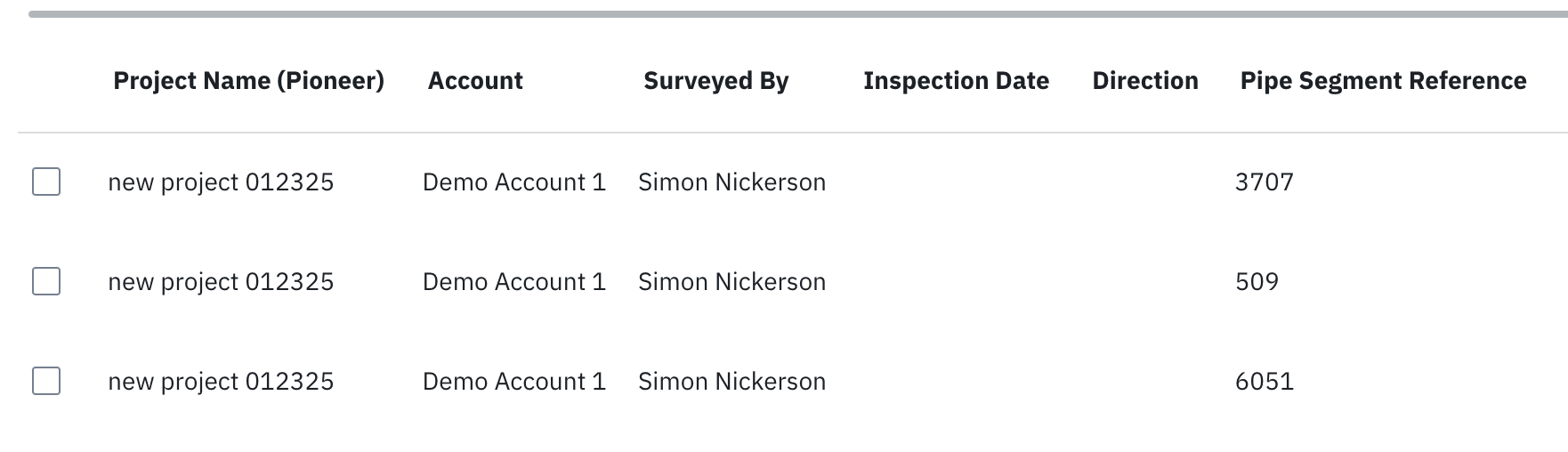
New inspection rows get created and that Operator's name is entered into the
Surveyed Byfield in the inspection header
Seeing Your Work on the Desktop (Truck) App
Beginning with the 9.2.2 release of our Desktop software, truck operators can easily locate and start their assigned work
Navigate to the "Inspections" main dashboard of PIONEER (different than "Field Inspections"
Every truck user gets a bookmark tab called "Assigned to Me"
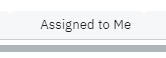
Clicking that bookmark filters the list down to just prefilled inspection rows assigned to the current user
Simply click the red record button to start an inspection