Downloading CSVs
Last updated: November 4, 2026
Download inspection table data as a CSV for spreadsheet review or reporting.
Choose the Inspections
Open Inspections.
Apply the filters for the data you want to export.
Tick rows if you want to export only specific inspections.
If no rows are ticked, the export uses the full filtered set. You can export data you have access to, including with Viewer or Uploader access. Direct CSV downloads have separate permissions from deliverable packages.

Choose Fields
Select Customize columns.
Search for each field you need, such as Work Order.
Turn on the field.
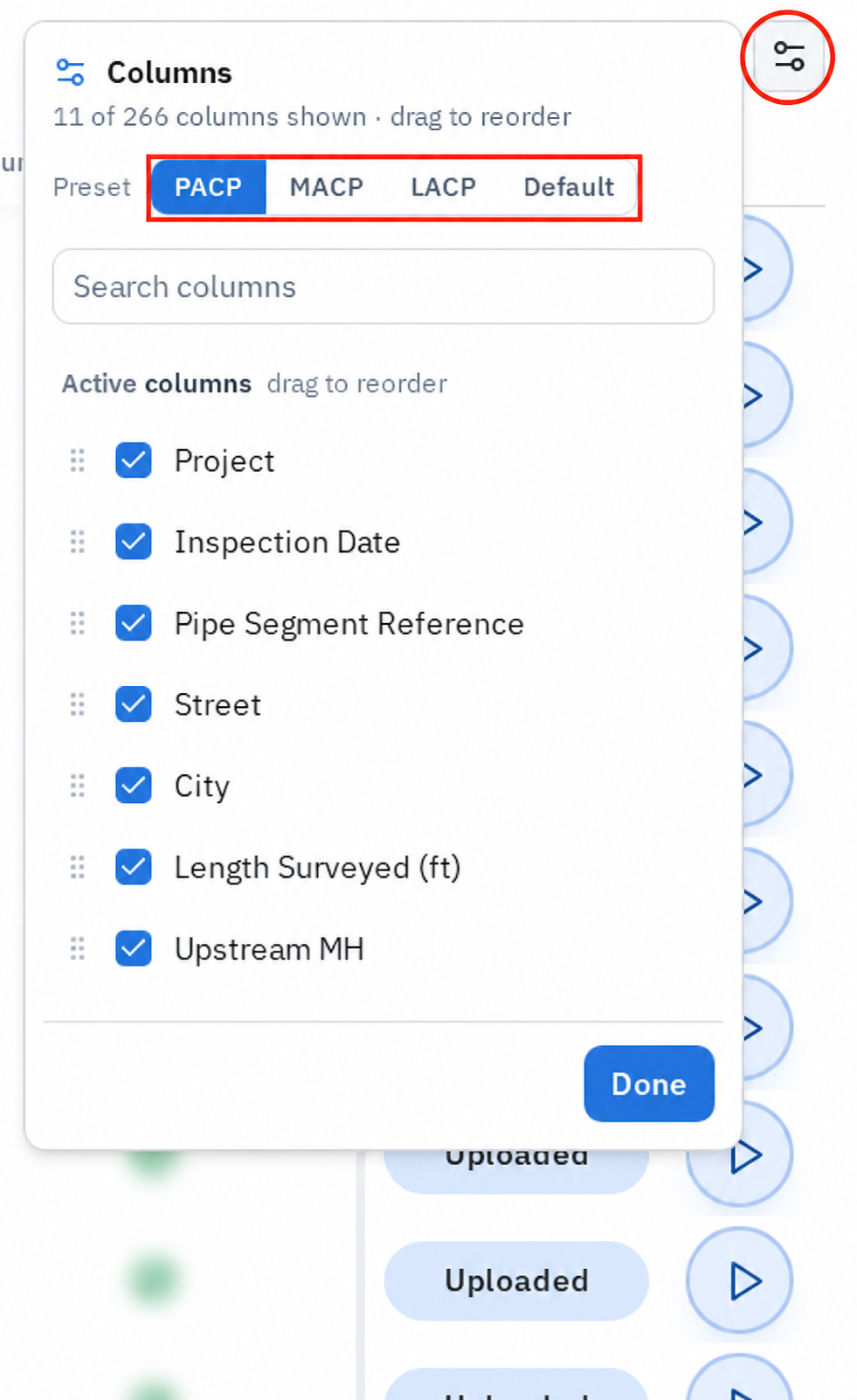
The CSV includes the visible columns plus these standard columns: sid, Asset Type, Link, Project (Pioneer), Uploaded Date, and AutoCode Complete.
Download the CSV
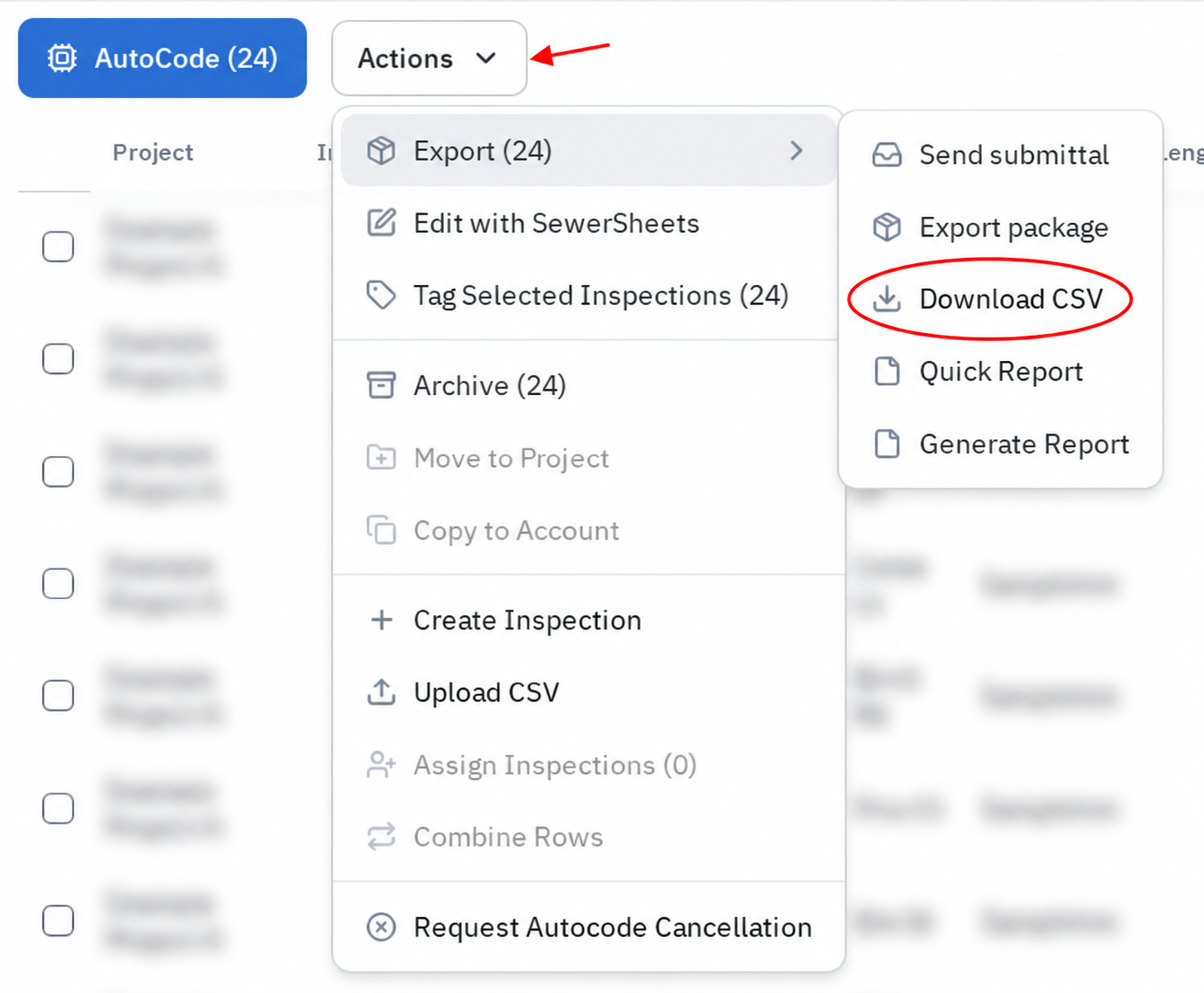
Open Actions.
Open Export.
Select Download CSV.
If your page has a separate Export button, select Download CSV from that menu.
Your browser downloads a file named inspections_YYYY-MM-DD.csv. Check your browser's downloads location.
Check the File
Open the CSV in a spreadsheet editor. Check that the expected inspections and fields are present. Header-level table data is separate from observation-level deliverables.
Related Articles
Still Need Help?
Use the chat widget in PIONEER to contact our support team.
If you cannot access the chat widget, email help@sewerai.com.