Adding Tags to Inspections
Last updated: November 4, 2026
Use tags to group inspections for a milestone, assignment, or follow-up. Apply tags to the inspections you choose, then filter by those tags.
Before You Start
You need Uploader, Editor, or Admin access to apply or remove tags. Account Uploaders, Editors, and Admins can create, rename, or delete tags. Project-only access lets you apply or remove existing tags.
Work within one account and no more than 500 inspections at a time. Check the count before applying a tag.
Select Inspections and Open the Tag Menu
Filter to the inspections you want to tag.
Tick rows if you want to use only part of that filtered set.
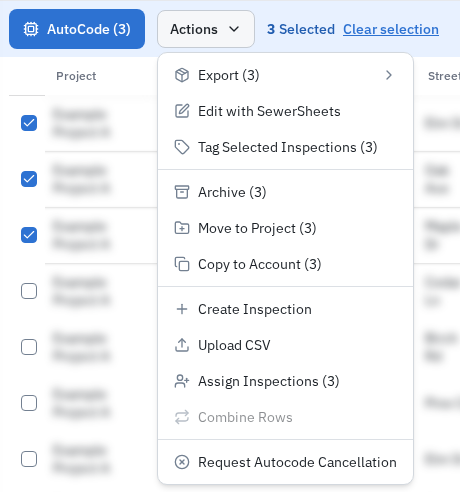
Open Actions and select Tag Selected Inspections. If your page shows a separate Tags button, select it instead.
With no rows ticked, the action uses the whole filtered set.
Create or Apply a Tag
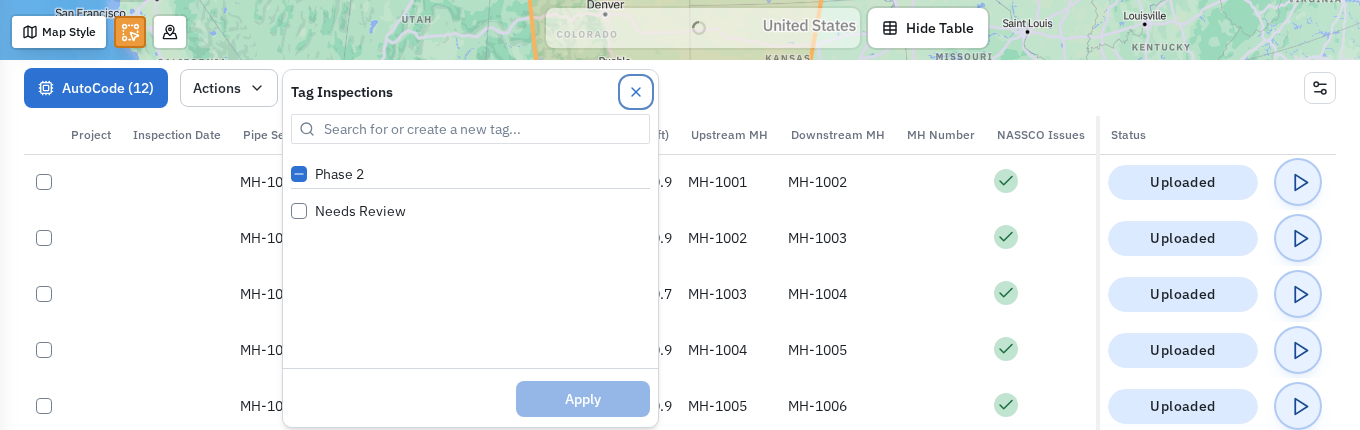
Search in the Tag Inspections dialog.
Tick an existing tag, or choose the create option for a new tag.
Select Apply.
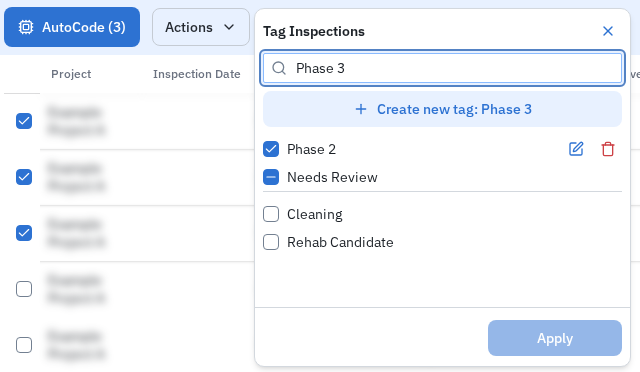
Tag names can contain letters, numbers, spaces, underscores, and hyphens, up to 32 characters. Add no more than 10 tags in one Apply action.
Remove a Tag from Inspections
Choose the inspections whose tag assignment you want to remove.
Open the tag dialog.
Untick the tag.
Select Apply.
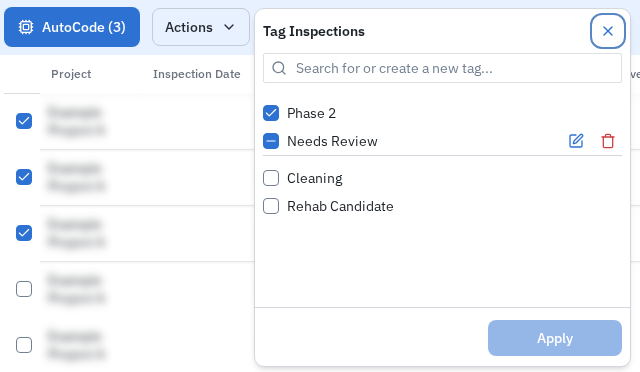
A mixed checkbox means that only some of the chosen inspections have the tag. Checking it adds the tag to all chosen inspections; unchecking it removes the tag from all chosen inspections.
The pencil and trash controls manage the account's tag definition. Renaming affects that tag across the account. Deleting the definition removes the tag from all inspections and assets that use it. Use the checkbox to remove an assignment from a chosen group.
View Tags for Each Inspection
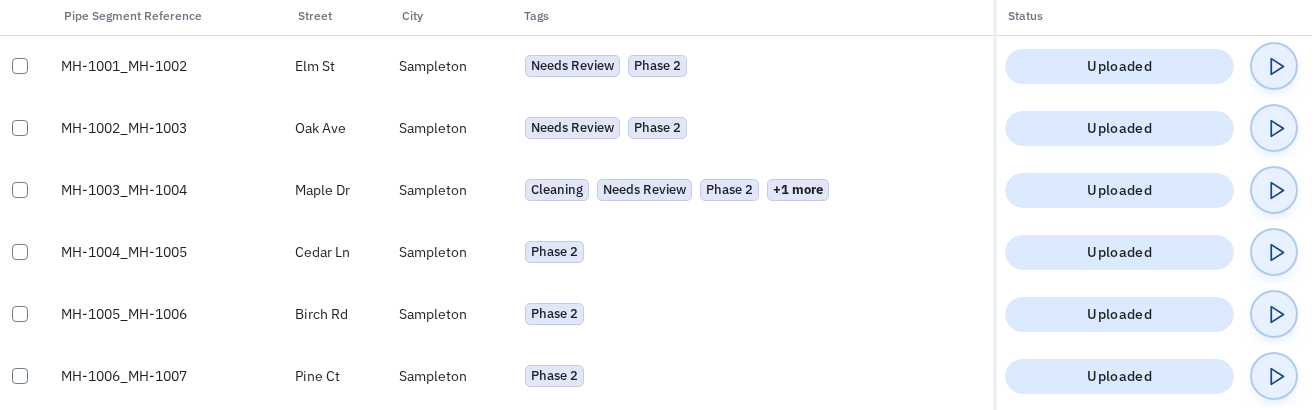
Open Customize columns.
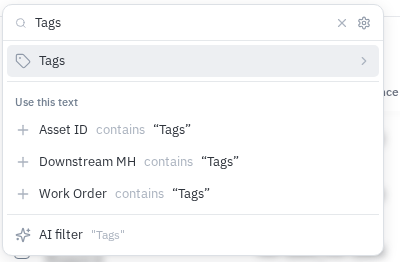
Turn on Tags.
Use the Tags filter to find tagged inspections.
Tag Inspections from the Map
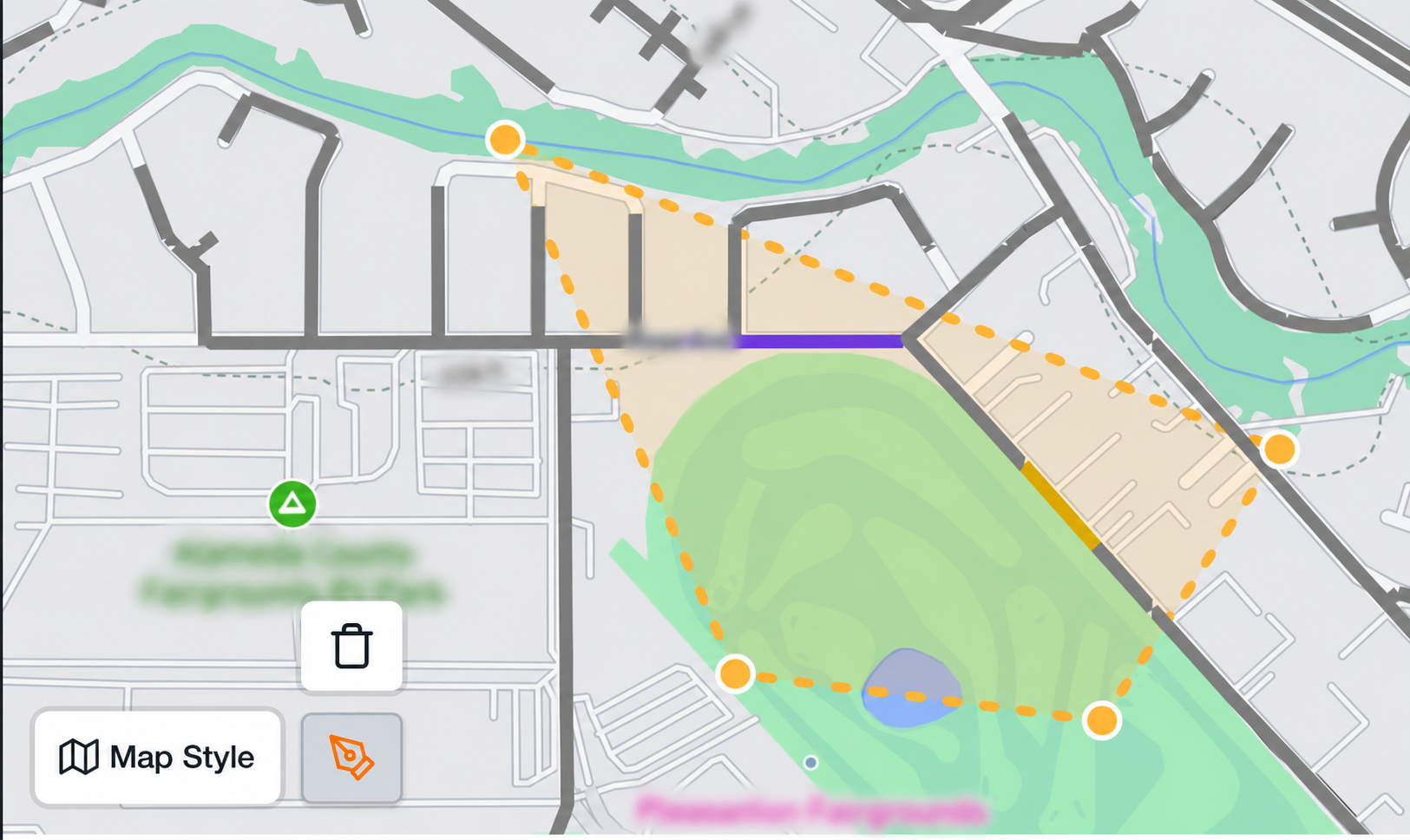
Use Draw selection area to outline the inspections.
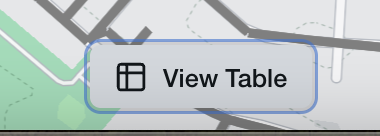
Select View Table.
Use the table's tag action.
Check That It Worked
Confirm that the intended inspections show the tag, or that the removed assignment is gone. Use the Tags filter to check the group.
Video Walkthrough
The recording shows an earlier tag-menu label. Use the written steps above for the controls on your page.
Related Articles
Still Need Help?
Use the chat widget in PIONEER to contact our support team.
If you cannot access the chat widget, email help@sewerai.com.