Creating an Inspection with Pioneer On Truck Software
Last updated: November 10, 2026
Create a local inspection, record its video and sync the completed work from PIONEER Desktop. Complete Truck Setup and Configuration before recording production work.
Before You Start
Sign in while internet is available before beginning offline field work.
Confirm the live camera feed, distance connection and local inspection folder. Check available space on the recording drive.
You need Uploader, Editor or Admin access for cloud sync. Entering inspection observations requires the appropriate editing access.
If the office has assigned an inspection, use Starting Assigned Work rather than creating another record for the same assignment.
Create the Inspection
Open Field Inspections and select Create Inspection.
Choose the appropriate inspection type, then Blank Inspection or Prefilled from Previous.
Review all copied header values. Confirm the operator, certificate, inspection date and time, location, direction and inspection-specific measurements.
Complete the required header fields. Use the issue indicators to find fields needing attention.
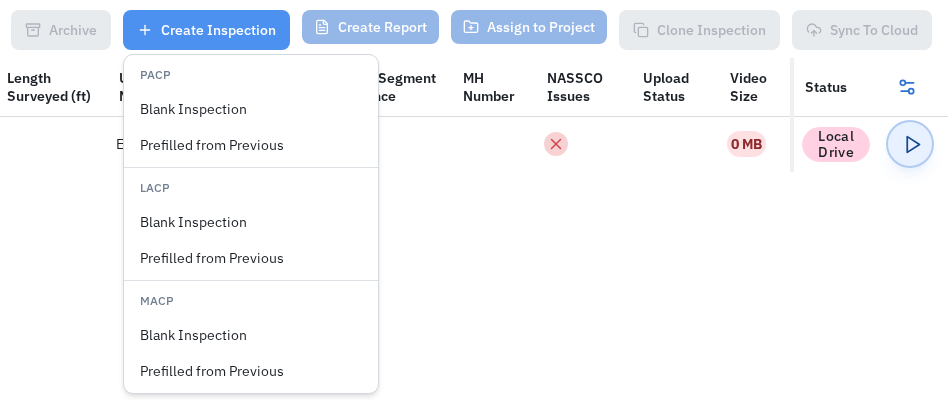
Choose PACP, LACP or MACP, then Blank Inspection or Prefilled from Previous.
Record, Pause and Complete
Desktop 9.8.0 can display a Low disk space warning when the recording-drive check finds less than 2 GB free. The warning does not block recording, and 2 GB is not a guarantee of enough space for your work. Check available capacity before recording.
Check the starting distance when the Recorder's distance control is available.
Select Record to start.
Select Pause when needed, then Record to continue.
When finished, pause and select Complete Recording.
Allow the recording to finish saving. Play it back and check that the required footage is present.
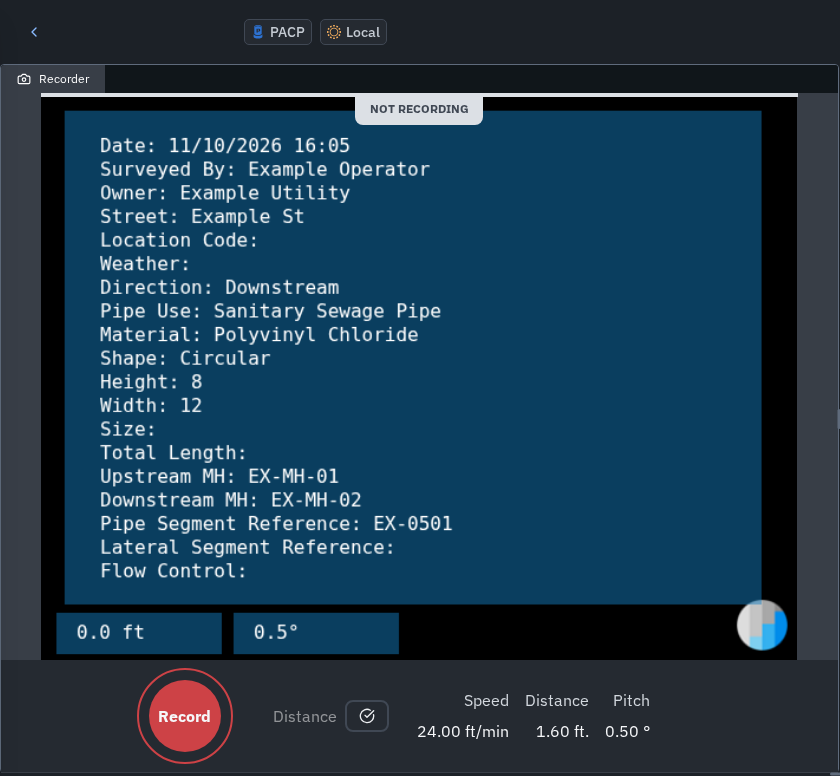
Envirosight Recorder example: Record starts the inspection. Check the starting distance before recording.
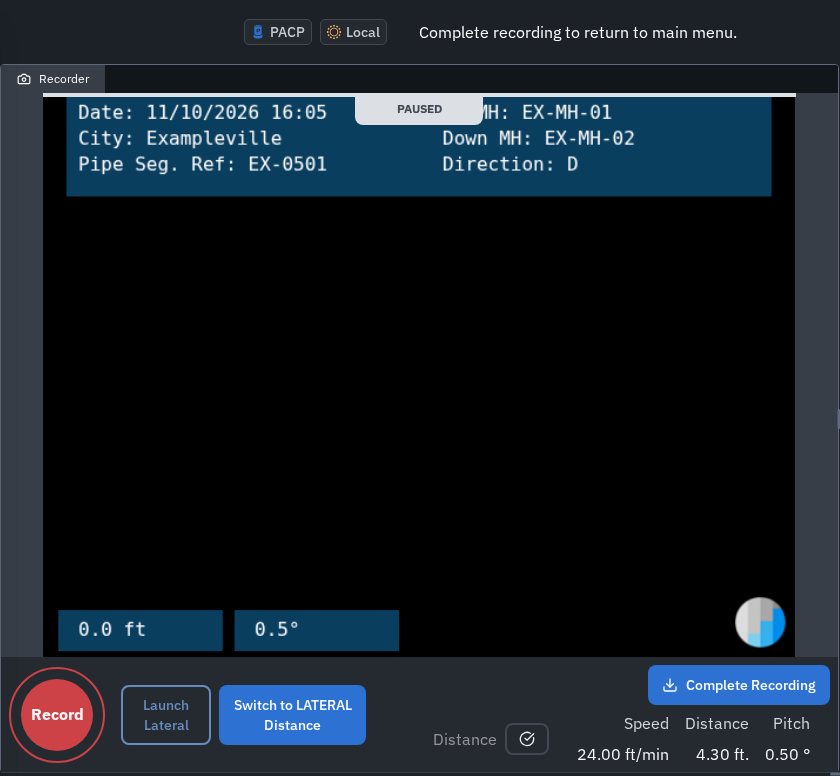
Paused Envirosight example: Record resumes; Complete Recording finishes. Lateral controls depend on the configured truck.
Camera-switching and lateral-launch controls depend on the configured truck and recorder. If your intended workflow is unavailable, contact Support with the truck/controller model.
IBAK SoftControls with IBAK Video Recorder uses a separate recording window and different controls, including Open Recorder. The Recorder examples above show the in-app recording workflow.
Check Header and Observation Issues
Add observations with the + control or Ctrl+D, when your access permits editing. Review the starting observations already present before adding duplicates.
For PACP work, check the initial access point, water level at 0.0 and closing access point. Follow the applicable inspection standard and resolve the displayed header and observation issues before syncing. Do not change truthful observations just to clear an error.
See Understanding and Resolving NASSCO Issues for issue indicators and correction guidance.

Observation issue indicators identify fields that need attention. The panel layout may differ.
Sync a Completed Inspection for the First Time
Connect the computer to the internet.
Open Field Inspections > Not Synced and select the intended inspections.
Check that each inspection has the correct project. Use Assign to Project when needed. Have an authorized user create a new project in PIONEER web first if necessary.
Select Sync To Cloud.
Review the Upload Local Inspections dialog and select Upload.
Keep PIONEER running and the computer connected while the upload finishes.
Check the result, then open the cloud inspection and verify the header and playable video.
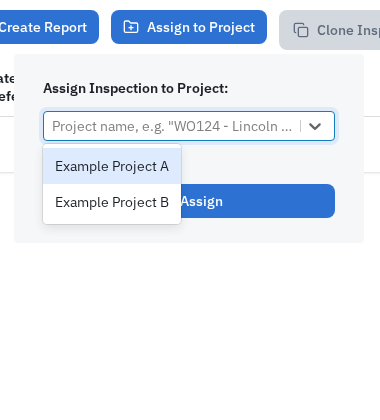
Assign to Project offers existing projects. Check the destination before selecting Assign.

A missing project can disable Sync To Cloud. Review the selected inspections and the button explanation.
If Sync To Cloud is unavailable, check its explanation. Causes include missing projects, NASSCO issues, no internet connection or an upload already in progress. If an empty-video warning appears, check the selected inspections before proceeding.
The explanation may show only the first detected problem. An empty-video warning does not by itself prevent sync, so verify the saved video even if the button becomes available.
Synced is a synchronization indicator. It does not by itself establish that every expected video is playable or that processing and AutoCode have finished.
If the truck cannot upload, follow Transferring Field Inspections to an Office Computer.
If Recording or First Sync Fails
Recording is incomplete or not saving: keep PIONEER and the inspection files intact. Check free space on the recording drive. If it remains on WRITING or you are unsure whether the recording saved, do not sync the unfinished inspection. Contact Support before restarting or recording over it.
Storage is full: follow your organization's backup and retention policy to make space. Do not delete inspection media until it is safely backed up or no longer required.
First upload fails: read the error, check the internet connection and confirm the local video plays. Use the failed item's Retry control when available after addressing the error. Contact Support if the failure persists or the transfer's state is unclear.
Cloud video is missing after transfer: use Missing Videos or Segments and preserve the local source.
Desktop upload retries start the transfer again. Closing PIONEER during upload does not preserve a resumable transfer.
Do not use re-sync as a repair or append procedure for an inspection that already has cloud video. Local recording resume, first sync and Replace Video are separate operations. Ask Support before transferring an edited or resumed recording over an existing cloud inspection.
Archive Unwanted Local Work
For an unwanted local inspection, check the intended row on Field Inspections, select Archive and review the confirmation before selecting Yes, Archive. This is a local-inspection action. Do not use archive as an upload repair or assume it provides a customer restoration procedure. Keep required recordings and contact Support if you are unsure which copy to retain.
Earlier Video Walkthrough
This walkthrough illustrates creating and recording a field inspection. It shows older menus and validation labels. Follow the current steps above for creation, project assignment and sync.
Still Need Help?
Use the chat widget in PIONEER to contact our support team.
If you cannot access the chat widget, email help@sewerai.com.