Syncing Truck (Field) Inspections from the Office
Last updated: November 10, 2026
When field internet is unavailable, copy complete PIONEER inspection folders from the truck to an office computer, then upload them using PIONEER Desktop. Keep the original truck copy until the cloud inspections and videos have been checked.
Before You Start
Install PIONEER Desktop on both Windows computers. Use the Desktop update guide if either needs updating.
Finish recording and allow the video to finish saving before copying its folder.
Use removable media with enough capacity, and choose a destination on the office computer's internal drive.
Copy complete inspection folders, including their supporting data. A video file alone is not the complete local inspection.
1. Find the Truck's Active Inspection Folder
On the truck, open Truck Settings.
Find Inspection Folder and read the displayed Path.
Open that path in Windows File Explorer. Do not select a different folder just to inspect the location.
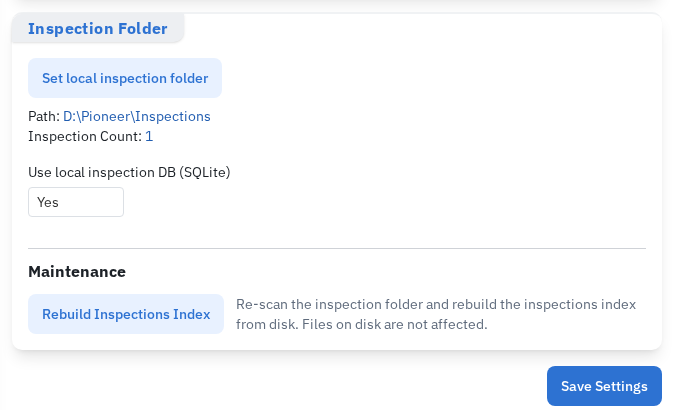
Read Path to find the active local inspection parent folder; do not choose a different folder just to inspect it.
2. Copy Complete Inspection Folders
Identify the inspection folders you need. Open the intended inspections in Desktop if needed to confirm their identity.
Use Copy to copy the complete folders onto the removable drive. Keep their folder names unchanged.
Keep the original folders on the truck. Check that the copied files are present before taking the drive to the office.

Local inspections are stored in individual folders. Copy the complete folders and their contents.

Use Copy for the selected inspection folders, preserving the originals on the truck.
3. Copy onto the Office Computer
Copy the inspection folders from the removable drive into the office computer's local inspection parent folder.
If Desktop is already configured, check its current Inspection Folder path before copying. Put each inspection folder directly inside that parent folder, without an extra truck or date folder between them.
For a new office setup, create a parent folder on the internal drive. In Truck Settings > Inspection Folder > Set local inspection folder, select that parent folder. Selection changes the saved location immediately. Re-read Path to confirm the result.
If Windows reports an existing folder or file with the same name, stop and compare the copies with Support. Do not overwrite an existing inspection blindly or create renamed copies to bypass the conflict.
4. Discover and Check the Copied Work
Reopen Field Inspections after copying and check for the transferred inspections.
If they are missing, verify the configured folder path and that each inspection folder is directly inside it.
Use Truck Settings > Inspection Folder > Rebuild Inspections Index to rescan the correct local folder if needed. Save a pending local-database setting change first if prompted.
Open the transferred inspections and check the header, observations and video playback.
Rebuilding the index discovers local files. It does not upload them or recover missing video. If the folders still do not appear, supporting data is missing or a video does not play, keep both copies and contact Support.
5. Upload from the Office
Check whether the truck or another computer has already uploaded this inspection. The office copy's Not Synced or Synced label reflects the copied local state; it does not check the current cloud record.
For inspections that have not yet been uploaded, follow the first-sync steps in Creating and Syncing an Inspection: confirm the destination project, resolve the displayed issues, select the intended work under Not Synced, then select Sync To Cloud > Upload.
After transfer, open the cloud inspections and check their headers, observations and playable videos. Keep the truck, removable-drive and office copies until your organization's verification and retention requirements are met.
If an inspection already has cloud video, or both truck and office copies have been edited, ask Support before syncing. Copying the folder is not a procedure for merging edits or appending footage to the cloud copy.
If Transfer or Upload Fails
Contact Support with the source and destination folder paths, project, inspection references, filenames and exact error. Explain whether the inspection was previously synced. Keep the original folders and avoid repeated copies or uploads while the state is unclear.
Still Need Help?
Use the chat widget in PIONEER to contact our support team.
If you cannot access the chat widget, email help@sewerai.com.