Truck Setup Checklist and Configuration
Last updated: November 10, 2026
Prepare your computer, camera and distance connection for PIONEER Desktop. Arrange a guided installation and configuration session with SewerAI Support, especially for your first truck.
Before Your Setup Session
Collect the computer specifications, truck/controller model, camera system, capture device and serial or distance-interface details.
Tell Support how many trucks you are setting up and whether operators will record and upload, or also enter observations in the field. Confirm the required account access.
Have internet access for installation and sign-in. Check that the intended operator can sign in before the session.
Have a measuring tape available for distance checks and calibration.
Power on the camera and controller. If a meeting application takes over the capture device, use a separate device for the support call.
Give Support the exact equipment models. A truck-type option alone does not establish compatibility with every camera, controller or capture card.
Install and Sign In
On the Windows recording computer, download the stable installer from the official PIONEER Desktop download page.
Run the installer and open PIONEER Desktop.
Follow your organization's Windows installation and network-access requirements.
Sign in using the intended operator account.
For future updates, use Updating Your PIONEER Desktop App.
Configure Truck Settings
Open Truck Settings from the sidebar. Configure these sections with Support:
Truck Info: Truck Name, Metric and the appropriate hardware-overlay setting.
Video Settings: Video Input and, when applicable, Video Input Source. Select the intended Audio Input if you want audio recorded. Confirm the picture and sound in a test recording.
Connection Settings: Truck Type, Serial Port, Baud Rate, Parity and Stop Bits as required by the controller. Enable Enable Distance Display and Communication when using the distance connection.
Calibration: verify distance against a known measured length. Have Support confirm the calibration method for your equipment. Do not copy another truck's calibration factor.
Inspection Folder: choose a folder on the computer's internal drive using Set local inspection folder. Selecting a folder saves that location immediately. Re-read the displayed Path to confirm it.
Select Save Settings after changing the configuration fields. Folder selection is saved separately as soon as you choose the folder.
If you use Detect Baud Rate, read the detected result and select that rate in Baud Rate; detection does not fill the field for you. Connection fields vary by controller.
Have Support confirm the calibration procedure and units for your truck, especially when using metres or centimetres. Save Calibration also saves other pending Truck Settings changes, so review them first.
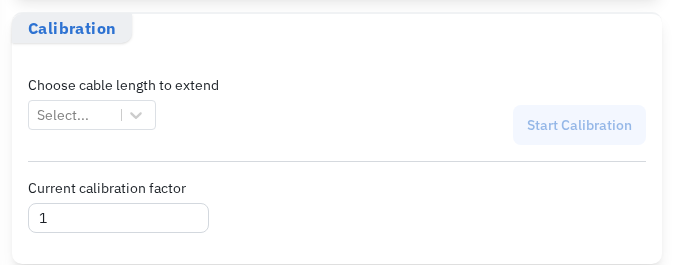
The Calibration section shows the measured-length selector and current factor. Confirm the method and units with Support.
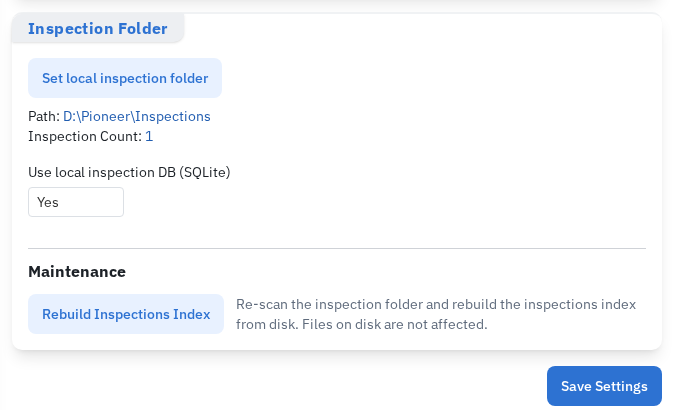
Read Path to check the active parent folder. Set local inspection folder changes it immediately.
Validate the Setup
Use Test Connection to check the distance connection, then stop the test. Check the camera feed separately.
Verify that distance moves in the expected direction and units, and check it against the measured length.
Record a short test inspection. Play it back and check the image, distance overlay and any expected audio.
Review the required header and observation fields, assign the test project and complete a first sync.
Open the cloud inspection and verify its header and playable video before recording production work.
Use Creating and Syncing an Inspection for the recording and first-sync steps. A distance connection test alone does not verify video, audio or cloud upload.
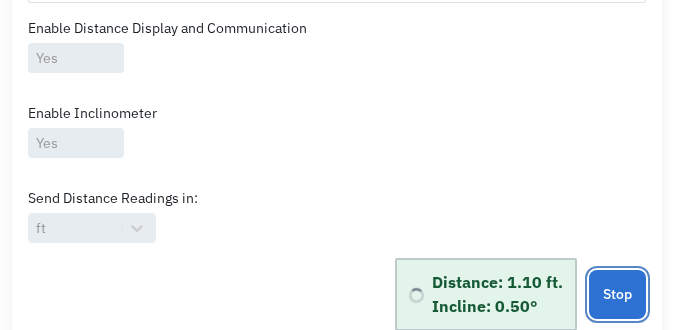
Envirosight example: Test Connection displays distance and supported incline readings. Check live video and recorded audio separately.
Settings Incorrect can appear while the test is still waiting for a distance reading. If readings do not arrive, stop the test and check the connection with Support.
If Something Does Not Work
Stop the test and contact Support if the camera, controller, distance or capture device is not recognized, readings are incorrect, or the test recording does not save. Keep the local inspection folder and files intact. Include the equipment models and the displayed error.
Still Need Help?
Use the chat widget in PIONEER to contact our support team.
If you cannot access the chat widget, email help@sewerai.com.