Setting up PIONEER Desktop with Metrotech/Vivax vCam-5/6 Control Modules
Last updated: April 15, 2025
System Requirements
PIONEER Desktop Software
PC meeting PIONEER Desktop software minimum requirements
vCam-5 or vCam-6 Control module (serial number above 1090 1090 182)
Required Connection Components
For Distance Counter Interface
vCam-5:
USB to RS232 Serial Converter (with FTDI chipset)
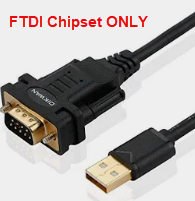
vCam-6:
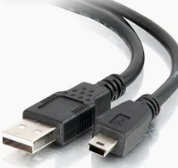
USB-A to USB-Mini5B Cable
For Video Interface (Both Models)
USB Video Capture Device
RCA Composite Video Cable
HDMI Video Cable (vCam-6 only)
Connection Setup
Distance Counter Connection
For vCam-5:
Connect Null Modem Adapter to the vCam-5's RS232 port
Connect USB to RS232 Serial Converter to the Null Modem Adapter
For vCam-6:
Connect USB-A to USB-Mini5B Cable between the control module and PC
Video Connection
Connect RCA cable to the control module's Video Out socket

Connect the other end to the USB Video Capture Device
Connect the USB Video Capture Device to the PC's USB port
Software Configuration
Distance Counter Settings
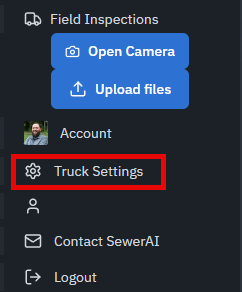
Launch PIONEER Desktop and open Truck Settings
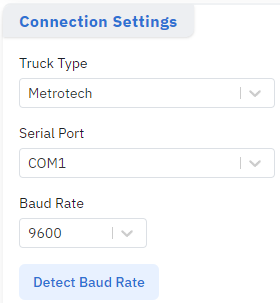
Under Connection Settings, select "Metrotech" as Truck Type
Select the appropriate COMM port from the Serial Port dropdown
Keep Baud Rate at 9600
Click Test Connection to verify setup (green box will show current distance)
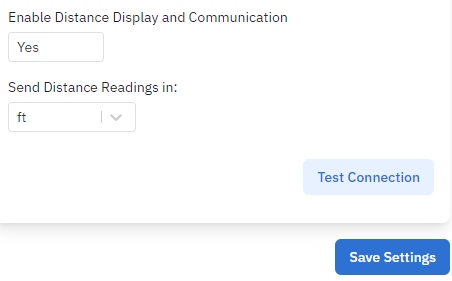
Click Save Settings when successful
Video Settings
Power on the control module before the PC
In PIONEER Desktop, go to Truck Settings > Video Settings
Click the dropdown below Video Input
Select your USB Video Capture Device from the list
Click Save Settings
Additional Features
Display Settings
Toggle On-Screen Status Bar: Press Ctrl + F10
Change OSD Position: Press F2 Info key to cycle through bottom, top, or off
Change OSD Color: Hold Ctrl while pressing F2 Info to cycle through white, black, green, and yellow
Video Output Modes
Camera Mode: Shows raw video only (preferred)
CVBS Mode: Shows OSD and text writer text