Understanding and Resolving NASSCO Issues in Inspections
Last updated: November 10, 2026
Use NASSCO validation messages to find missing or incompatible inspection data. Read the specific message before changing a header field, observation, timestamp or measurement.
NASSCO validation and QAI review tasks are separate. Resolving one does not necessarily resolve the other.
Find inspections with issues
Open Inspections.
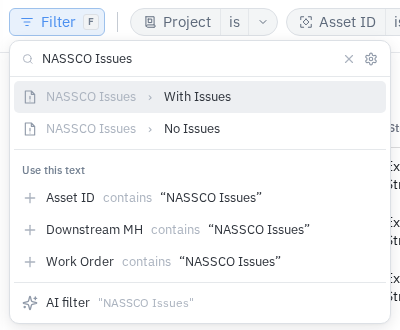
Open Filter, search for NASSCO Issues and choose With Issues.
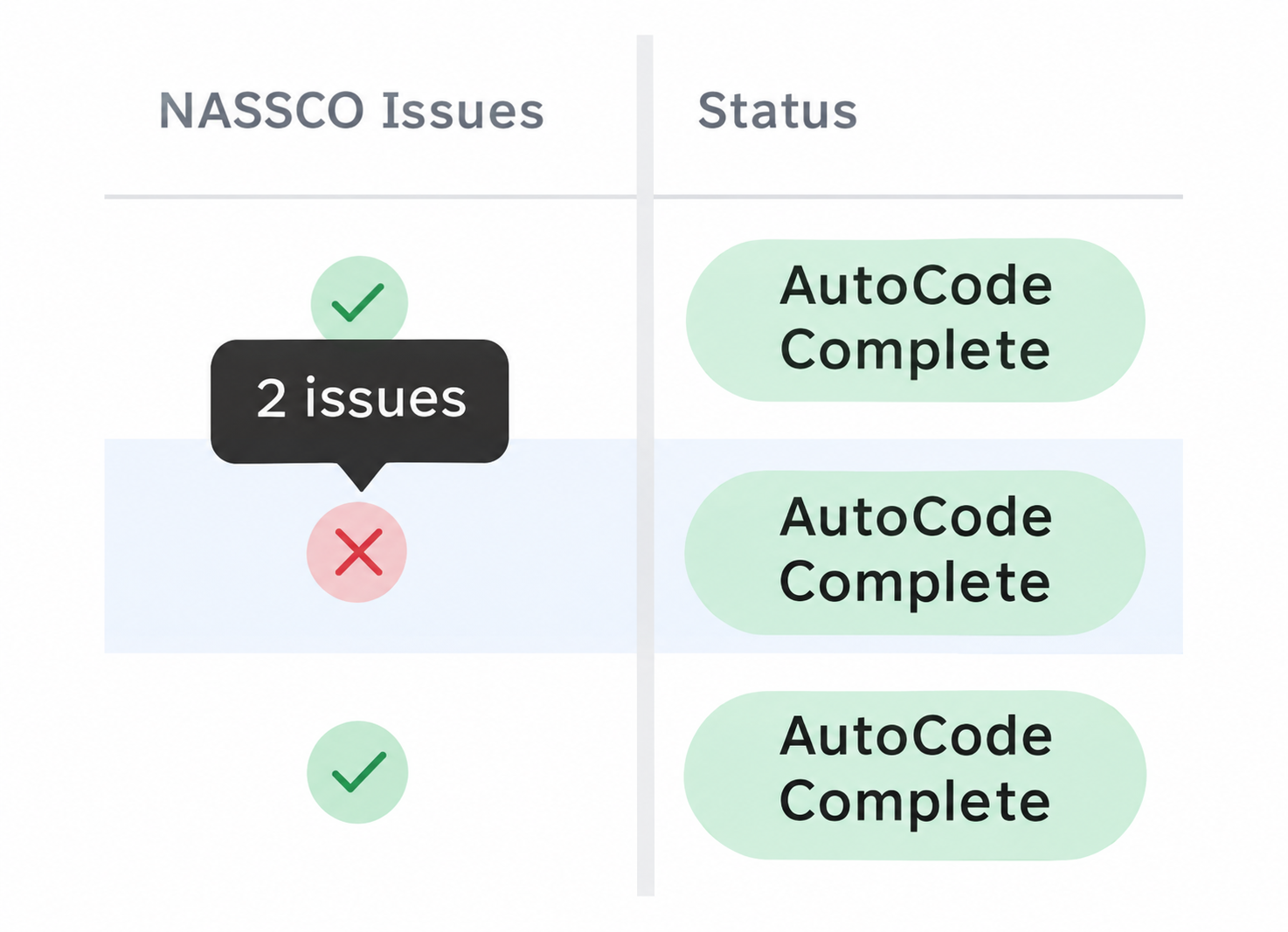
Show the NASSCO Issues column if needed. Hover over its red issue indicator to see the count.
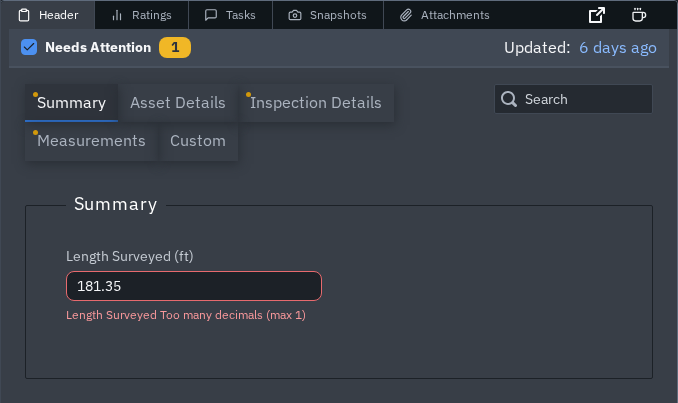
Open the inspection. In Header, use Needs Attention (Errors on phones) to show the fields with validation errors and read their red helper messages.
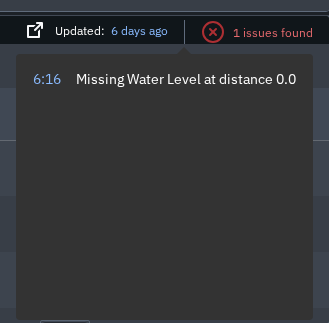
For observations, hover over N issues found to read the messages. Select an entry to jump to that observation in the video.
In an older filter layout, open the funnel control and set NASSCO Issues? to With Issues.
Correct missing or incompatible values
Complete the required fields identified by the message and check the inspection type and the units shown. Enter the actual survey values. Do not invent a measurement, certificate number or status to make validation pass.
Code-specific requirements can differ. If you are unsure how a condition should be coded or which field applies, contact Support with the inspection link, code and exact validation message.
Check a final-code timestamp
When recording, enter the final access-point or end code before stopping the video. Leaving a brief one-to-two-second buffer after the final code is a recording recommendation; it is not a universal minimum-duration rule for every NASSCO code.
If PIONEER reports an observation timestamp after the end of the video, check the footage and the observation's actual timing before making a correction. See Understanding and Fixing Video Timestamp Issues for the timestamp workflow, or contact Support if the safe correction is unclear.
Understand a zero rating
A zero NASSCO rating is not automatically a validation error. It can occur when there are no graded defect observations, including an inspection containing only non-graded observations. Incomplete grading inputs or observations excluded from rating can also affect the result. A zero alone does not prove that the pipe has no defects. Ask Support if the result is unexpected or requires a NASSCO interpretation.
Check the output you need
Export package: resolve the NASSCO issues reported by this action before creating the package.
Digital Submittal: current web and Desktop 9.8.0 can offer a not NASSCO-certified submittal. It has no MDB database and its PDF reports are marked not NASSCO-certified. Correct the issues first when a certified deliverable is required. Desktop 9.7.1 still blocks sending while issues remain.
Download CSV: this separate table-data download does not certify the inspection or resolve its validation issues.
Desktop Sync To Cloud: if the tooltip says Correct NASSCO issues before you Sync, resolve the identified issues before uploading the local inspection.
If an issue indicator remains but no specific error is visible, contact Support with the inspection link, screenshot, browser or Desktop version and the output you are trying to create.
Related guides
Still Need Help?
Use the chat widget in PIONEER to contact our support team.
If you cannot access the chat widget, email help@sewerai.com.