Assigning Work to a Field Operator and Starting Assigned Work
Last updated: November 10, 2026
Assign prefilled inspections to a field operator, then have the operator open that assigned work in PIONEER Desktop.
Before assigning work
Use the correct account and inspection type.
Check that the prefilled records are the Upload Pending inspections you intend to assign.
Use an operator who has completed account setup and has the required field access.
Assigning existing prefills and creating new prefills from map assets are separate actions. Check for an existing inspection before creating another record.
Assign existing prefilled inspections
Open Inspections.
Filter to the intended work and tick the specific prefilled inspection rows.
Check the selected rows and affected count. Keep each assignment to one account and one inspection type.
Open Actions or the ⋮ menu, depending on the toolbar, then select Assign Inspections (N).
In Assign Inspections to Operator, choose the operator under Select Operator.
Select Assign Inspections.
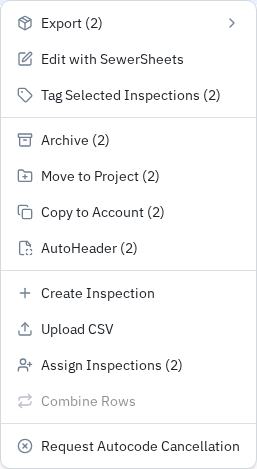
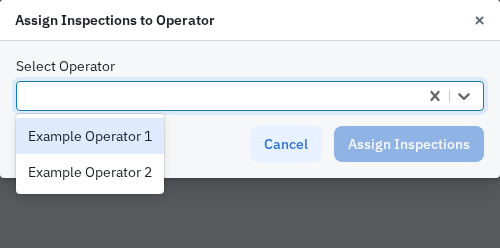
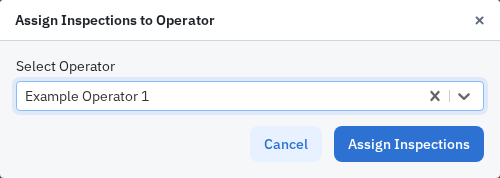
The assignment fills Surveyed By and Certificate Number from the chosen operator's profile. Assigning again can overwrite existing values, so check that the profile identifies the person who will perform the survey.
Use a registered Uploader as the field operator and confirm they belong to the intended account and project. Editor or Admin access alone does not put a person in this picker. Type a name or email address to search. If the intended person is missing, ask your account Admin or Support to check the setup; do not select another person simply to complete the dialog.
Create and assign new prefills from the map
Open Inspection Maps and display the correct account and asset layer.
Select Draw selection area.
Draw around the intended assets. Double-click or press Enter to finish.
Check the selection, then select Create Prefills and Assign N Inspections. Use no more than 100 assets for one action.
Choose Project first, then choose the operator under Select Operator. The selected project determines the account. Select Assign Inspections.
Check the newly created inspection rows and their operator information.


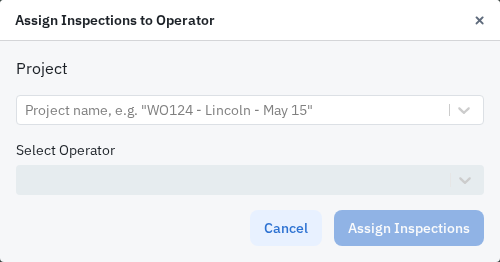
This action creates new inspection records from the selected GIS assets. Check for existing prefills before running it again. To reassign existing records, use their checked rows in Inspections.
Start assigned work in PIONEER Desktop
Open Inspections, rather than the local Field Inspections list.
Select Assigned to Me.
Find the intended prefilled inspection and check its asset, project and operator details.
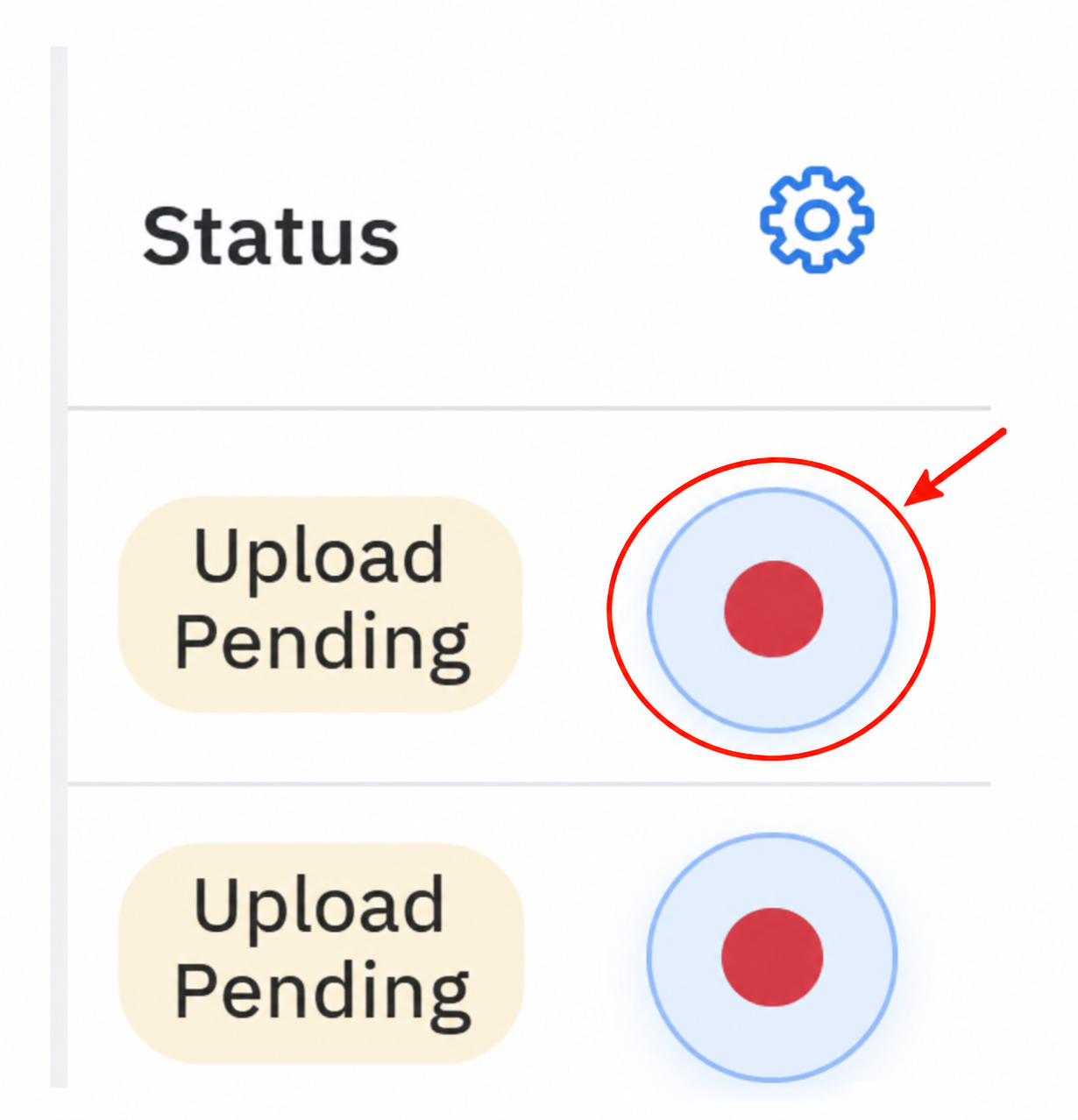
Select its red-dot control to open the inspection in Review. Check the prefilled header and the current Inspection Date and Time.
Use Record in the recorder to start recording.
Assigned to Me finds Upload Pending work using the operator name in Surveyed By. If work is missing, check that name against the operator's profile, then contact Support with the project, asset and intended operator. Keep the existing prefilled record while the assignment is checked. Camera integrations can use different recorder controls; contact Support if your controls differ from these steps.
Related guides
Still Need Help?
Use the chat widget in PIONEER to contact our support team.
If you cannot access the chat widget, email help@sewerai.com.