Downloading CSVs
Last updated: April 1, 2026
Need a quick spreadsheet export of your inspection data? Use Download CSV to export inspection table data directly from PIONEER.
This is helpful when you need to:
Review inspection metadata
Share header data externally
Pull fields like work order, dates, asset info, and more
How to Download a CSV
1. Filter the inspections you want to include
From the Inspections page, use filters to narrow the data set you want to export.
2. Choose which fields to include
Click the gear icon ⚙ in the top-right corner of the table to enable the fields you want to display.
Whatever columns are visible in your table will be included in the CSV export.
Example:
If you want to include Work Order:
Click the gear icon
Search for Work Order
Enable the checkbox
The field will now appear in your table and export

3. Select inspections (optional)
Use the checkboxes on the left to select specific inspections.
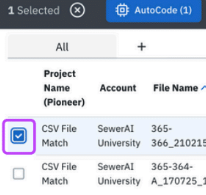
NOTE: If nothing is selected, PIONEER will export all filtered inspections.
4. Click Export → Download CSV
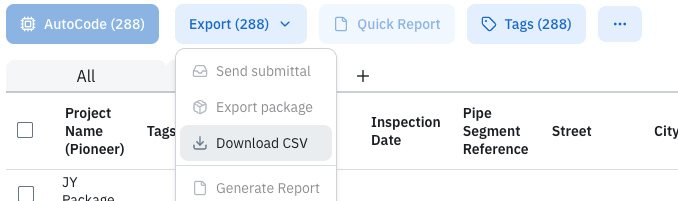
The file will typically open automatically. If not, check your downloads folder.
Tips 💡
Only visible columns will export
Use filters first to keep the CSV clean and relevant
This export is best for header-level inspection data, not full deliverables