Video Annotations (Overlays) with Customization
Last updated: November 2, 2026
Use a template to preview video overlays during review or add text and narration to an exported video.
Before you start
- Use a supported PACP or LACP video for annotated export
- Use access that permits video export
- Use Editor or Admin access to change a project’s Review template
Preview overlays during review
The Review template is shared by the project. Selecting or clearing it changes the preview seen by other users of that project.
- Open an inspection that belongs to the project.
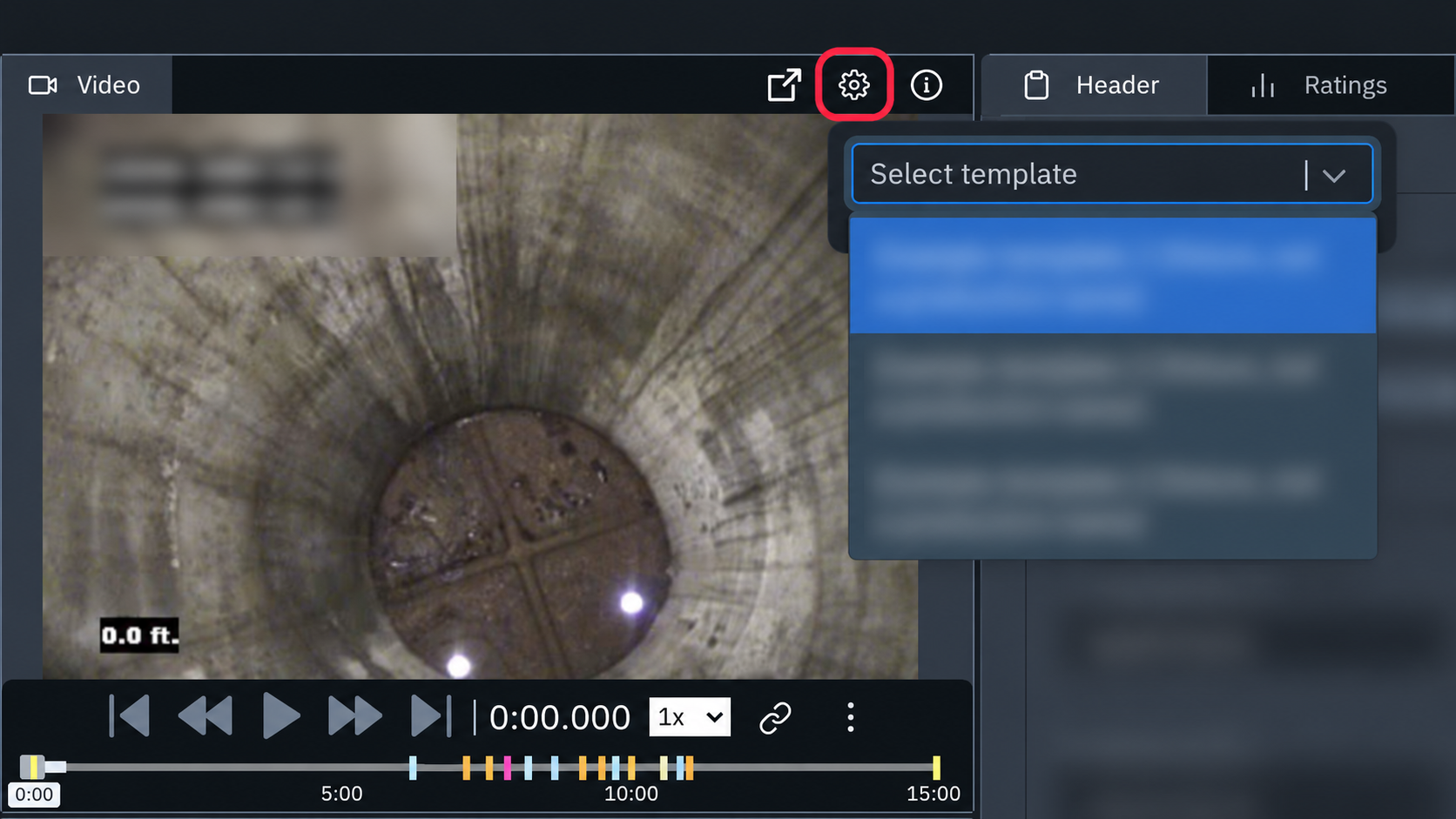
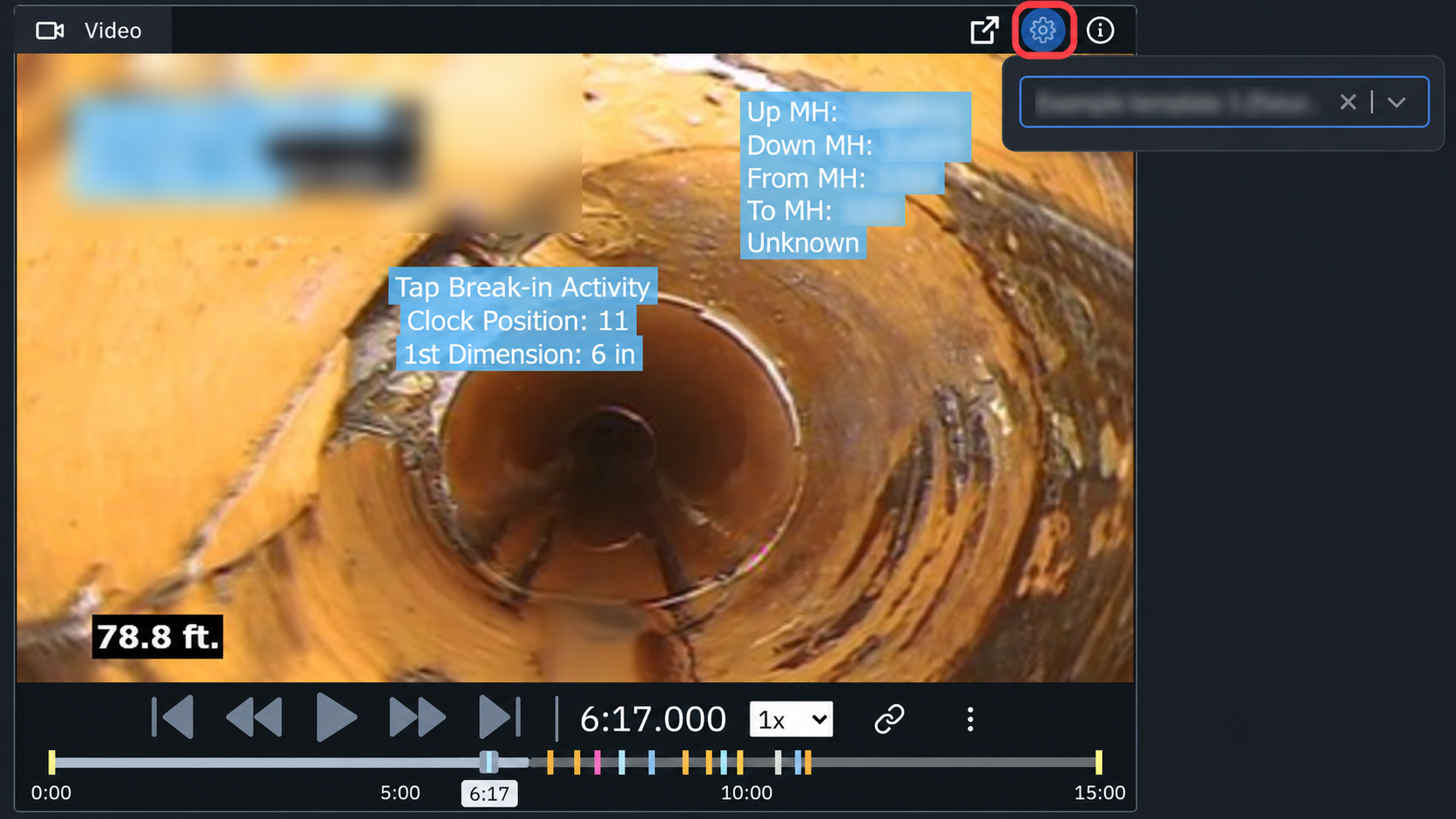
- Open the gear control in the Video panel.
- Use Select template to choose a template.
The preview adds overlay text without generated narration or inserted pauses. This shared Review selection does not set the template used by default for exported videos.
Add overlays when exporting
- Select the inspections on the Inspections page.
- Open Export (N), or Actions → Export (N) if your toolbar groups actions.
- Select Export package.
- Expand Videos.
- Select Text and audio annotations (CCTV only).
- Open the PACP ANNOTATIONS or LACP ANNOTATIONS tab.
- Use Select template and choose the overlay options.
- Review the preview.
- Enter the required download name.
- Select Package.
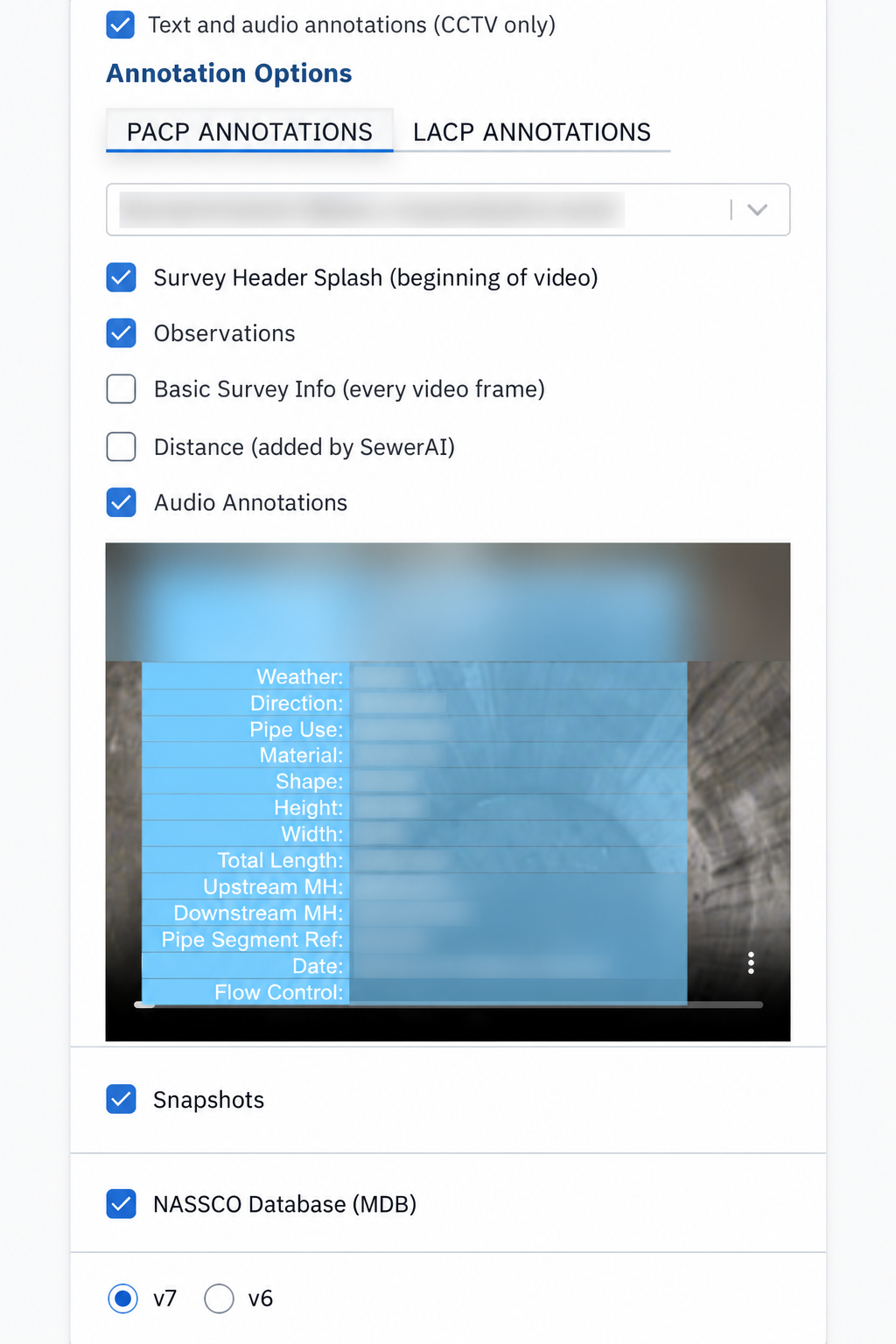
The options include Survey Header Splash (beginning of video), Observations, Basic Survey Info (every video frame), Distance (added by SewerAI) and Audio Annotations. The preview does not play the generated narration or inserted pauses.
A selection containing MACP inspections cannot use annotated video export. GoPro .360 files are copied without these overlays. For supported equirectangular PACP/LACP MP4 video, annotation text is added as a subtitle track. Flat PACP/LACP video receives the overlay in the video image.
Templates and custom styles
Available templates can differ by account and inspection type. The export dialog can start with the project specification’s template, which is separate from the Review preference.
Contact support if you need a custom template or help covering existing text. An overlay can cover a text area; it does not remove text already recorded into the source video.
Example Overlay Styles
These examples show different ways a template can display text. Use Select template to see the choices available to your account.
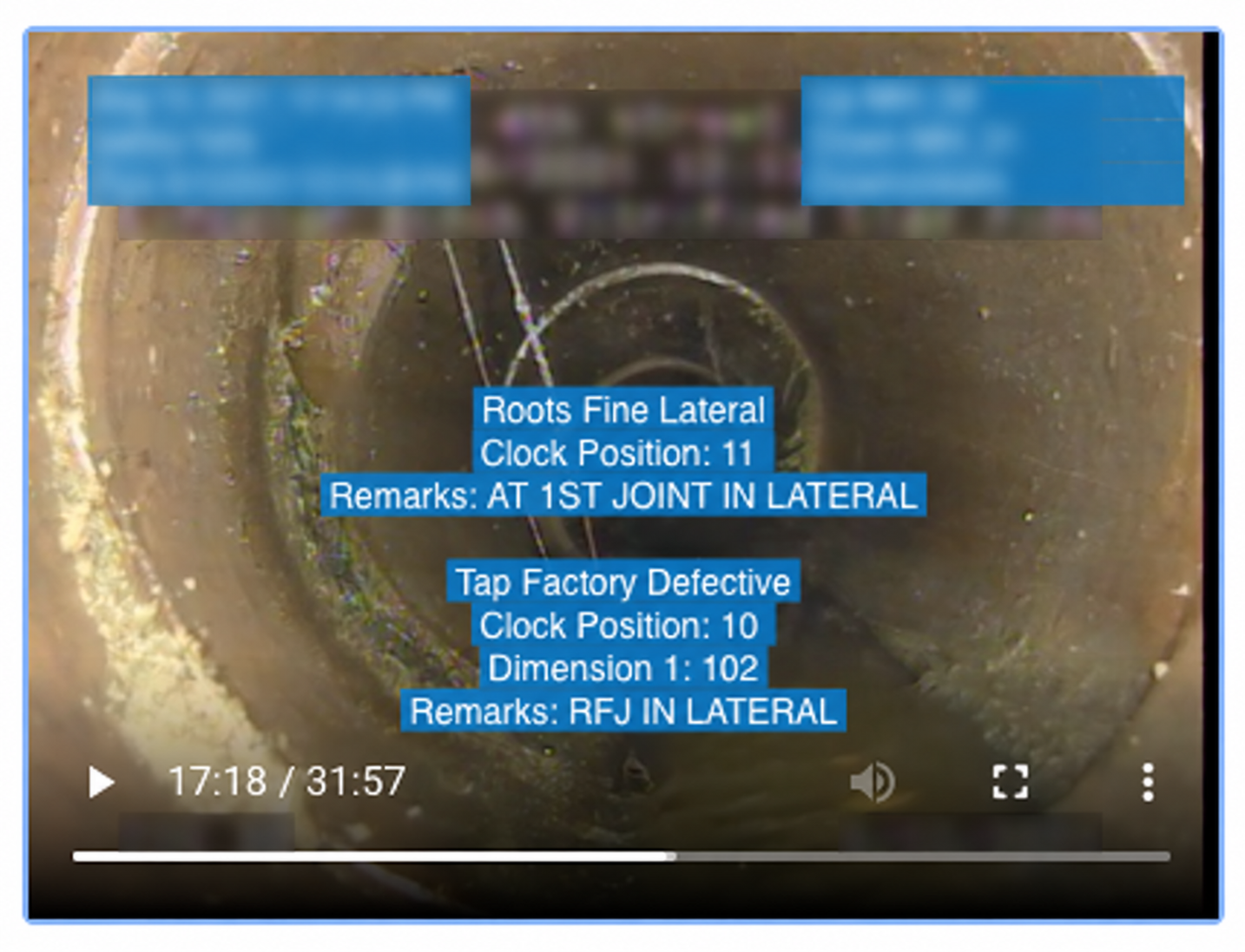
Blue-background text example. Identifying inspection text is blurred.
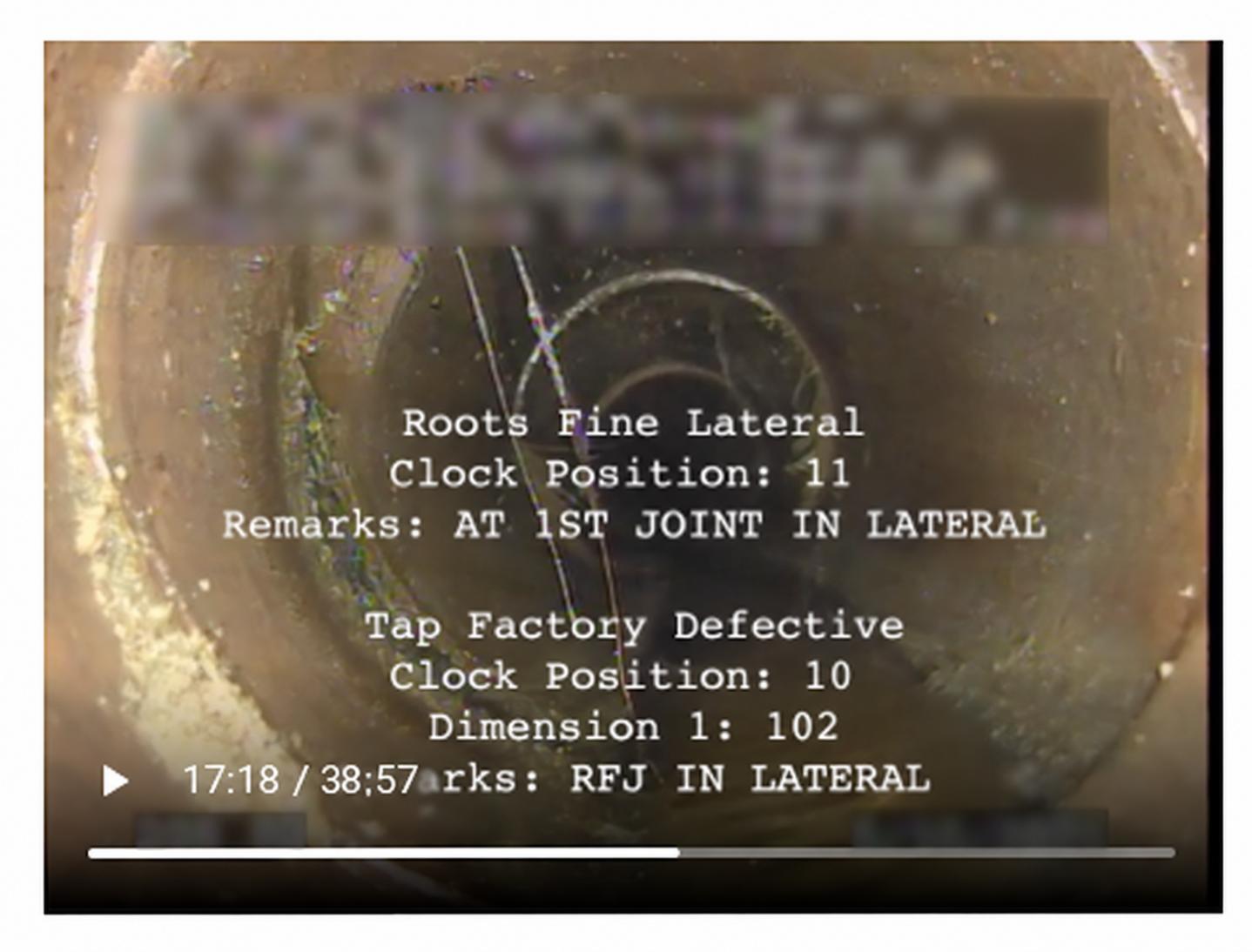
Serif text without a filled background. Identifying inspection text is blurred.
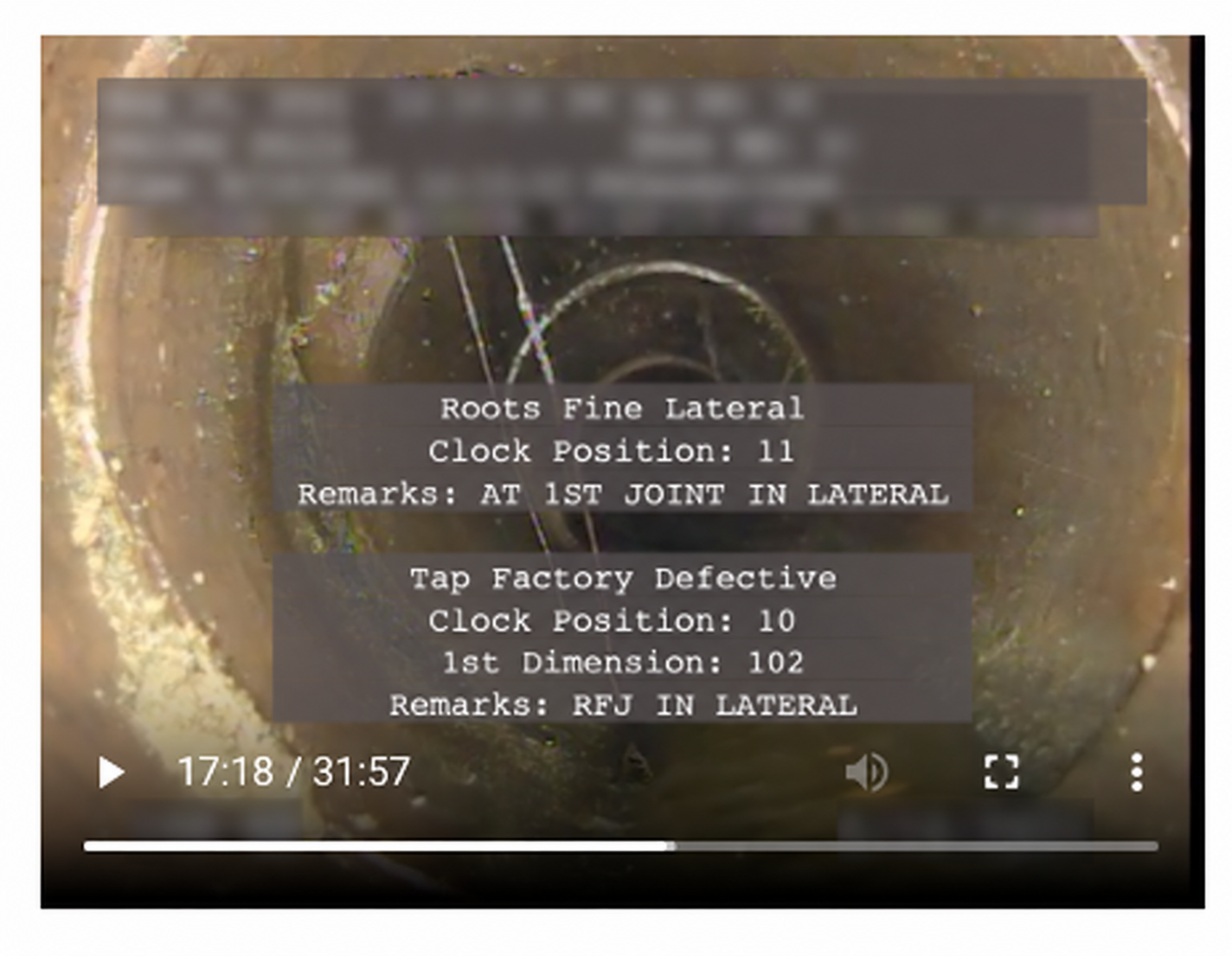
Translucent background example. Identifying inspection text is blurred.
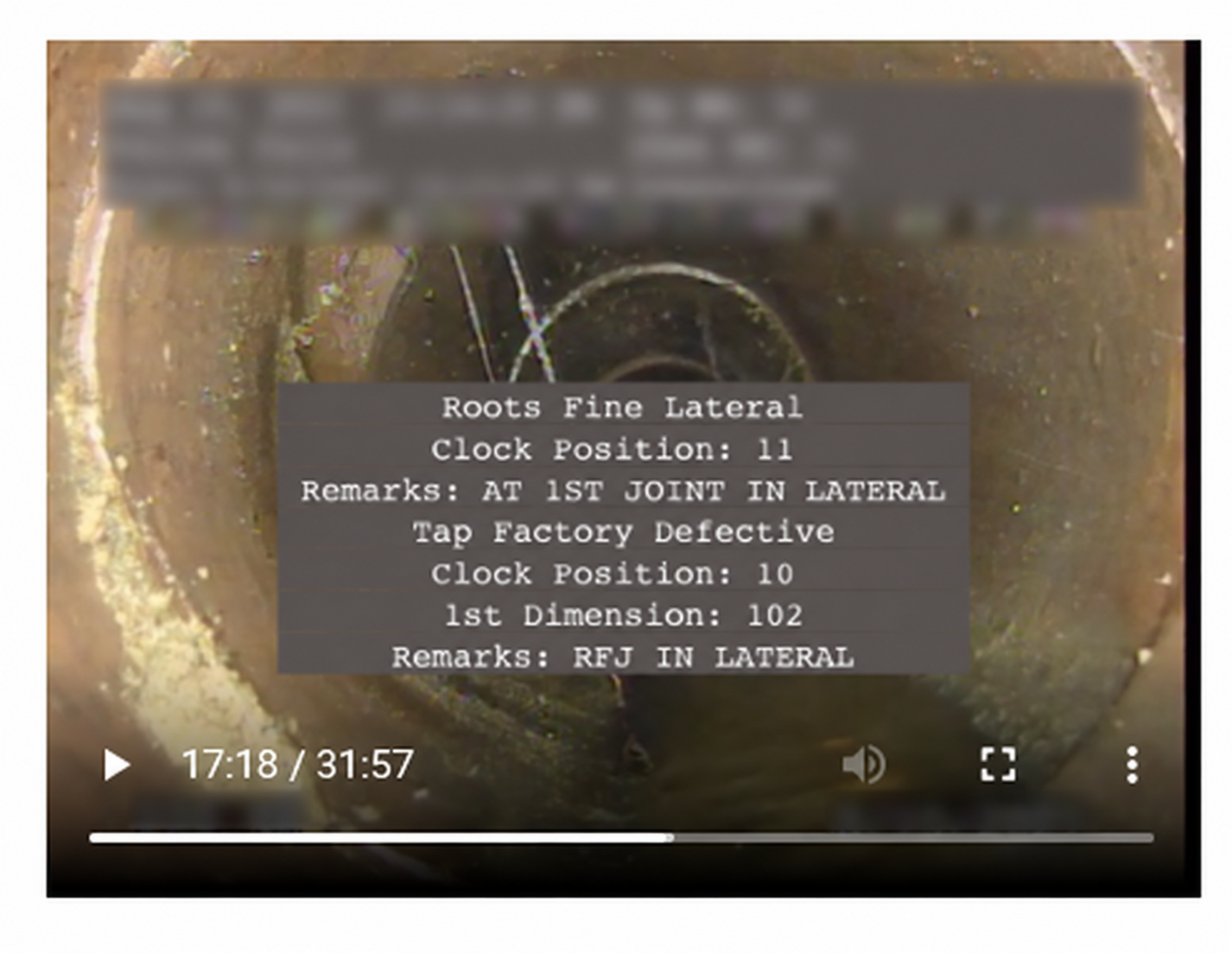
Opaque background example. Identifying inspection text is blurred.
Check the result
Review the exported video and its audio before sharing the package. Changing a Review template does not update existing snapshots or previously exported files.
Related articles
Still Need Help?
Use the chat widget in PIONEER to contact our support team.
If you cannot access the chat widget, email help@sewerai.com.