Sending a Digital Submittal
Last updated: April 1, 2026
A Digital Submittal allows you to send inspection data directly to a customer from PIONEER—without manually exporting files or mailing physical media.
Recipients receive a secure link where they can:
Download files
View inspection reports
Access the data directly in PIONEER
Before You Begin
Before sending a Digital Submittal:
Make sure all inspections are ready to share
Resolve any NASSCO validation issues
Filter or select the inspections you want to submit
Important: Inspections with pending validation issues cannot be submitted.
To pre-screen for issues:
Use the Advanced Filters funnel icon
Filter by:
No Issues
With Issues
How to Send a Digital Submittal
1. Select the inspections you want to submit
From the Inspections page:
Use filters to narrow your dataset
Use checkboxes to select specific inspections
If nothing is selected, the full filtered set will be submitted
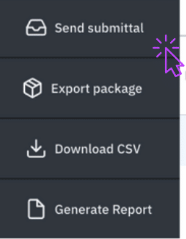
2. Click Export → Send Submittal
3. Enter submittal details
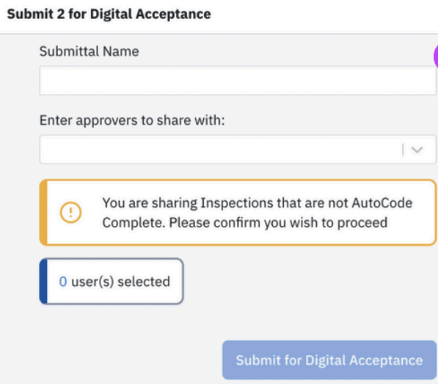
In the submittal window, enter:
A Submittal Name
The recipient email address(es)
The submittal name will be visible to your customer.
4. Send the submittal
Once sent, recipients will receive an email with a secure link to access the data.

What the Recipient Sees
When the recipient opens the email link, they’ll be taken to a landing page where they can:
Download the files
Log in
Create an account to stream directly in PIONEER
SewerAI also provides support for users receiving Digital Submittals.
Track Submittal Status
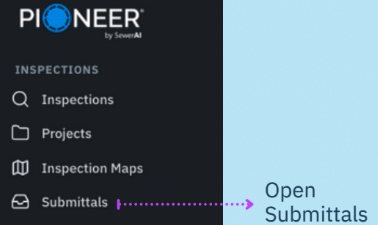
To monitor sent submittals, go to the Submittals tab.
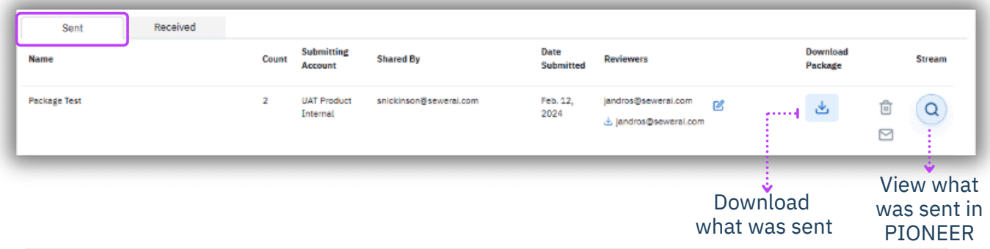
There, you can view:
Sent
Submittals created by your organization
Received
Submittals accessed by recipients
You can also:
See who has downloaded the files
Download what was sent
View the submitted data in PIONEER
Status Indicators
Not Yet Received = recipient has not accessed the submittal
Received by Reviewer = recipient has accepted/downloaded the files
Best Practices
Use a clear submittal name so customers know what they’re receiving
Resolve validation issues before sending
Use filters to ensure only the correct inspections are included