Using the Pioneer Offline Inspection Viewer
Last updated: November 13, 2026
Use the supplied PIONEER application on Windows to review complete local inspection folders you received on a drive or in a folder. This guide applies to that supplied local-viewing workflow, not recording or cloud sync.
Preserve the Original and Review a Copy
Keep the supplied application, inspection folders and supporting files together. Preserve the delivered original and make a complete working copy for review. The available video, observations, reports and other assets depend on what the sender included. An ordinary export package does not necessarily include the viewer application.
Open the Supplied Viewer
Confirm that the application came from the expected sender. If the executable or a Windows warning is unexpected, contact the sender or Support before continuing.
Open the supplied PIONEER application and select Continue as Guest to view the local inspection data.
When prompted, choose the working copy's parent folder containing the inspection subfolders, using Select folder.
Open Inspections, then open the intended inspection and check the supplied video, header and observations.
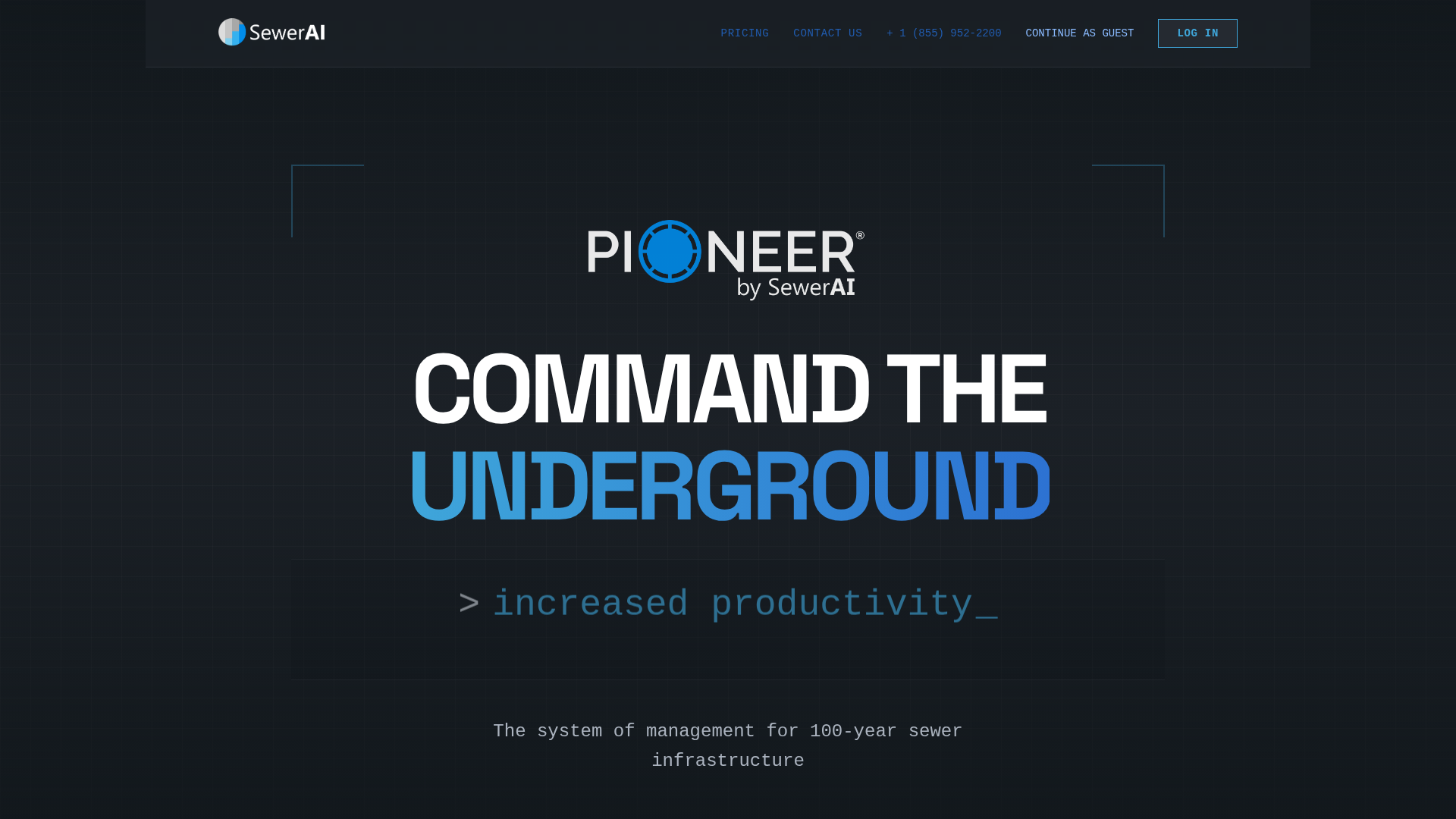
Choose Continue as Guest on the PIONEER start screen. Illustrative screen.
To check or change the chosen folder, open Truck Settings > Inspection Folder. Read Path and use Set local inspection folder when you need to choose the working copy's parent folder. Selecting a different folder changes the saved local inspection location.
Guest mode does not sign in to a PIONEER account. It shows data from the folder you choose. For this viewing workflow, use Inspections. Field Inspections is a separate workflow and can save changes into the local inspection folders, so Guest mode should not be treated as a read-only lock. Keep the delivered original untouched.
Find and Open the Inspection
On Inspections, use the blue play arrow or double-click the intended row. Use Customize columns to choose the fields shown. The local Guest list does not provide the same sorting and filtering workflow as the cloud Inspections page.

Illustrative local inspection list with synthetic data. Select the blue play arrow to open an inspection.
Review the Supplied Content
Use Video, Header, Observations, Snapshots and Ratings to review the supplied content. Select an observation row to move the video to its timestamp. Use the video controls for playback speed and frame/second navigation. For supplied 360 video, drag to look around and use the available zoom controls.
Additional panels such as Full Pipe, 3D Model and Pipe Connections depend on the inspection type and files supplied. Do not expect every deliverable to contain each artifact.
To reset an altered panel arrangement, use More options (⋮) > Reset layout and confirm Reset Layout when offered. Resetting the workspace does not recover missing video, observations or 3D data.
If Something Is Missing or Will Not Open
Keep the complete original deliverable. Contact the sender or Support with the viewer version, operating system, folder location, inspection reference and exact error. Explain whether the inspection is absent from the list, its video does not play, or a particular panel or artifact is missing.
Still Need Help?
For help with the supplied offline viewer, email help@sewerai.com.
Include the viewer version, operating system, folder location, inspection reference and exact error.