Guide: Review and Accept a Digital Submittal
Last updated: March 3, 2026
Were you just invited to review a "Digital Submittal" in Pioneer by SewerAI? Welcome!
We know it can be intimidating to use new software. So let us walk you through it. If you have any questions, contact us at support@sewerai.com
Your Core Steps
These are the basic steps to manage a digital submittal:
Sign in to PIONEER
Review the data and stream the videos on the Web - using the "Inspections" page
Accept the submittal
Save the submittal into your own account
Stream the videos whenever you want
Download whatever contents you need
What is a Digital Submittal?
A digital submittal is a newfangled way of doing an old-fashioned thing: submitting and receiving wastewater inspection data from the organization that ran the inspection (e.g. contractor, engineering firm) to the end customer (e.g. municipality)
Why did I get this message?
Someone who is the data holder of a set of inspections in Pioneer thought you were the right person (or one of a group of people) to take possession of that data.
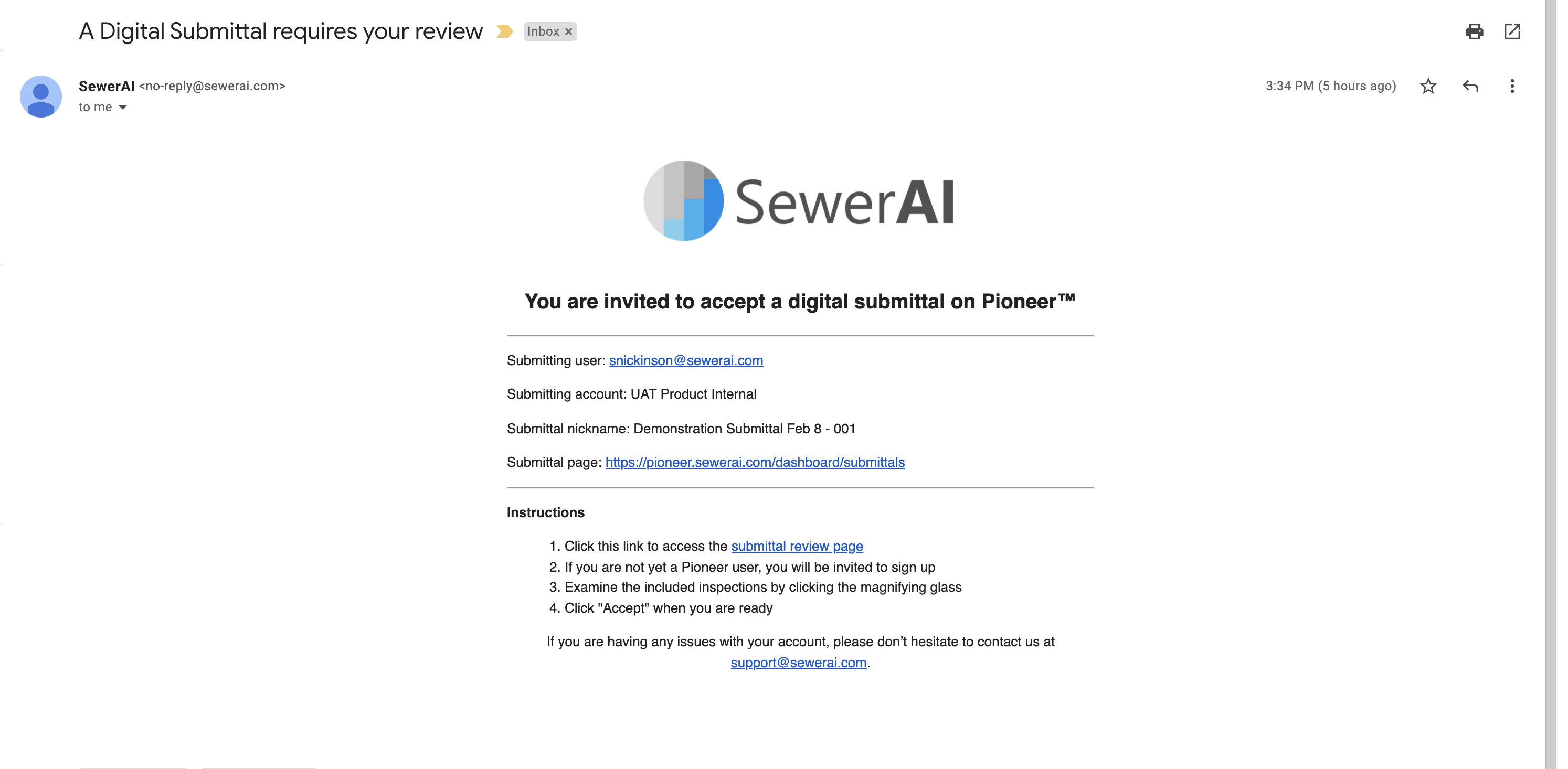
The Submittal Review Email
Every potential approver will get an email notifying them that a submittal was created with their name on it.
Logging In
If you already have a Pioneer login, simply log in and go to the submittals page and skip ahead
https://pioneer.sewerai.com/dashboard/submittals
If you are new to Pioneer...
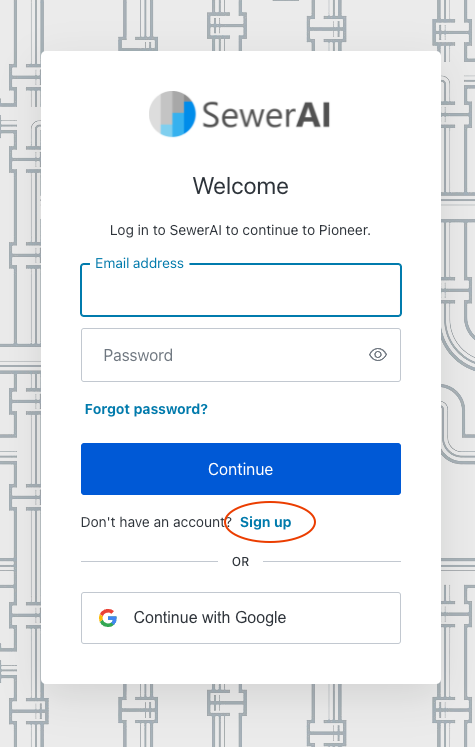
You will first land on the log in page. You will need to click "Sign Up"
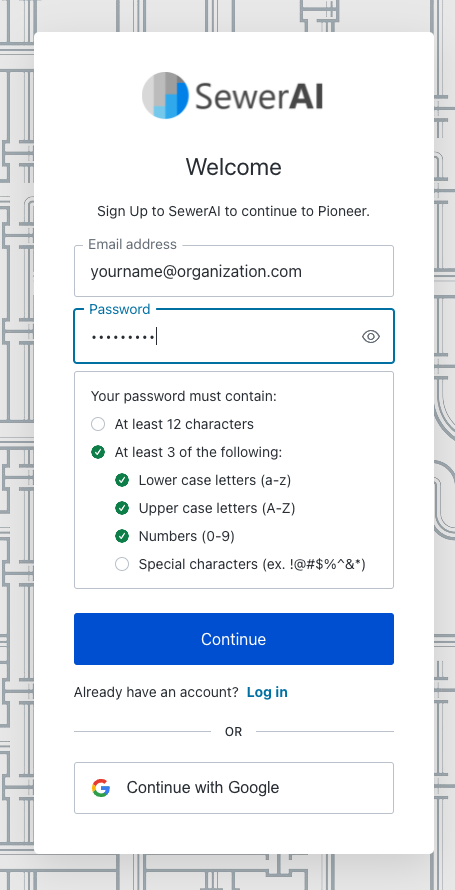
At this point, you can enter an email and strong password, or use your Google account if your organization uses G-suite.
Verify Your Email
If you use email and password you will see this
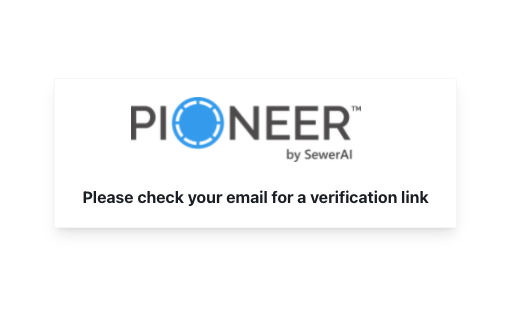
Please check your email inbox (including Spam) for the verification email
Sender: SewerAI <noreply@sewerai.com>
Subject: Verify Your Email for Pioneerᵀᴹ by SewerAI
Once you verify your email you will need to manually return to the submittals page by clicking the link https://pioneer.sewerai.com/dashboard/submittals or via the left-hand navigation
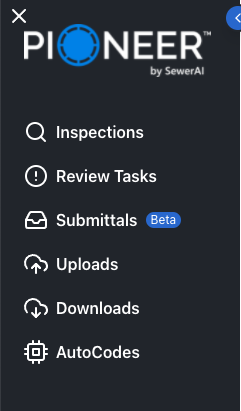
What You See on the Submittals Page
The Submittals page has two tabs or sections
Submittals that need your acceptance
Submittals you created

Use the "magnifying glass" icon to drill into individual inspections on the set.

Access Individual Inspections
The magnifying glass takes you to a list of inspections.
From that list, double-click a row or use the triangular "Play" button on the right to watch the video for a single inspection.
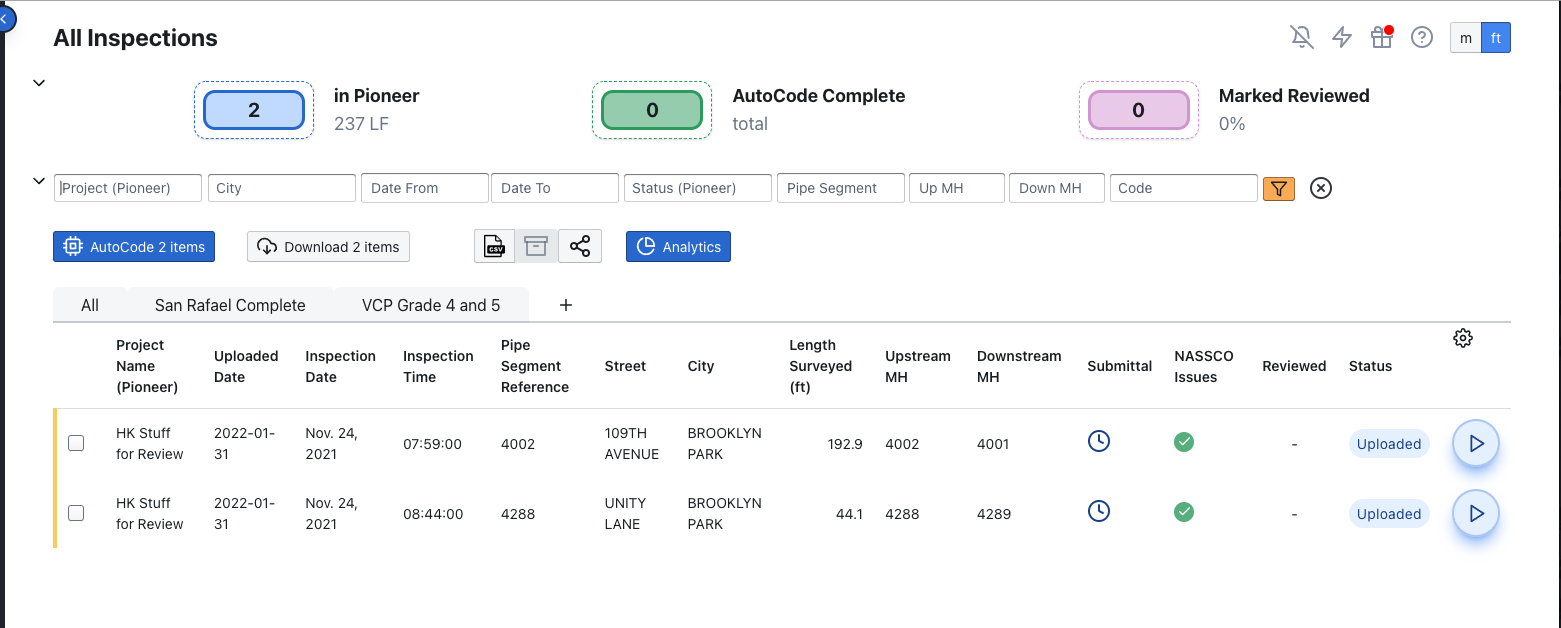
Review Individual Inspections
On the single inspection page, you can watch the video, see snapshots, jump to conditions, and access Ratings.
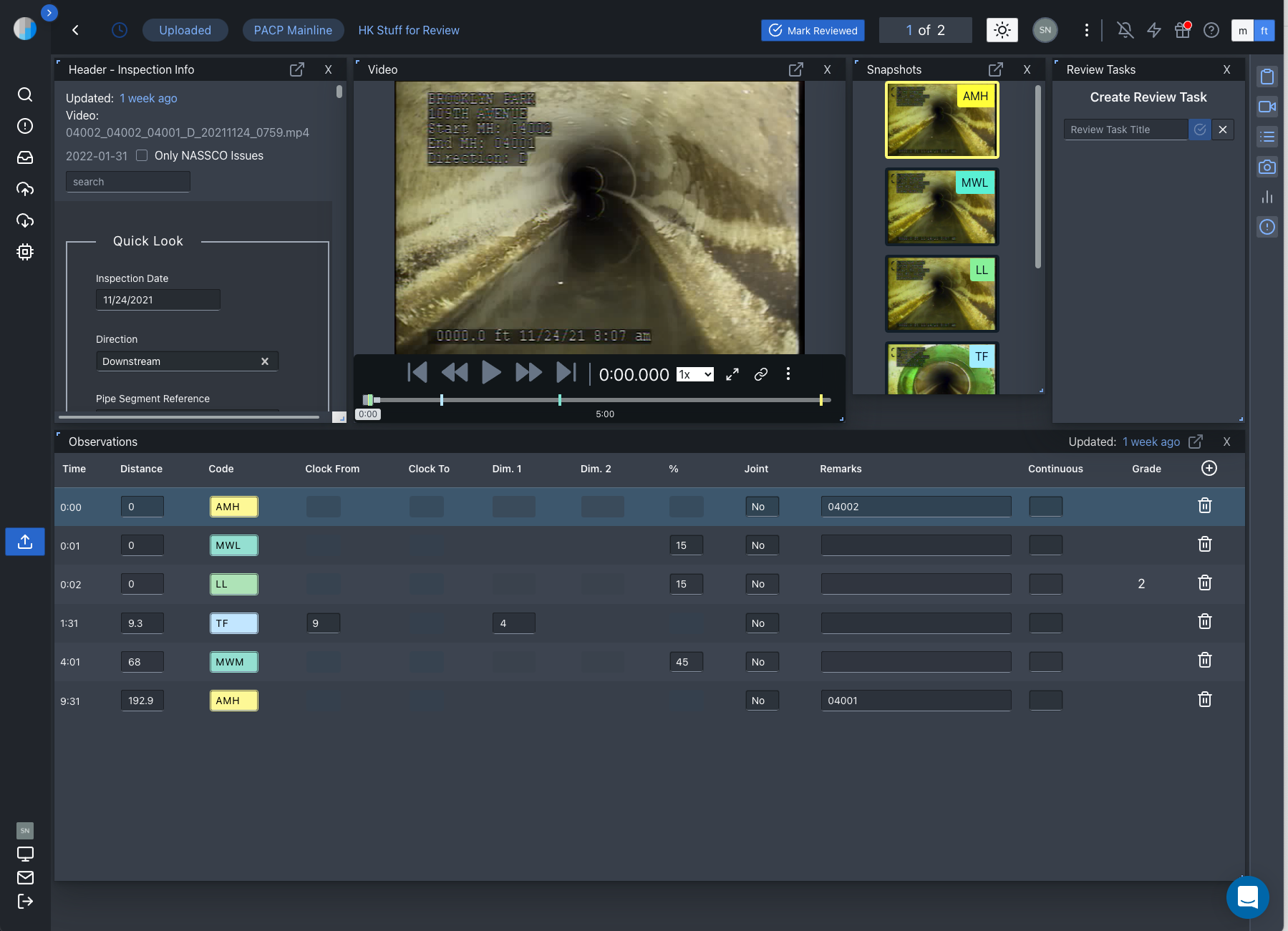
Watch this video for a more detailed explanation of everything on the inspection review page.
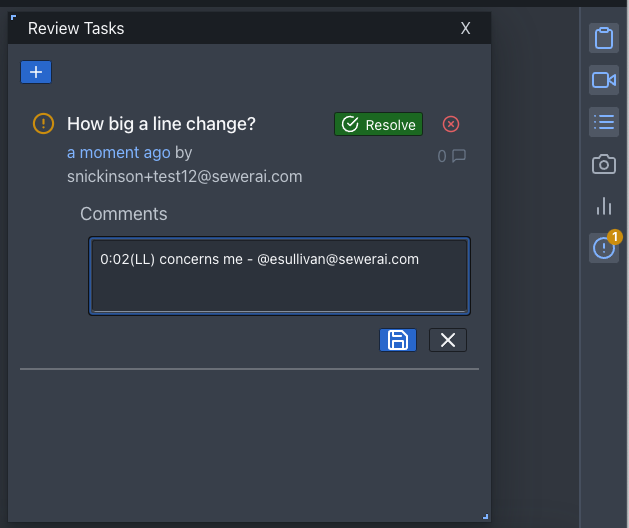
Create Review Tasks as Needed
If you need to leave a message for those who provided the data, you can use the "Review Tasks" module. Learn more about Review Tasks here:📄 Using Review Tasks (aka Comments)
Accept the Submittal
Back on the submittals page click the big Thumbs Up "Accept" button when you are ready.
Note: this registers acceptance of the whole submittal. not individual inspections.
Coming soon: we will empower you to invite other individuals to review or accept the submittal.
Give Details of Your Acceptance and Where to Store the Data in the Cloud
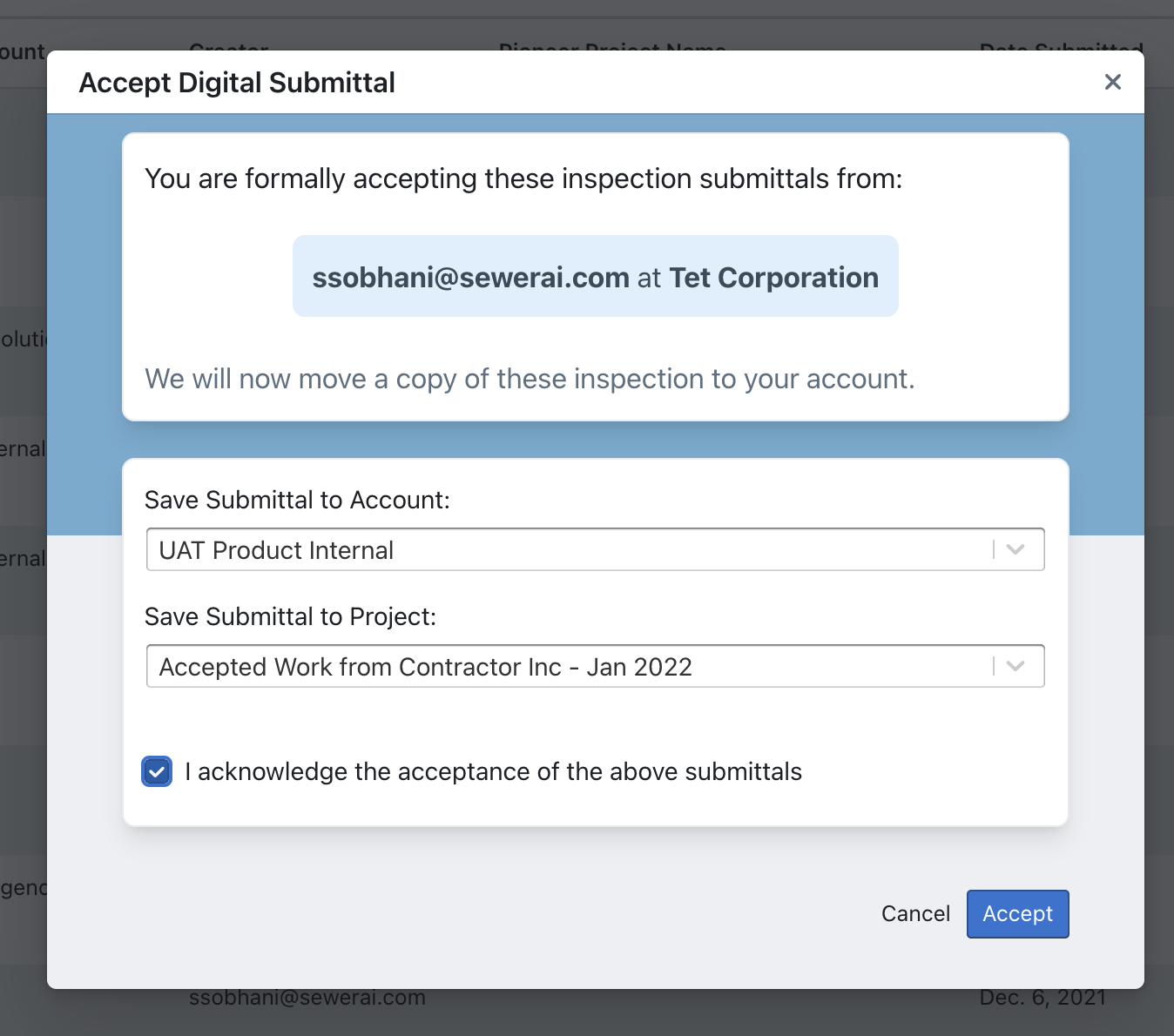
You are now prompted to save a copy of the inspection data into your own Pioneer account
Provide a new Project name - this allows you to organize the data however you prefer
Once "Accept" is clicked, a copy is saved on your account
Note: only 1 accepter has to approve, not all of them
Inspections are Stored on the Accepter's Account
Important note: a copy is made of the inspections, such that each party (the submitting organization and the recipient organization) has ownership of a unique copy for their own manipulation or download.
We do store a record of the connection between the original and the copied inspection, but making a change - e.g. deleting an observation - after the moment of acceptance does not affect the other party's data. Just like if I were to lose a flash drive or update a database AFTER taking receipt of a traditional submittal. If either party were to leave Pioneer, the other is not affected.
Accepted Inspections are Visible in the Pioneer Main Dashboard
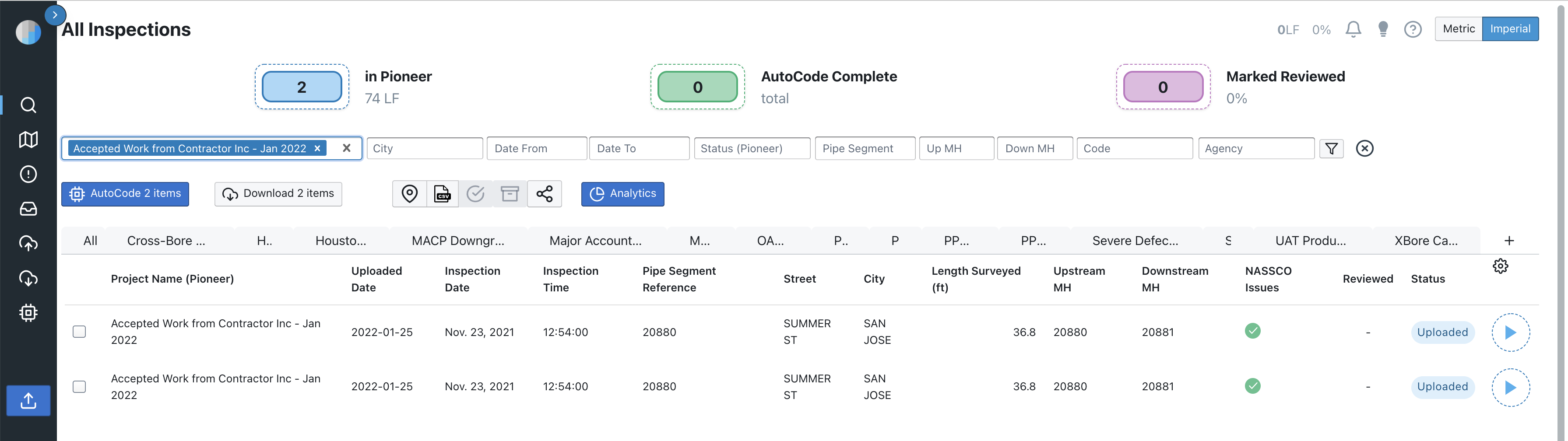
Accepted inspections are now saved with your project name and visible on the main dashboard, aka the Inspections page.

Download What You Need
Pulling data off PIONEER on-demand is simple.
Note: Export capabilities depend on your permission level. If you are a viewer on the project, you can only export reports - video exports are not available. For full export access including videos, the data holder would need to send you a digital submittal with appropriate permissions.
Important Download Recommendations:
For large submittals: The cloud download method shown below is recommended only for small packages (1‑2 inspections or PDF reports). For larger submittals, accept the submittal first, then use the zip file download option for a more stable and complete package.
Download location: Always download to your local drive first, then move files to network drives afterward. Downloading directly to network drives can cause significant delays and instability.
Wait for completion: Files may continue populating in your download folder even after the progress indicator reaches 100%. Wait a few minutes after completion before disconnecting or moving files to ensure all content has fully downloaded.
30‑day expiration: Download packages are stored for 30 days. After this period, you will need to create a new package to download the data again.
Large downloads: For projects over 100 GB, the ZIP download option is more reliable and less likely to stall than the cloud option. If you’re downloading to an external drive, you can change your browser’s default download location in Chrome settings to save directly to your preferred location.
Before downloading: Ensure all inspections are free of NASSCO validation issues. If you encounter export problems, use the filters and apply “with issues” to identify problematic inspections. For large downloads (several hundred inspections or more), break them into smaller chunks (e.g., by date ranges) to prevent export failures.
Select the inspections, click Download, and decide what you need. Animation below:
Note: To download an entire project, use the filter bar at the top of Pioneer to navigate to your specific project first, then use the export function. When downloading large datasets or entire projects, wait for the zip file option to appear as it provides a more stable download experience than other formats.
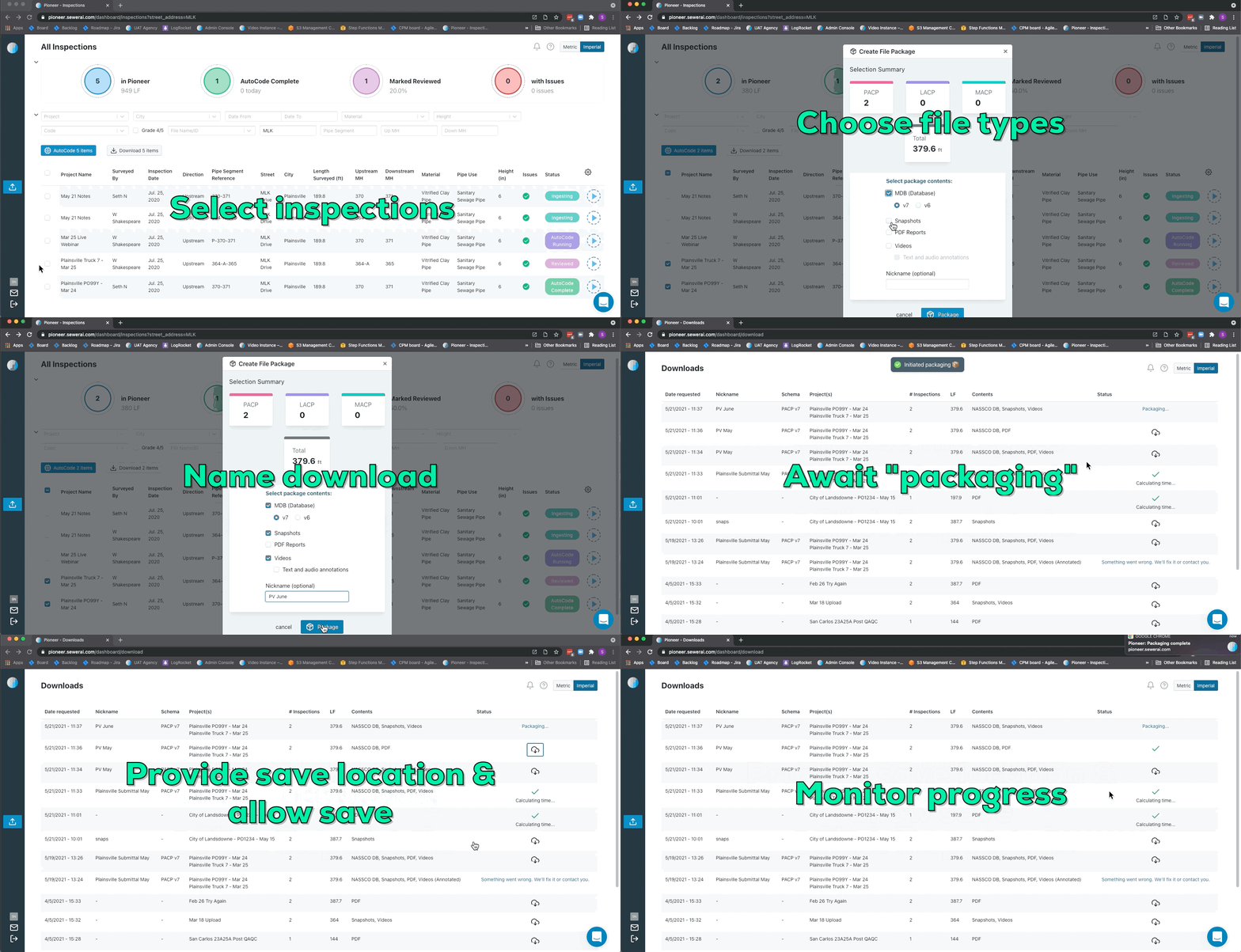
Here are the individual steps to take in Pioneer to download data:
Select inspections with the tick‑boxes or filters.
Click “Download [#] items”.
Choose the file types you want to include in your download package (Note: available options depend on your permission level)
Note: When downloading videos with annotations, make sure to select “Distance (added by SewerAI)” in the Text and Annotation options to ensure the video footage displays properly in your downloaded files.
Name the download (optional).
Click “Package”.
Await completion of the download package
Note: Videos, and especially Videos with Annotations, will take longer than databases and still images
Files may continue downloading even after the progress bar reaches 100%. Wait a few minutes before proceeding to ensure all files have fully populated.
For large projects or datasets, wait for the zip file option to appear for the most stable download.
Click the cloud download icon next to your package.
Select a “Save To” location.
Accept browser permissions.
Monitor progress.
Open the files on your local drive.
Download Reports
In addition to downloading raw inspection data, you can also generate and download formatted reports:
Select your inspection from the inspections list.
Choose from the available report options:
Quick Report — for a streamlined report format.
Generate Report — for a comprehensive report.
Export — for data export (available when there are no NASSCO issues).
All Parties are Notified via Email
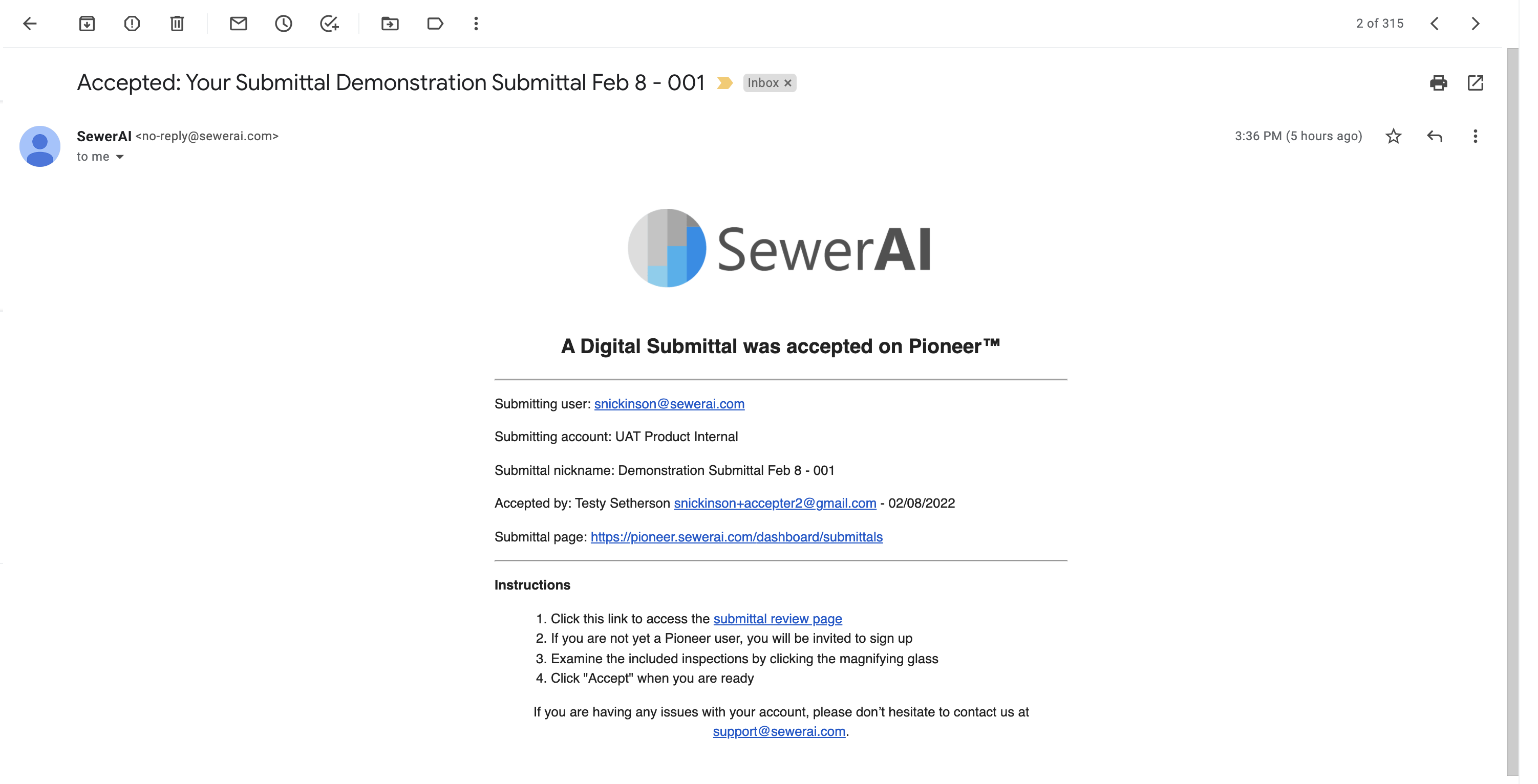
The person who initiated the submittal and all invited accepters all get an email notification and a Pioneer notification that the submittal was accepted.
Need Help?
Once you have logged in, you can always contact us with live chat in the bottom right of your screen

or feel free to email us at help@sewerai.com