How to Handle Duplicate Inspections and Clean Up Project Data
Last updated: November 9, 2026
Compare suspected duplicates before removing anything. Two rows with the same filename or asset reference do not necessarily represent the same video and inspection.
Check What You Have
Filter to the relevant account and project.
Compare inspection dates, asset references, headers and actual footage.
Identify the record you need to keep.
Ask Support to investigate if the correct record is unclear.
A header-only row and its separately uploaded video may be an unmatched pair. They should not be treated as two complete duplicate inspections.
Combine a Matching Header and Video
Use this only when the records are the same inspection, project and type. You need Editor or Admin access. Wait until the video row is Uploaded, rather than Ingesting.
Tick exactly two rows: one Upload Pending data row and its matching Uploaded video row.
Open Actions > Combine Rows. In the separate-buttons layout, use the three-dot menu.
Read the Combine Rows confirmation and check the pair again.
Select Yes only when the association is correct.
Allow processing to finish, then inspect the resulting header, video and observations.
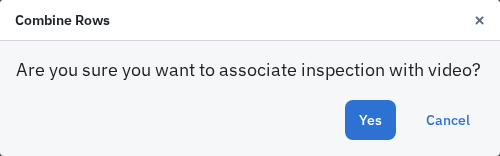
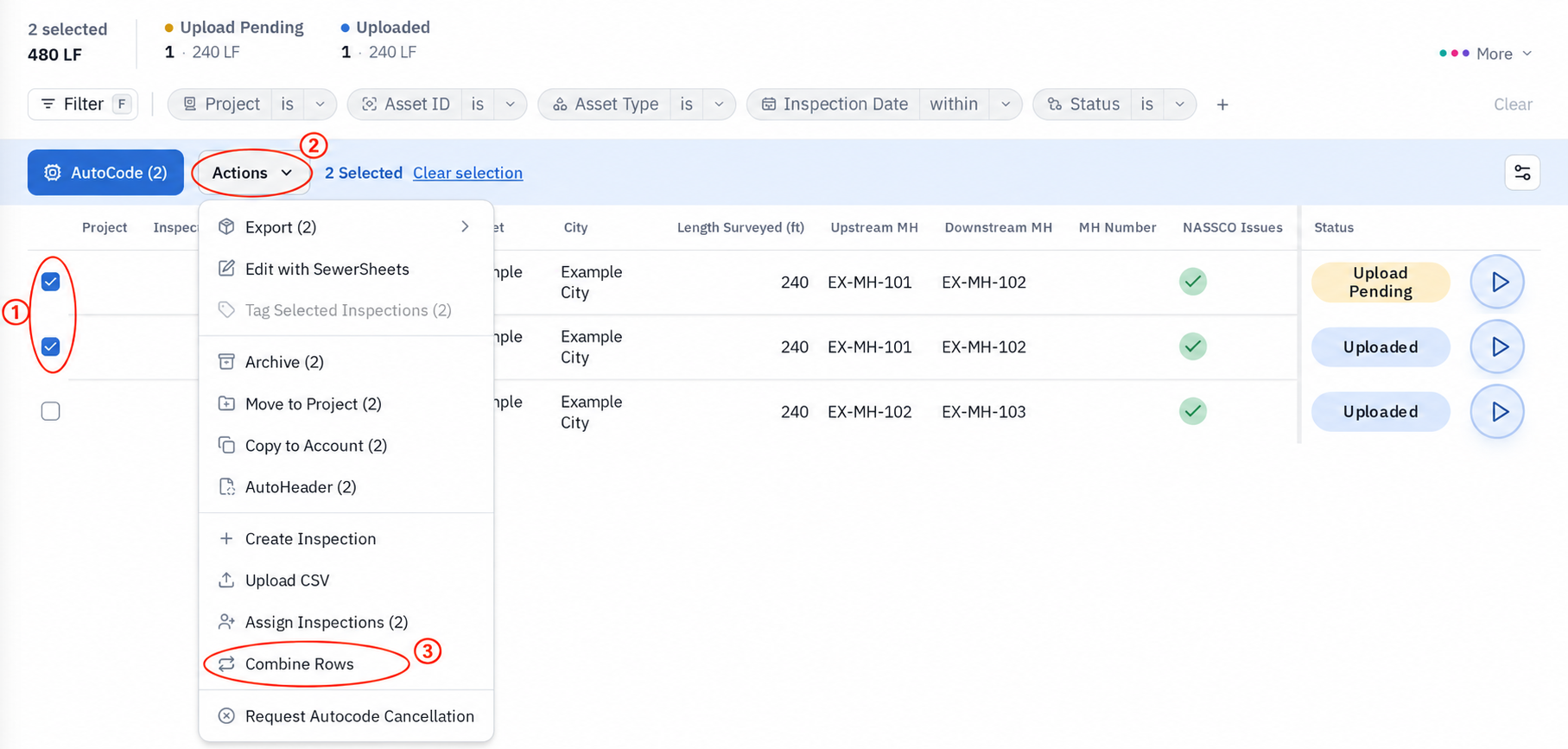
You cannot undo Combine Rows. It is not a way to join two videos or append footage. The confirmation toast does not prove that the background operation succeeded. If the result is missing, incomplete or wrong, stop and contact Support.
Archive Confirmed Unwanted Inspections
Cloud Archive hides the inspections for all users on the account. Only Support can restore them through the supported customer process. Keep any source files you may need.
Tick only the inspections you have confirmed are unwanted.
Check the selection count. Use up to 100 inspections per archive action.
Open Actions > Archive (N). In the separate-buttons layout, use the three-dot menu.
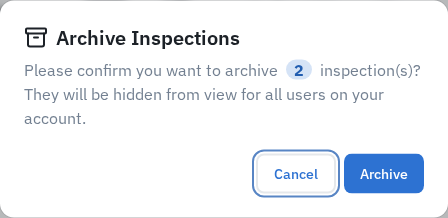
Read Archive Inspections and confirm the count.
Select Archive.
You need Editor or Admin access to archive cloud inspections. Contact Support if an inspection is running AutoCode or the action fails.
Without ticked rows, a bulk action may target the full filtered set. Explicitly select and verify the unwanted rows before archiving.
Keep Local and Cloud Cleanup Separate
Archiving a local Field Inspection in Desktop is different from archiving the cloud inspection. Do not use archive followed by re-sync to update an existing cloud video.
If the data belongs in another project, consider a supported move rather than uploading it again. Ask Support when the destination or data effects are unclear, or when you need permanent project deletion or large-scale cleanup.
Related Guides
Still Need Help?
Use the chat widget in PIONEER to contact our support team.
If you cannot access the chat widget, email help@sewerai.com.