How to Handle Missing Videos or Segments in Inspections
Last updated: November 9, 2026
First determine whether the inspection is missing, its video is still processing, or the Video panel is hidden. These situations need different checks.
Find the Inspection
Open Inspections.
Check the active account, project, date and inspection-type filters.
Check any saved bookmark filters that may narrow the results.
Search using the known segment reference, maintenance-hole number or filename.
If you cannot find the record, contact Support with the project, date range, location and asset references. Cloud restoration of archived inspections is handled by Support.
The Inspection Opens, but Its Video Is Missing
Upload Pending: the record may not yet have matched its video.
Ingesting: processing is still underway.
Video Unplayable: playback processing needs investigation.
Check the upload batch and available status details. Keep the source files. Do not replace, archive or re-upload solely because an inspection is still Ingesting.
The Video Panel Is Hidden
Check behind other tabs or in a popped-out window. To restore the panel arrangement, open More options (⋮) > Reset Layout inside that individual inspection's review page. Web resets immediately; Desktop may ask for confirmation.
Reset Layout restores the review workspace. It does not recover a missing recording, file, segment or inspection.
A Video and Its Header Are on Different Rows
Confirm that the two rows represent the same asset and inspection, in the same project and of the same type. Video-name matching requires the complete filename, including extension.
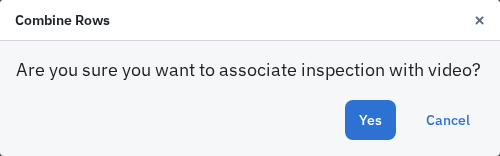
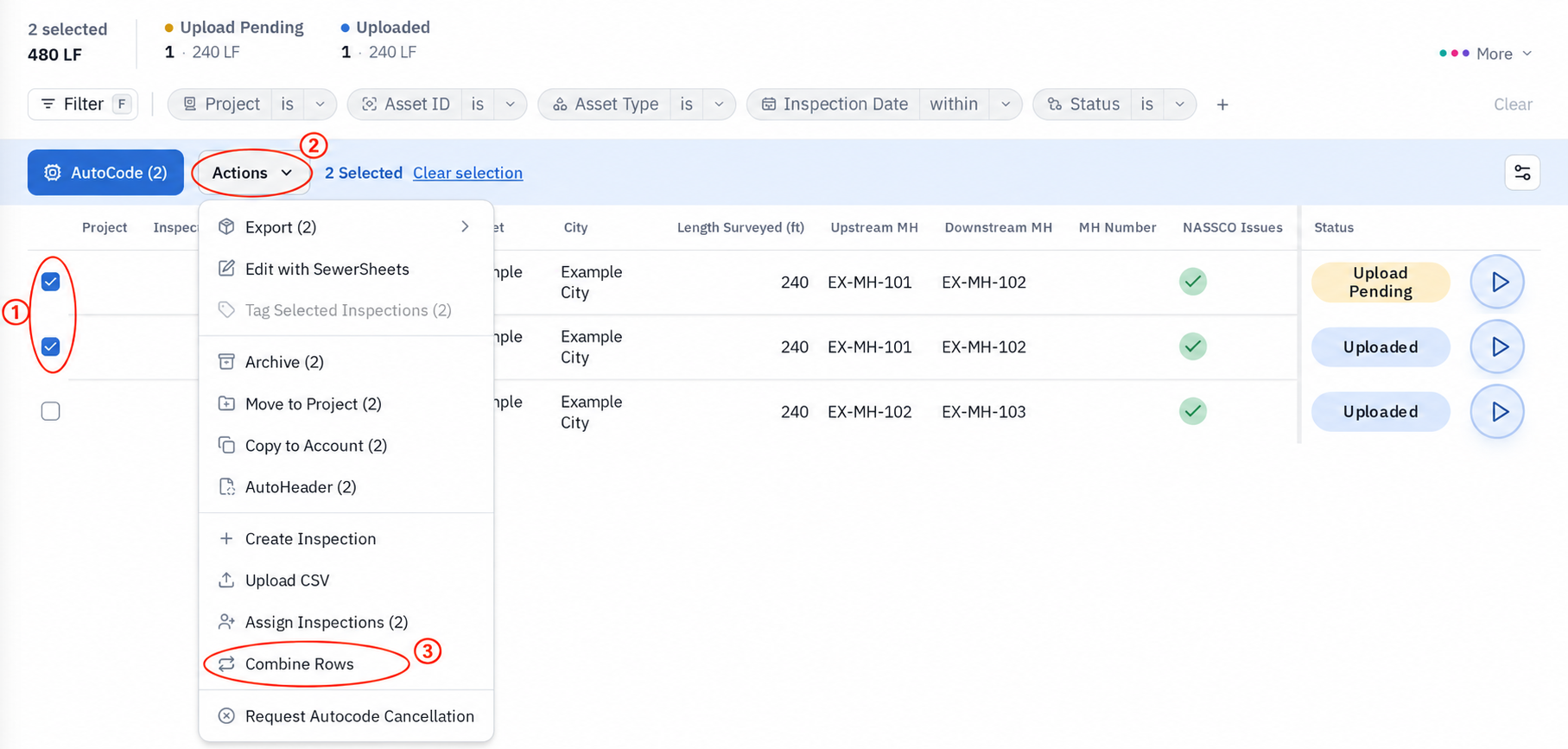
An Editor or Admin can use Combine Rows for one matching Upload Pending data row and one Uploaded video row. The customer cannot undo the merge. Check both rows carefully before confirming. If the video is Ingesting, wait for Uploaded. If matching or combining fails, contact Support before further changes.
A Desktop Recording Is Missing or Incomplete
Check the original recording computer and its Field Inspections tabs. Keep the recording folder and files intact. A Synced label does not prove that every expected file is playable in the cloud.
Contact Support with the computer, project, inspection details and the last action taken. Support may need a remote session to investigate. Do not delete the local copy, archive the cloud inspection or re-sync an edited recording as a repair.
Send Useful Details to Support
Include the inspection link if available, project, filenames, date range, displayed status and any error. Explain whether this was a first upload, a missing segment, or a change to an inspection that already had cloud video.
Related Guides
Still Need Help?
Use the chat widget in PIONEER to contact our support team.
If you cannot access the chat widget, email help@sewerai.com.