Guide: Review and Accept a Digital Submittal
Last updated: November 10, 2026
You can download a Digital Submittal without signing in. Sign in when you want to review the inspections in PIONEER or formally accept a copy into your account.
1. Open the Package Link
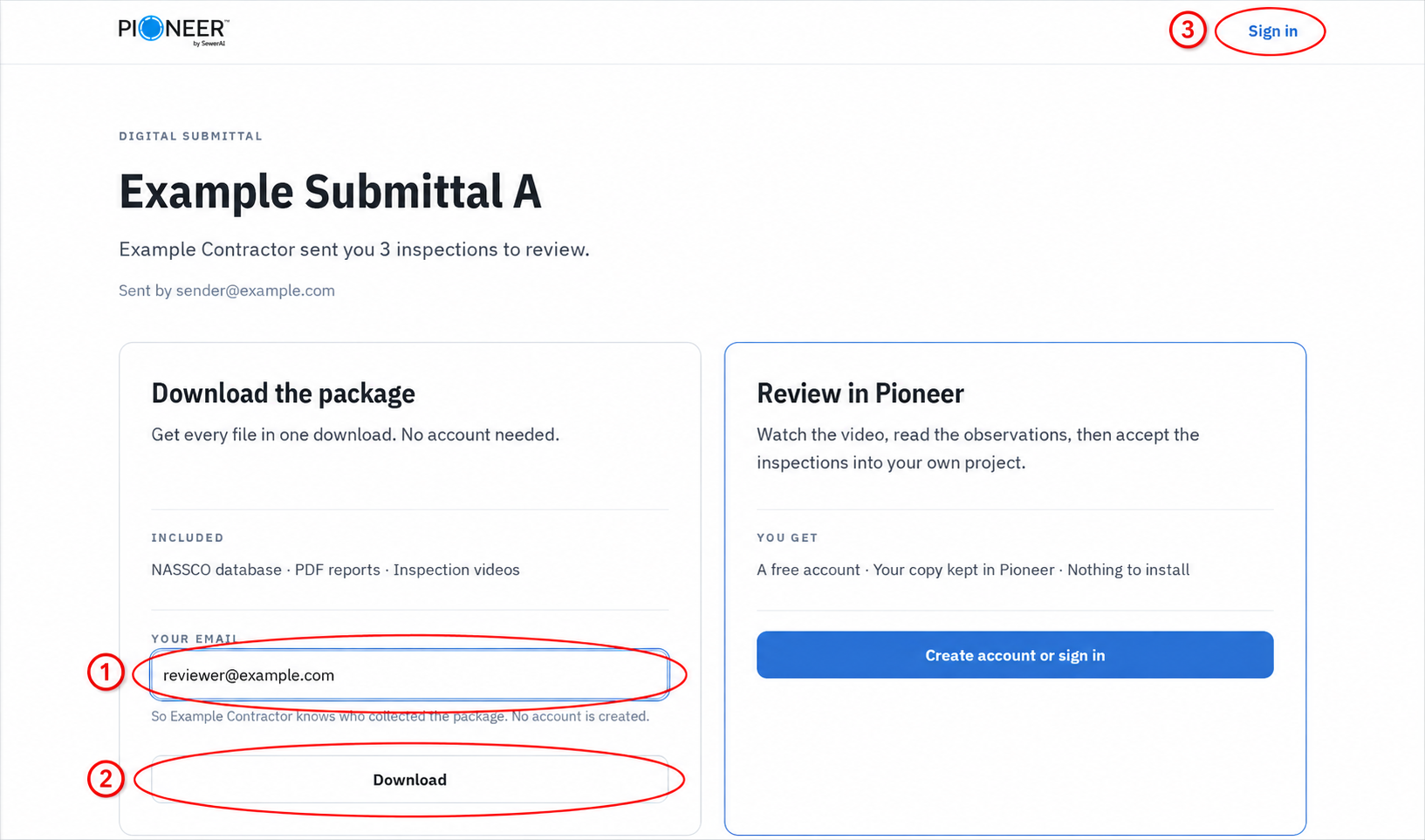
Open View the submittal in the submittal email. Check the submittal name, sender and package contents on the Digital submittal page.
Anyone with this page’s link can download the package. Share it only with people who should receive the files. Entering an email address for download tracking does not verify that person’s identity.
2. Download Without Signing In
Check the submittal name, sender and listed contents.
Enter your email address in the download box.
Select Download.
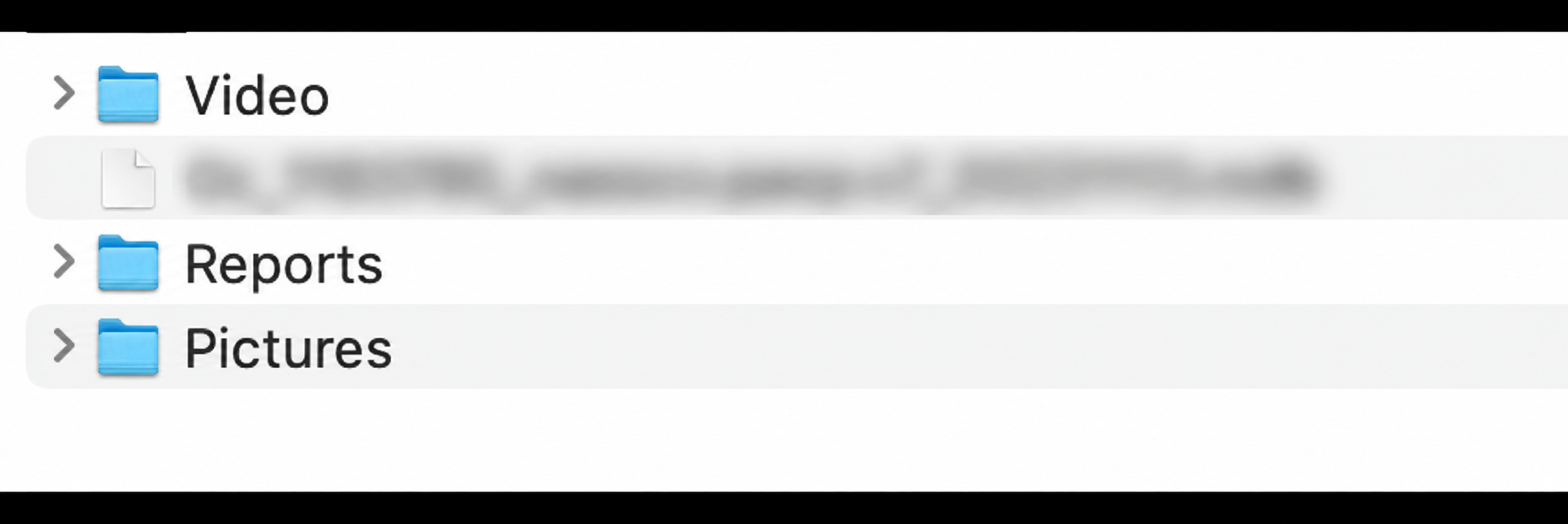
If your browser asks you to choose a folder, select one and allow the download. PIONEER unpacks the files into that folder.
If your browser downloads a .tar file instead, extract the archive to access its files.
Wait for the download to finish, then open the files and check that the expected contents are present.
The method depends on browser support. Supported Chrome and Edge sessions can offer a folder picker; browsers without that capability, including Firefox and Safari, download the TAR archive. Do not assume the supplied package is a ZIP. A Download .zip option is available only on eligible configurations when that archive is ready.
Use a local folder for the initial download. If the package is incomplete, damaged, or fails to download, contact support with the submittal name, browser, and error message.
Check the Package Contents
The supplied package can include the inspection database, videos, PDF reports, snapshots and attachments. Read the contents shown on the download page.
A not NASSCO-certified package does not include an MDB database; its PDF reports are marked not NASSCO-certified.
The current package page displays a Not NASSCO-certified notice when no MDB is included. Read the listed contents before downloading.
The supplied submittal videos do not include audio annotations. Custom export options after acceptance are a separate workflow.
3. Sign In to Review in PIONEER
Select Sign in if you are on the package page, or open PIONEER and sign in.
Use the email address to which the reviewer invitation was sent.
Open Submittals > Received.
Find the submittal and select the magnifying-glass control in Stream.
Open an inspection to watch its video and review the data.
Before acceptance, you have read-only access to the submitted inspections. Use Review Tasks for inspection-specific review comments.
If this is your first invitation and you cannot sign in or find the submittal, email help@sewerai.com. Include the invited address and submittal name. You can still use the supplied package-download link without signing in.

You can also use Download Package on this tab to reopen the supplied download page. This does not formally accept the submittal.
4. Accept an Independent Copy
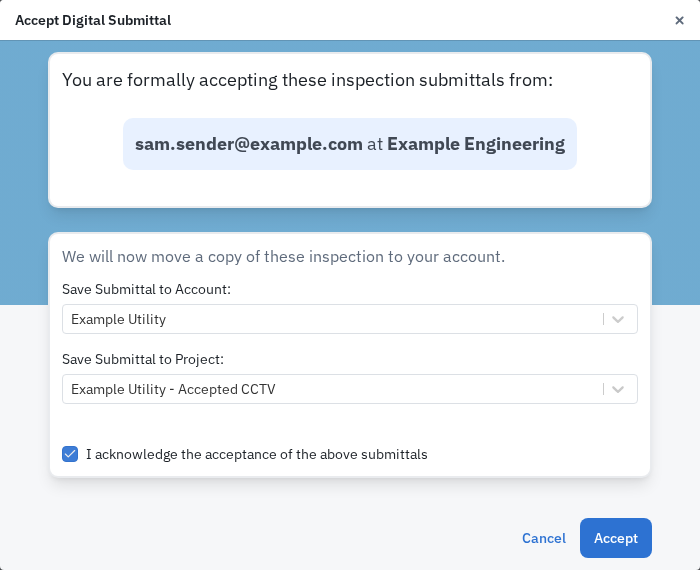
Accept records formal acceptance of the whole submittal, not just one inspection. Confirm you are ready before continuing.
On Received, select Accept.
In Accept Digital Submittal, check Save Submittal to Account: carefully.
Under Save Submittal to Project:, choose an existing project or enter a new project name.
Read and tick I acknowledge the acceptance of the above submittals.
Select Accept and allow copying to finish.
The row can show Copying submittal... before Export becomes available. Do not rely on the acceptance toast alone: confirm copying has finished and the inspections are visible in the destination project. Contact support if copying stalls or the copy is missing.
The sender's inspections are not changed. Your accepted copy is independent, so later edits to either copy do not update the other. Copied inspections start with Uploaded status rather than retaining the original AutoCode/QC state.
Tags and inspection attachments are not carried into the accepted copy. Download and check the supplied package separately if you need its included attachments. Do not assume accepting duplicates every file from that package.
Advanced: Add Another Reviewer
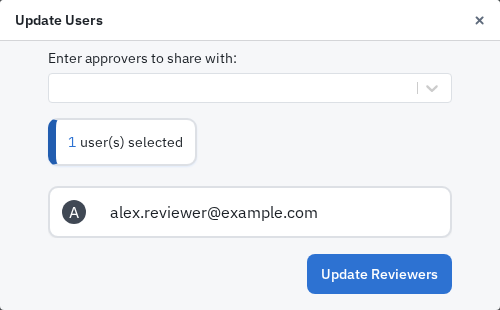
Use the pencil control on Received to open Update Users. Add the reviewer and select Update Reviewers. This recipient-side dialog adds reviewers; it does not offer the sender's remove controls.
Advanced: Create a Custom Export After Acceptance
After copying finishes, use Export on the submittal row, or select your copied inspections and use Actions > Export > Export package.
In Create Download Package, choose the available file types and options you need.
Enter the required Download Name.
Select Package and wait for preparation to finish.
Open Downloads and use an available download option. If ZIP is still being prepared, wait for it to become available.
Options depend on your access and the inspection type. The download choices for this new export are separate from the original submittal package. Check any validation issues reported by this export workflow.
For file-type and annotation choices, see How to download and export inspection data, reports, and videos.
Related Articles
Still Need Help?
Use the chat widget in PIONEER to contact our support team.
If you cannot access the chat widget, email help@sewerai.com.