Review Tasks
Last updated: November 2, 2026
Use Review Tasks to record questions, review outcomes and follow-up alongside an inspection. A task records the discussion; your team defines who acts next.
Find Review Tasks
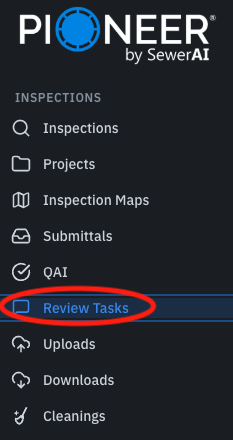
Select Review Tasks in the left navigation to see tasks on inspections you can access. Expand the navigation if it is collapsed.
Search and filter tasks
The Review Tasks page shows task cards with inspection details, status, comment count and escalation count. Filter by Escalated, Task Status, Task Title or Tagged Users, then use inspection filters to narrow the results further.
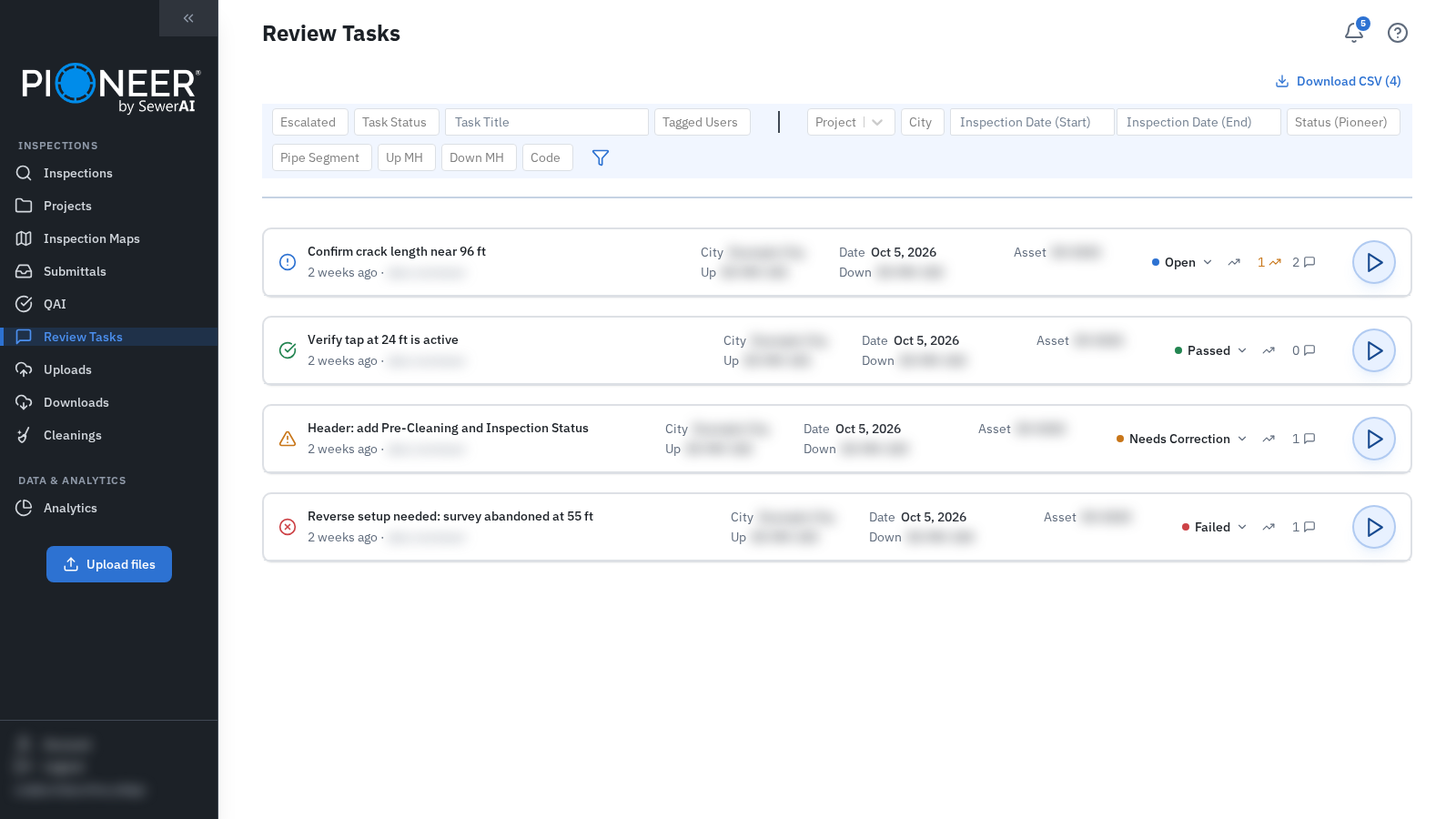
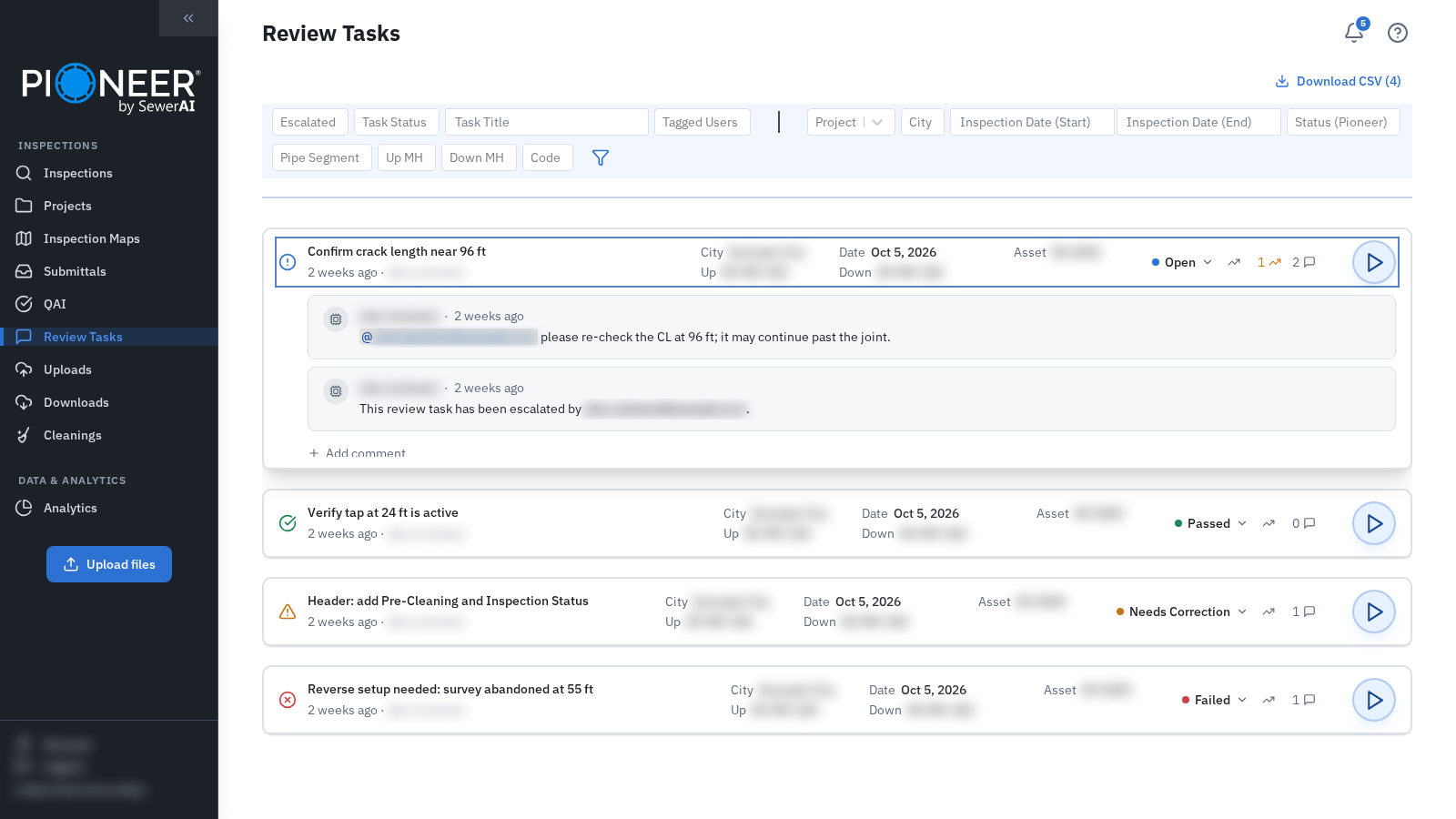
Select a card to expand the discussion. Select its play arrow to open the related inspection. Use Download CSV (N) to export the filtered tasks. The export supports up to 1,000 tasks; narrow the filters if the result exceeds the limit.
Open tasks within an inspection
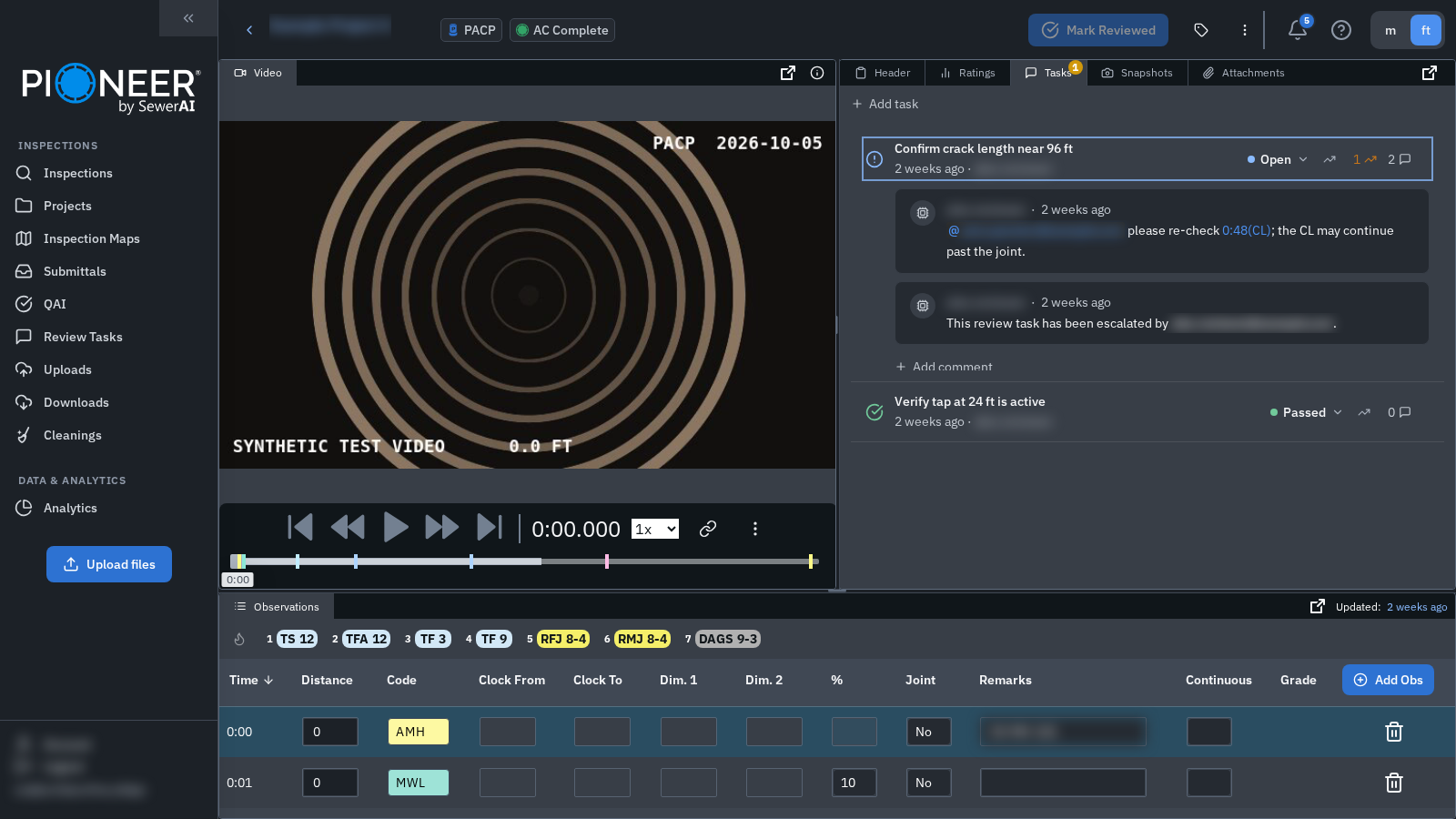
Open an inspection and select the Tasks tab in the review workspace. You can move, stack and resize its panel group like the other workspace panels.
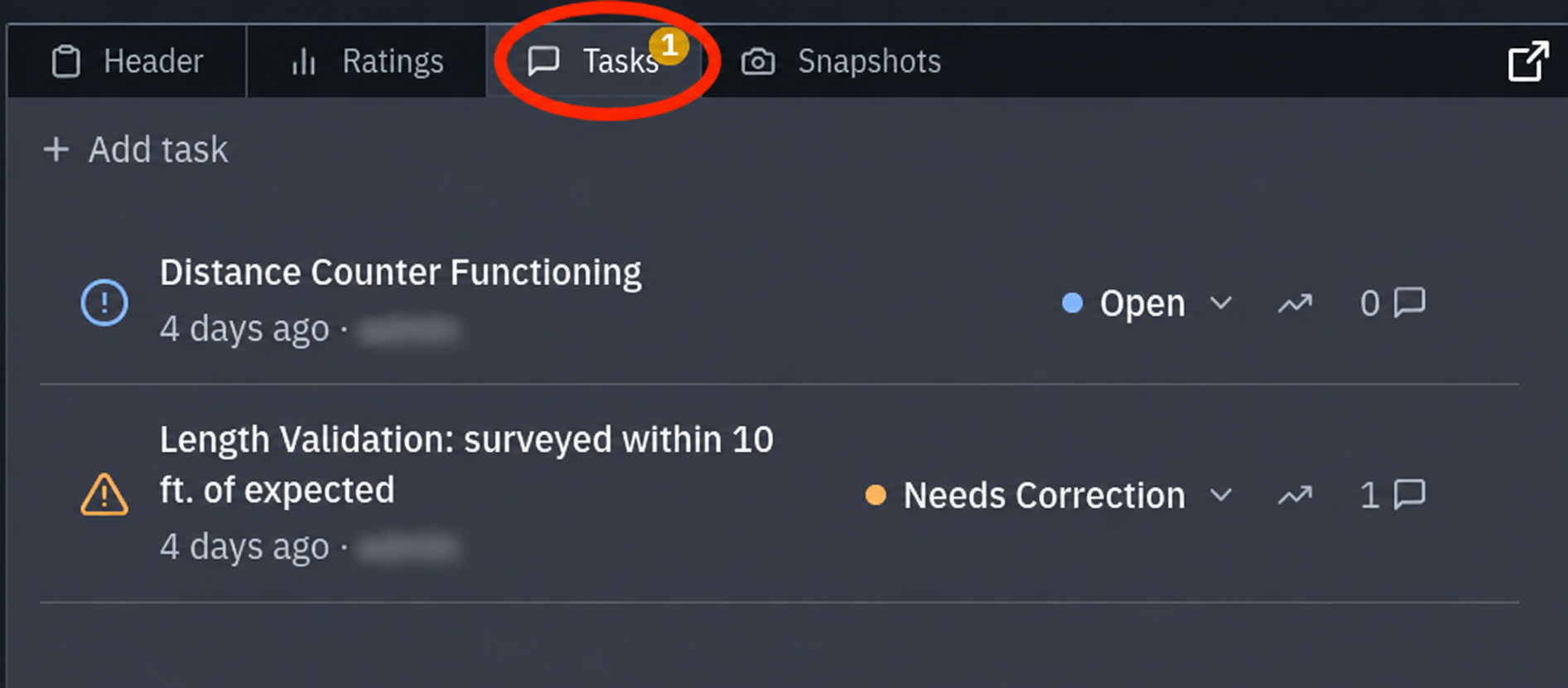
Add a task
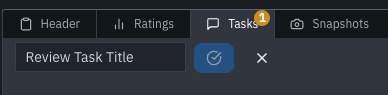
Select + Add task if tasks already exist. Otherwise, use the Create Review Task form.
Enter a Review Task Title.
Select the check mark to save.
Update a task’s status
New tasks start as Open. Select the status menu and choose Pass, Fail or Needs Correction as appropriate for your team’s review process.
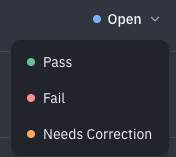
Status controls depend on your access and the task. Updating another person’s task requires Editor or Admin permission. Project-only access, submittal review and automated tasks can have additional restrictions. If an expected option is unavailable, contact support with the inspection link, task title and the action you are trying to take.
For Editors and Admins using Mark Reviewed in the full-width web workspace, an Open task disables that button. Failed and Needs Correction do not. The Reviewed flag is separate from task status and inspection processing status.
Add a comment
Select the task to expand it.
Select + Add comment.
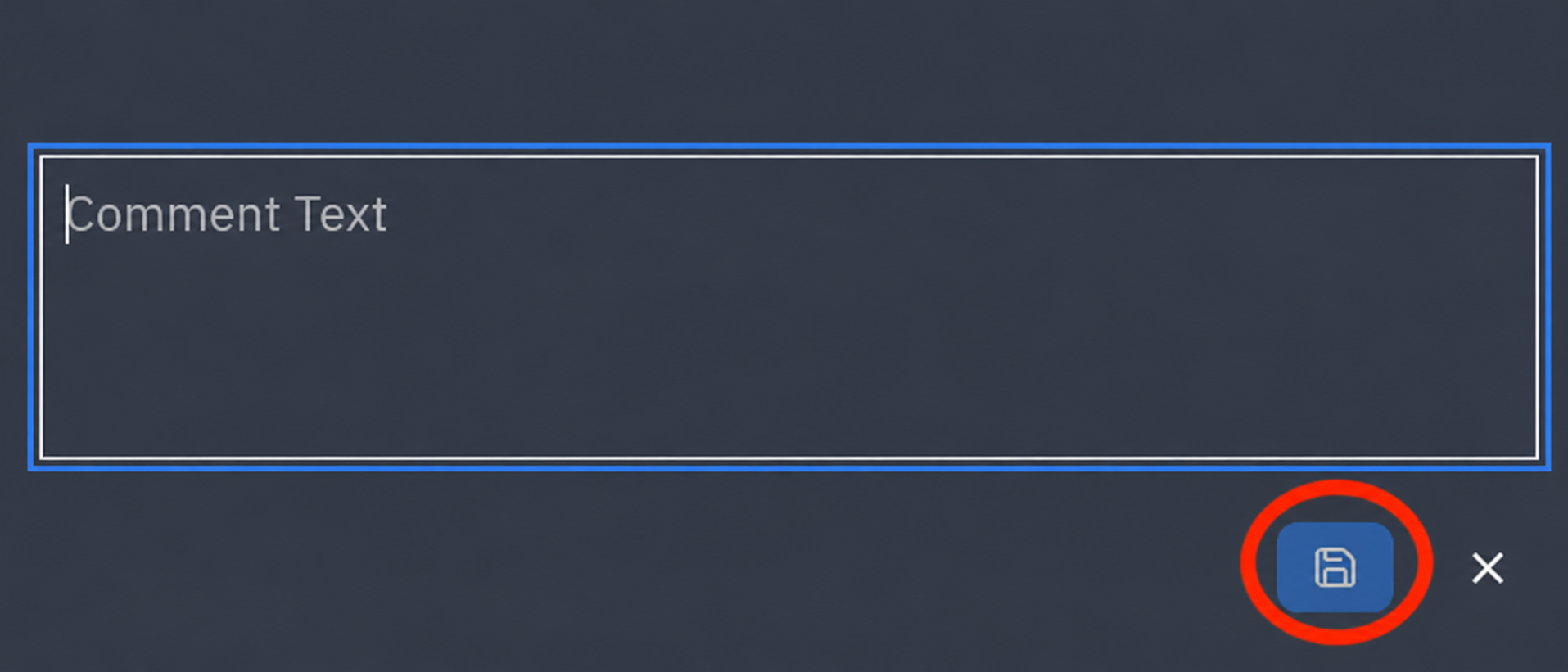
Enter your comment, then select the save icon.
Link an observation or mention a person
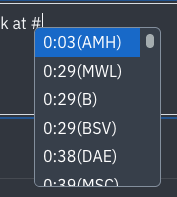
Type # in a comment and choose an observation from the list. This links the discussion to its coded observation and timestamp.
Type @ and select a person with access to the inspection. Select the actual entry from the picker before saving the comment.
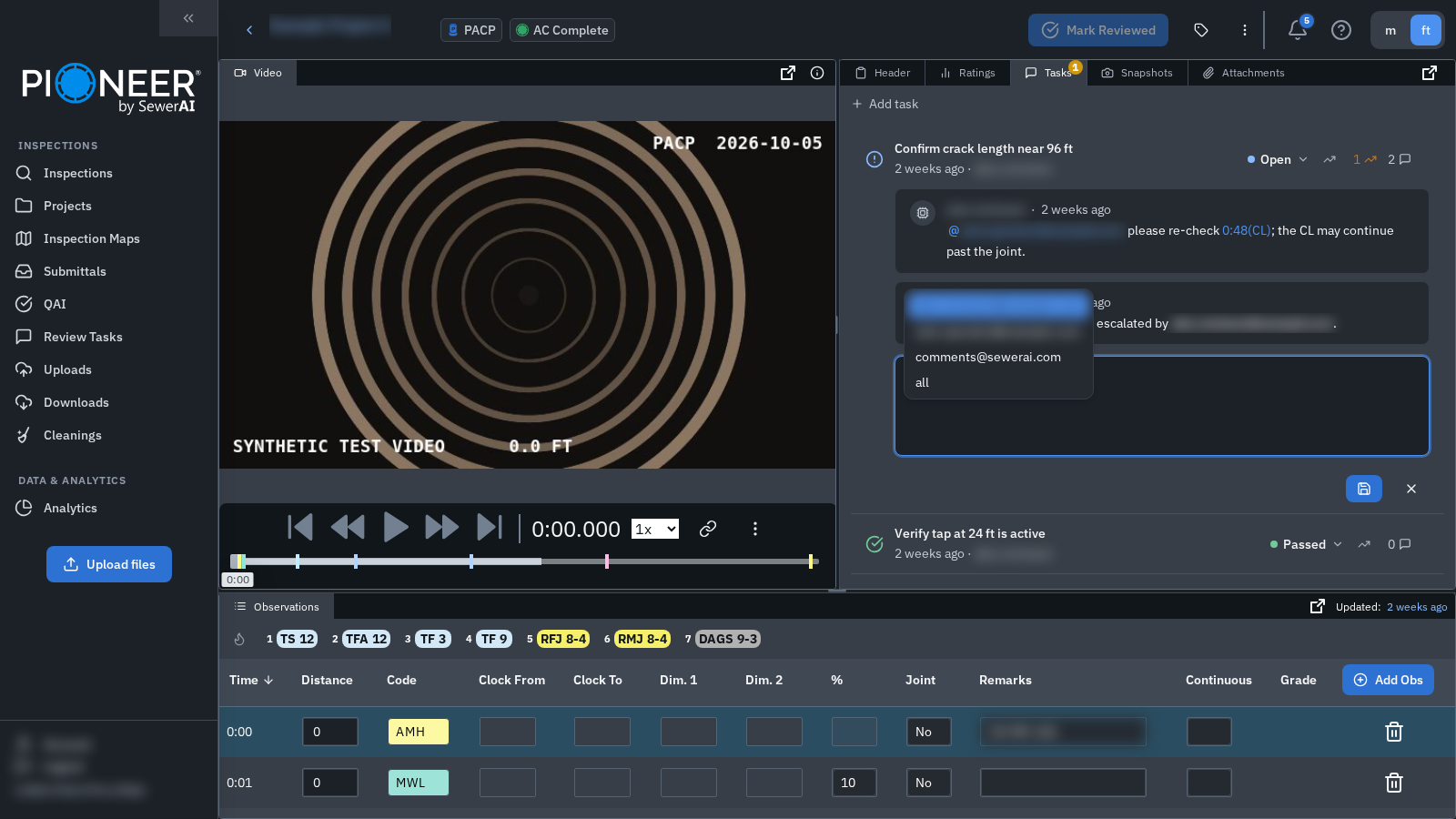
@all does not currently add all account users as notification recipients. The comments@sewerai.com entry is a PIONEER user mention, not a confirmed support contact route. Use the PIONEER chat widget when you need support.
Understand notifications
For manually created tasks, new-task notifications are configured for account Admins and Editors, excluding the creator. Comment notifications can include those account roles, the task creator and prior commenters, excluding the commenter. People mentioned in the comment use a separate Tagged notification.
Project-only access does not add a person to those recipient lists solely because of their role; they may be included as a task creator, commenter or mentioned person. Delivery depends on the event and applicable preferences. Task and comment emails may be grouped into digests. Automated tasks and review rules can behave differently.
Escalate a task
Select the Escalate icon to increase the task’s escalation count and add a system comment recording who escalated it.
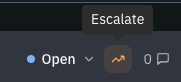
Your team defines what escalation means in its workflow. The action does not automatically assign ownership, notify another person, change task status or start SewerAI work. Mention the appropriate person separately if you need their attention.
Correct or remove a saved item
The Review Tasks panel does not provide an option to edit a saved task title or comment, or to delete an individual task or comment. If an item needs removal, contact support with the inspection link and identify the exact task or comment. Support will review the request.
Still Need Help?
Use the chat widget in PIONEER to contact our support team.
If you cannot access the chat widget, email help@sewerai.com.