Utilizing View Mode on PIONEER
Last updated: November 2, 2026
Use Viewer access to review the inspections shared with you. Your access may cover an entire account or selected projects.
1. Sign in with the invited email
Open your invitation link and use the email address that was invited. If you need to create a login, follow How to Sign Up and Log In to PIONEER.
If you cannot sign in or the expected project is missing, confirm the invited email with the person who shared access. For account setup or sign-in help, email help@sewerai.com. Include the invited email address, organization or project name, and any error message.
2. Find an inspection
Open Inspections. Only inspections you can access are shown.
Use filters such as Project, Asset ID or Inspection Date to narrow the list. Use the column settings control to choose the information shown in the table.
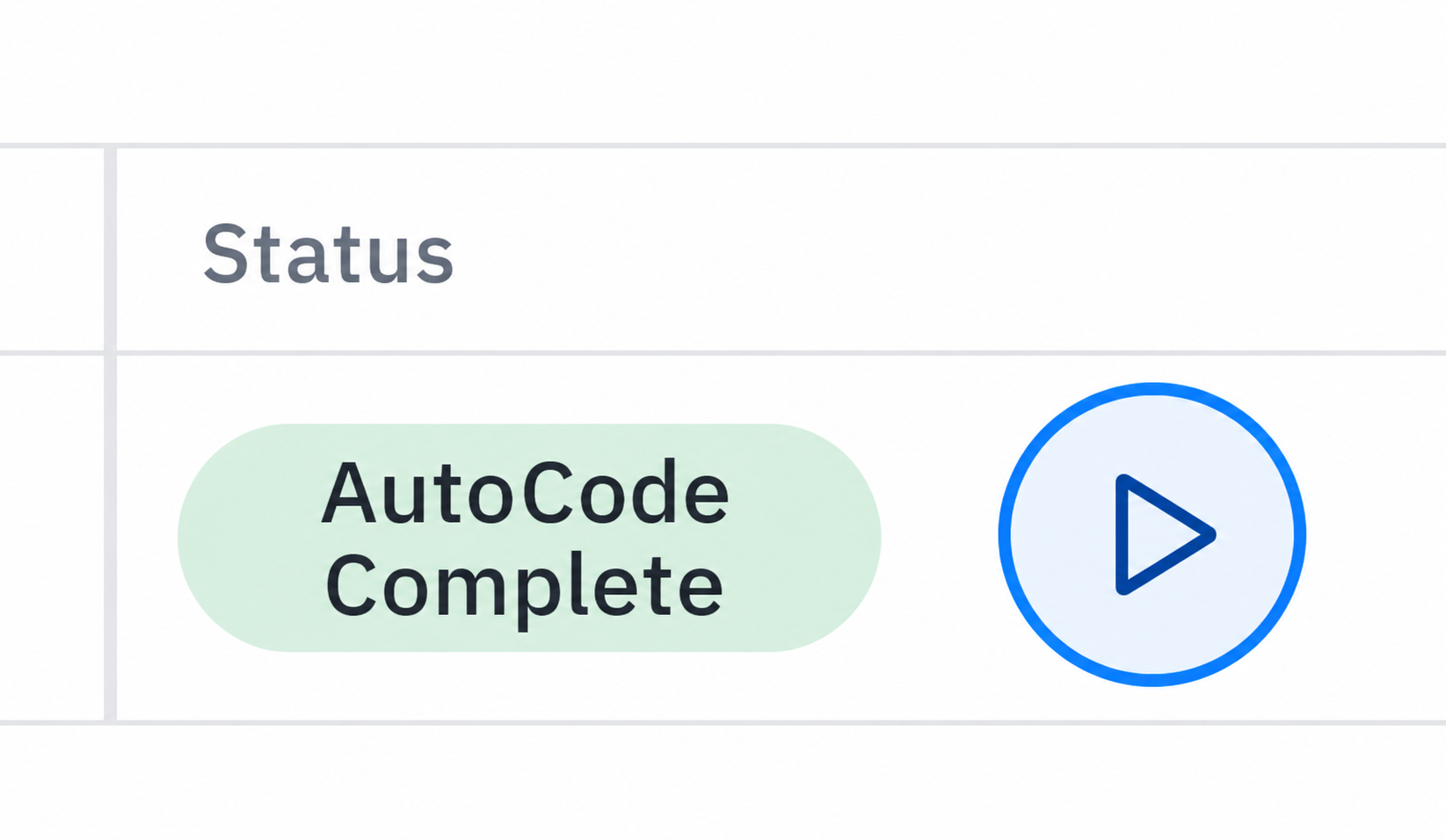
Select the play arrow at the right of a row, or double-click the row, to open the inspection.
3. Review the video and inspection details
In a full-width web browser, the tabbed workspace provides Video, Header, Observations, Ratings, Tasks and Snapshots. Viewers can read header information and observations. Viewer access does not permit editing those inspection records.
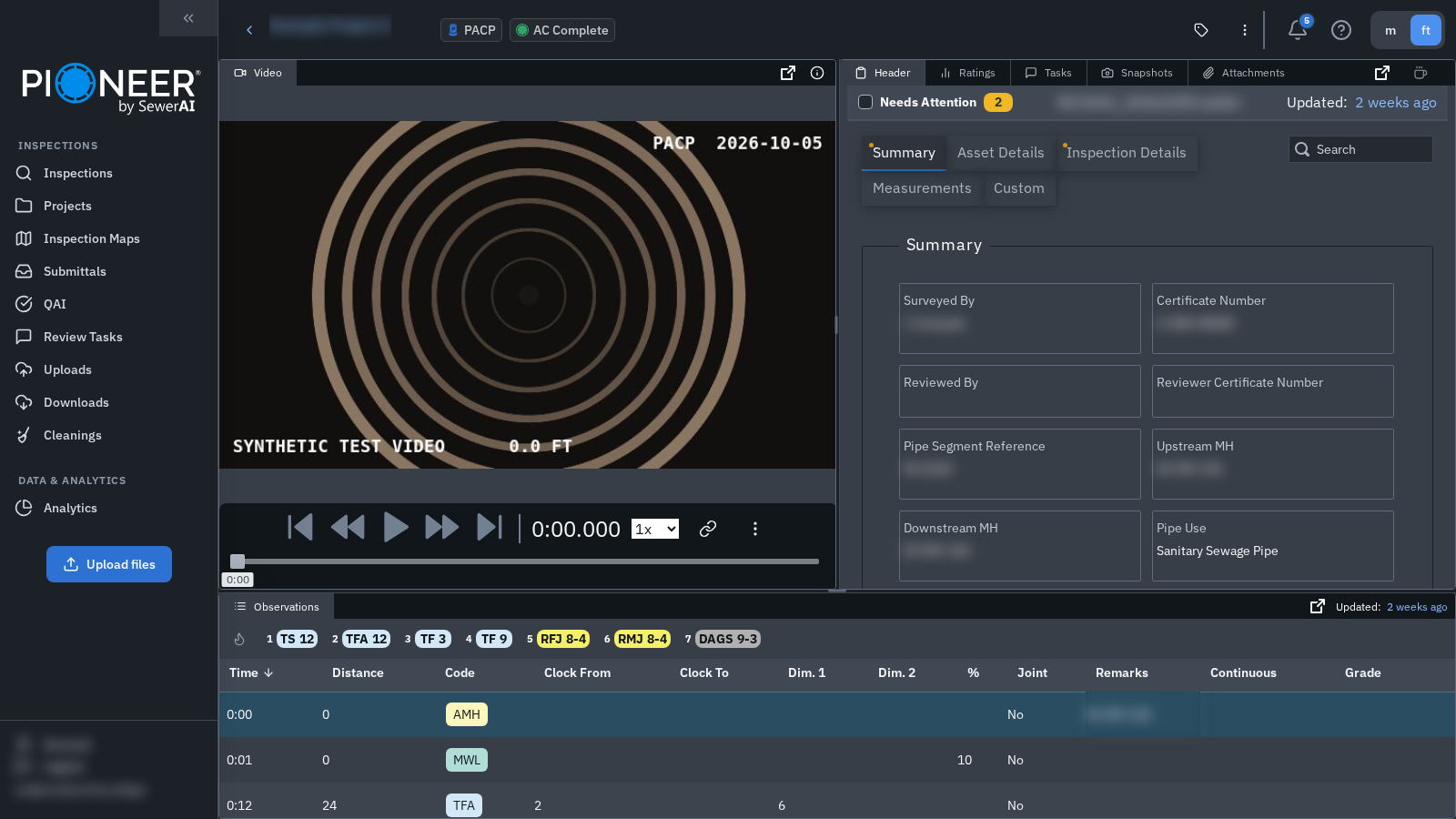
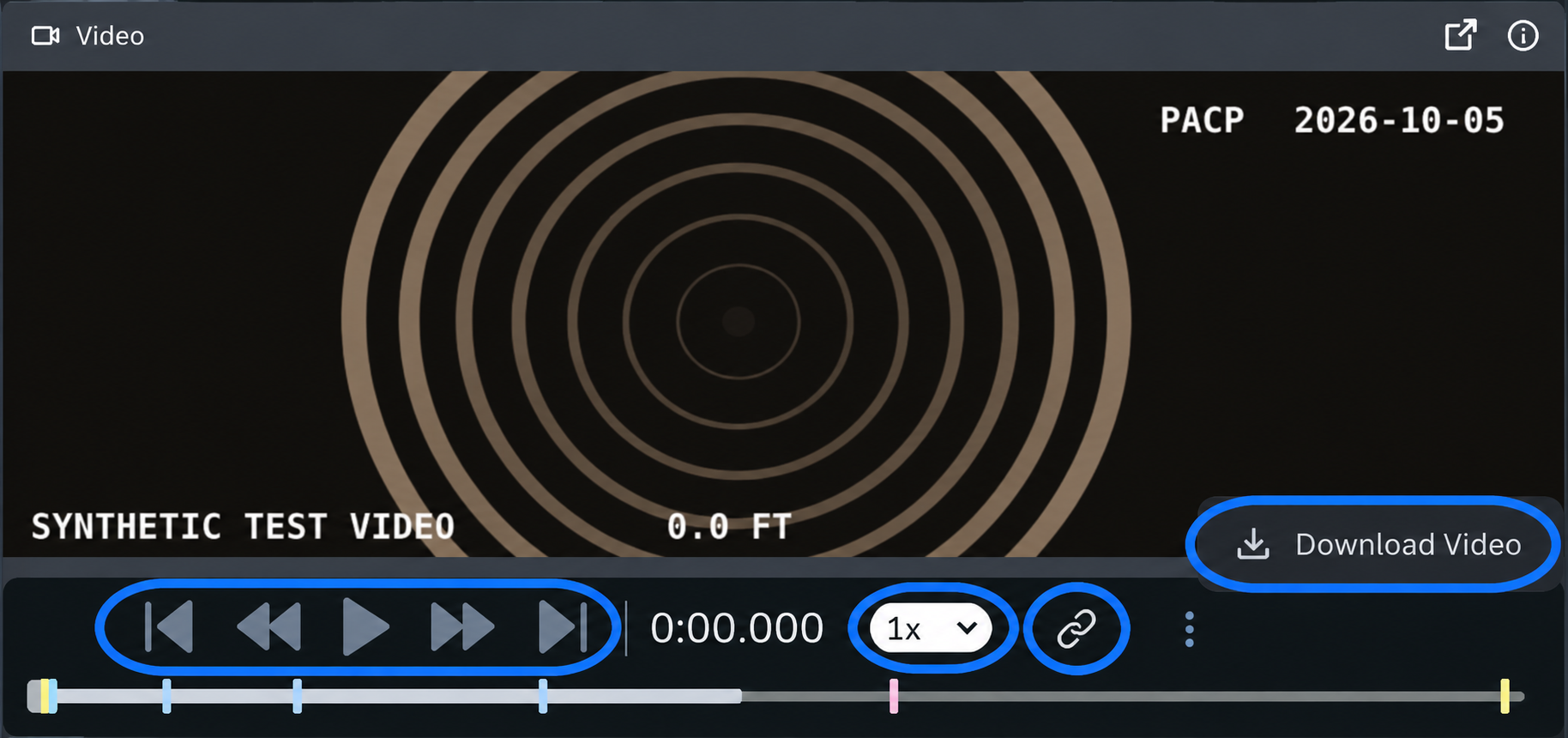
Use the video controls to change playback speed, step through footage and move to a timestamp. Select a snapshot to jump to its observation. The video link icon copies a link at the current timestamp; recipients still need access to the inspection.
Inspection-type-specific tabs such as Full Pipe, 3D Model and Pipe Connections depend on the workspace and available data. See Inspection Review for panel details and The New Inspection Review Page for arranging panels.
4. Leave review feedback
Open Tasks to create a Review Task or comment when your access permits it. Viewer access to inspection data does not by itself prevent task collaboration. See Review Tasks for steps and status permissions. Mark Reviewed is an Editor/Admin action, not a Viewer action.
5. Download a video
In the tabbed review workspace on a full-width web browser, open the Video player’s ⋮ menu and select Download Video. Viewer video downloading is restricted in the classic review workspace and the narrow/mobile web view.
6. Create a PDF package or download a CSV
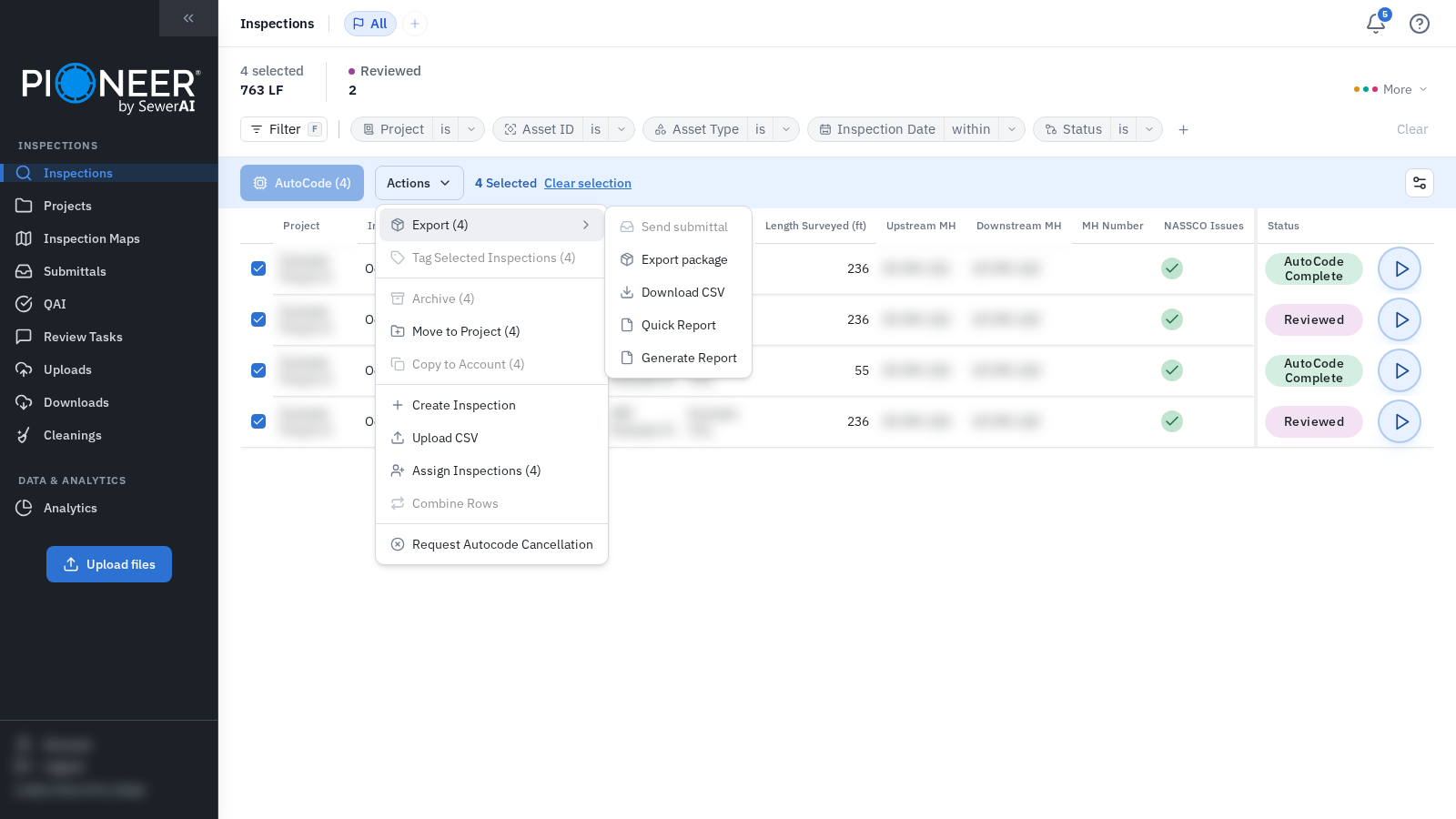
Return to Inspections and select the inspections you want.
Open Actions → Export (N). If your toolbar has an Export (N) button, open that menu instead.
Select Export package.
Enter a download name, select PDF Reports or PDF Reports (Classic), then select Package.
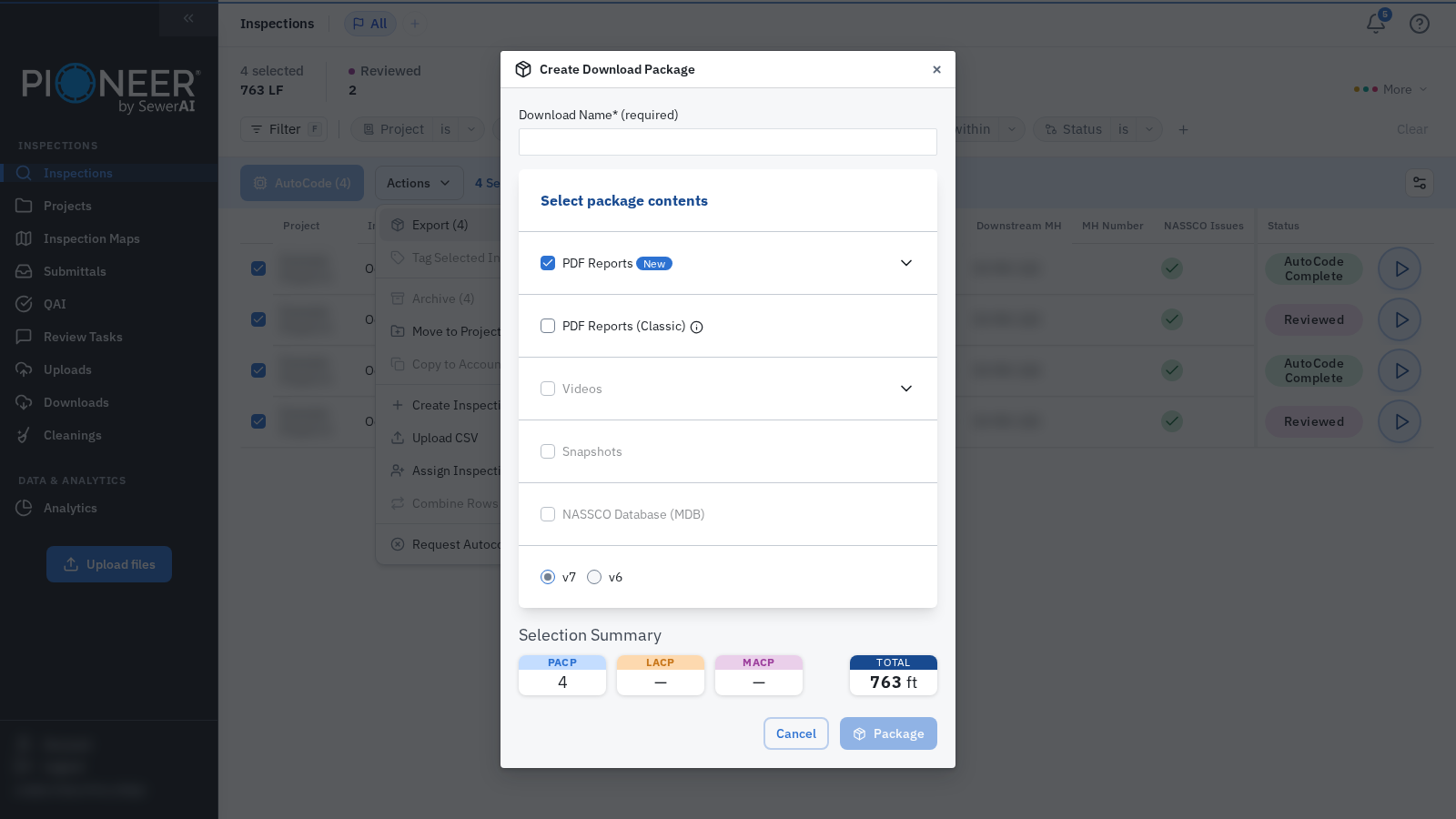
The package dialog limits Viewers to PDF reports. Videos, Snapshots and NASSCO Database (MDB), including its schema choice, are disabled. These package permissions are separate from the player’s single-video download action. Options also depend on access across the selected inspections.
Package creation can be blocked by AutoCode processing, unresolved NASSCO issues, or missing or processing video. Ask the inspection owner to resolve the reported issue, or contact support with the inspection link and message.
To download inspection data as a CSV, select Download CSV from the Export menu. CSV is a separate action, not a checkbox in the package dialog.
Still Need Help?
Use the chat widget in PIONEER to contact our support team.
If you cannot access the chat widget, email help@sewerai.com.