How to Sign Up and Log In to PIONEER
Last updated: November 2, 2026
Create your PIONEER login, verify your email if prompted, and complete your profile. If you were invited, use the same email address that received access to your organization’s account.
Before You Start
- Use Google Chrome
- Have access to the email address you will use for PIONEER
- Use your organization’s required sign-in method, if one applies
Create Your Login
- Open pioneer.sewerai.com.
- Click Log In.
- Select Sign up on the welcome page.
- Enter your email address.
- Click Continue.
- Create a password that meets the requirements shown.
- Click Continue.
- Open the verification email and follow its link if PIONEER asks you to verify your address.
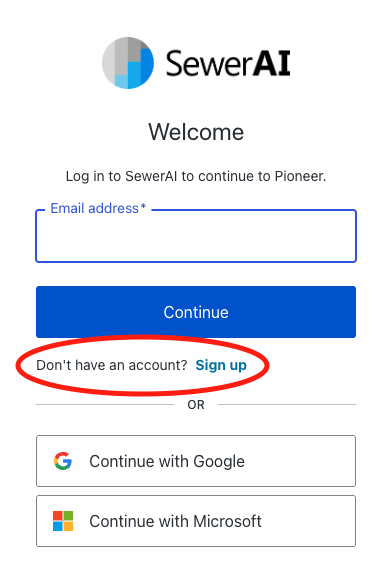
Select Sign up if you do not have a login.
The password must contain at least 12 characters and at least three of these categories: lower-case letters, upper-case letters, numbers, and special characters.
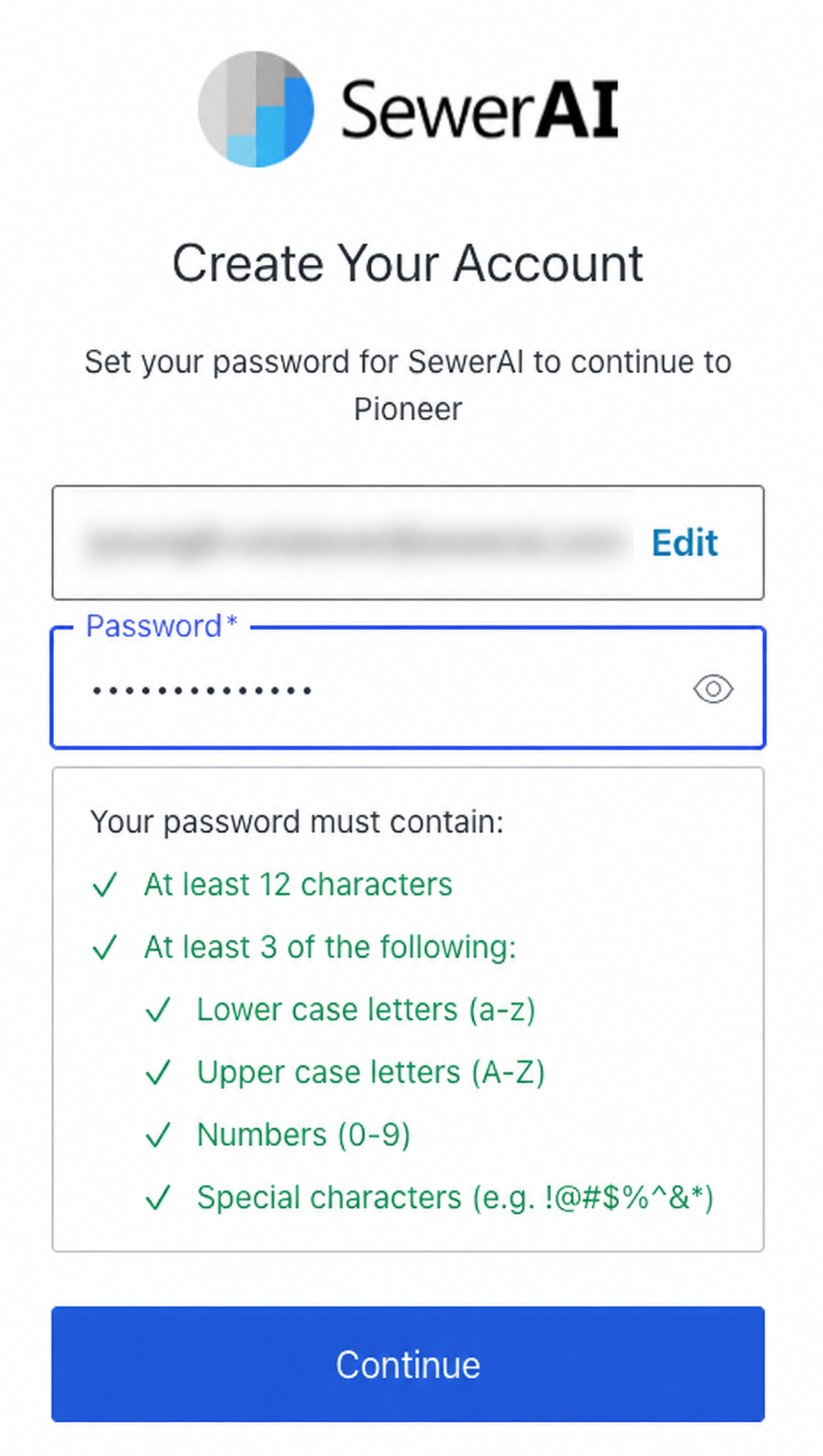
Create a password that meets the listed requirements, then click Continue.
You can also use Continue with Google or Continue with Microsoft when that sign-in method is appropriate for your organization. You can reach sign-up directly at pioneer.sewerai.com/signup.
Creating a login does not automatically give you access to your organization’s data. An account Admin, or an account Editor adding Viewer access, must grant the appropriate access.
Verify Your Email
The Check your inbox page waits for verification and continues when your email is verified.
- Check your inbox and spam or junk folder.
- Ask your IT team to allow email from noreply@sewerai.com if messages are blocked.
- Click Resend email if you need another verification link.
- Wait for the countdown to finish before requesting another email.
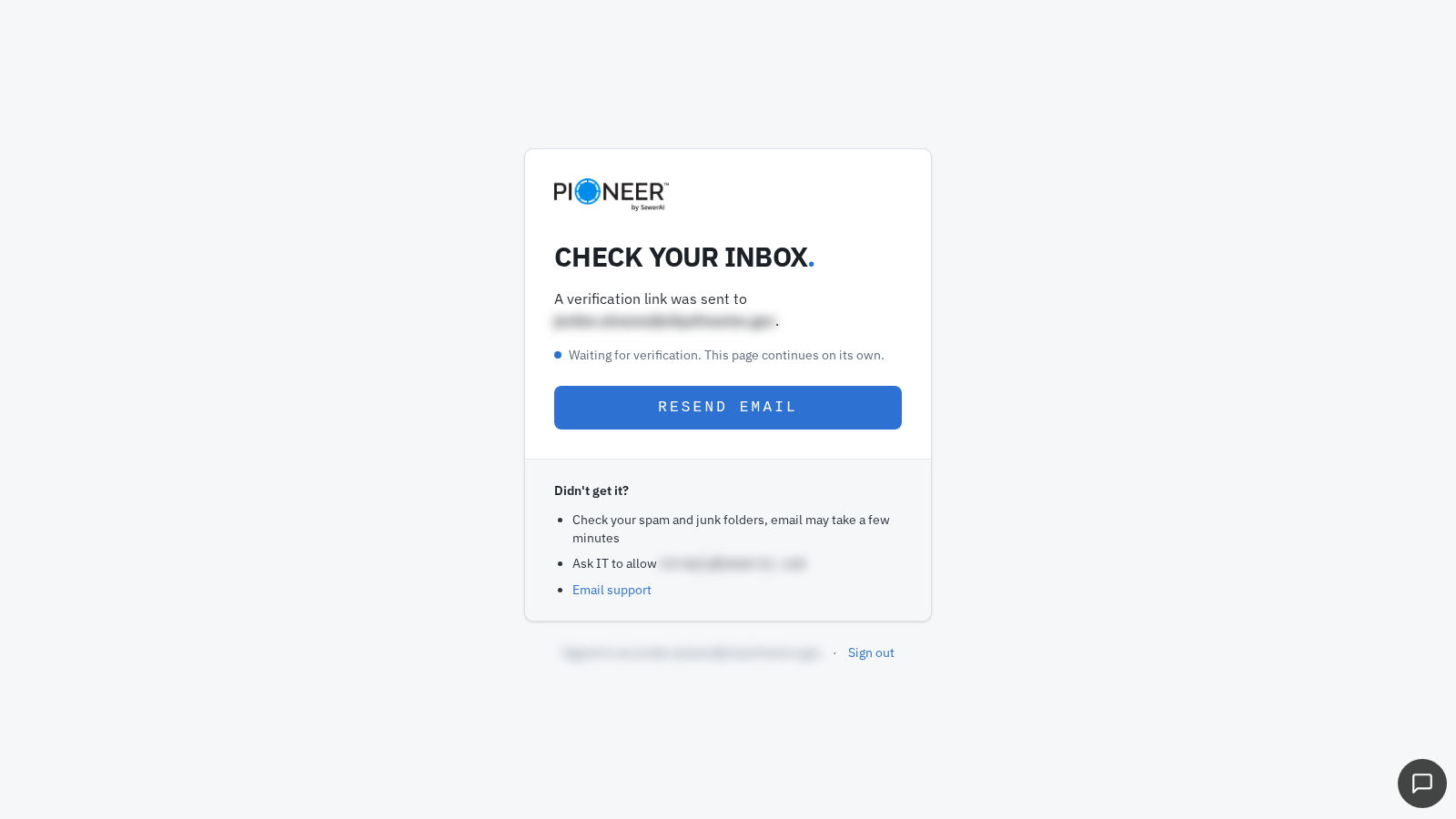
Use Resend email on the verification page if a link has not arrived.
If the verification page does not appear or resending fails, email help@sewerai.com. Include the email address you used and any error message.
Complete Your First-Login Profile
- Enter your first name, last name, organization, phone number, and country.
- Enter your ZIP code if your country is the United States.
- Complete any optional profile fields you want to provide.
- Read the terms and conditions.
- Select the acceptance checkbox.
- Click Submit.
Your National Association of Sewer Service Companies (NASSCO) certification number is optional profile information. It is not required to edit inspections. City and state are optional; outside the United States, postal code is optional.
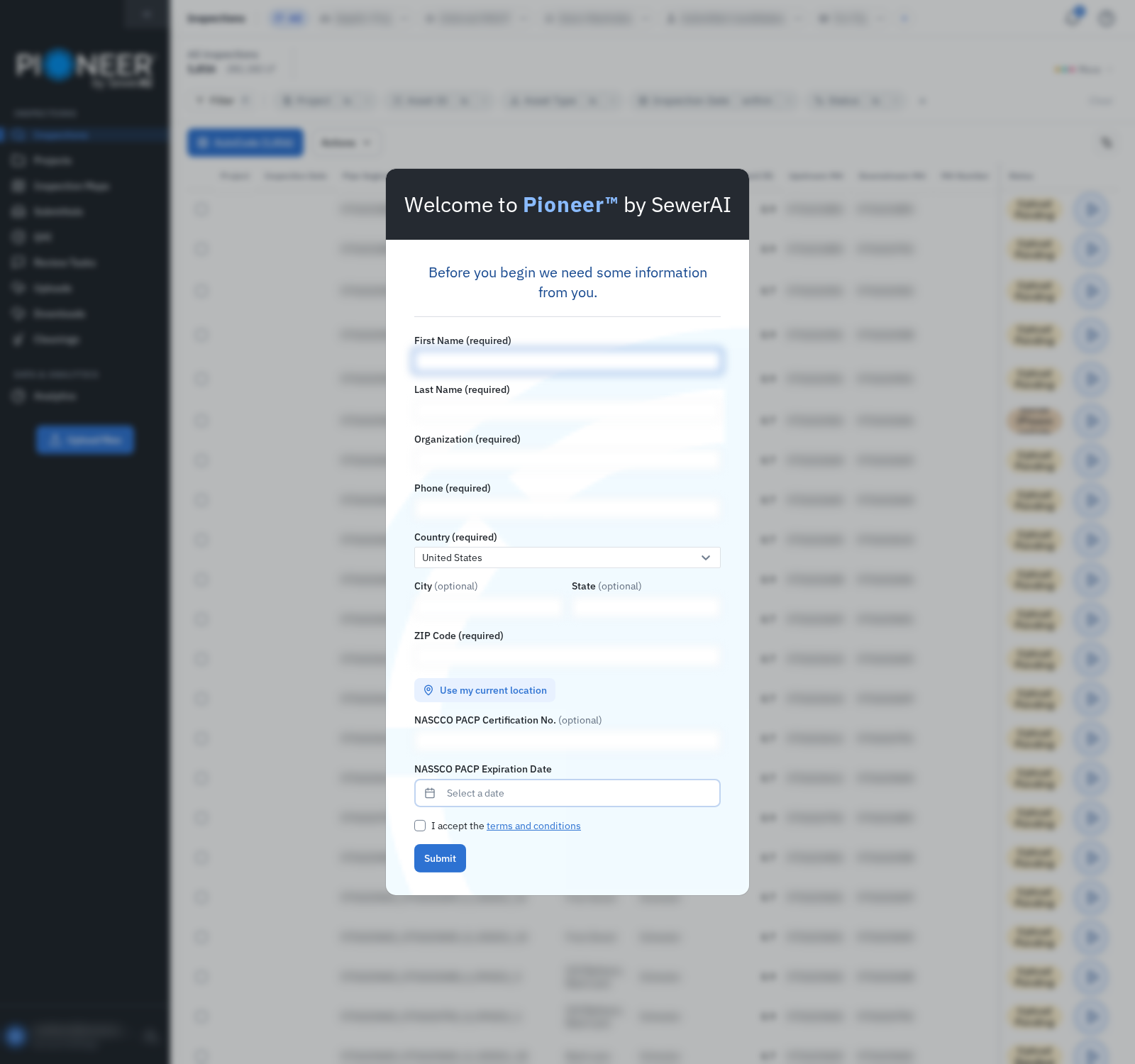
Complete the required profile fields and accept the terms before submitting.
Log In Again
- Open pioneer.sewerai.com.
- Click Log In if the sign-in page does not open automatically.
- Enter your email address and click Continue, or choose the Google or Microsoft option you used to create your login.
- Follow the remaining sign-in prompts.
For a password-based login, use the password-recovery option on the sign-in page if you have forgotten your password. If your organization requires single sign-on, use its designated sign-in option.
Check That It Worked
Confirm that PIONEER opens and that you can see the account and projects you expect. Your assigned role and account or project access determine what you can do.
Troubleshooting
The Expected Account or Projects Are Missing
Confirm that you signed in with the email address that was granted access. Ask your account Admin to check your account and project assignments.
You Cannot Complete Verification or Sign In
Record the error message and the sign-in method you used. Do not send passwords or verification links to Support.
Still Need Help?
For account setup or sign-in help, email help@sewerai.com.
Include the email address you used, the organization or project name, and any error message.