Inspection Review
Last updated: November 2, 2026
Use Inspection Review to watch inspection video, review header information and observations, check ratings, and collaborate through Review Tasks.
These steps cover the tabbed Inspection Review workspace in PIONEER on the web. Use a full-width browser window to see the workspace shown below. A narrow or mobile window has different controls.
Open an inspection
Open Inspections and find the inspection.
Select the play arrow at the right of its row, or double-click the row.
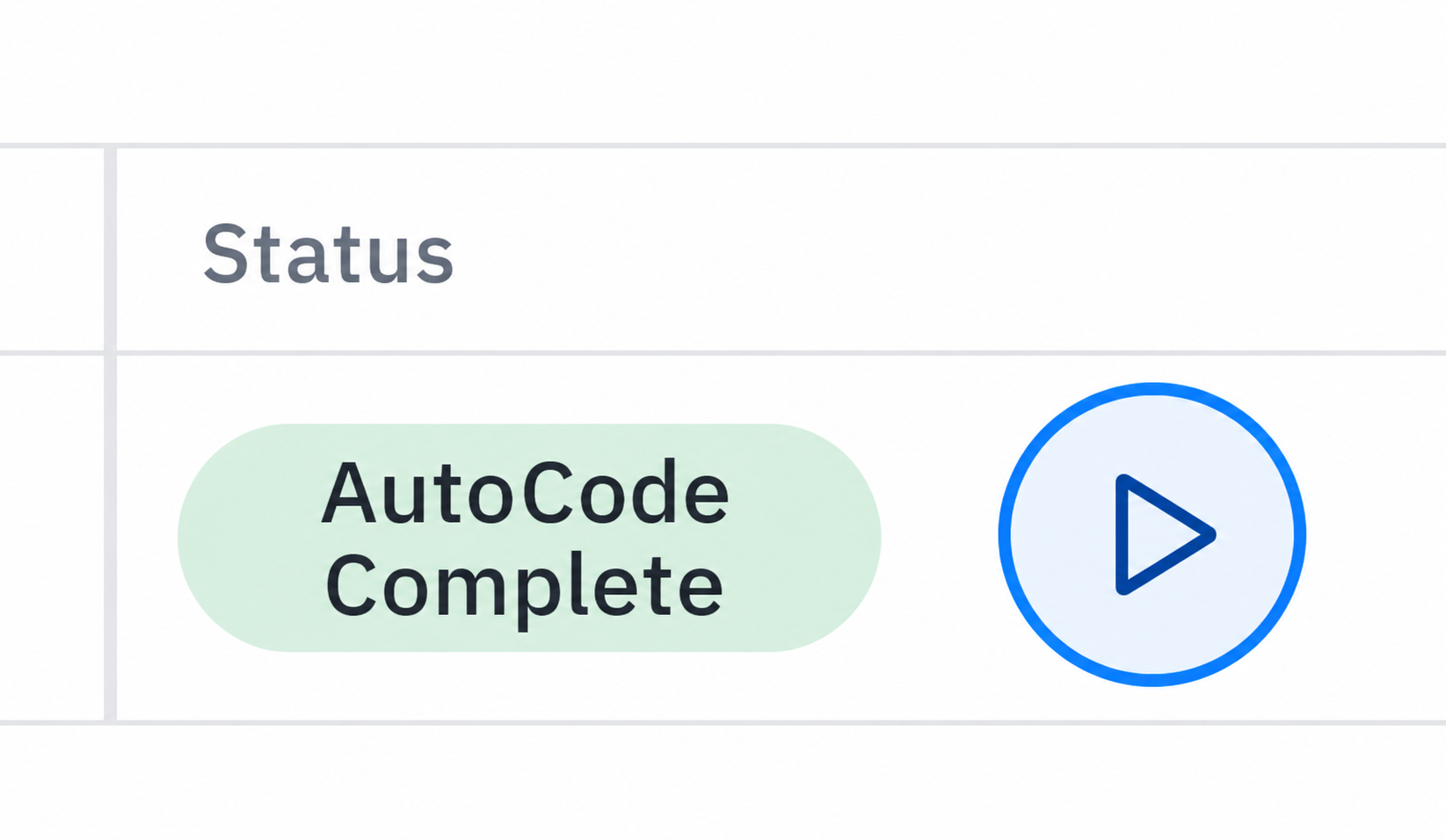
To review AutoCode results, open an inspection after it reaches AutoCode Complete. For manual coding, wait until the inspection is Uploaded. Editing requires Editor or Admin access.
Find your way around
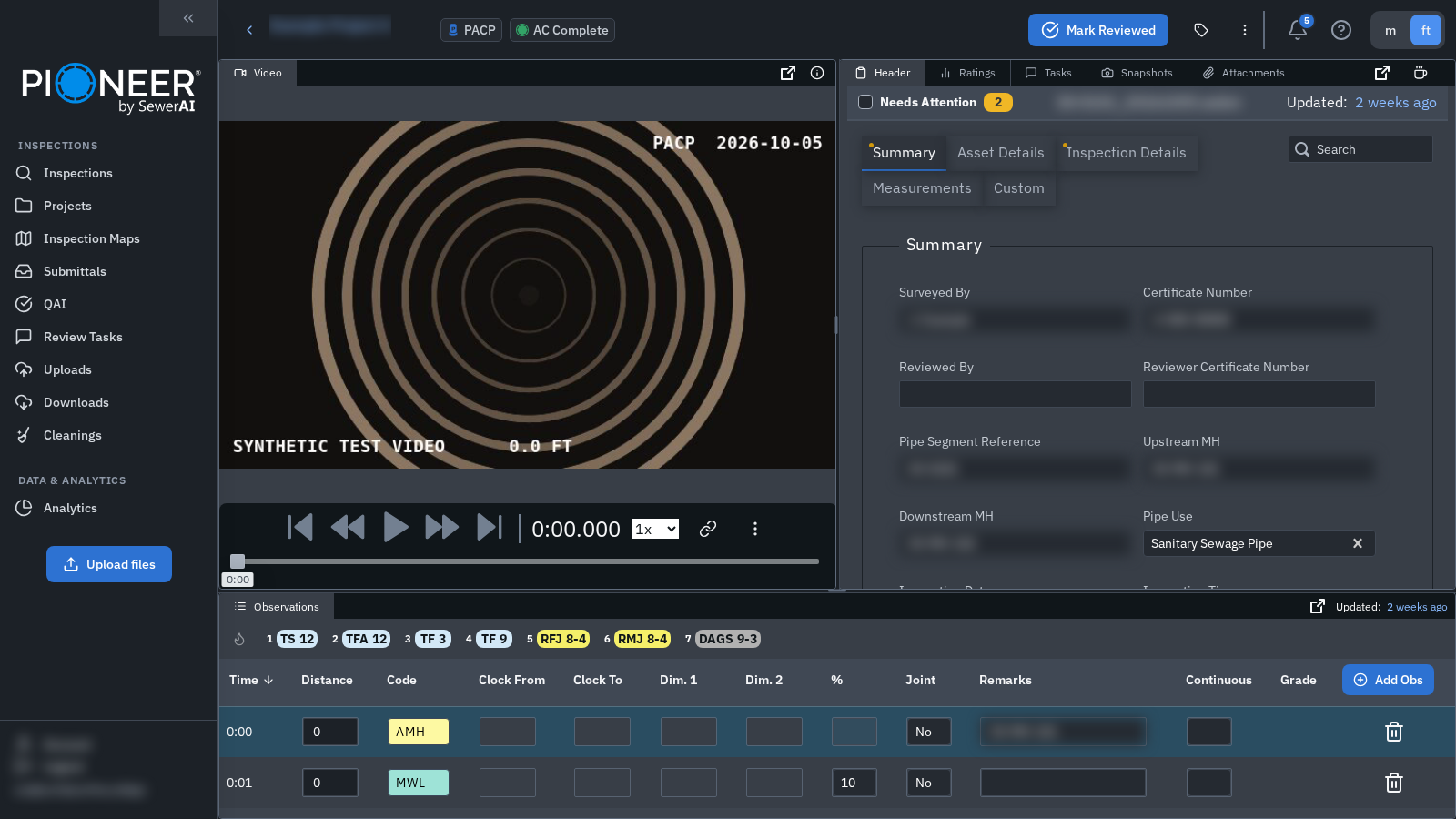
Video: play the footage and move to a timestamp.
Header: inspect the asset and inspection details.
Observations: review the condition codes, distances, timestamps and remarks.
Ratings, Tasks, Snapshots and Attachments: select a tab to open that panel.
Drag tabs to rearrange or stack panels, and drag the divider between groups to resize them. See The New Inspection Review Page for workspace controls.
Top menu and inspection information
The top bar shows the project, inspection type and processing status. Use the back arrow to return to the page you came from. Use m/ft to change display units.
When you open an inspection from a filtered list, use the available previous/next controls or inspection list to move through that set. Use Tags to manage inspection tags when your access permits it. The bell opens notifications, and ? opens the Help Center.
For focus mode, press Ctrl+Shift+F (⌘+Shift+F on a Mac). Press Esc to exit.
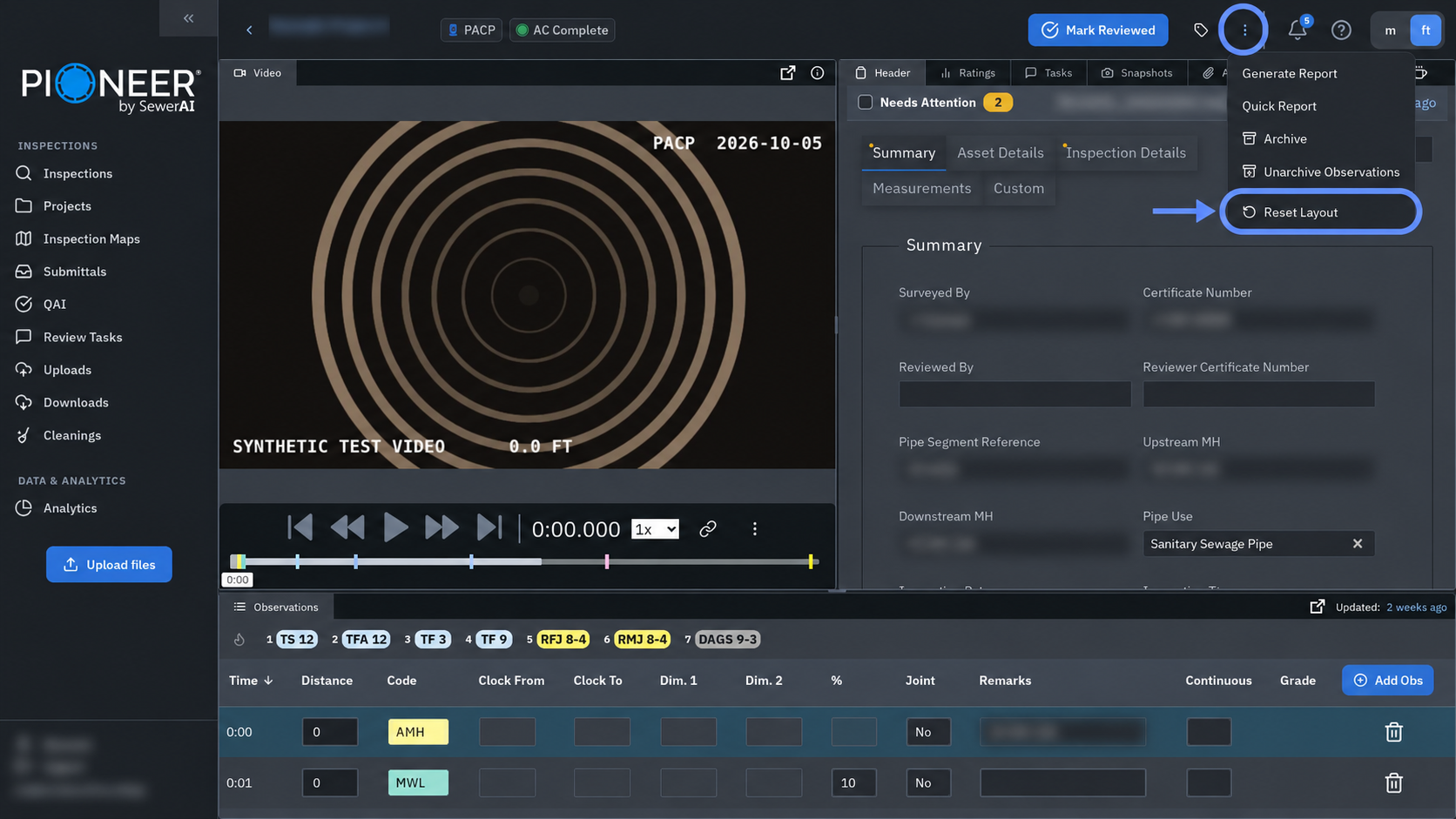
Open More options (⋮) for actions such as Generate Report, Quick Report and Reset Layout. Available actions depend on your access and the inspection.
Review header information
Select Header, then choose the relevant header tab. Turn on Needs Attention to show fields with header validation errors in the selected tab. These can include missing required values, invalid values, and fields required by the project.
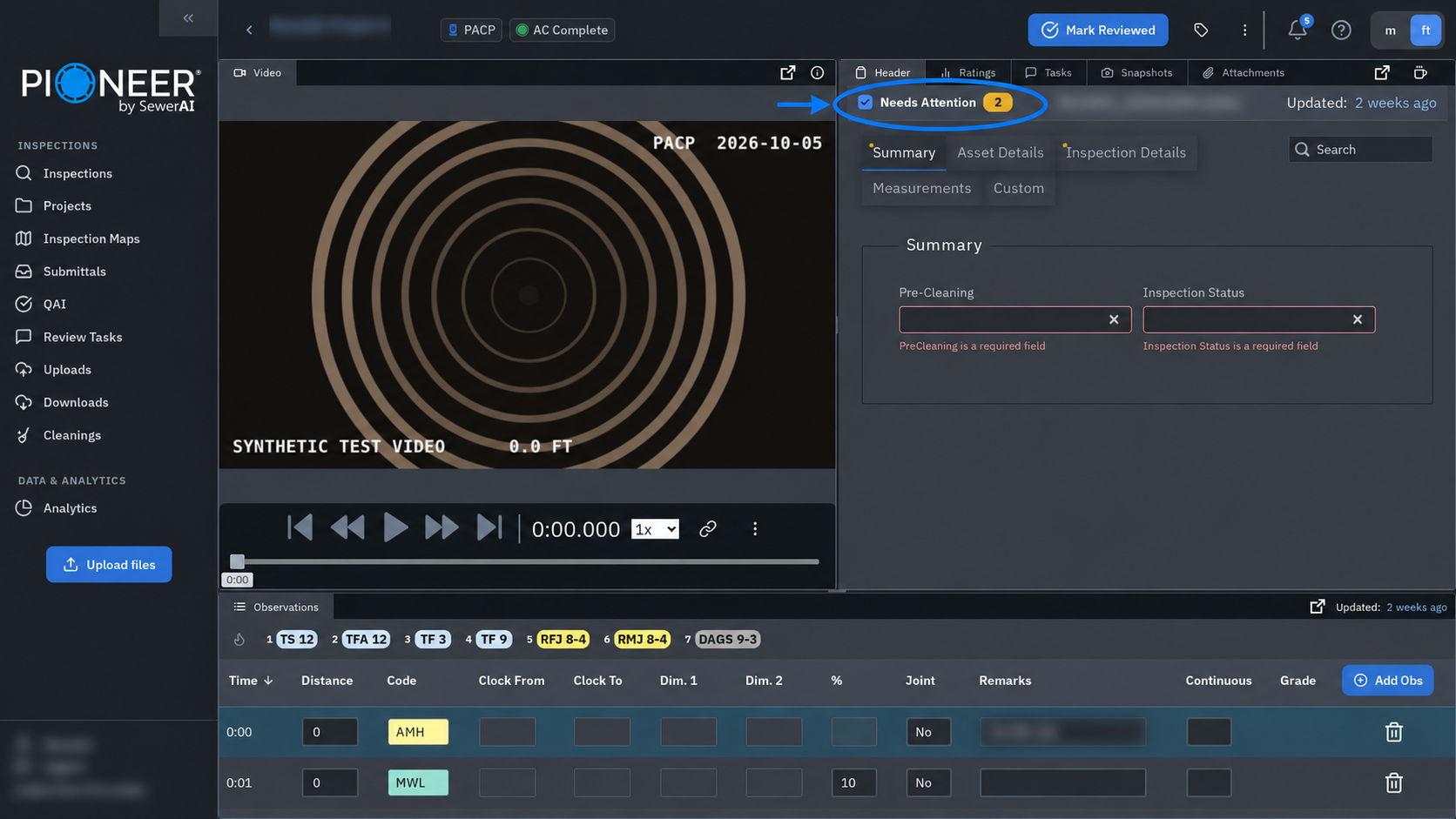
The filter uses the errors present when you select it. After correcting fields, clear and select it again to refresh the filtered view. It does not filter observation issues or the Custom tab.
Watch and navigate the video
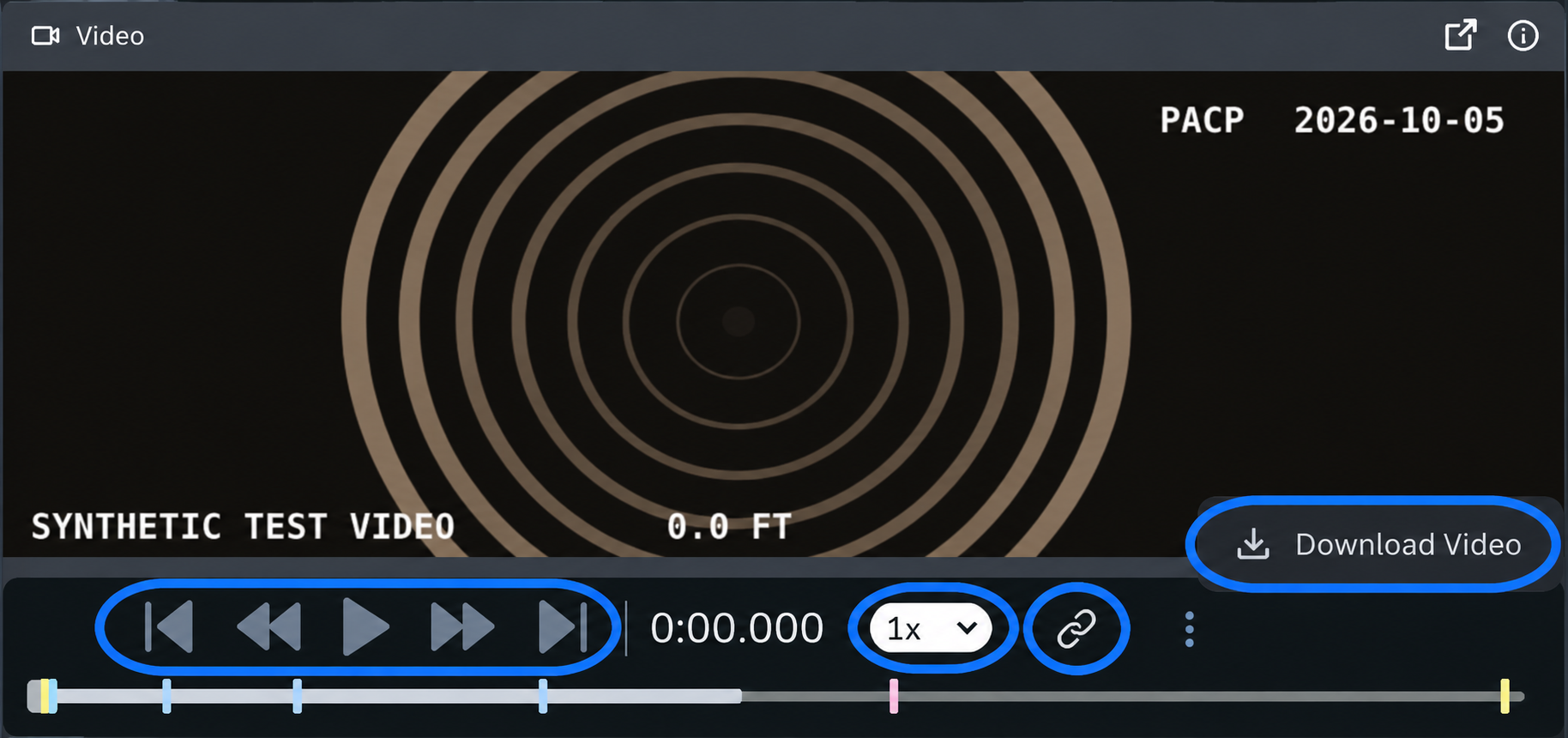
Use the playback controls to play or pause, step by a frame or second, and change playback speed.
Use the timeline to move through the video. Hover over controls to see available keyboard shortcuts.
Select the link icon to copy a link at the current timestamp. The recipient must have access to the inspection.
Open the player’s ⋮ menu and select Download Video when available. This is separate from creating an export package.
Review observations
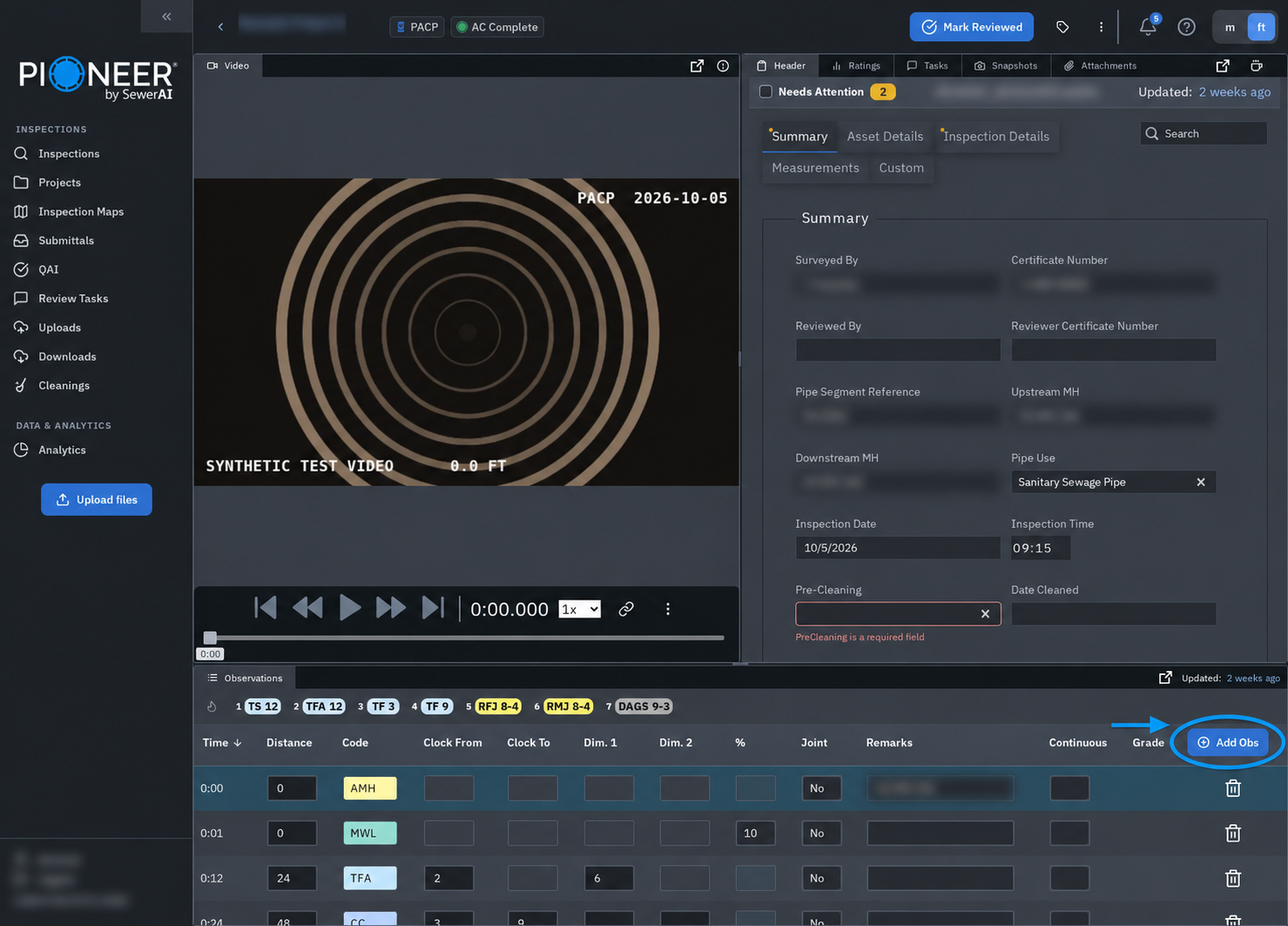
The Observations table lists each coded condition with its timestamp, distance and supporting details. Hover over a code to see its full name.

With Editor or Admin access, select Add Obs to add an observation. The button is available when the inspection permits coding.
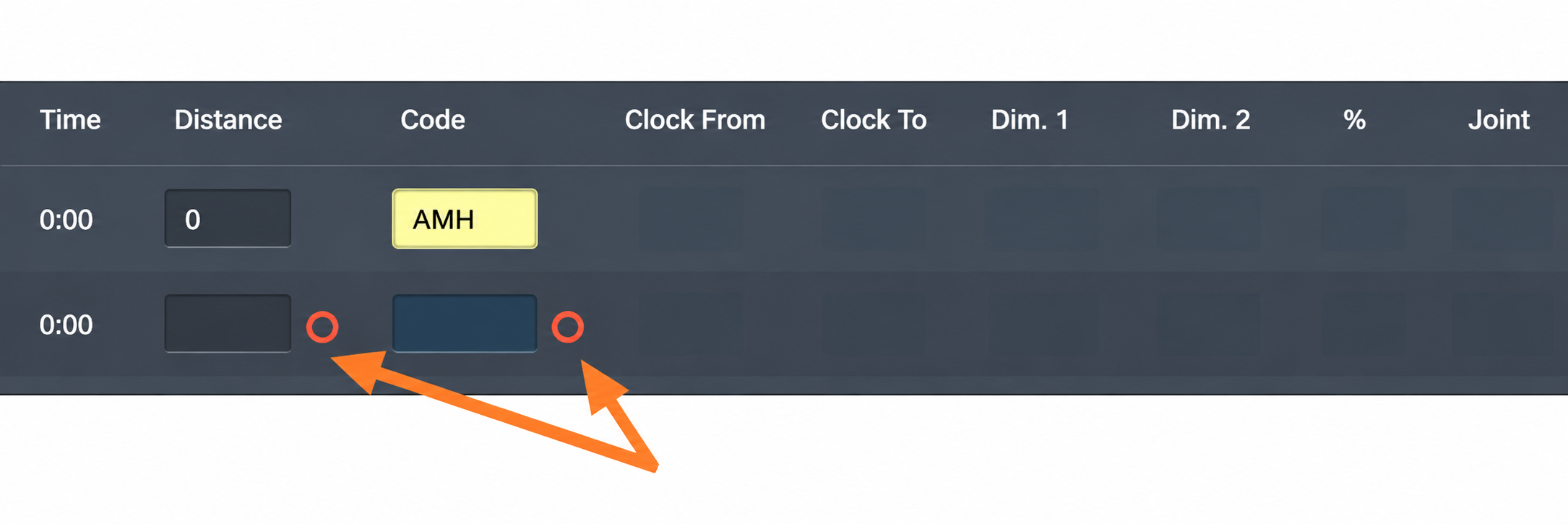
When observation validation issues are present, the panel shows an issue count. Hover over it to see the issues and select one to locate the affected observation. Invalid fields also have an error indicator. For help resolving a NASSCO issue, contact support with the inspection link and the issue message.
Use snapshots
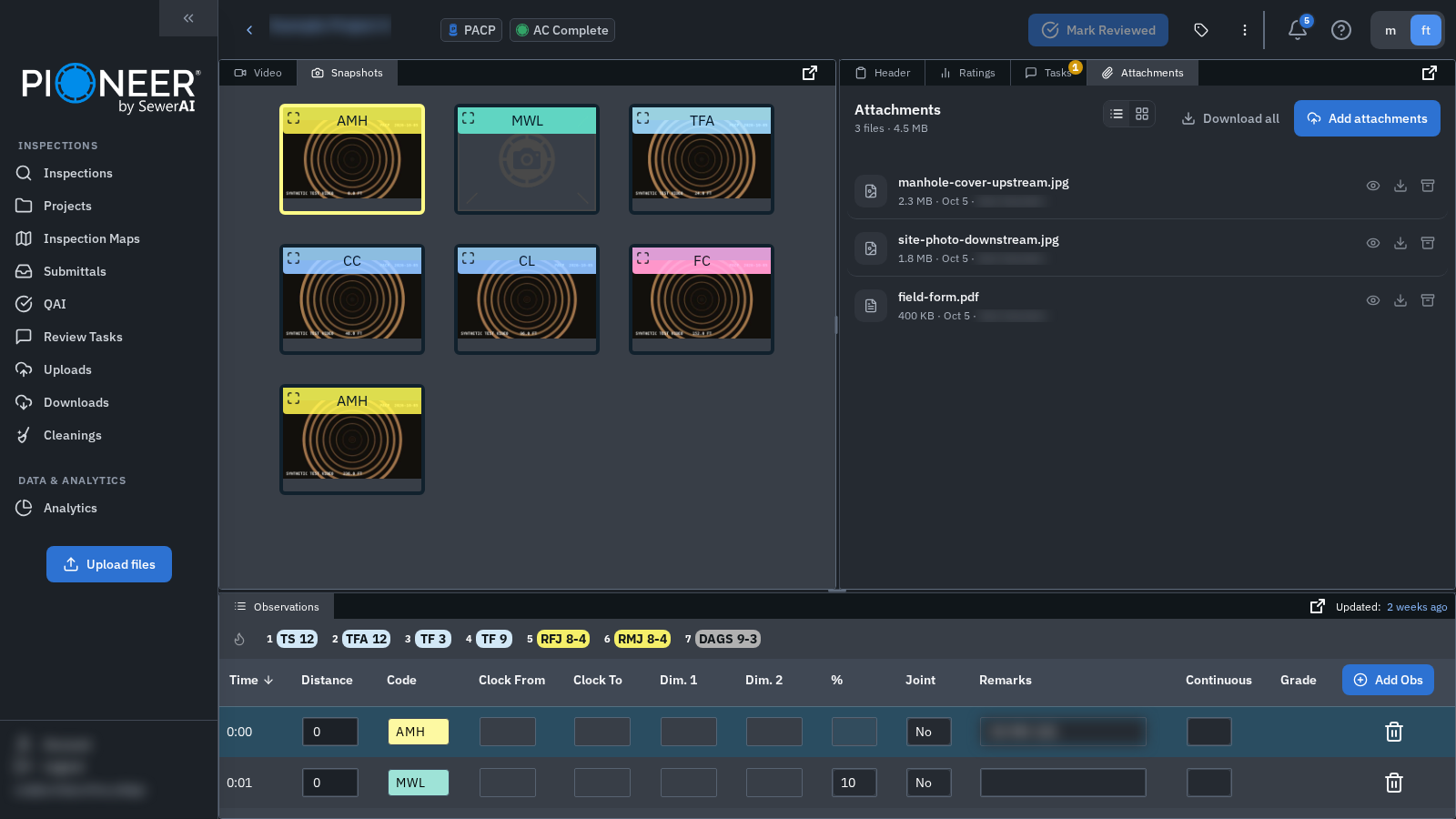
Select Snapshots to see images linked to observations. Select a tile to move to its timestamp and highlight the associated observation. Use the tile’s expand control to view the image at a larger size.
Check ratings
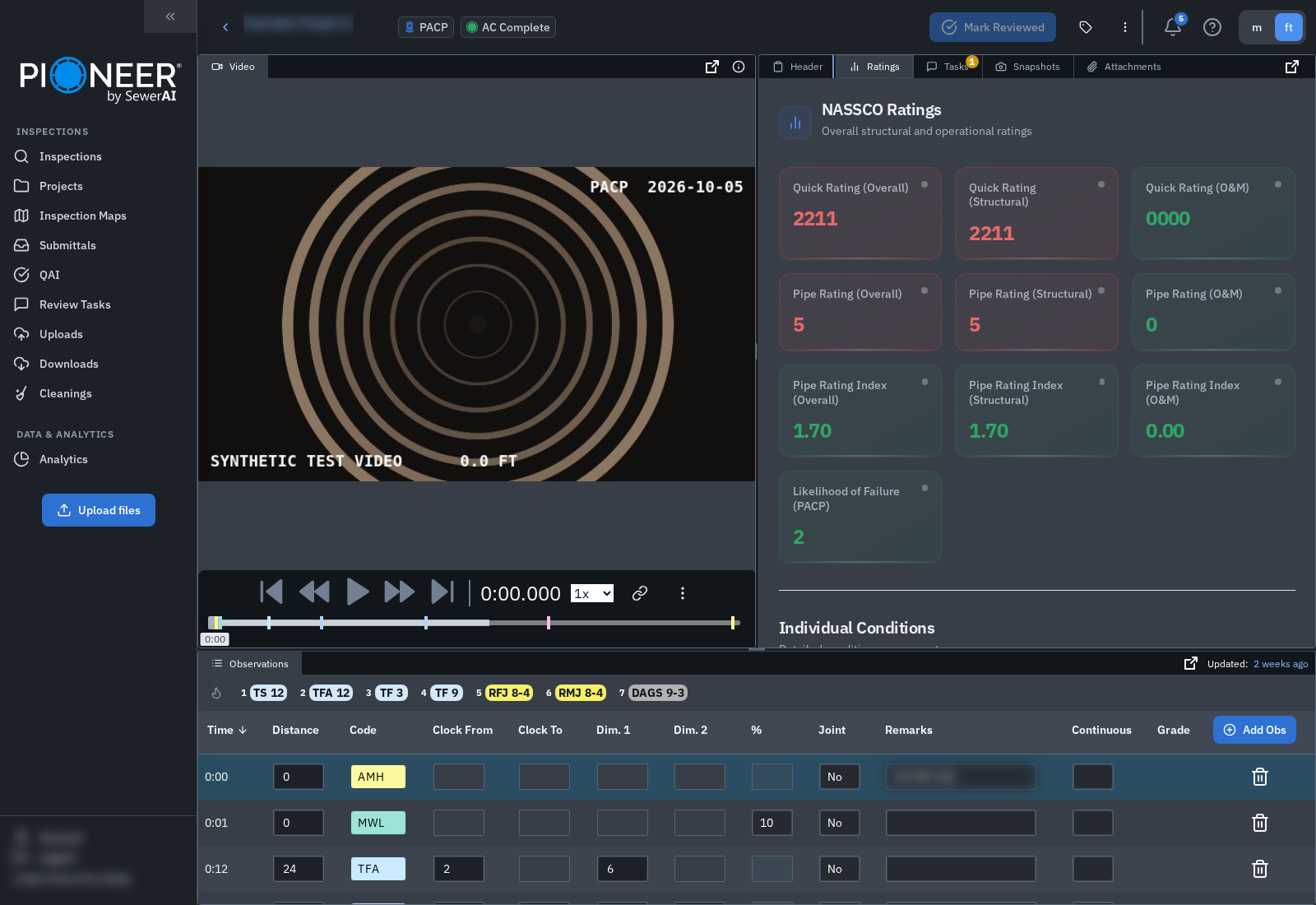
Select Ratings to view the inspection’s NASSCO ratings and individual condition information.
Collaborate with Review Tasks
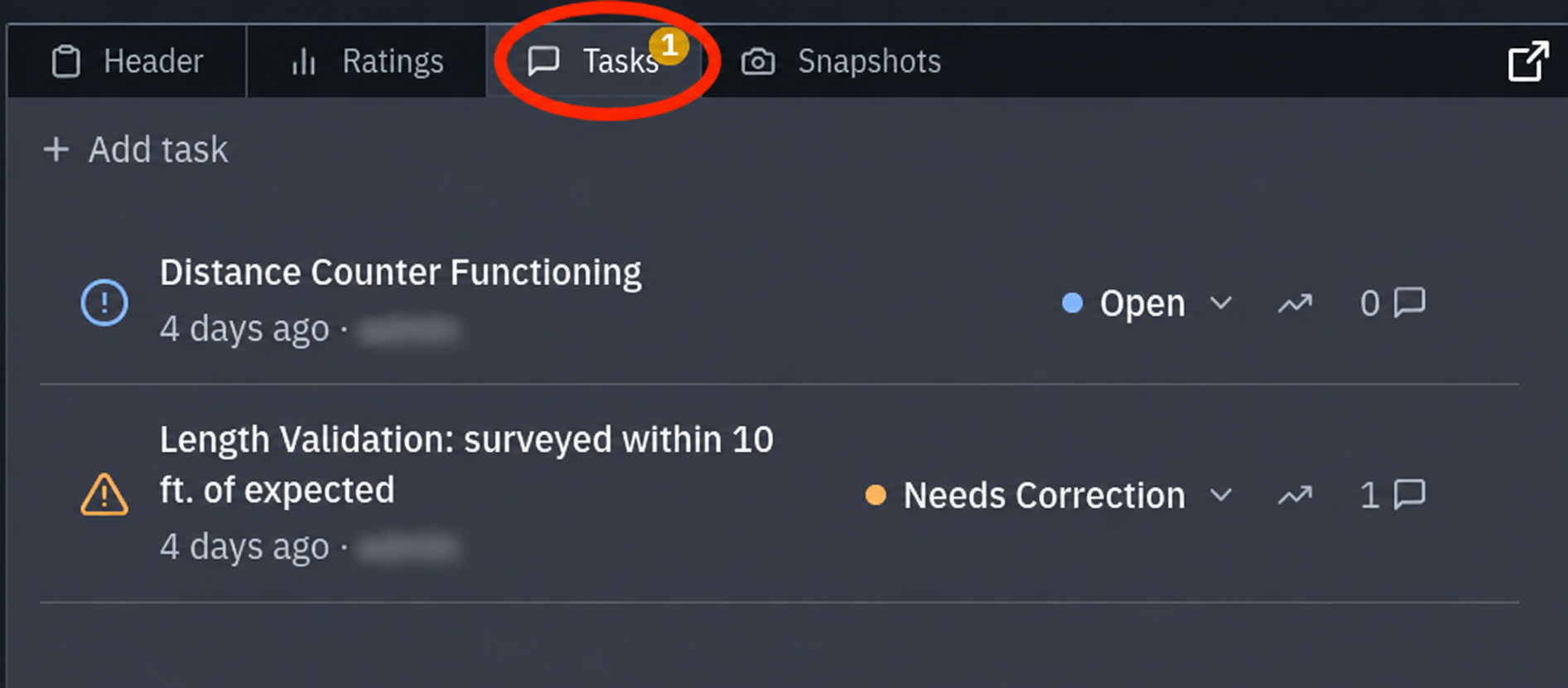
Select Tasks to add a review task, comment or link an observation. See Review Tasks for steps, permissions and notification details.
Mark an inspection reviewed
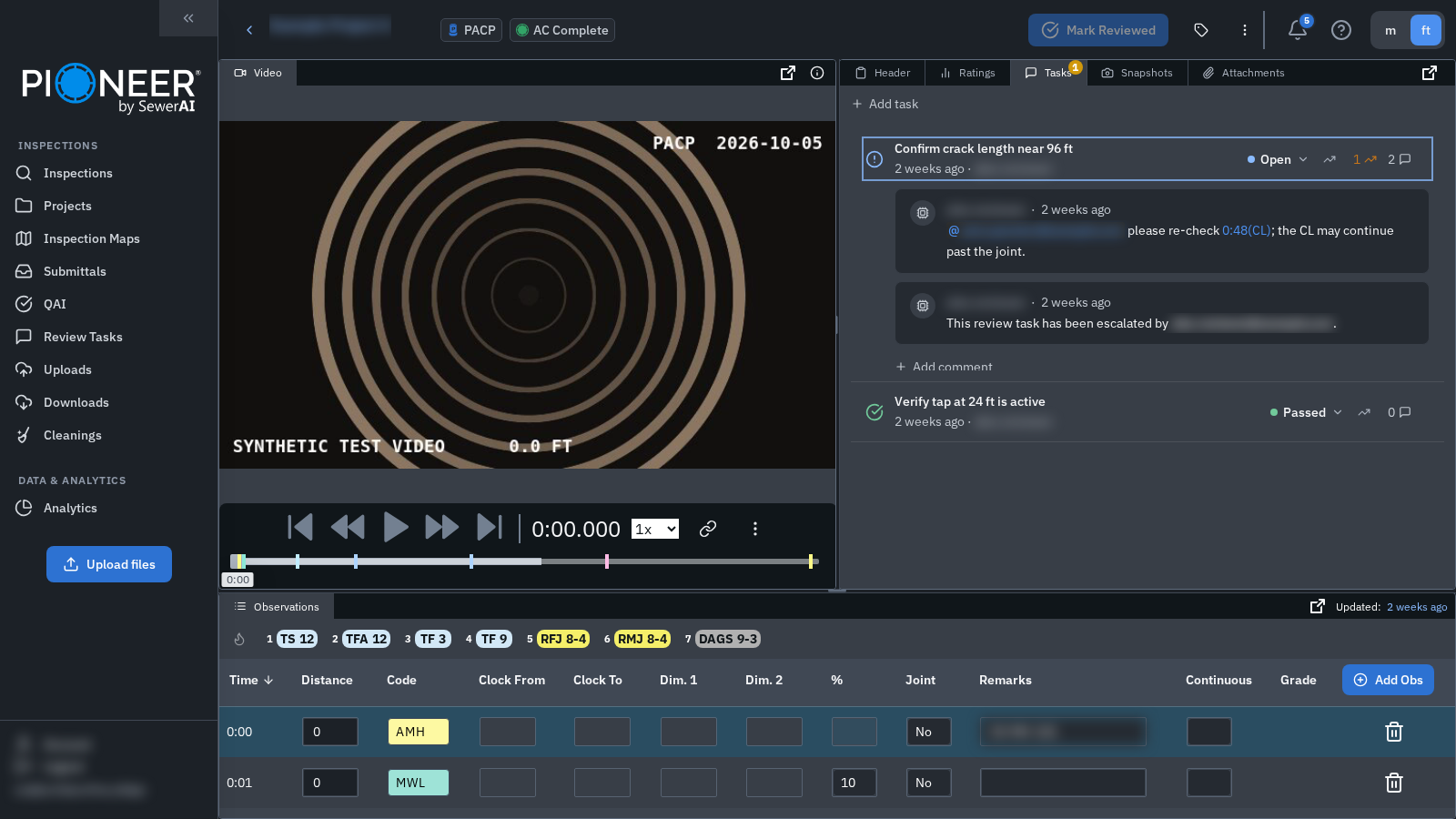
If your team uses the Reviewed flag, Editors and Admins can select Mark Reviewed in the full-width web workspace. This records review separately from the inspection’s processing status. Use Remove Review to clear the flag.
An Open Review Task disables the button. Failed and Needs Correction tasks do not disable it. Choose task outcomes that reflect the actual review; marking an inspection reviewed does not resolve its tasks or validation issues.
Mark Reviewed is not available in the narrow/mobile web view or PIONEER Desktop 9.7.1.
Still Need Help?
Use the chat widget in PIONEER to contact our support team.
If you cannot access the chat widget, email help@sewerai.com.