Manage and Track Projects in Pioneer
Last updated: November 10, 2026
Use Projects to organize work, set targets and compare the inspections in a project with the work you expect.
Find a project
Open Projects.
Use the account, project-name and project-status filters to find the project.
Select the project name to open its inspections.
The list normally includes Active and On Hold projects. Include Closed in the status filter when looking for a closed project.
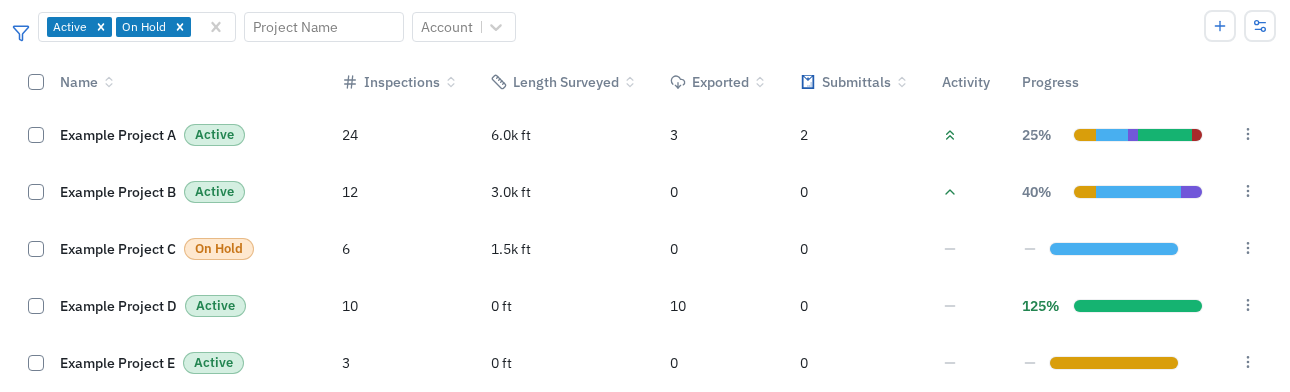
Change project status
Check the project name and account.
Open the row's ⋮ menu.
Choose Active, On Hold or Closed.
Select Save, then check the status shown beside the project name.
Closing a project hides it from the default Projects view. It does not delete its inspections or files or mark the inspections AutoCode Complete or reviewed. Set it back to Active to resume tracking it. If your account uses the Cityworks close-work-orders integration, check with your team before closing: that action can also close its linked work orders.
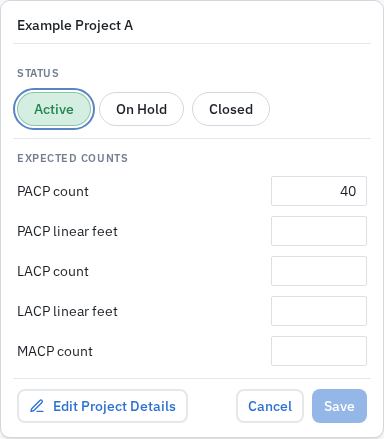
To change several projects, tick their checkboxes and choose a status beside Set status:. Check the selected count before applying the change. Select all N expands the action to every matching project, rather than just the checked rows.
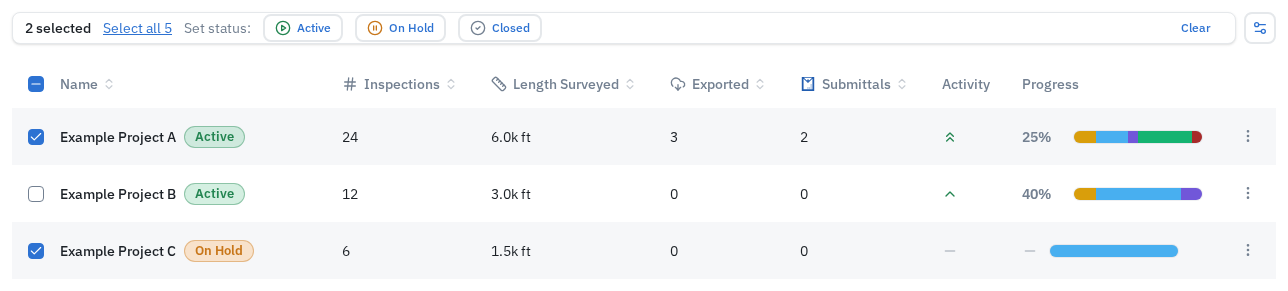
Set expected counts and footage
Open the project's ⋮ menu.
Find the Expected Counts section in the menu.
Enter the expected PACP, LACP and MACP inspection counts and the available length targets. Check the units shown.
Select Save.
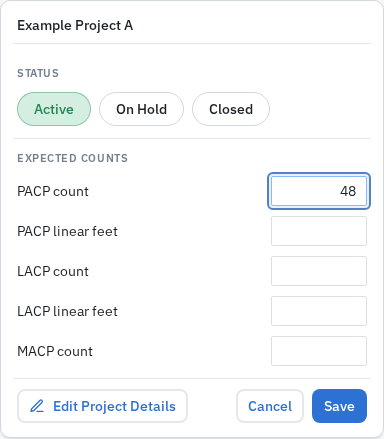
Expected counts describe planned work. They do not create inspections or change an inspection's processing or review state. The progress calculation uses inspections currently in AutoCode Complete when the project has any in that status; otherwise it uses inspections currently in Uploaded. It compares that work with the positive expected count or length targets. With no positive target, a progress percentage is not available. Progress can exceed 100% when the counted work exceeds the target. If a percentage is unexpected, check the inspection types, targets, units and actual work with Support before changing the target.
Read the project statistics
The inspection total includes different processing states, so it is not a count of completed inspections. Use the processing-status columns to distinguish Upload Pending, Uploaded, AutoCode Running, AutoCoded and Rejected records.
Exported, reviewed and submittal metrics describe different actions. The Marked Reviewed count is not an AutoCode-completion count, and an export count does not verify that a recipient downloaded every file.
The Goal State, project status and inspection processing status are separate settings or indicators. Changing Goal State does not set the progress calculation. Use the individual statistics together when checking delivery readiness. Activity reflects recent uploads, and Est. Completion is a project date, not an AutoCode due-date guarantee.
Column or indicator | What it describes |
|---|---|
Inspections | Inspection records counted in the project, including work that is not complete. |
Length Surveyed | Surveyed length, in the displayed units. |
Exported / Length Exported | Inspection and length totals associated with exports. |
Marked Reviewed / Length Reviewed | Inspection and length totals marked reviewed. |
Submittals / Length Submittals | Inspection and length totals included in submittals. |
Started / Est. Completion / Updated | Project dates, rather than a guarantee of processing or delivery time. |
Activity | Recent upload activity. |
Progress | A comparison with expected targets, separate from the breakdown of inspection statuses. |
Choose columns and sorting
Open Column settings.
Select the columns you need, such as processing counts, surveyed length, review counts, exports, submittals and dates.
Use a sortable column heading to change the order when available. Activity and Progress are not sortable.
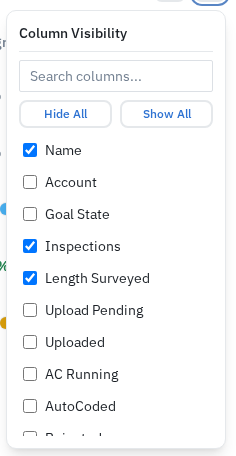
Project-column visibility choices are saved in this browser.
Create or edit project details
Use Create Project or the + control to create a project. To edit an existing project, open its row menu and select Edit Project Details.
Check the account, project name, dates and the inspection specifications before saving. Creating projects and saving Project Settings require account-level Editor or Admin access. Status and target changes in the row menu can also be saved by an Editor or Admin assigned to that project. A visible control does not by itself mean your access permits saving. Ask your account Admin or Support if a save is refused.
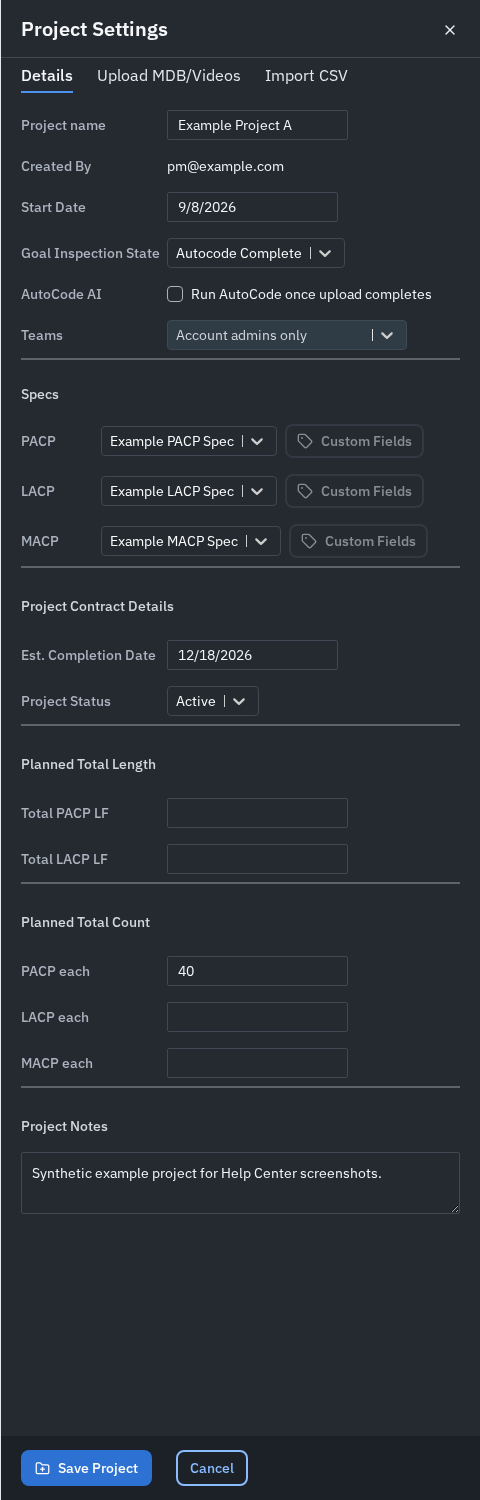
Project specifications can define QAI checks and inspection requirements. Selecting a different specification does not by itself rerun QAI on existing inspections. See How to use QAI on Pioneer for setup and review steps.
Related guides
Still Need Help?
Use the chat widget in PIONEER to contact our support team.
If you cannot access the chat widget, email help@sewerai.com.