Understanding and Fixing Video Timestamp Issues
Last updated: April 15, 2026
This article outlines common timestamp issues in inspection videos and how to resolve them.
Common Timestamp Issues
Timestamp issues may appear in several ways:
Incorrect or inconsistent timestamps in the video overlay
Timestamps continuing after the video has ended
Sudden jumps or skips in timestamps
Missing timestamps entirely
How to Fix Timestamp Issues
1. Manual Timestamp Adjustment
For small corrections:
Navigate to the point in the video where the timestamp is incorrect
Double-click the timestamp associated with the observation
Enter the correct timestamp
2. Using Video Overlays
To adjust timestamp-related information in the video overlay:
Click the gear icon in the video player
Select a correction overlay from the dropdown menu
Apply the necessary changes
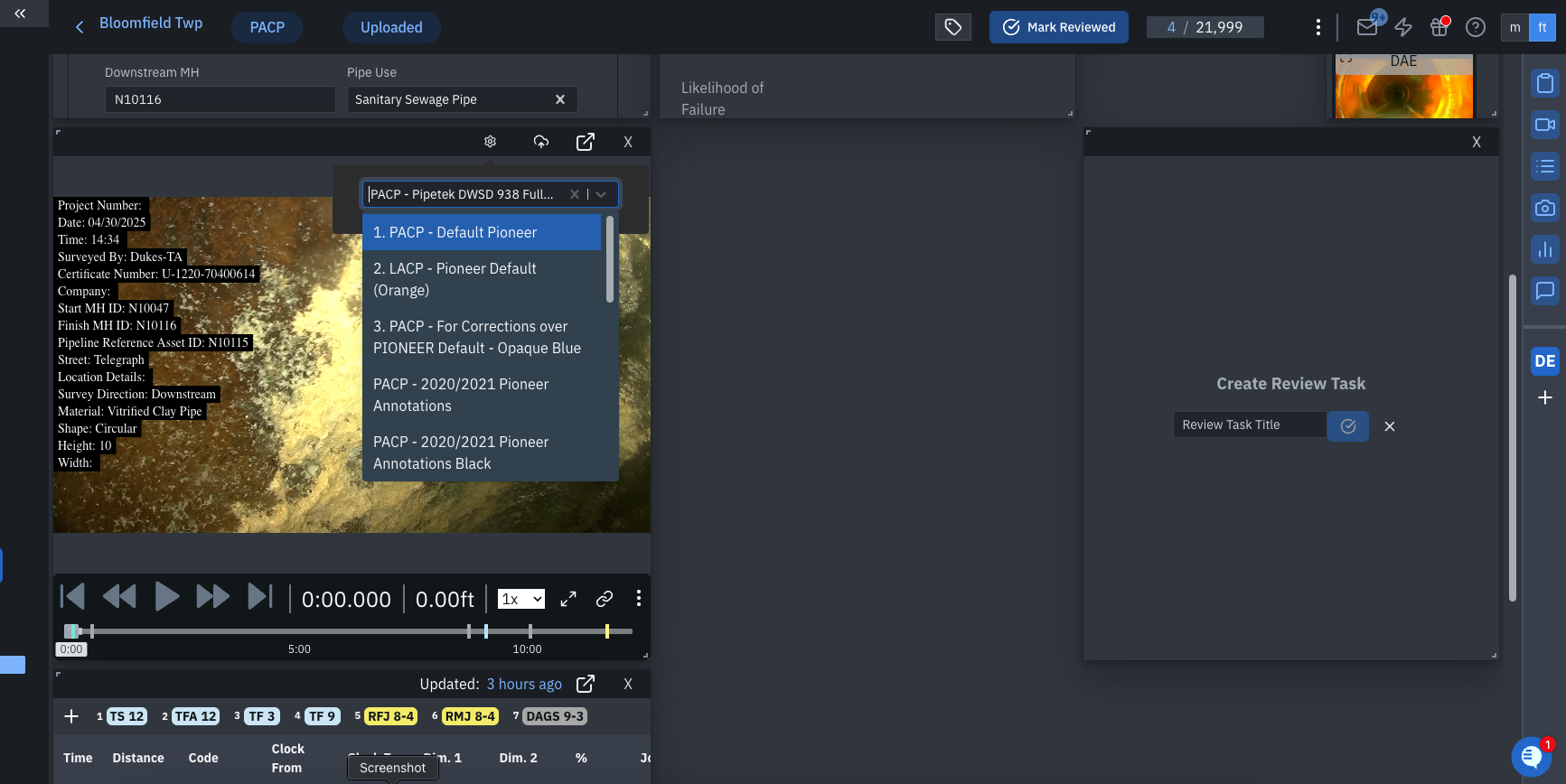
Note: Overlay corrections will appear during video playback but will not be reflected in snapshot images taken from the original video.
When Timestamp Issues Cannot Be Fixed
In some cases, timestamp issues may indicate a larger problem, such as:
Corrupted video files
Incomplete video recordings
Video capture card issues
Inspection system counter errors
If you encounter these issues, consider the following:
Re-inspect the line if the video is corrupted or incomplete
Check or replace the video capture card if issues occur frequently
Contact Support for help identifying the root cause
Need Additional Help?
If you're unsure how to proceed or continue experiencing timestamp issues, reach out to Support for further assistance.