Review Tasks
Last updated: April 6, 2026
Review Tasks help your team collaborate directly within an inspection by flagging items that need attention, documenting feedback, and assigning follow-up.
What is a Review Task?
A Review Task can be used for anything that needs attention on an inspection — whether it’s:
a note for yourself,
a question for a teammate,
feedback for a future reviewer,
or something you want the SewerAI team to see.
Review Tasks are designed to support collaboration and create a clear record of follow-up directly inside PIONEER.
Viewing Review Tasks
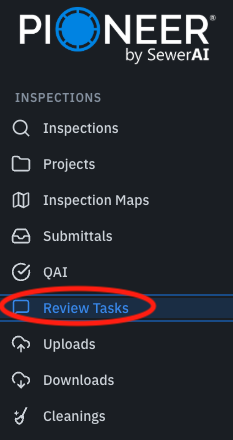
To view all Review Tasks across your account, click Review Tasks from the left-hand navigation menu.
If the menu is collapsed, click the blue expand arrow next to the PIONEER logo to expand the navigation panel.
From here, you can search, filter, and manage Review Tasks across inspections.
The Review Tasks Page
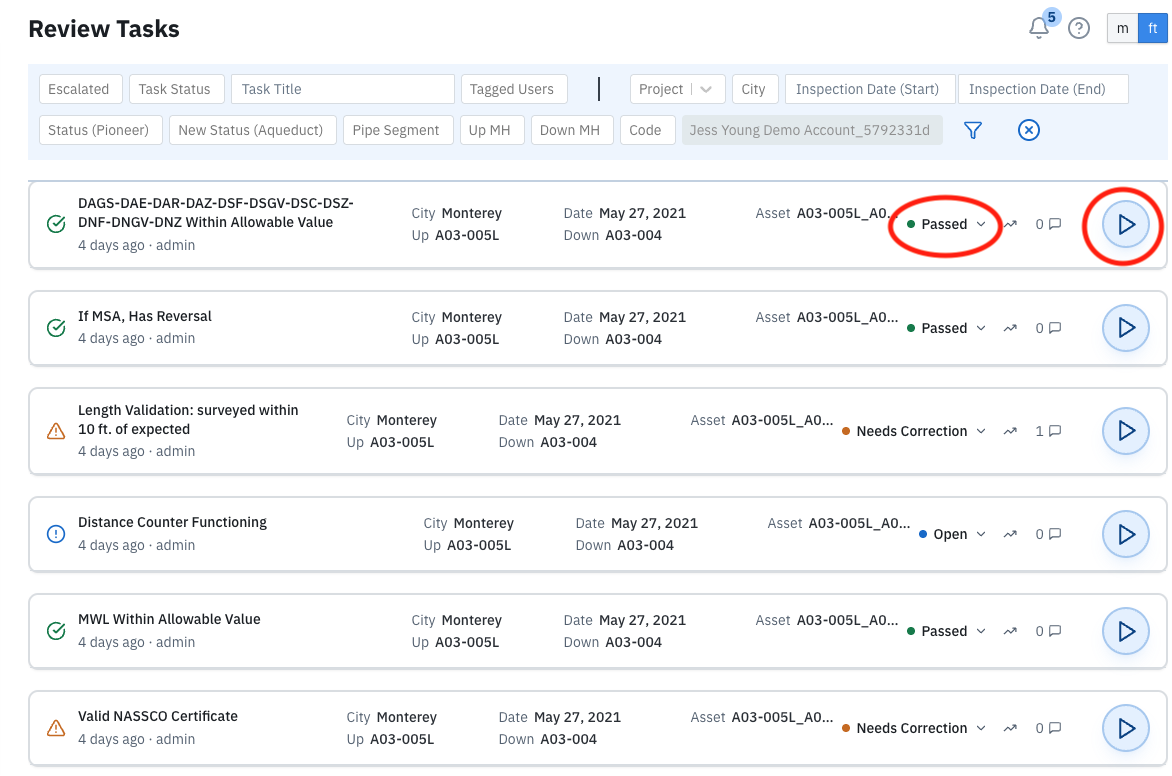
The Review Tasks page gives you a centralized view of all Review Tasks across your account, making it easy to monitor follow-up items, review progress, and team collaboration in one place.
Each task row displays helpful inspection details at a glance, including:
Task title
Who created the task
How long ago it was created
City
Inspection date
Upstream / Downstream MH
Associated asset
Current task status
Comment count
Escalation indicator (if applicable)
At the top of the page, you can use filters to quickly narrow results by criteria such as:
Escalation status
Task status
Task title
Tagged users
Project
City
Inspection date
PIONEER status
Custom project status
Pipe segment
Upstream / Downstream MH
Code
This page is especially useful for:
finding tasks that still need attention,
tracking team handoffs,
reviewing tasks assigned to specific users,
and locating inspections that need follow-up.
To open the related inspection, click the play arrow on the far right side of the task row.
You can also update a task’s status directly from this page using the status dropdown on the right side of the row.
Seeing Review Tasks Within a Single Inspection
You can also access Review Tasks directly from within an inspection.
To open the Review Tasks panel inside an inspection:
Open the inspection in PIONEER
Click Tasks icon from the widget menu
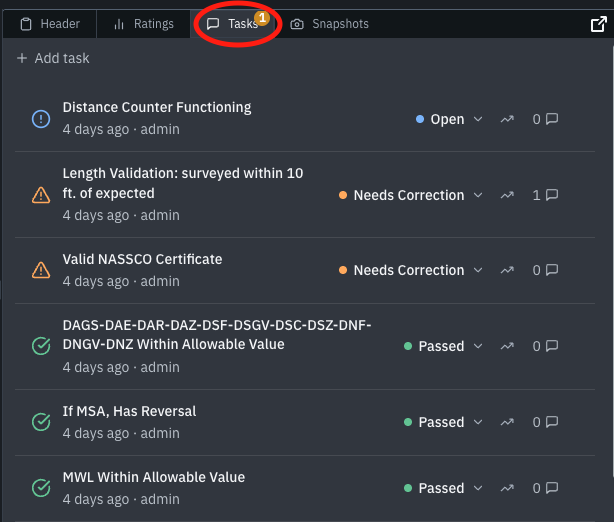
The Tasks panel will appear and can be:
moved,
resized,
or expanded
Like other widgets in the inspection view, the Review Tasks panel can be adjusted to fit your workflow. The PIONEER Basics guide shows Review Tasks as one of the inspection review widgets that can be turned on/off and repositioned within the page layout.
Adding a New Task
To create a new Review Task:
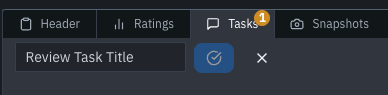
Enter a title in the Review Task field
Click the check mark to save it
If tasks already exist, click the + button to add another one.
Task Statuses
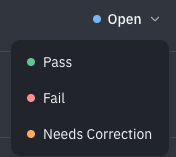
Review Tasks begin in an Open state.
To update the status of a task:
Hover over or click the task’s current status
Select one of the available outcomes:
Pass
Fail
Needs Correction
What the statuses mean
Your organization can decide how each of these statuses is used in your workflow, but generally:
Open = still needs review or action
Pass = reviewed and approved
Fail = reviewed but did not meet expectations
Needs Correction = additional work or edits are required
You can later filter inspections by Review Task status to quickly locate work that still needs attention.
Note: If your team uses the Reviewed button in its workflow, you may not be able to mark an inspection as reviewed until all Review Tasks have been addressed.
Adding a Comment to a Task
To add more detail or continue the conversation on an existing task:
Click the task to expand it
Click the + Add comment beneath the task
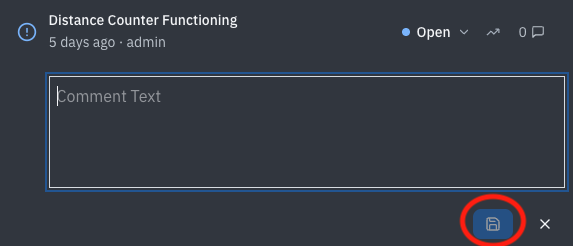
Enter your comment
Click the blue Save button
Note: Task titles and comments cannot currently be edited after they are saved. This helps preserve an accurate record of review history and discussion.
Tagging Observations and People
Within a Review Task comment, you can tag both observations and users.
Tag an observation
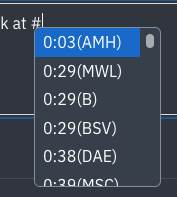
Type # to tag a coded observation, defect, or timestamp from the inspection.
A dropdown will appear with available observations so you can link directly to the relevant coded item.
Tag a user
Type @ to tag another PIONEER user who has access to the inspection.
This can be used to:
notify a teammate,
ask for review,
or flag an issue for follow-up.
You can also use:
@comments@sewerai.com to notify SewerAI support or conditional assessment teams
@all to notify all users on your PIONEER account
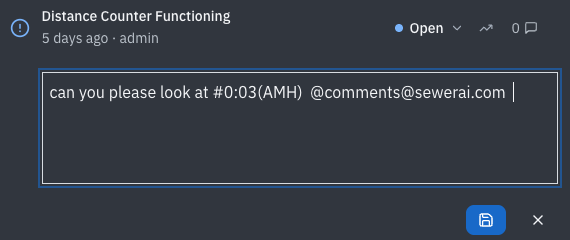
Anyone tagged in a comment will receive a notification and can later filter for tasks they were included on.
Notifications
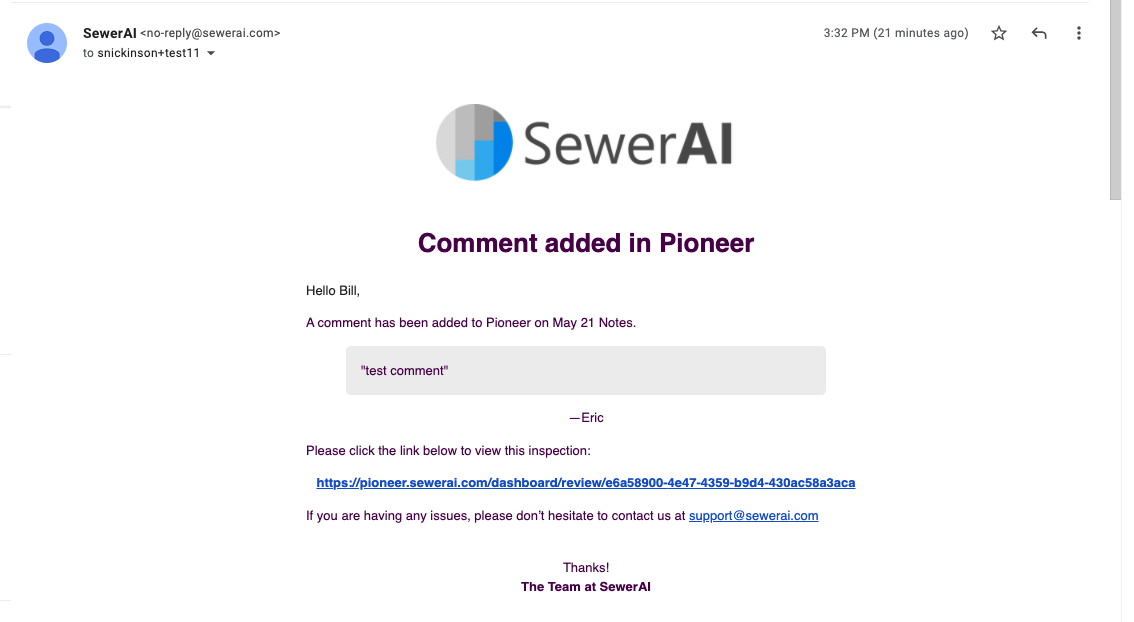
Email notifications are sent when:
a user is tagged in a comment,
a new task is created,
or a new comment is added.
Notifications are typically sent to:
tagged users,
Admins,
and Editor/Inspector-level users on the account.
Tagged users can also filter for tasks they were included on from the main Review Tasks page.
Escalating a Task
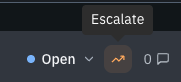
In addition to updating the task status, you can also Escalate a Review Task.
Escalating a task leaves a record that you reviewed the inspection and signals that another team or person should take over next.
This can be especially helpful for workflows that involve:
QA/QC handoff,
engineering review,
customer review,
or internal escalation.
Best Practices
Here are a few common ways teams use Review Tasks:
flag inspections that need a second look,
leave internal QA/QC notes,
assign follow-up work to another reviewer,
document repair discussions,
track handoffs between teams.
Review Tasks work best when used consistently as part of your review workflow.