Understanding and Fixing Video Timestamp Issues
Last updated: November 9, 2026
An observation's time, text burned into a video and a PIONEER display overlay are different things. Identify which one is wrong before making a correction.
Correct an Observation's Time
You need Editor or Admin access and Edit mode in the inspection review workspace.
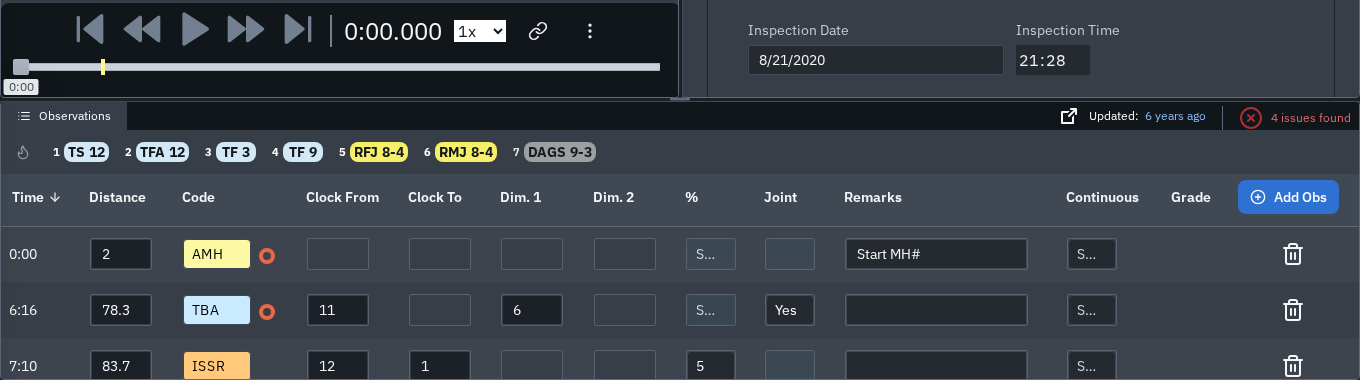
Open the inspection and identify the observation.
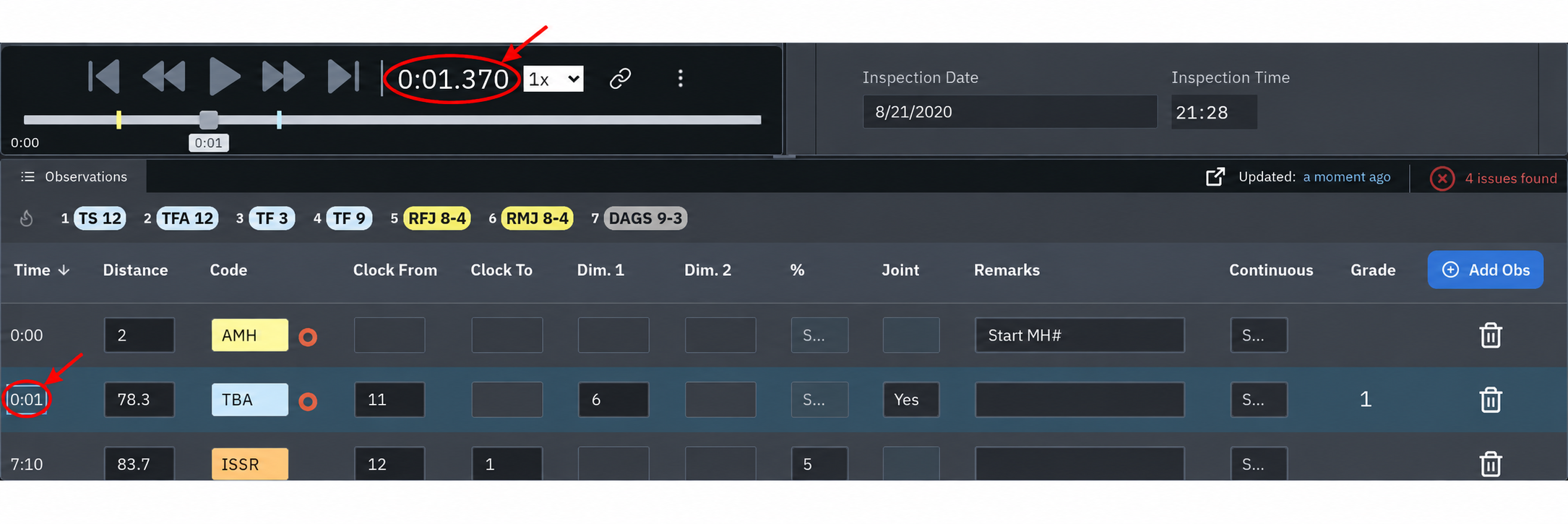
Seek the video to the correct moment and pause.
Double-click that observation's Time cell.
Check that the observation now points to the intended moment and that the change is saved.
The cell uses the current video position; it does not open a box for typing a timestamp. Selecting another part of the observation row can seek back to its stored time, so check the playhead before double-clicking Time.
Changing the stored video frame requests a new snapshot. Check the image after processing, and contact Support if it does not update. For 360 footage, check the observation's distance after the correction as well.
A Snapshot Is Missing or Wrong
Contact Support with the inspection link and observation. Do not double-click Time solely to refresh an image: that action can change the observation's timestamp. Ask Support for help obtaining a new snapshot at the same timestamp.
The Timestamp Is Burned into the Video
Changing an observation's time does not edit text already recorded into the source video. Keep the original file and contact Support to determine the appropriate correction or replacement.
Describe whether the text jumps, continues after the footage ends, is missing, or disagrees with the observation list. Those symptoms alone do not establish a corrupt file or failed capture device.
Change Display Formatting
The Video panel's gear opens Select template when the inspection belongs to a project. An Editor or Admin can change the project's preferred Review template. That choice affects the project's other inspections and reviewers.
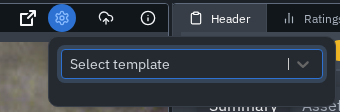
A Review template changes display formatting; it does not retime observations or edit the original video. It does not set the export default or change existing snapshot images and previously exported files.
For a corrected deliverable, annotated export and eligible video replacement are separate operations. Available behavior depends on the video format and export options. Contact Support before assuming that a preview change will become part of every delivered video or snapshot.
When to Contact Support
Contact Support if a time correction does not save, images are missing, video timing appears inconsistent, or the issue affects multiple recordings. Include the inspection link, observation and expected video time. Preserve the original files while the cause is investigated.
Related Guides
Still Need Help?
Use the chat widget in PIONEER to contact our support team.
If you cannot access the chat widget, email help@sewerai.com.