How to use QAI on Pioneer
Last updated: November 10, 2026
QAI, Quality Assurance for Inspections, checks inspection data and video against the rules configured for your project's specification. Use its results to identify work that needs review or correction.
Check which specification applies
Open Projects.
Open the project's ⋮ menu and select Edit Project Details.
In Project Settings > Details > Specs, check the PACP, LACP or MACP specification.
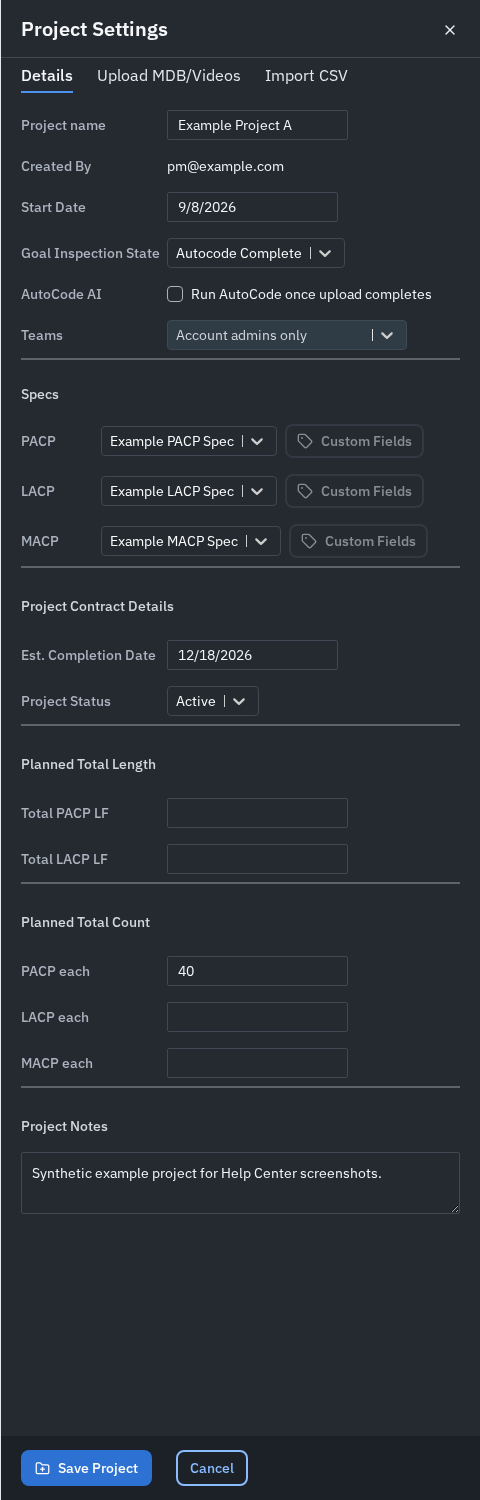
An account Editor or Admin can assign an available specification when their access permits it. Contact Support to configure the checks your organization needs or to confirm which specification to use.
An account default can be applied when a new project is created. Changing the default does not replace the specifications already assigned to existing projects. Changing a project's specification does not by itself rerun QAI on the project's existing inspections. Contact Support if existing work needs to be checked against a changed specification.
Understand the checks
The specification determines which checks run and the thresholds they use. Available checks can cover:
Playable video and video quality.
Required header fields, permitted values and expected asset identifiers.
Observation values and cleaning thresholds.
Required access-point information. Ask Support which incomplete-survey or reversal checks your project needs.
Camera speed and distance-counter behavior.
Certificate-number lookup, when that check is configured.
For example, a specification can require Street, restrict a header to agreed values, or set a camera-speed or condition-value threshold. The requirements in one project are not universal requirements for every project. Some checks, such as Video Quality Acceptable, Adequate Cleaning or whether a header value is correct, remain Open for a person to review. A certificate lookup result also does not establish that the certification is current; contact Support if a verified number fails a configured check.
Read the QAI status
Status | Meaning |
|---|---|
Passed | All applicable check outcomes have passed. |
Failed | At least one check failed. This takes priority over Needs Correction. |
Needs Correction | No check failed, but at least one needs correction. |
Open | No check has Failed or Needs Correction, but the checks have not all Passed. |
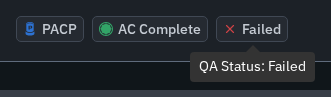
QAI status, inspection processing status, NASSCO validation and the Reviewed flag describe different things. A QAI result does not by itself prove that a person has completed the review. In Review, hover over the QAI status badge in the top bar to see the inspection-level status.
Find checks in the QAI Dashboard
Open QAI in the navigation on a wide-screen browser.
Filter to the account, project and QAI outcomes you need.
Select the triangle beside an inspection to see its checks and outcomes.
Double-click the inspection, or use its open control, to open Review.
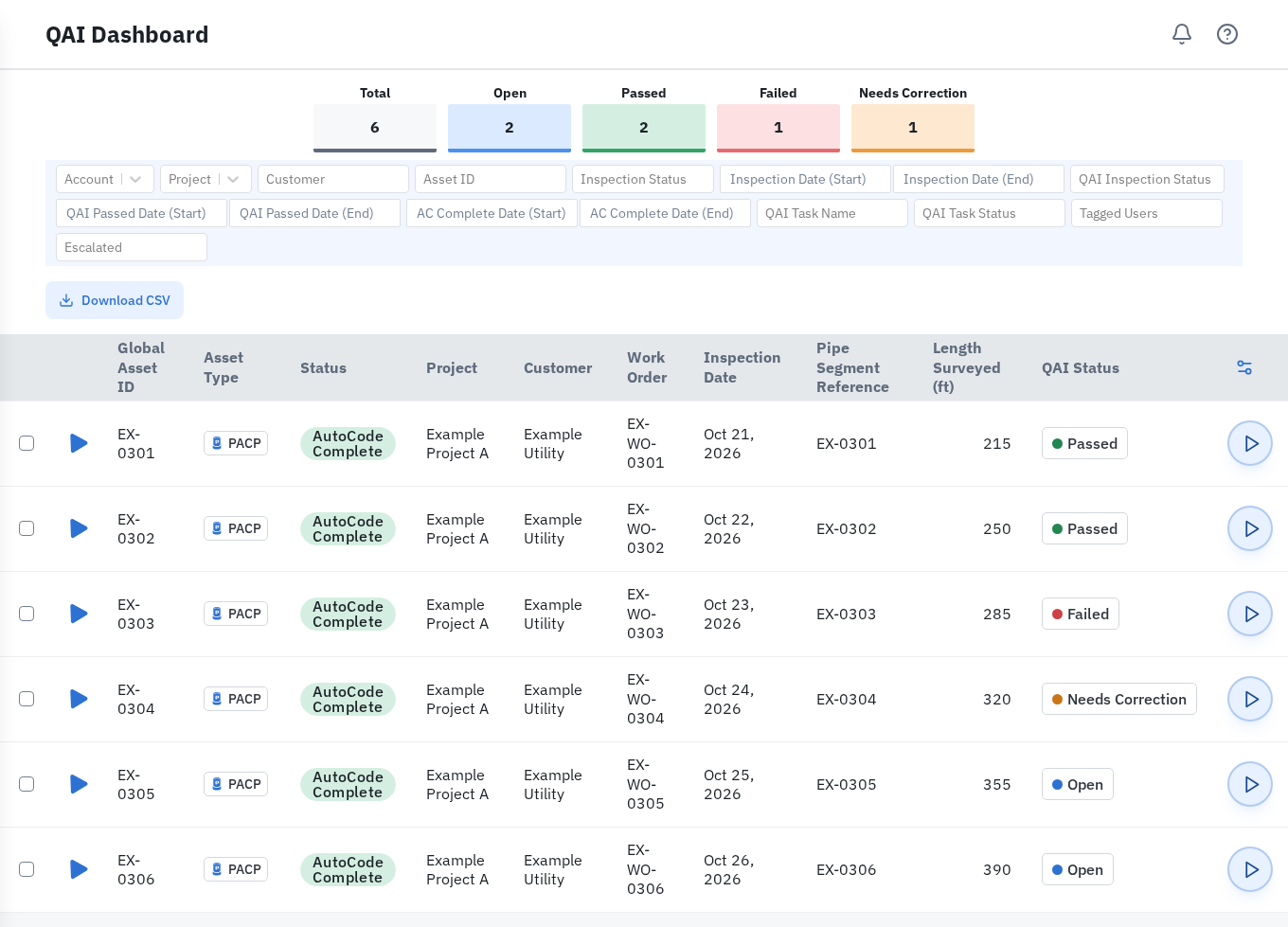
The status cards count inspections, while the expanded rows list individual checks. Select a status card to filter the inspection list.
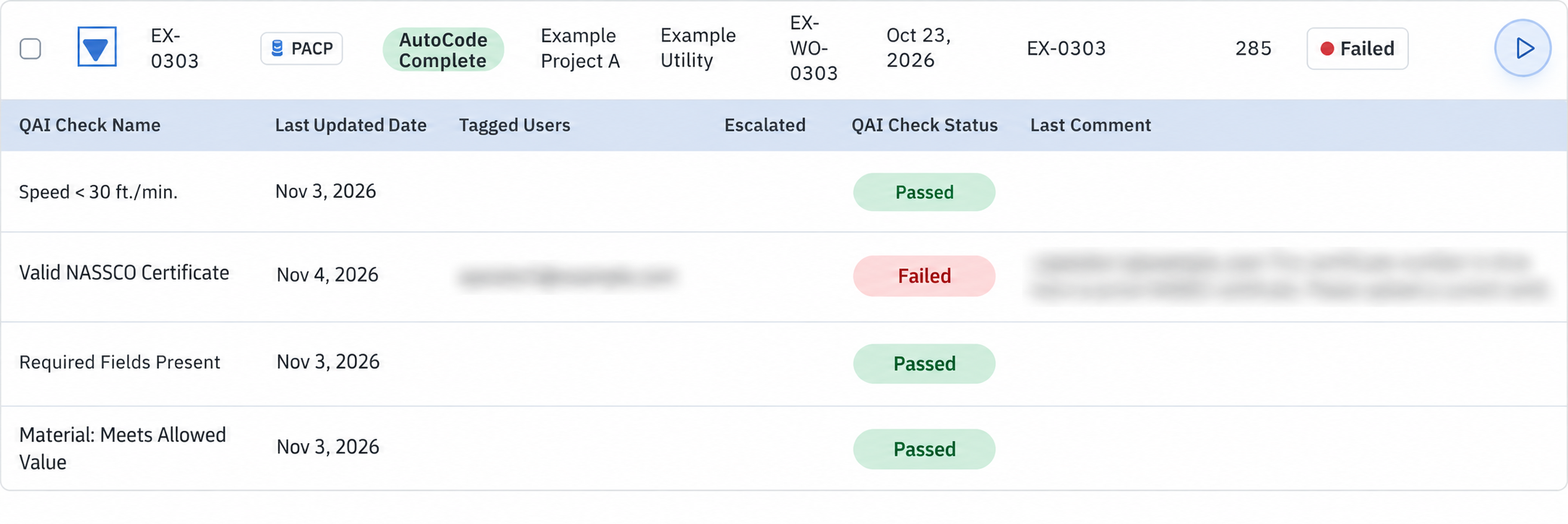
Check the inspection's QAI status and tasks together. An empty task list is not proof that QAI never ran: checks can be absent from the specification, removed or archived. Ask Support if expected results are missing.
Review and discuss a check
Open the inspection and select the Tasks panel.
Expand the relevant check and read its comments.
Use + Add comment to record the review. Use the mention or observation picker when linking a person or observation.
Choose the task outcome that reflects the actual review when your permissions allow it.
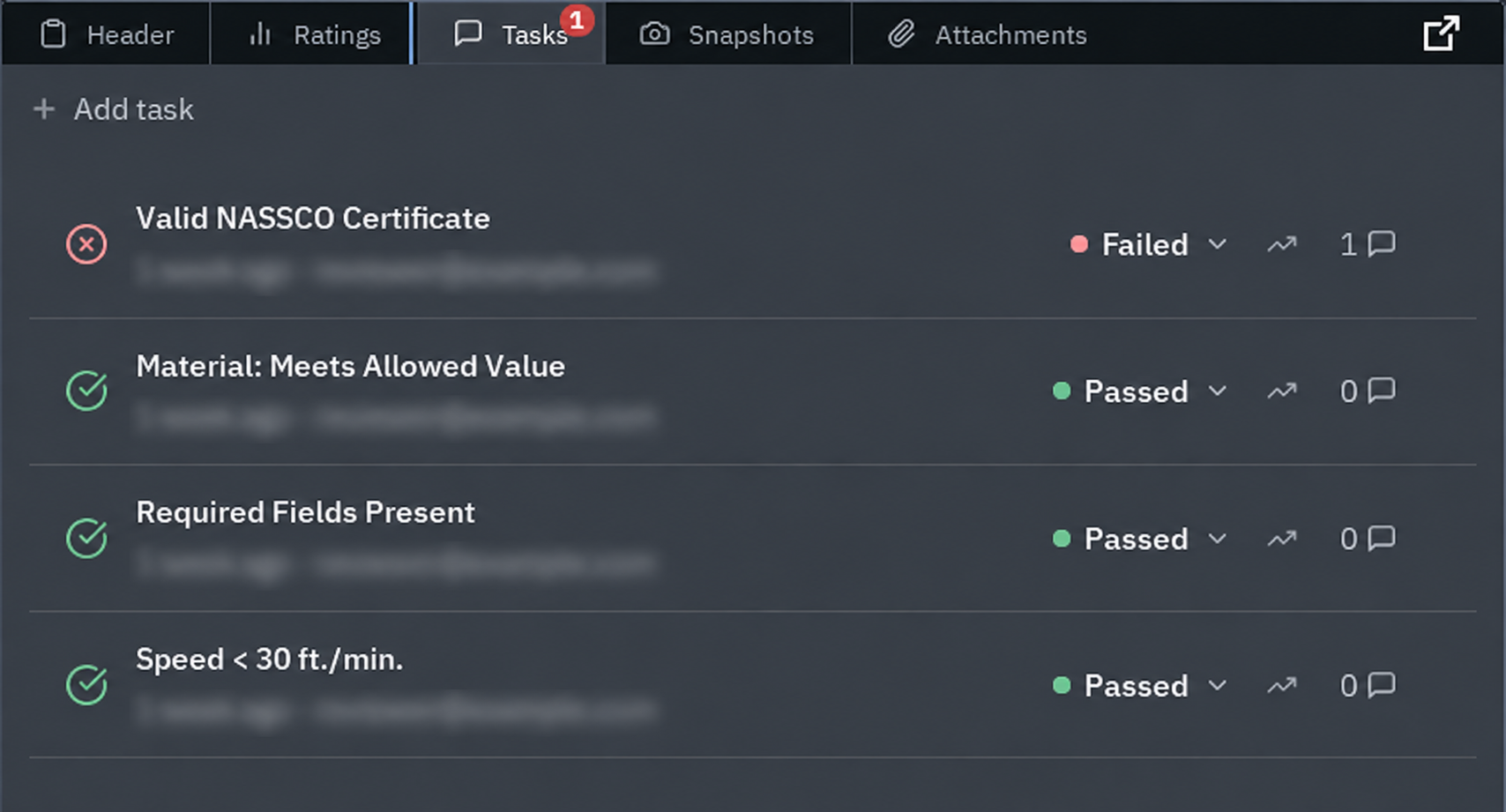
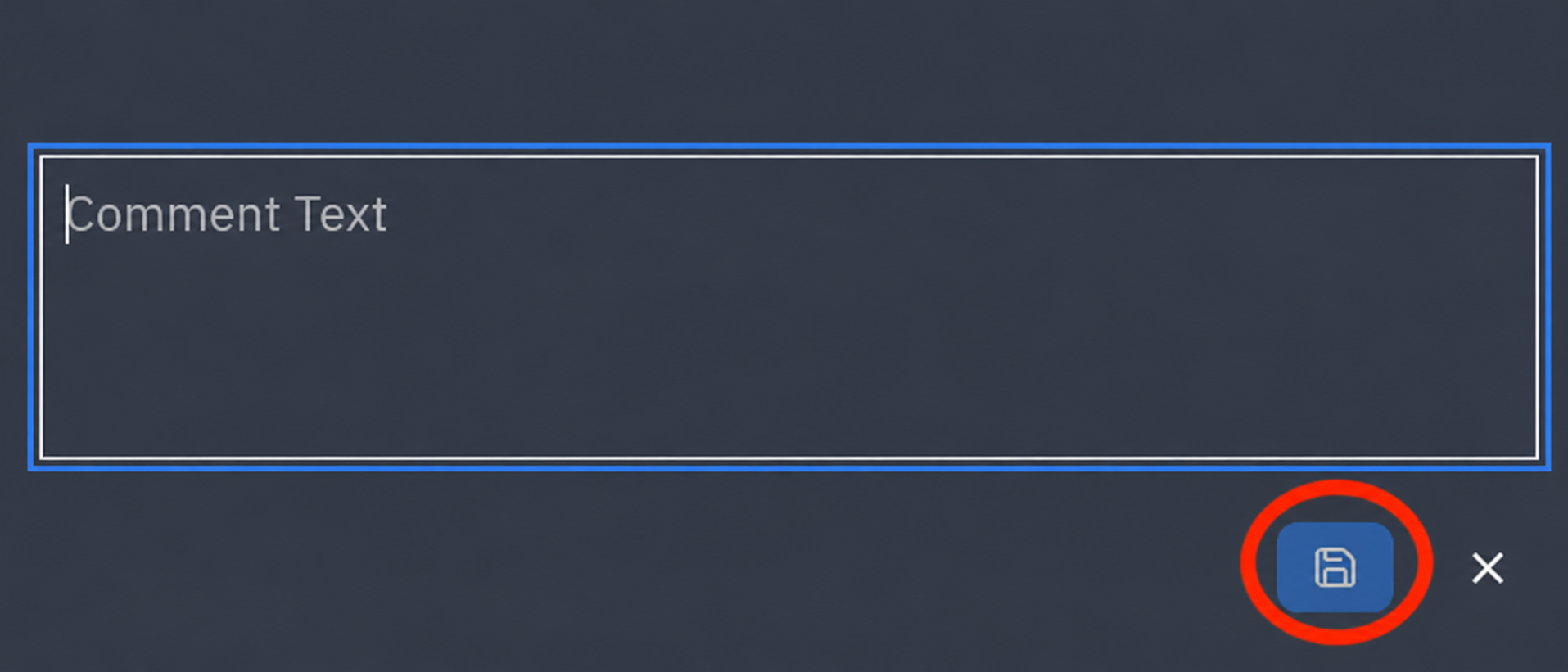
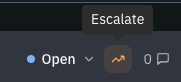
The Escalate control records an escalation on the task. Mention the appropriate person separately when their attention is needed. Escalating does not automatically assign the task or start work by SewerAI.
For task permissions, comments, mentions and status controls, see Review Tasks.
Correct the underlying data
Use Header or Observations to correct the data identified by the check, when your access allows editing. QAI can reevaluate the inspection after relevant data changes. A manual status change or escalation can keep a check from updating automatically on later runs. A data correction may therefore leave that check unchanged. Contact Support if it needs to be checked again automatically.
If the outcome remains unexpected, contact Support with the inspection link, check title, assigned specification, visible status and the correction already made. Do not mark a task passed simply to remove a warning.
Related guides
Still Need Help?
Use the chat widget in PIONEER to contact our support team.
If you cannot access the chat widget, email help@sewerai.com.