Hotkeys - Create Your Observation Short Cuts
Last updated: November 2, 2026
Save a completed observation as a reusable preset, then apply it at another point in the video. The numbered code buttons are at the top of the Observations panel.
Before you start
Open an inspection in PIONEER
Use Editor or Admin access to add observations to the inspection
Saving or removing a browser preset is separate from editing an inspection. Applying a preset adds an observation and requires editing access.
Save an observation
Add and fill in the observation you want to reuse.
Click its row in Observations.
Click the flame button at the top of the table.
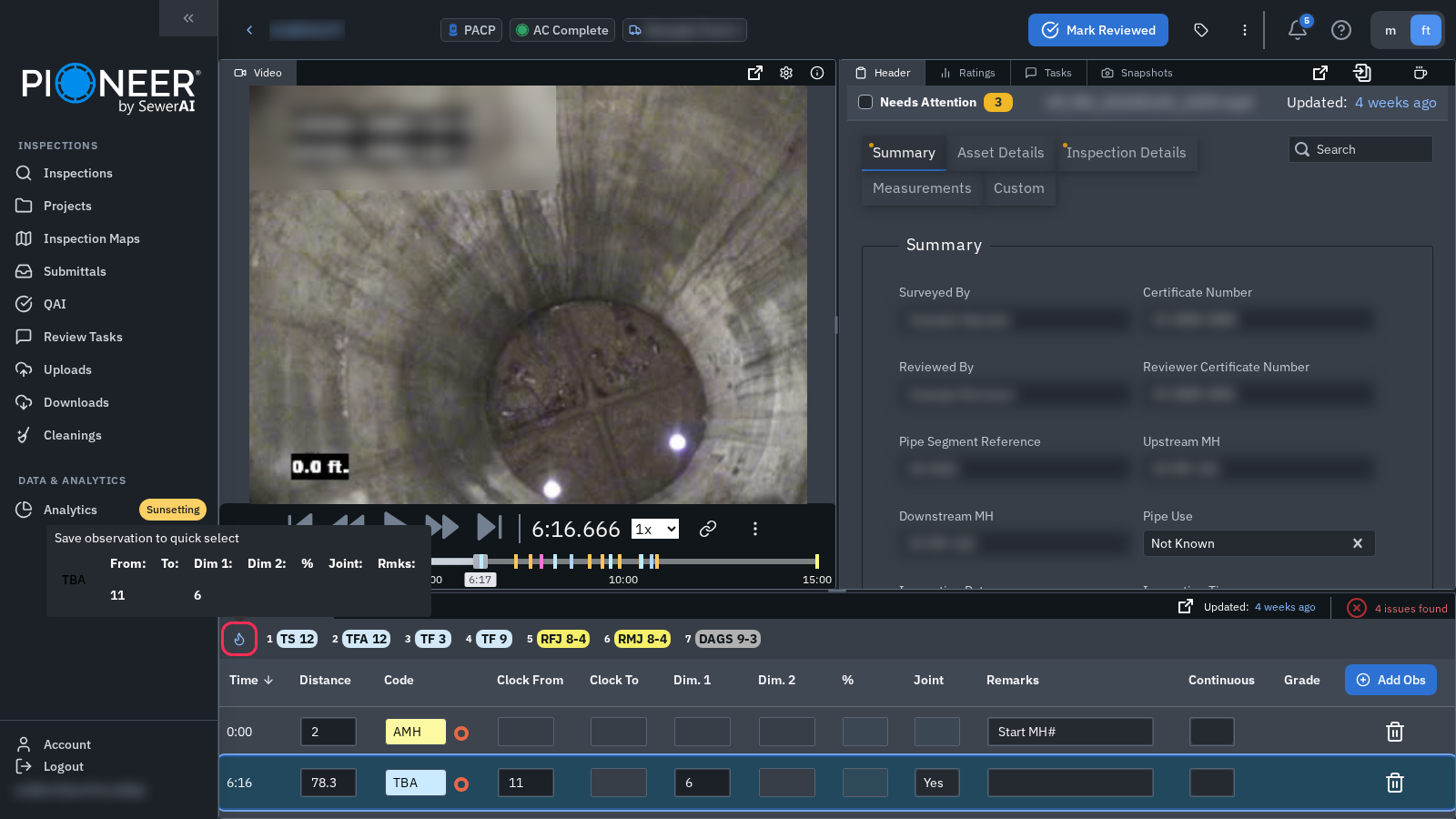
PIONEER shows Quick Observation Saved! and adds a numbered code button. Use the flame button to save; Ctrl+H no longer opens the old hotkey list.
Apply a preset
Move the video to the time where the observation belongs.
Click the saved code button, or press Ctrl+Shift+1 through Ctrl+Shift+9.
Review the new observation and fill in any remaining fields.
On a Mac, preset application also accepts Command. Use the number keys above the letters. Only the first nine presets have keyboard shortcuts; click a code button to use later presets.
The preset reuses its saved code and ancillary fields at the current video time. Distance and continuous flags are not carried over, so check those fields on the new observation.
Remove a preset
Hover over its code button.
Click the trash icon in the popup.
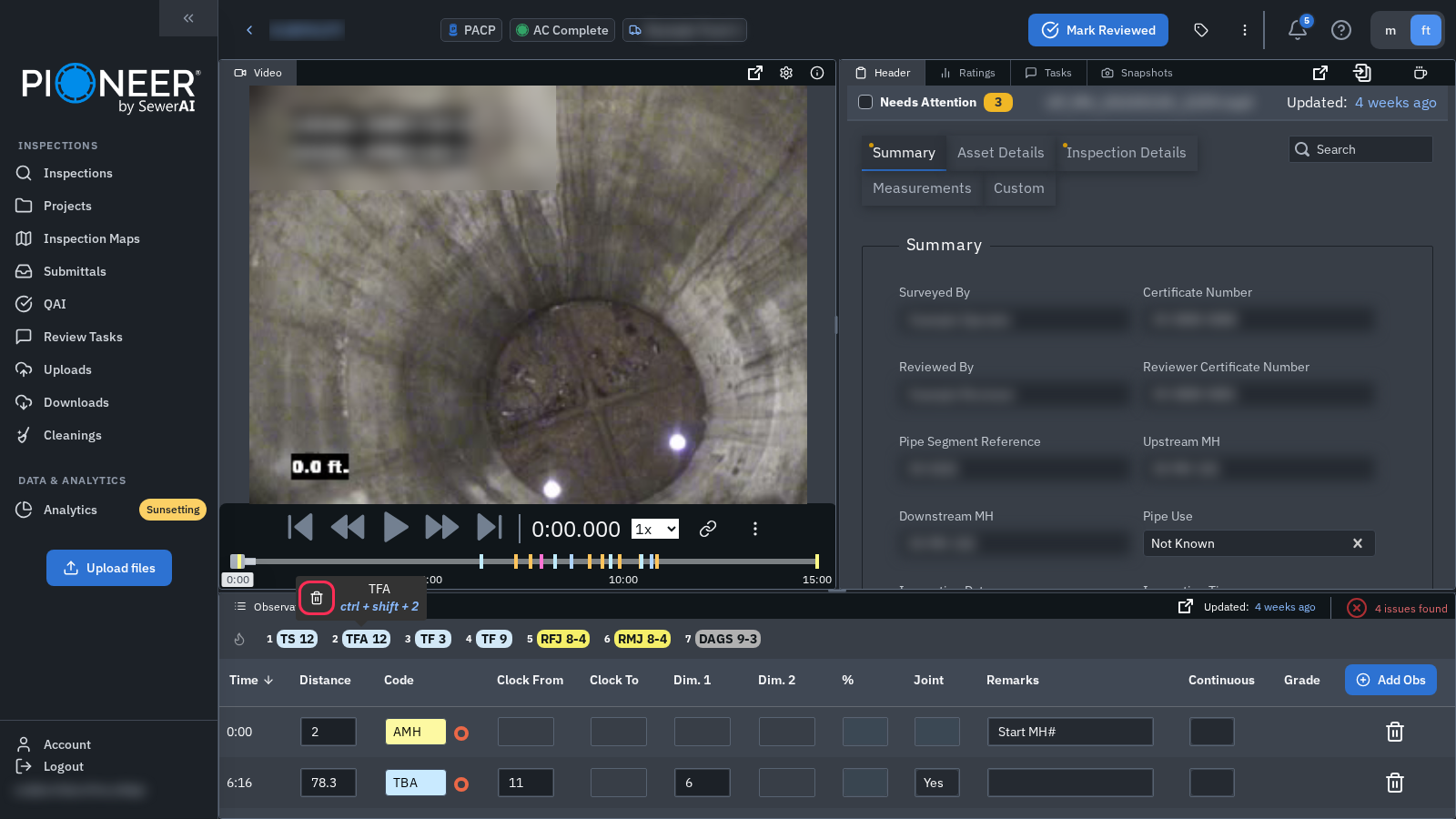
The preset is removed immediately. This removes the reusable preset, not an observation already in the inspection.
Where presets are saved
Presets are stored in this browser and grouped by inspection type. They are not saved to your account or shared to another browser or computer. Other people using the same browser profile can use or remove its presets.
Troubleshooting
If the flame button asks you to select an observation, click the observation row again. If a preset will not add an observation, check your editing access.
Related articles
PIONEER Keyboard Shortcuts for Inspection Review
Still Need Help?
Use the chat widget in PIONEER to contact our support team.
If you cannot access the chat widget, email help@sewerai.com.