Pioneer Keyboard Shortcuts for Inspection Detail View
Last updated: November 2, 2026
Use these shortcuts while reviewing an inspection in PIONEER. On-screen controls remain available if a browser or operating-system shortcut intercepts a key combination.
Before you start
The table below lists Windows shortcuts. On a Mac, shortcut handling varies by action. Use the on-screen controls if a key combination does not respond.
Observation changes require Editor or Admin access. Shortcuts can still run while you are typing in a field, so check the selected observation before using a change or delete shortcut.
Video Playback Shortcuts
Shortcut | Action |
|---|---|
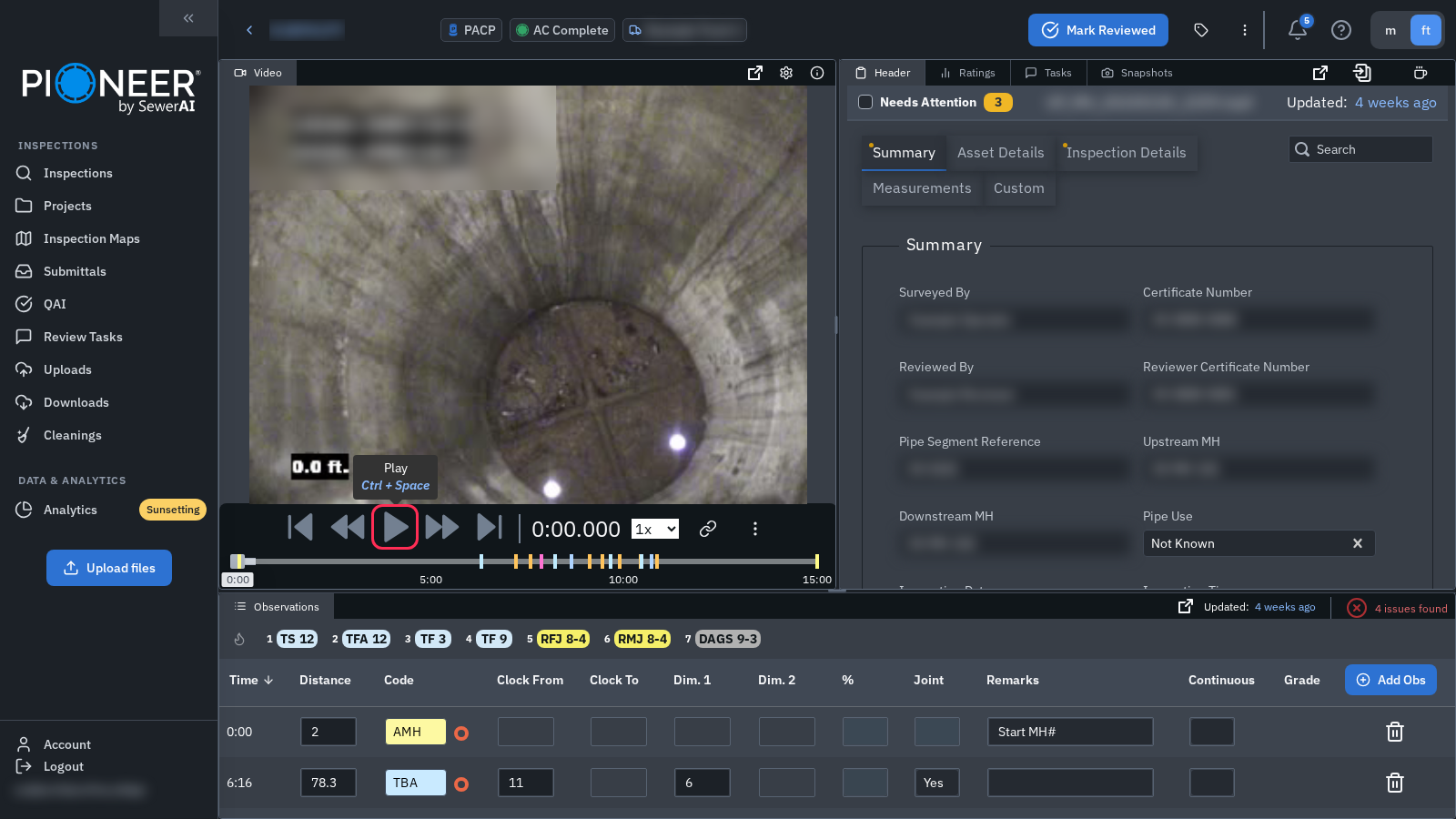
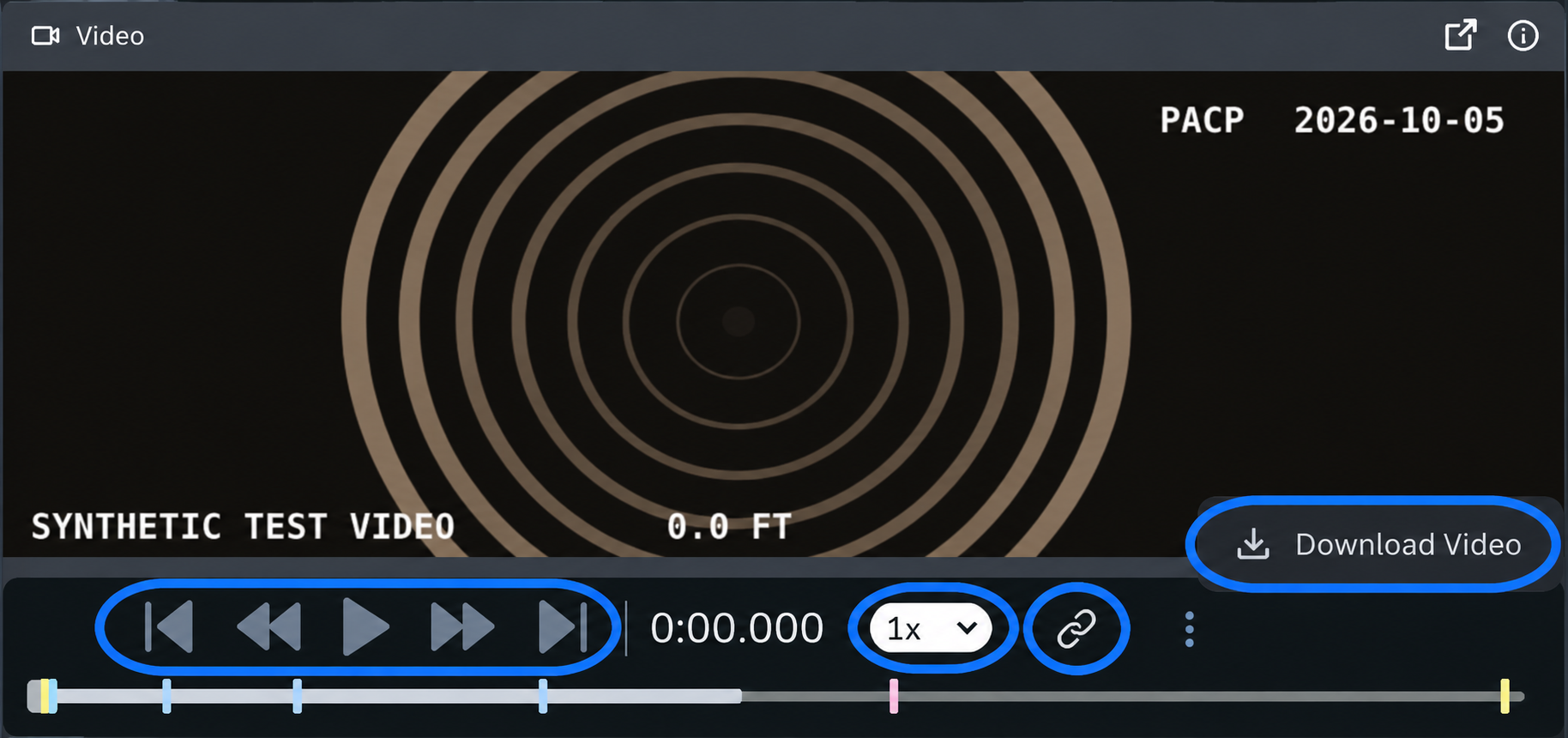
Ctrl+Space | Play or pause |
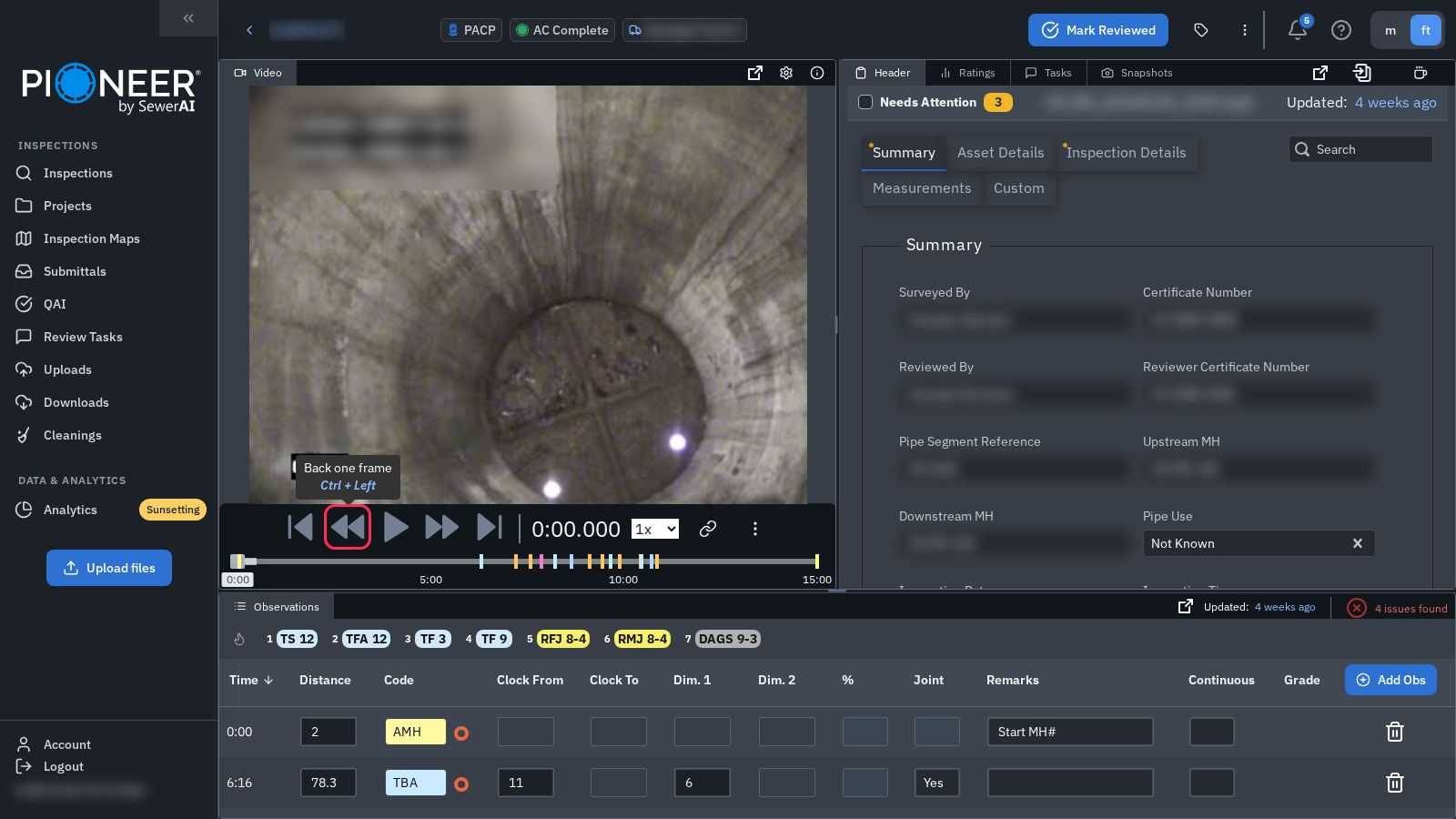
Ctrl+Left / Ctrl+Right | Move one frame backward or forward |
Ctrl+Shift+Left / Ctrl+Shift+Right | Move one second backward or forward |
Ctrl+Shift+Space | Recenter a 360 video |
Ctrl+1 | Set playback speed to 0.5x |
Ctrl+2 | Set playback speed to 1x |
Ctrl+3 through Ctrl+7 | Set speed to 2x, 3x, 4x, 5x or 6x |
Observations
Ctrl+D adds an observation at the current video time
Ctrl+G adds MWM (Miscellaneous Water Mark) at the current video time
Ctrl+Shift+D copies the last eligible observation to the current video time
Ctrl+E deletes the selected observation immediately
Ctrl+Shift+1 through Ctrl+Shift+9 apply the corresponding saved preset
Duplicate uses the last eligible observation without requiring a selected row. To delete, first click the row you intend to remove.
View and navigation
Ctrl+Shift+F enters or leaves focus mode
Esc exits focus mode
Ctrl+K opens the command bar
Use the on-screen buttons to move to another inspection.
Header and 3D measurements
Ctrl+H fills blank header fields from the current video frame; editing access and an internet connection are required
Hold Shift and drag in the 3D Model panel to measure
Related articles
Save and use observation hotkeys · View and measure a point cloud
Still Need Help?
Use the chat widget in PIONEER to contact our support team.
If you cannot access the chat widget, email help@sewerai.com.