How to Trim Videos in PIONEER
Last updated: November 2, 2026
Choose a time range to rebuild an eligible 3D model. To shorten a playback video, request a separate trim from support.
Before you start
- Use Editor or Admin access to an eligible cloud MACP 360 inspection
- Check that the inspection is not MACP Level 1 and the account supports 3D rendering
- Choose a start and end time within the video
Important: A new render can regenerate measurements and pipe connections. If you need to retain manual edits, ask support to confirm the project settings before starting.
Choose a range for a 3D render
- Open the inspection and turn on 360 Video.
- Open the video player’s three-dot menu.
- Select Trim for 3D render.
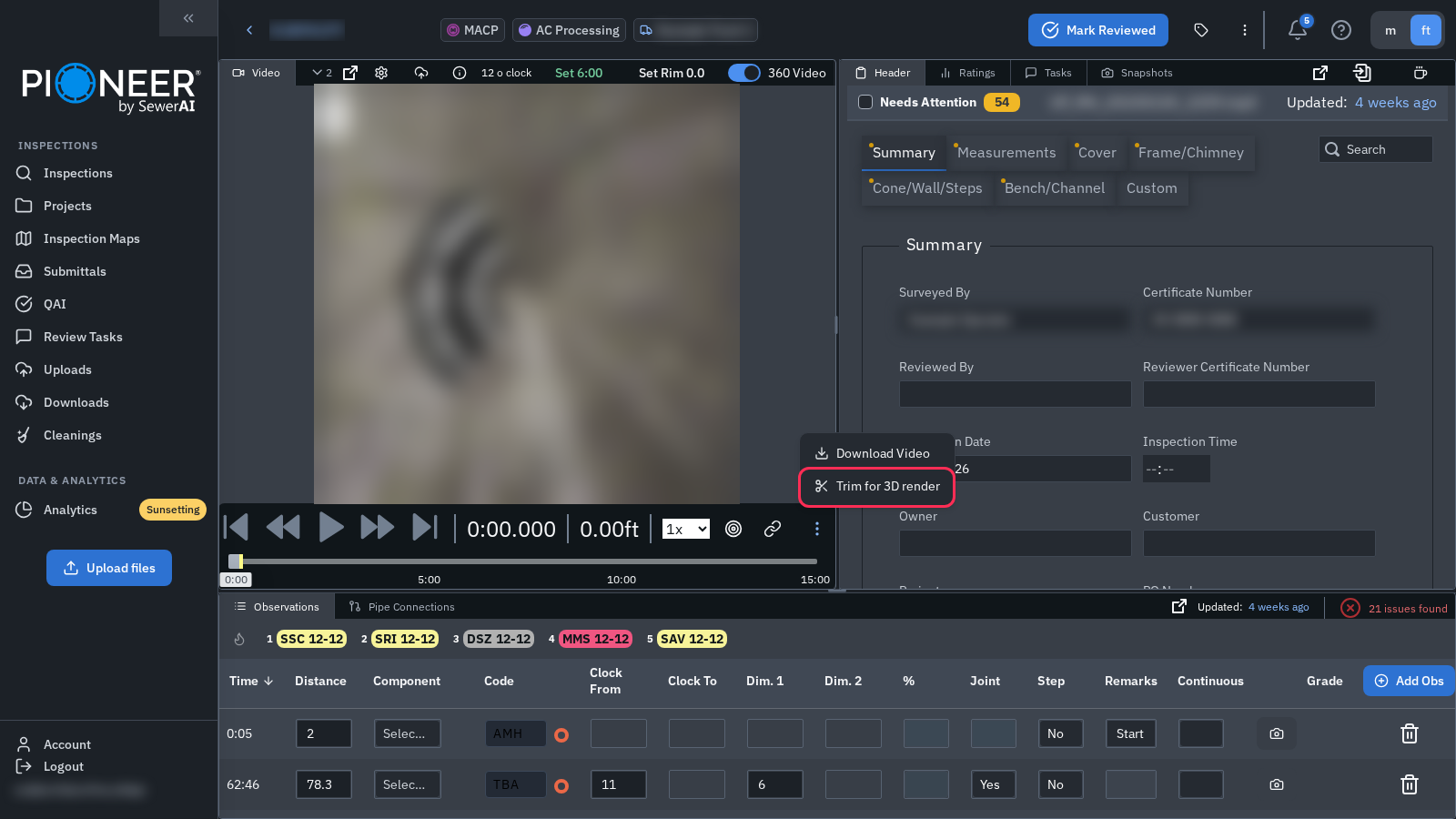
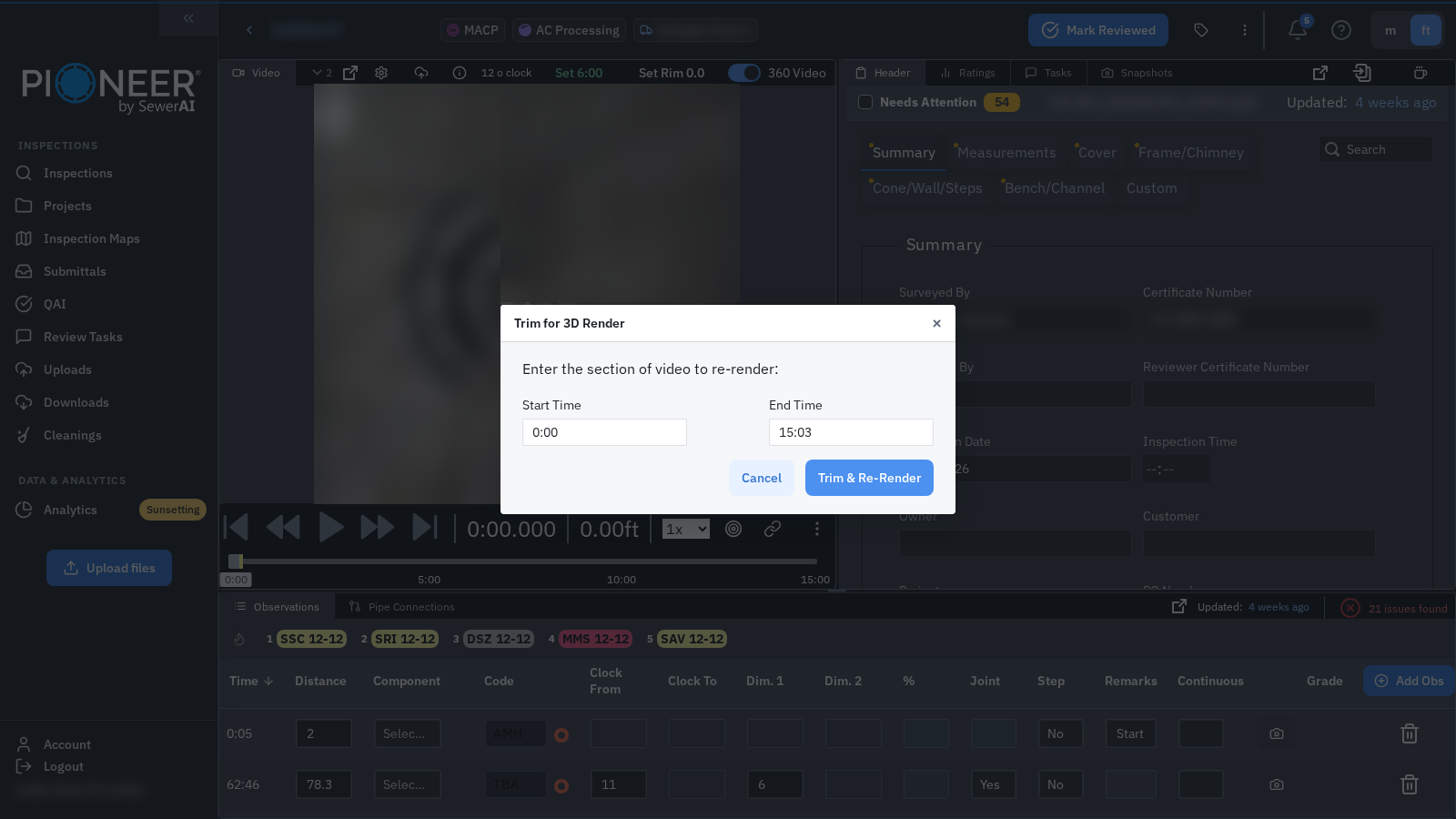
- Enter Start Time and End Time using whole seconds in m:ss format.
- Choose a start time earlier than the end time.
- Select Trim & Re-Render.
Check the result
Video trim successfully launched confirms the request started. It does not mean the model is finished. Return to 3D Model to review the new result, then check measurements and pipe connections before using them.
Request a playback trim
To request a shorter playback video, contact support with the inspection link and the exact time range to keep, for example 0:00–1:50. State that you want the playback video trimmed rather than a range used for a 3D model.
Split pre- and post-cleaning footage
Split combined footage into separate files with video-editing software before uploading the clips. PIONEER does not provide an in-app video-splitting tool.
Troubleshooting
If the trim control is missing, the request fails or PIONEER reports that a trim is already running, contact support with the inspection link, the range and the exact message.
Related articles
Understanding 3D rendering · View and measure a point cloud
Still Need Help?
Use the chat widget in PIONEER to contact our support team.
If you cannot access the chat widget, email help@sewerai.com.