Working with MACP Inspections: Tips and Troubleshooting
Last updated: April 15, 2026
This article covers common scenarios when working with MACP (Manhole Assessment and Certification Program) inspections, along with tips for troubleshooting.
Finding MACP Inspections
To view all manhole inspections in your account:
Navigate to the Inspections Dashboard
Select Advanced Filters
Filter by “MACP”
This will display all manhole inspections in your account.
Coding Drop Connections
When working with drop connections in MACP inspections:
Code drop pipes as separate pipes
Include both the upper and lower connections
This separation ensures accurate invert depth and slope calculations
Exception:
If a drop pipe is broken or has fallen:
Code it as an OBS (Observation)
Add a remark such as “fallen/broken pipe”
Do not code it as a separate pipe
Common Issues and Solutions
Wrong Template Type
If an inspection was recorded using the incorrect template (e.g., PACP instead of MACP):
This cannot be changed within the platform
Contact Support to request a template conversion
AutoCode Issues
If AutoCode is not behaving as expected:
Check the “Run AutoCode AI once upload completes” setting during upload
Ensure it is enabled or disabled based on your intent
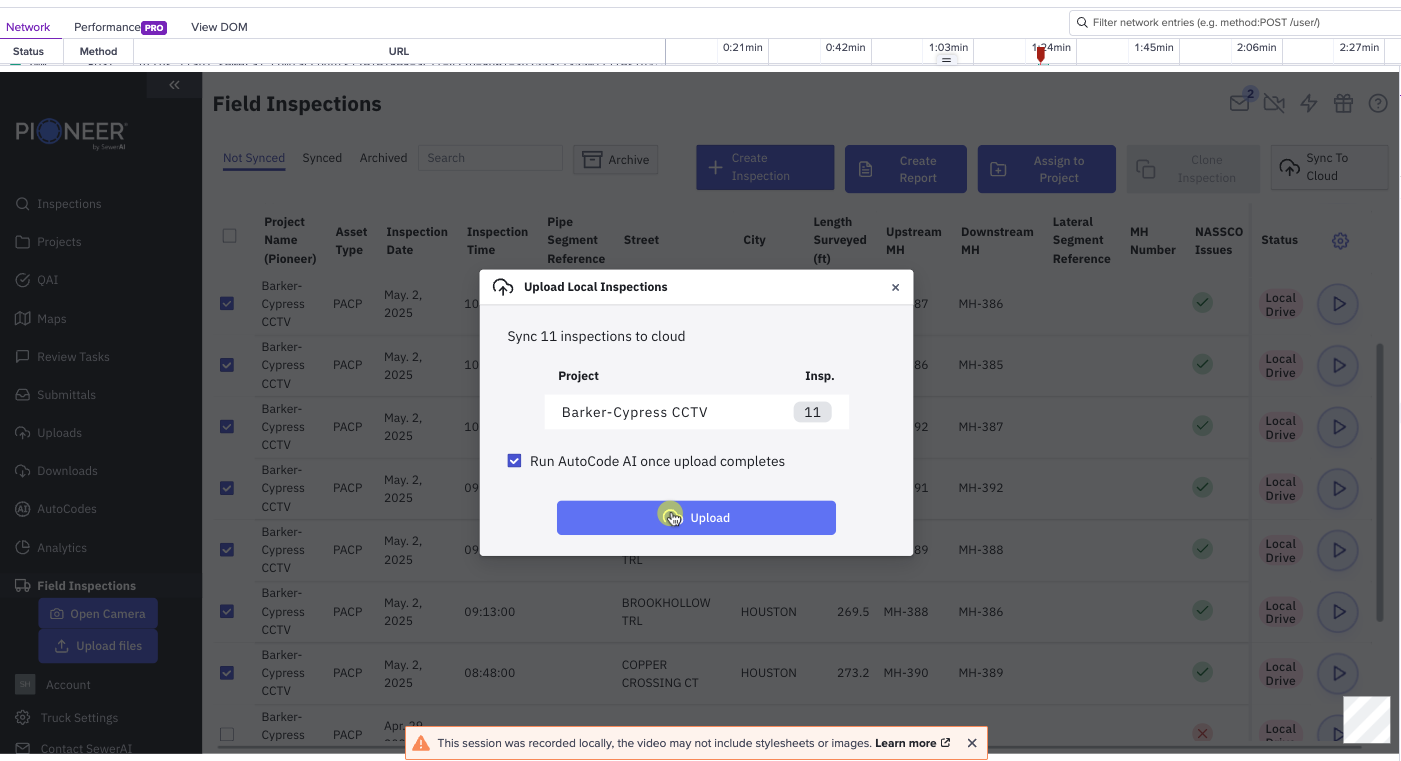
Common scenarios:
AutoCode runs unexpectedly → setting was enabled during upload
AutoCode does not start → contact Support to initiate processing
Asset Matching Issues
If inspections are not matching to known assets (especially after geometry updates):
Verify the Pipe Segment Reference exactly matches the asset ID
Check for formatting inconsistencies (spacing, capitalization, etc.)
If issues persist, contact Support for assistance with asset matching.
Best Practices
Double-check template selection before starting an inspection
Review AutoCode settings during upload to avoid unintended processing
Ensure asset IDs are accurate and consistent across systems
Need Additional Help?
If you continue to experience issues with MACP inspections, contact Support with the inspection details. Our team can help troubleshoot and resolve the issue.