How to Run AutoCode in PIONEER
Last updated: November 2, 2026
When your inspection videos are ready for coding, submit them to AutoCode in PIONEER. Select individual inspections or use filters to define the batch.
Before You Start
Current version of Google Chrome
AutoCode access for your account
Editor or Admin access to the inspections
Inspections from one account per request
Up to 7,000 inspections per manual request
Trial allowance of up to 10 inspections in total
Videos available for processing
If an inspection is Rejected, review the reason and contact Support through the chat widget in PIONEER to request a restart.
Submit Inspections
Important: AutoCode processing is charged according to your agreement with SewerAI. With no rows selected, the request uses every inspection matching your current filters.
Open Inspections.
Apply filters to find the inspections you want to submit.
Select individual inspections if you want only part of the filtered list.
Check the count on the AutoCode button.
Click AutoCode. The Initiate AutoCode dialog opens.
Review Selection Summary.
PACP count for Pipeline Assessment Certification Program inspections
LACP count for Lateral Assessment Certification Program inspections
MACP count for Manhole Assessment Certification Program inspections
Total length surveyed
Enter a nickname in Nickname (optional) if needed.
Review the charge notice.
Click Confirm AutoCode.
For more than 7,000 inspections, use filters to divide the work into smaller requests. Check the count before submitting each request.
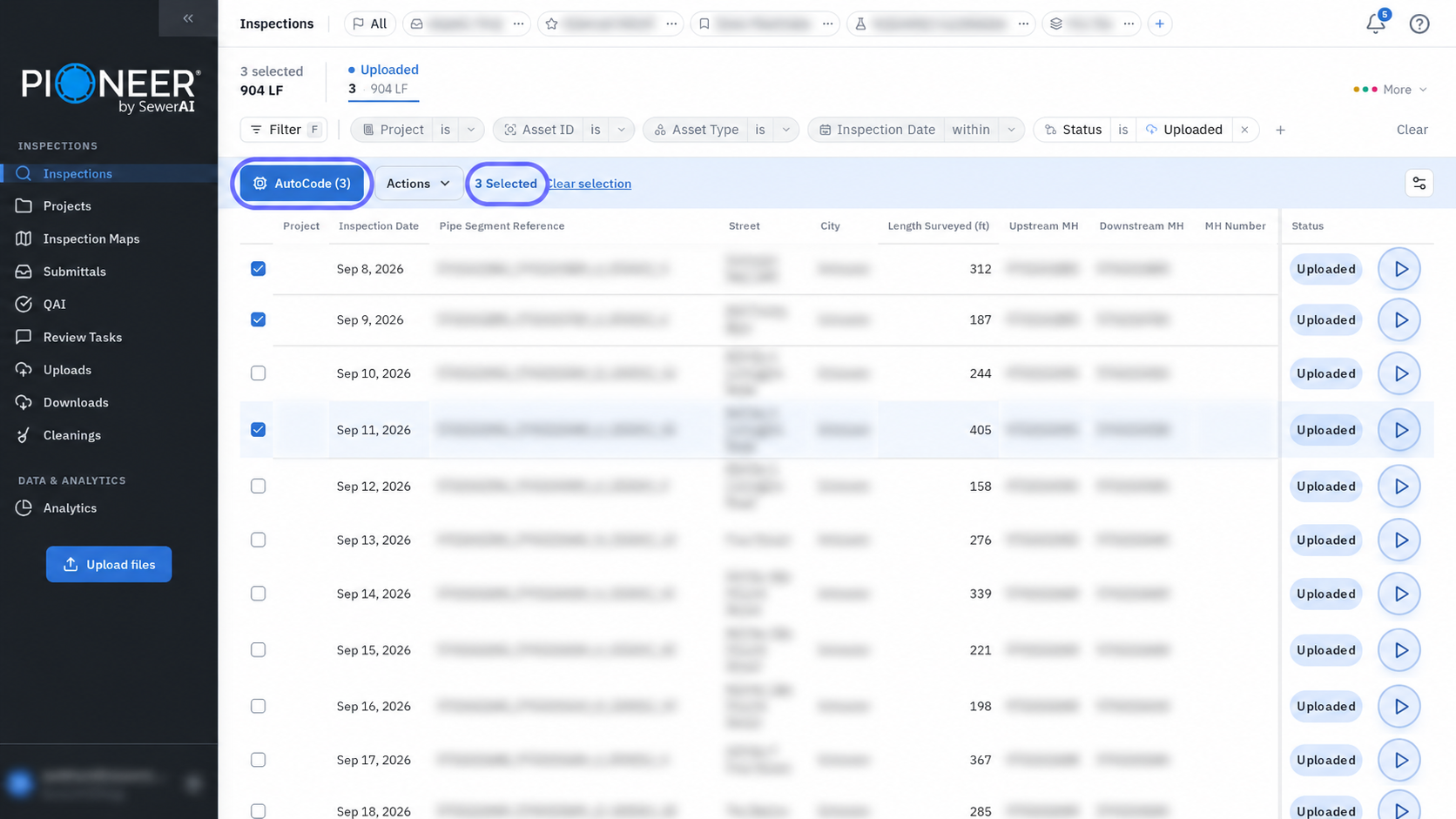
Selection example with 3 inspections selected.
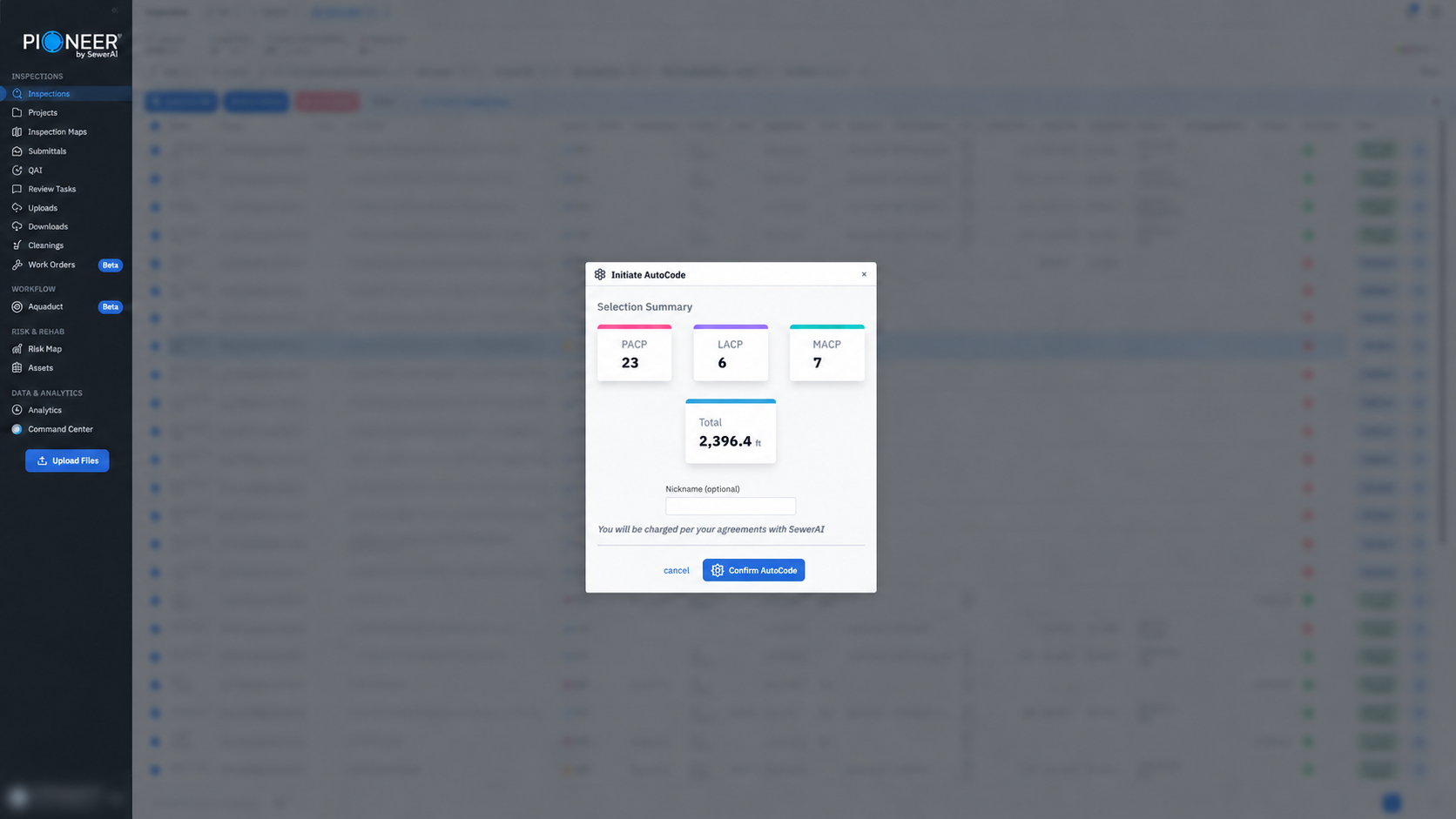
Separate confirmation example with 36 inspections. Check that the counts match the inspections you intend to submit.
Submit New Uploads Automatically
Turn on automatic submission for a project when you want its new uploads sent to AutoCode after upload processing finishes. You can still submit inspections that are already uploaded with the AutoCode button.
Open Projects.
Open the project’s ⋮ menu.
Select Edit Project Details.
Select Run AutoCode once upload completes under AutoCode AI.
Click Save Project.
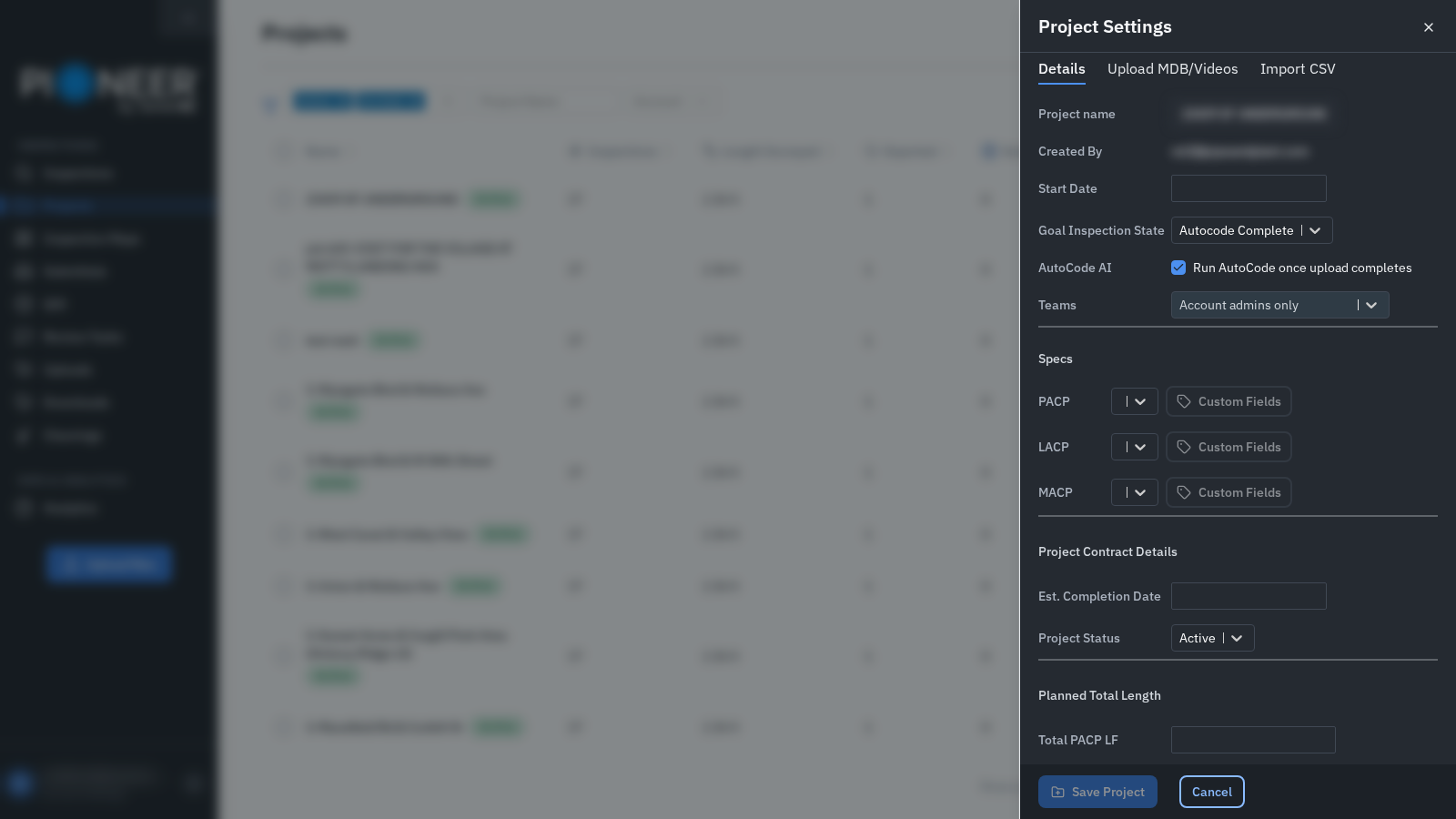
The project setting for automatic submission of new uploads.
Check That It Worked
Check the Status column after submitting. Inspections in AutoCode show AutoCode Running.
Add AutoCode Due Date to see the estimated completion date. Turnaround follows your agreement with SewerAI.
Troubleshooting
The AutoCode Button Is Unavailable
Missing videos or videos still processing can make the button unavailable. Check that the videos are ready and that you have the required access.
If the button remains unavailable, contact Support through the chat widget in PIONEER with the project or inspection details.
The Count Does Not Match the Inspections I Want
Check your filters and selected rows before confirming the request. Contact Support through the chat widget in PIONEER if the count still does not match.
An Inspection Is Rejected
Review the rejection details and contact Support through the chat widget in PIONEER to request a restart. See Understanding Inspection and AutoCode Statuses.
Still Need Help?
Use the chat widget in PIONEER to contact our support team.
If you cannot access the chat widget, email help@sewerai.com.