Understanding Inspection and AutoCode Statuses
Last updated: November 2, 2026
Check an inspection’s status when you need to know where its video or AutoCode processing stands. The status tells you what is happening and what to check next.
Check the Inspection Status
- Open Inspections.
- Find the inspection.
- Read its Status.
Not every inspection goes through every status.
| Status | What It Means |
|---|---|
| Upload Pending | The inspection record exists, but its video may not have arrived or matched. Some render failures also use this status. Check upload progress and any available status details. |
| Ingesting | PIONEER is processing the uploaded video. Allow processing to finish before further troubleshooting. |
| Rendering 3D | PIONEER is building the inspection’s three-dimensional (3D) model. |
| Video Unplayable | The video could not be processed for playback. Check the status details and contact Support through the chat widget in PIONEER. |
| Uploaded | The video is available for review. You can submit eligible inspections to AutoCode. |
| AutoCode Running | AutoCode processing and review are in progress. Results may still be incomplete. |
| AutoCode Complete | AutoCode has finished. Review the results before exporting. |
| Rejected | AutoCode could not be completed. Review the rejection details and contact Support through the chat widget in PIONEER to request a restart. |
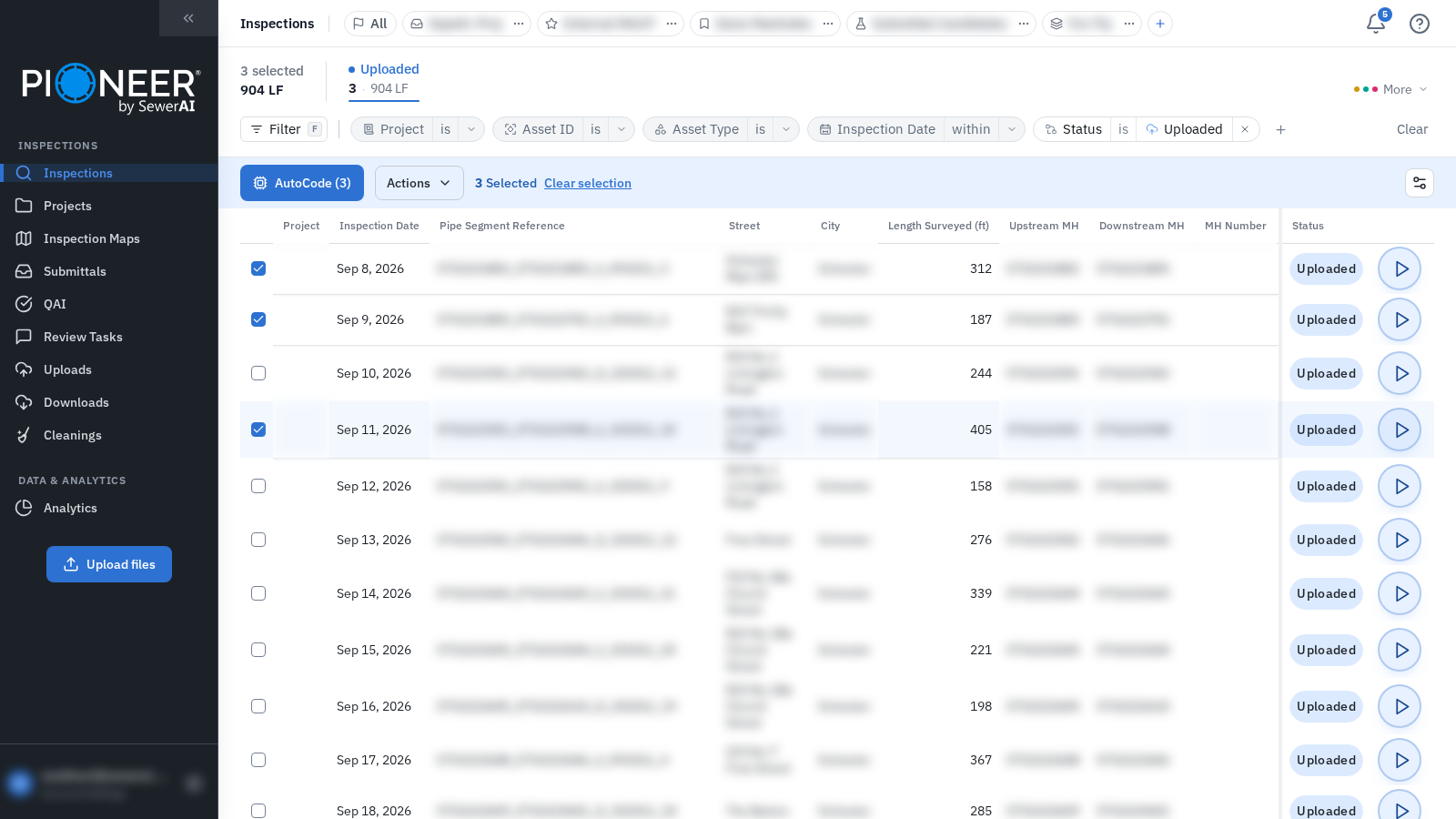
Example of the Status column showing Uploaded inspections.
Find a Rejection Reason
Review rejection details in Review Tasks. To see the reason in the inspection list:
- Open Customize columns.
- Select Problem or Problem?, depending on your layout.
- Read the reason beside the rejected inspection.
You can also use the Problem filter to find affected inspections.
If a corrected video is needed:
- Upload the corrected video with Replace Video.
- Request a restart through the chat widget in PIONEER.
Support must reset the inspection to Uploaded before you can start AutoCode again.
Check the Estimated Completion Date
- Open Customize columns.
- Select AutoCode Due Date.
- Read the date beside the inspection.
The date is an estimate. Your agreement with SewerAI defines the turnaround commitment.
Check the Reviewed Marker
Reviewed is a separate review marker. It shows that someone on your team marked the inspection reviewed. It is not an AutoCode processing status.
Troubleshooting
An Inspection Has Passed Its Due Date
Contact Support through the chat widget in PIONEER with the inspection details and its visible due date.
An Export Is Blocked After AutoCode Complete
National Association of Sewer Service Companies (NASSCO) validation issues can still prevent export after AutoCode Complete. Contact Support through the chat widget in PIONEER if you need help resolving the issues.
A Status or Control Is Missing
Contact Support through the chat widget in PIONEER with the inspection details and what you see on the screen.
Still Need Help?
Use the chat widget in PIONEER to contact our support team.
If you cannot access the chat widget, email help@sewerai.com.