How to Request AutoCode Cancellation
Last updated: October 30, 2026
If you need AutoCode processing to stop, request cancellation in PIONEER. Cancellation is not guaranteed once processing or review has started.
Before You Start
- Inspections you want to cancel
- No more than 2,000 inspections per request
Important: With no rows selected, the request uses every inspection matching your current filters. Select specific inspections or narrow the filters before continuing.
Request Cancellation in PIONEER Web
- Open Inspections.
- Select the inspections whose AutoCode processing should stop.
- Open Actions if your toolbar has that menu. Otherwise, open ⋯.
- Select Request Autocode Cancellation.
- Review the inspection count in Cancel AutoCode.
- Read the cancellation warning.
- Click Cancel AutoCode.
For a larger set, divide the work into requests of 2,000 inspections or fewer.
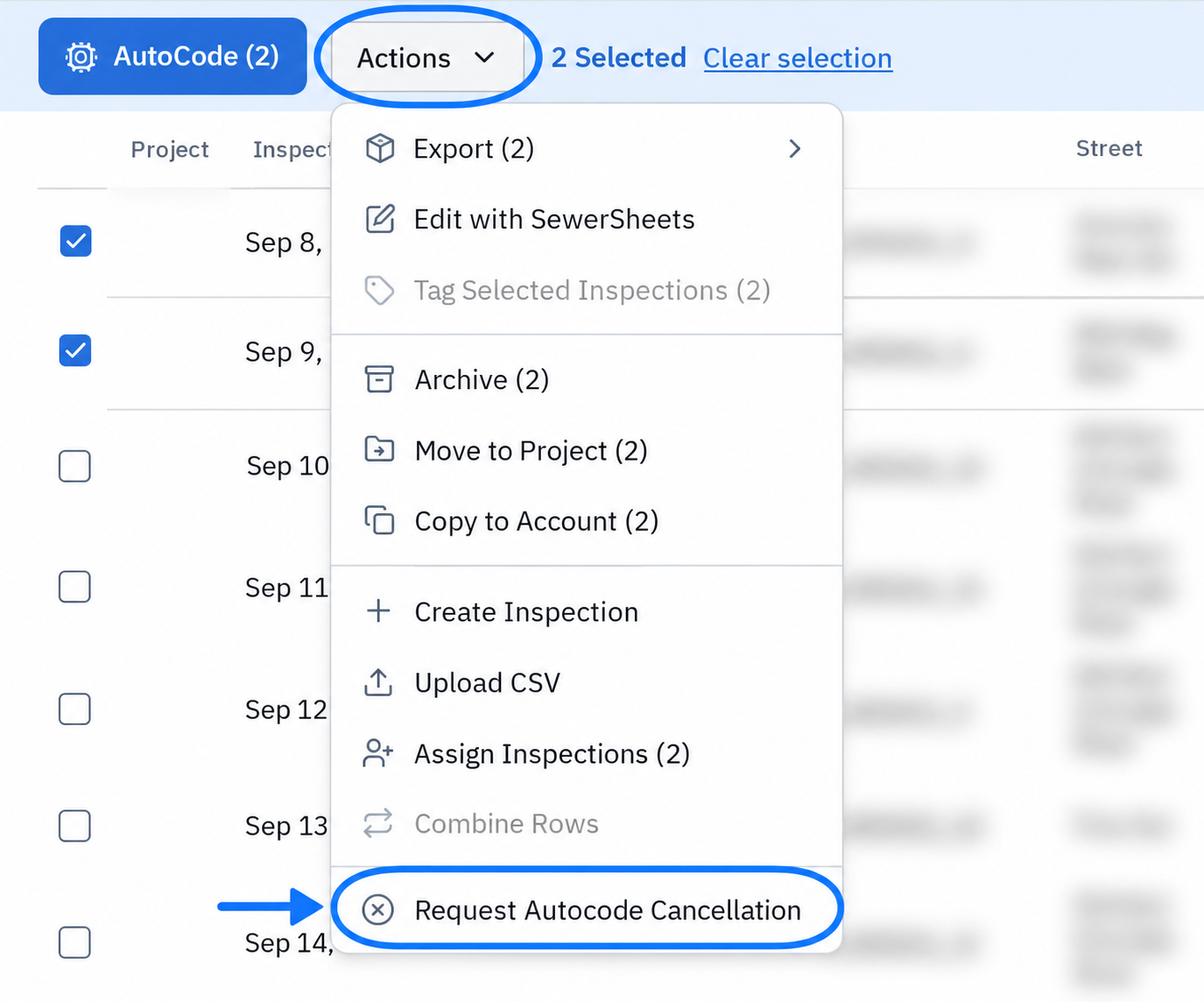
Request cancellation from the Actions menu.
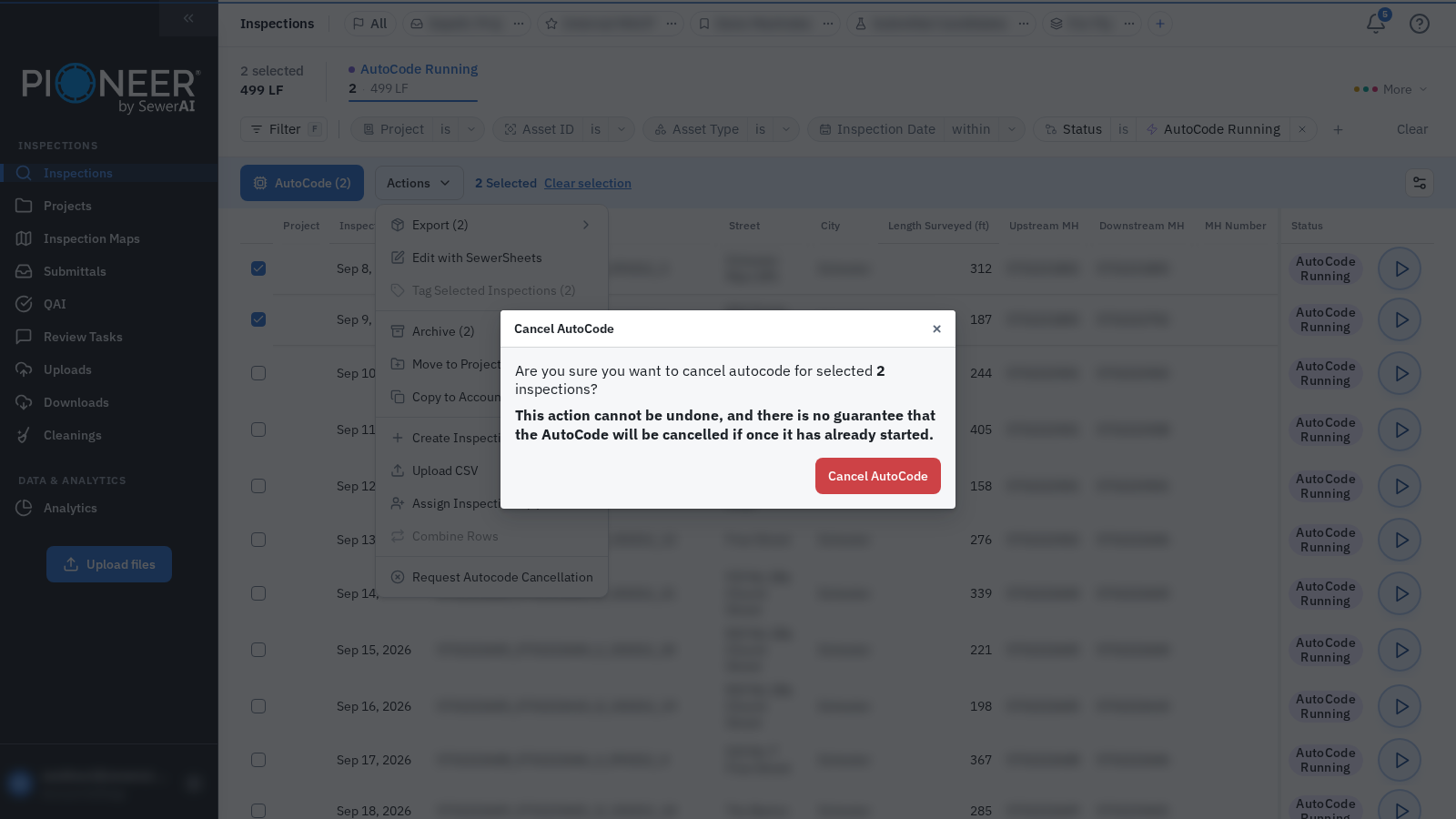
Review the count and warning before confirming.
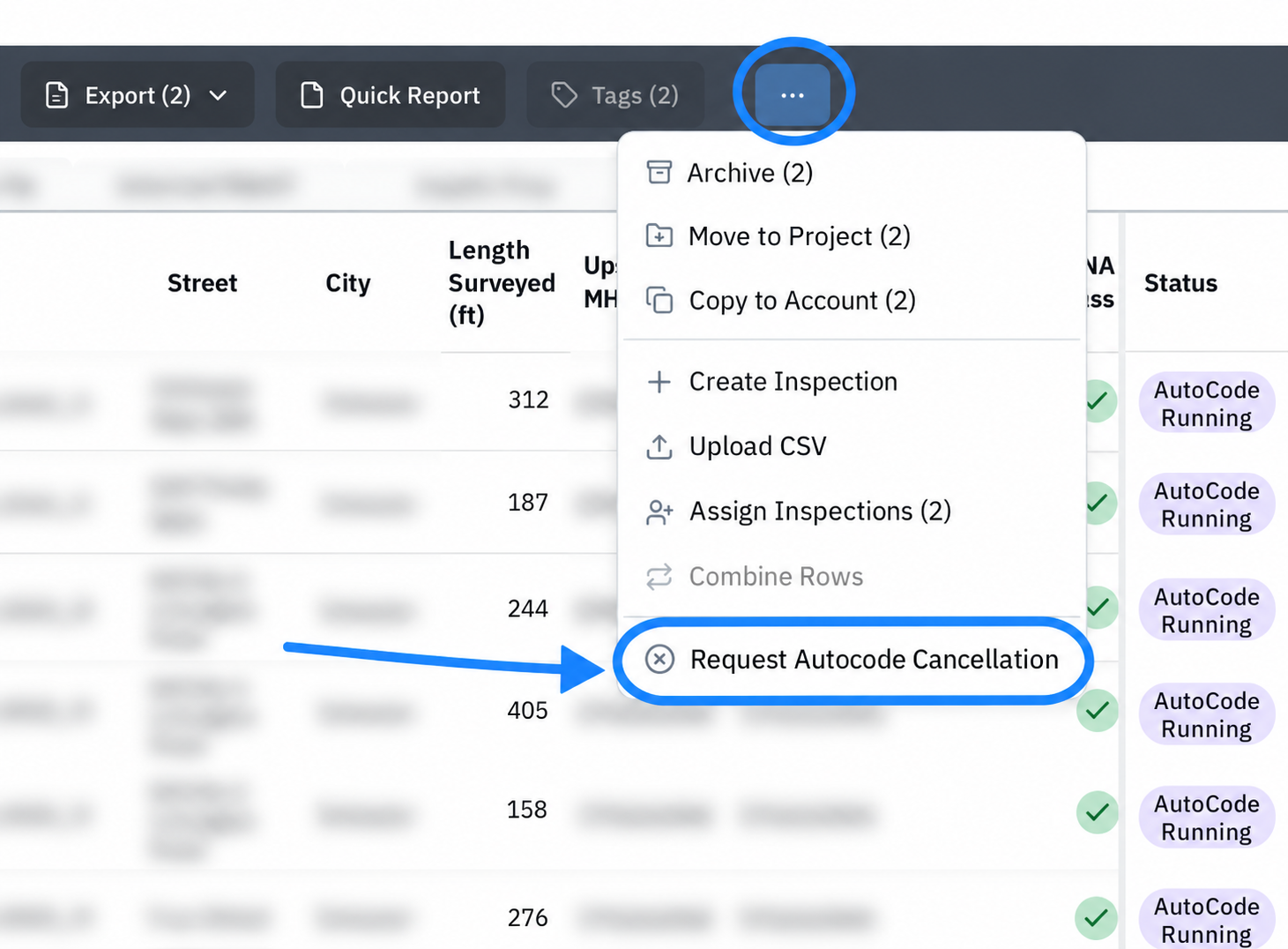
Request cancellation from the overflow menu in the separate-buttons layout.
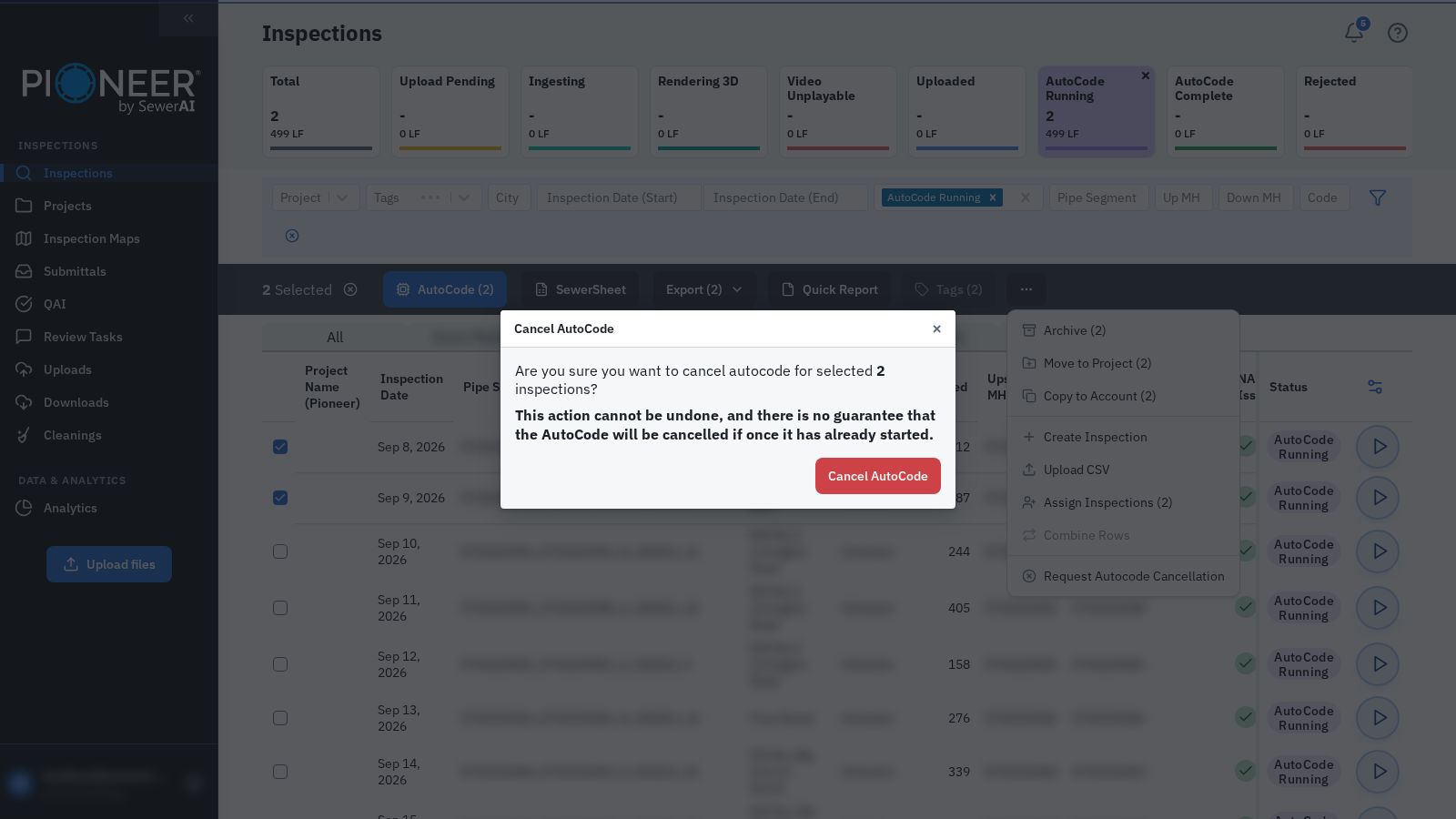
The confirmation dialog in the separate-buttons layout.
Read the Request Result
PIONEER reports how many inspections the cancellation was requested for. If some cannot be canceled, the message reports the count and reason. A request count does not confirm that processing has stopped.
- Coding work has already started or completed: those inspections cannot be canceled through this request
- Inspections are being processed by AutoCode: those inspections cannot be canceled at that stage
Blocked inspections are not saved for a later cancellation attempt. Contact Support if you need help confirming whether work can still be stopped.
Check That It Worked
Check the refreshed inspection list and the AutoCode due date. If needed, refresh the page again. After cancellation completes, the due date is cleared and the inspection returns to its upload or processing status, such as Uploaded, Ingesting, or Upload Pending.
An accepted cancellation prevents automatic submission from restarting AutoCode. You can deliberately submit the inspection again later if it is eligible.
Review the inspection’s observations before making manual changes or exporting. Complete any needed manual coding after confirming that AutoCode has stopped.
Troubleshooting
The Inspection Still Shows AutoCode Running
Read the request result for blocked inspections. Contact Support through the chat widget in PIONEER with the inspection details and the message shown.
More Than 2,000 Inspections Match
Only up to 2,000 inspections are included in one request. PIONEER does not warn about additional matching rows, so filter or select a smaller set and check the confirmation count before continuing.
Still Need Help?
Use the chat widget in PIONEER to contact our support team.
If you cannot access the chat widget, email help@sewerai.com.