Troubleshooting Footage Counter Issues in Pioneer
Last updated: November 12, 2026
Use these checks when the distance shown in PIONEER Desktop stops updating, runs in the wrong direction or differs from the camera controller.
Before Changing Settings
Check whether the counter updates on the controller itself. Note what PIONEER shows, the selected truck type and whether the problem began after changing a cable, camera or inspection.
Finish recording and allow the video to save before restarting applications or changing the connection. If the inspection is still WRITING or saving is uncertain, keep PIONEER and the local files intact and contact Support first.
Check a Serial Distance Connection
Check the distance-interface cables between the controller and computer.
Open Truck Settings > Connection Settings.
Confirm the intended Truck Type and Serial Port. Check the current port after a USB connection changes.
Check Baud Rate, Parity and Stop Bits against the equipment configuration. If you use Detect Baud Rate, read its result and select that value in Baud Rate; detection does not fill the field.
Set Enable Distance Display and Communication to Yes when using the distance connection.
Select Test Connection and check that live distance readings arrive and change as expected. Select Stop when finished.
Review the settings and select Save Settings.
These serial settings do not apply to every controller. Settings Incorrect can appear while the test is waiting for a reading; it is not by itself a diagnosis of the wrong port. If readings never arrive, stop the test and contact Support.
A successful distance test does not verify the camera picture, recorded audio or cloud upload. Use a short test recording after the connection is working.
IBAK SoftControls
Confirm that the configured truck type matches your installation: IBAK SoftControls and IBAK SoftControls with IBAK Video Recorder are different workflows. Check that SoftControls is running and displaying counter data.
Saving Truck Settings can restart the configured SoftControls application. Do this only after recording has finished saving. If SoftControls does not start, the counter repeatedly freezes, or PIONEER and the controller disagree, contact Support with the displayed error and both software versions.
Have Support confirm any requirement to run an application as Administrator or change versions for your equipment. Do not switch to an alpha or beta build as a general counter fix.
Incorrect Distance or Count Direction
Compare the controller and PIONEER against a known measured length. Ask Support to check the distance units, calibration factor and count direction for your truck. Do not copy another truck's factor or overwrite an existing factor with a generic value.
For a Support-assisted cable calibration, have a tape measure and tape available. Support may ask you to mark two points exactly 25 feet apart on the cable, reel back to the first mark, then extend to the second and compare the readings.
The in-app controls are under Truck Settings > Calibration. Have Support confirm the method and units, particularly for metres or centimetres. Review all pending Truck Settings edits before using Save Calibration, because it saves the other pending settings too.
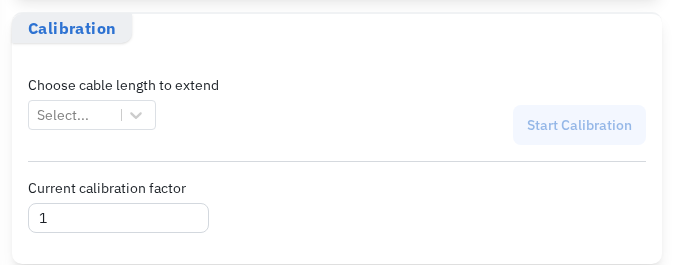
The Calibration section shows the measured-length selector and current factor. Confirm the method and units with Support.
Mainline and Lateral Distance
Distance-channel controls depend on the configured truck and recorder. On supported in-app PACP recorders, pause the recording before using Switch to LATERAL Distance or Return to MAINLINE Distance. Use the controls for your equipment rather than changing the calibration factor to switch channels. Contact Support if the intended control is unavailable.
Distance Is Missing from a Recorded Inspection
Keep the complete local inspection folder and original video. Contact Support before deleting files, re-syncing an existing cloud inspection or arranging a new field inspection. Explain when the counter stopped and whether the recorded image still shows the controller's distance display.
The local inspection folder may contain distance.csv, the distance log. Keep it with the complete folder; a present or empty file is not proof that usable readings were recorded. Support can check the log or a distance display visible in the recorded image. Neither guarantees that every missing value can be recovered.
Send Useful Details to Support
Include the truck/controller and capture-device models, PIONEER version, SoftControls version if applicable, current distance settings, a screenshot of the error, and whether the controller's own counter still works. For recorded work, include the inspection reference and preserve the complete local folder.
See Truck Setup and Configuration and Creating and Syncing an Inspection.
Still Need Help?
Use the chat widget in PIONEER to contact our support team.
If you cannot access the chat widget, email help@sewerai.com.