Replacing a Video on an Existing Inspection
Last updated: November 9, 2026
Use Replace Video when an existing cloud inspection has a defective or incorrect video file. This replaces its media; it does not import a new set of header data or observations.
Before You Start
Keep the original and corrected files on your computer.
Confirm the inspection link and that the new file belongs to that inspection.
You need Uploader, Editor or Admin access to the inspection's account or project.
For AutoCode Running or AutoCode Complete, contact Support before trying to replace the video.
For a Rejected inspection, coordinate the corrected video and restart with Support. Replacing its file does not clear Rejected. Support must reset the inspection to Uploaded before AutoCode can restart.
Understand What Changes
The replacement overwrites the inspection's video while retaining its header and observations. Existing observation times, distances and snapshot images may no longer correspond to a differently timed or edited video. Existing snapshots can still show the previous file. Check them against the replacement before using the inspection for review or delivery.
Do not use this as an instruction to append footage from a resumed Desktop recording. Preserve the local and cloud data and contact Support for that situation. Replacement, local recording resume and syncing a first upload are different operations.
Replace the File
Open the intended inspection's review page.
In the Video panel header, select the cloud icon with an upward arrow.
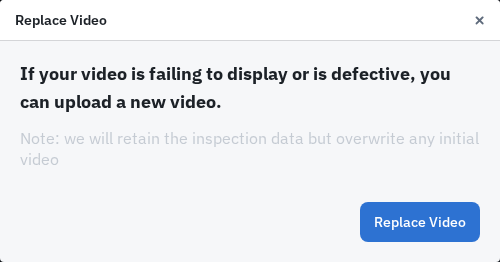
Read the Replace Video notice.
Select Replace Video to open the file picker.
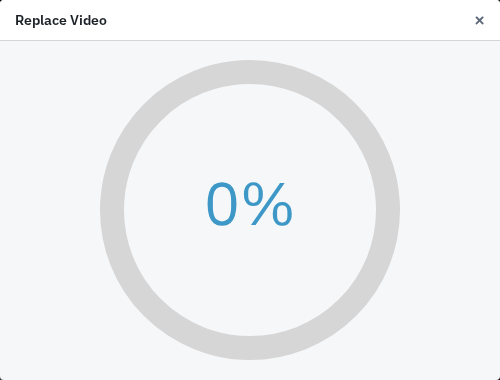
Choose the corrected video. Selecting the file starts its upload immediately; there is no additional confirmation.
Keep the page open while the file uploads.
If the control is unavailable, the inspection is archived, or PIONEER refuses the replacement, contact Support with the inspection link and displayed message.

Verify the Replacement
Read the upload result and allow playback processing to finish.
Open the video and confirm that it is the corrected file and plays through the required footage.
Check observation times, distances and snapshots against the new video.
For inspections with a 3D model, check the model and measurements before using them.
The upload confirmation does not establish that processing or model generation succeeded. Replacement does not automatically rerun AutoCode.
If Replacement Fails
Keep the original and corrected files and contact Support with the inspection link, filename and exact error. Do not archive the inspection or repeatedly re-upload files as a workaround. Ask for help if playback still shows the old video or the replacement is unavailable.
Related Guides
Still Need Help?
Use the chat widget in PIONEER to contact our support team.
If you cannot access the chat widget, email help@sewerai.com.