Pioneer Keyboard Shortcuts for Inspection Detail View
Last updated: November 14, 2024
Note: All shortcuts have been documented for Windows users. If you are on a Mac computer substitute the keyboard "Option" button in place of CRTL.
Sections in this article:
Focus Mode or Full Screen View
Inspection Video Playback Shortcuts
Observations Shortcuts
Support Contact Information
Focus Mode or Full Screen View
CTRL + SHIFT + F: Switches the Inspection Detail Screen to and from full screen view, also known as focus mode.
Inspection Video Playback Shortcuts
SPACEBAR: While a video is playing this will start and stop the video playback.
CTRL + Right Arrow: Advance the video forward by one frame.
CTRL + SHIFT + Right Arrow: advance the video forward by one second.
CTRL + Left Arrow: Moves the video backward by one frame.
CTRL + SHIFT + Left Arrow: Moves the video backwards by one second.
CTRL + SHIFT + Space Bar: Centers the camera (for 360 playback only)
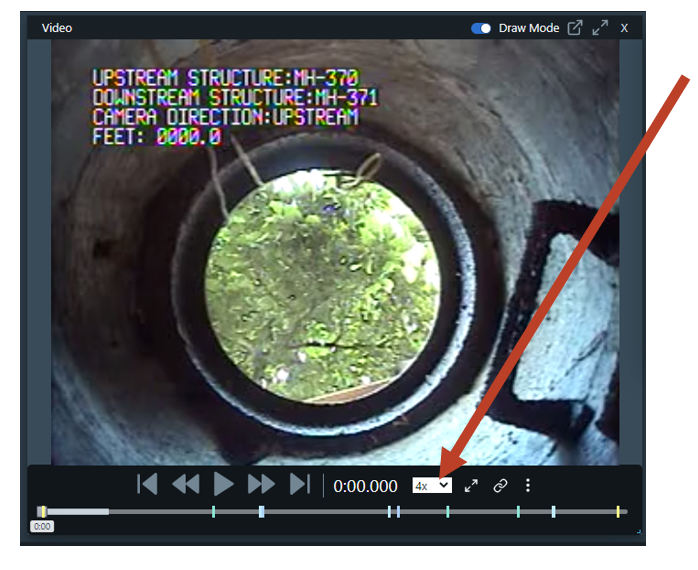
Changing Video Playback Speeds
CTRL + 1: Set the playback speed to .5x
CTRL + 2: Set the playback speed to 1x
CTRL + 3: Set the playback speed to 2x
CTRL + 4: Set the playback speed to 3x
CTRL + 5: Set the playback speed to 4x
CTRL + 6: Set the playback speed to 5x
CTRL + 7: Set the playback speed to 6x
Observations Shortcuts
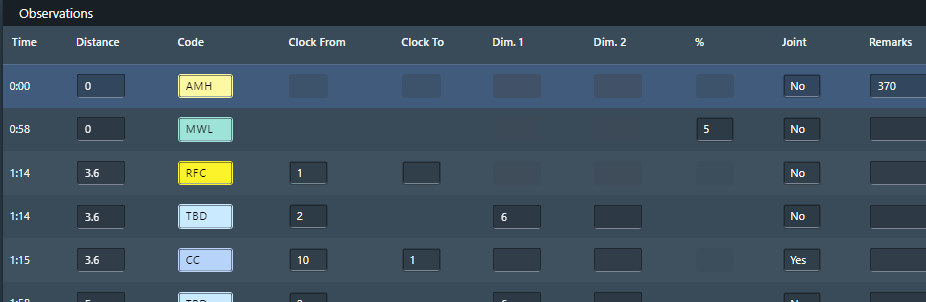
CTRL + D: Add a new observation using the time entry that is currently set on the video viewer. For example, if the video is at 14:56 when the shortcut is used, this time will automatically be entered in the "Time" field of the observation line that is created.
CTRL + G: Add a new observation with code MWM (Miscellaneous Water Mark) at the time entry that is currently set on the video viewer.
CTRL + SHIFT + D: Create a duplicate observation line.
CTRL + E: Delete an observation.
Questions? Reach out to us today through the chat feature located in the lower right of Pioneer or email us at support-team@sewerai.com.