How to Cancel AutoCode Processing for Inspections
Last updated: December 5, 2024
Sometimes you may need to cancel the automatic code processing for certain inspections, for example, if you need to export the data or make manual adjustments. This article explains how to request cancellation of auto code processing from both the field app and the office version.
Cancelling Auto Code from the Field App
If you're using the field app, you can cancel the auto code processing directly:
Navigate to the inspection you want to cancel auto code for.
Look for an option to cancel or stop the auto code processing.
Select this option to cancel the auto code.
Cancelling Auto Code from the Office Version
To cancel auto code processing from the office version:
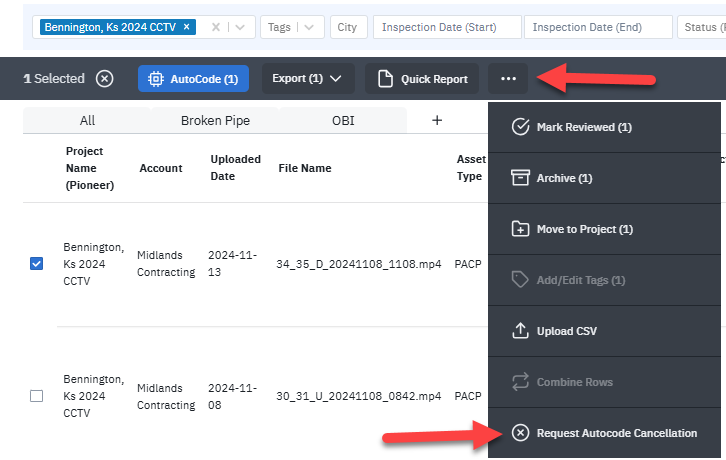
Go to the project page where your inspections are listed.
Select the inspection(s) for which you want to cancel auto code.
Click on the three dots (...) menu next to the selected inspection(s).
Choose "Request Cancellation" from the dropdown menu.
Important Notes
The cancellation is a request and may take a short time to process.
If you're unable to cancel the auto code yourself, contact support for assistance.
After cancelling auto code, you may need to manually process or review the inspection data.
By following these steps, you can effectively manage auto code processing for your inspections, allowing you to export data or make necessary adjustments as needed.