AutoHeader: Inspection Headers, Done Automatically
Last updated: November 12, 2026
Stop typing what your crew already said on camera.
Every inspection report starts with a header: the basic details like the address, the manhole number, and the date. Your crew usually says these out loud during the video, and they often show up on screen too.
But today, someone in the office still has to watch the video, pause it, and type those details in by hand. With hundreds of videos, that takes a lot of time. Fields get missed. Typos sneak in.
AutoHeader does that typing for you.
See it in action. This short video shows AutoHeader filling in headers straight from an inspection video.
How it works
AutoHeader watches and listens to your inspection video. It picks up what your crew said and what's written on screen. If both match, it fills in the empty header fields for you.
It works with every inspection type in Pioneer. Your crew doesn't need new cameras, a new app, or any training. They just keep working the way they do now.
It won't make things up
AutoHeader only fills in a field when it's sure. If it isn't, it leaves the field alone and adds a tag so your team knows to take a look:
AutoHeader Low Confidence means the video wasn't clear enough to be sure.
AutoHeader Mismatch means what was said and what was on screen didn't match.
And it never changes a field that's already filled in. So instead of typing every header, your team only checks the few that were flagged.
Two ways to use it
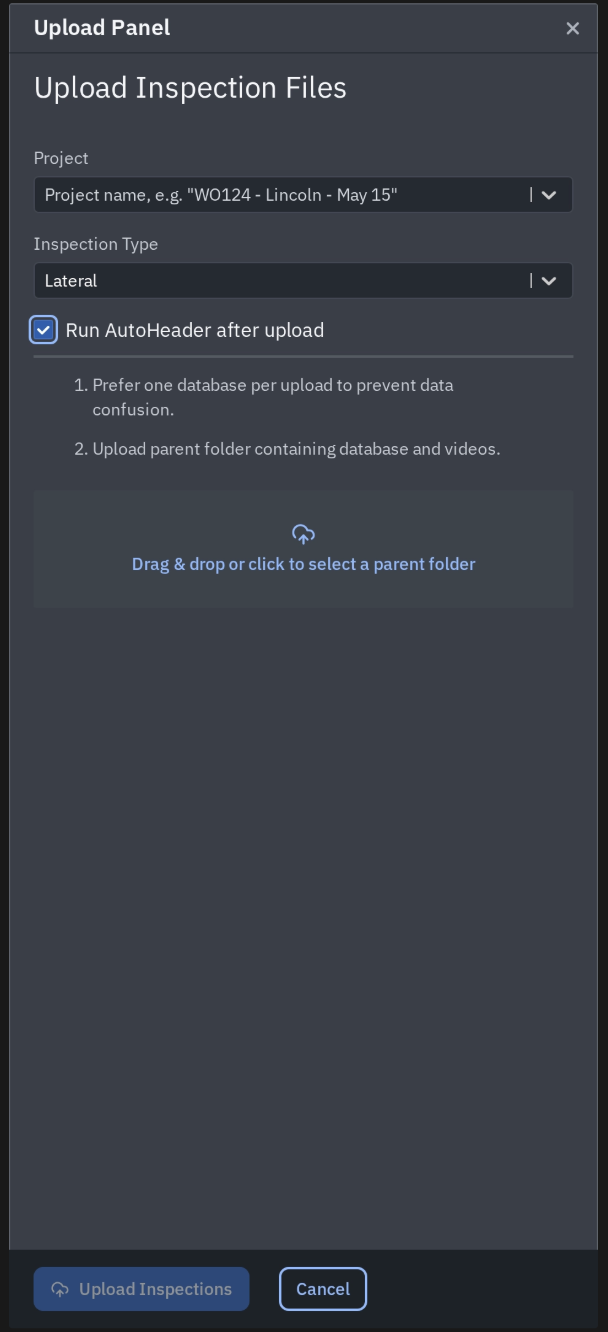
When you upload new videos: check the box that says Run AutoHeader after upload. That's it.
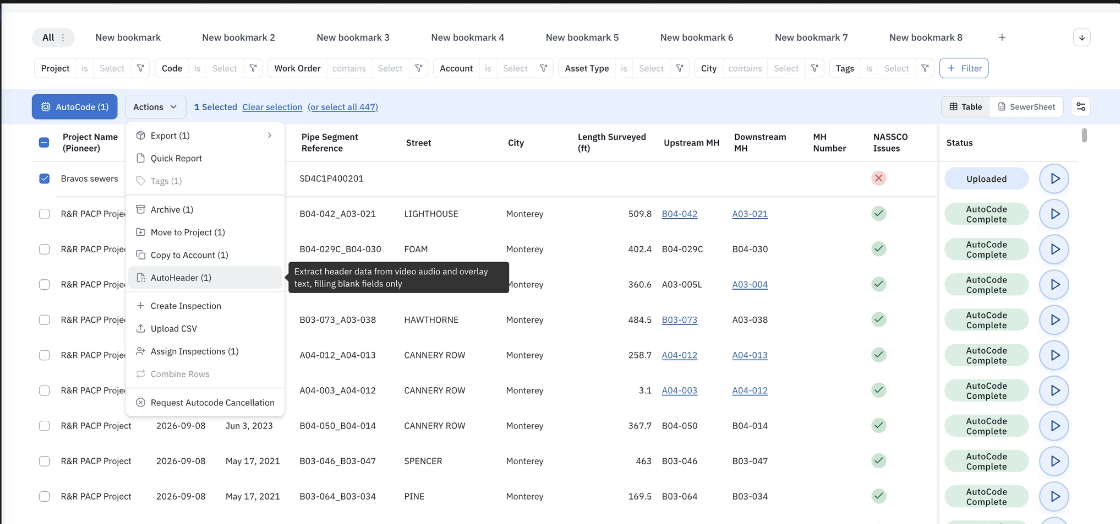
For videos already in Pioneer: go to Inspections, pick the ones you want, click the … menu, and choose AutoHeader. This is a great way to fill in old headers that were left blank.
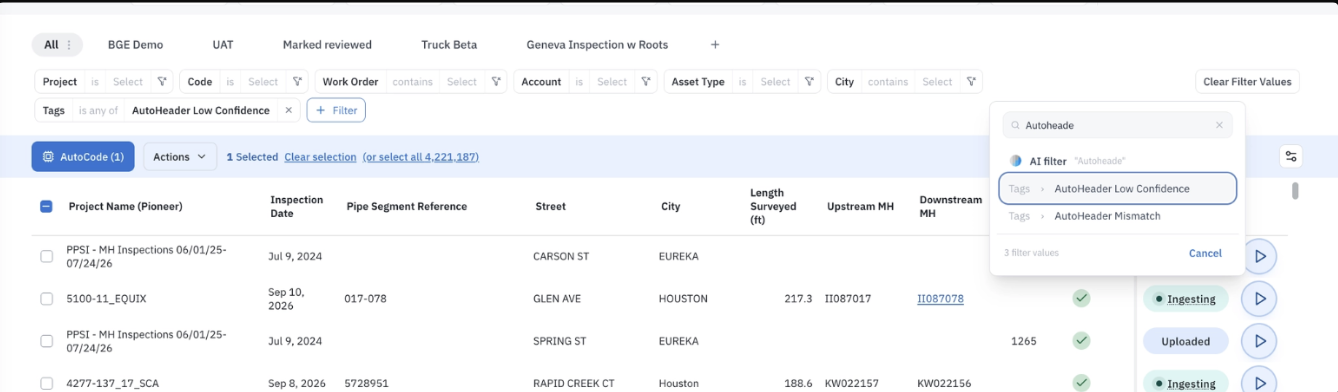
When it's done, filter by the two tags above to see which ones need a quick check.
Tip: AutoHeader works best when your crew says key details clearly and keeps any on-screen text easy to read.
Check your results
After AutoHeader runs, each header field will land in one of four places:
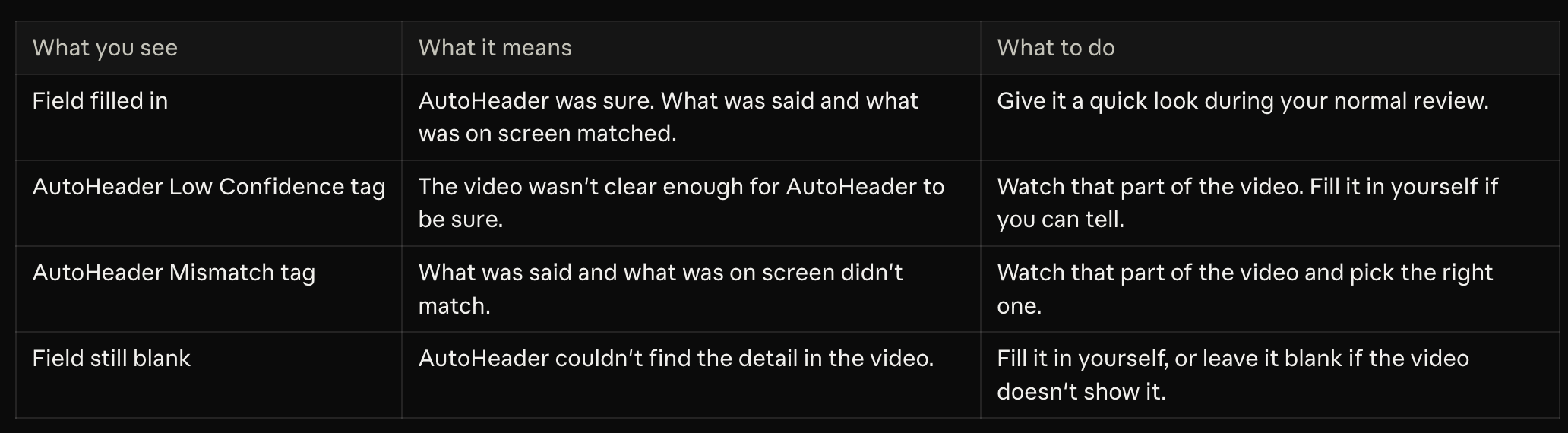
Start with the flagged ones. In Pioneer, filter your inspections by the AutoHeader Low Confidence and AutoHeader Mismatch tags. Check those first, using the video to confirm any changes. Everything else is ready for your normal review.
Why it matters
Less typing. Your office team gets hours back every week.
Faster turnaround. Reports are ready to deliver sooner, so projects close and bills go out faster.
Fewer blanks. Empty fields get filled in instead of slipping through.
Fewer mistakes. AutoHeader double-checks each detail before filling it in.
Room to grow. Take on more work without piling more onto your office staff.
What one contractor saw
On one contractor project, 62 videos had blank headers. AutoHeader filled in 61 of them. It also caught 19 headers that had been typed in wrong.
Your results will depend on your videos, but the idea is the same: less typing, fewer gaps, and fewer mistakes.
Get started
AutoHeader is in Pioneer now. Check out our step-by-step guide, or ask your SewerAI account manager to walk your team through it.