New in PIONEER: Teams, Inspection Attachments & Related Inspections
Last updated: October 19, 2026
✨ Three upgrades that make day-to-day work in PIONEER@ a little easier
We are excited to announce three new upgrades that will make your day-to-day work in PIONEER a little easier. This month, we are rolling out features you’ve been asking for, including enhanced admin controls, better organization of inspection materials, and quicker access to inspection histories.
Here’s a quick look at each improvement:
👥 Teams: Control Access Across a Larger Program
Are you managing a larger program? With Teams, you can control access to your PIONEER data for a whole group at a time.
If you work with several contractors, multiple crews, or multiple offices, you understand the challenges. Each new project typically requires adding the same people with the same permissions one by one. With Teams, you can set up a group once, and PIONEER will handle the access for you from there.
How it works
Create a team: Go to Account Settings → Teams to create a team, such as "Contractor A – CCTV," "Day Shift," or "Engineering Review."
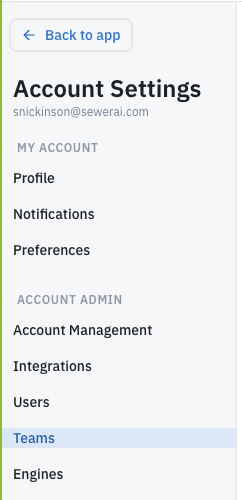
Add members: Invite members to your team and assign a default role for each: Viewer, Uploader, or Editor.
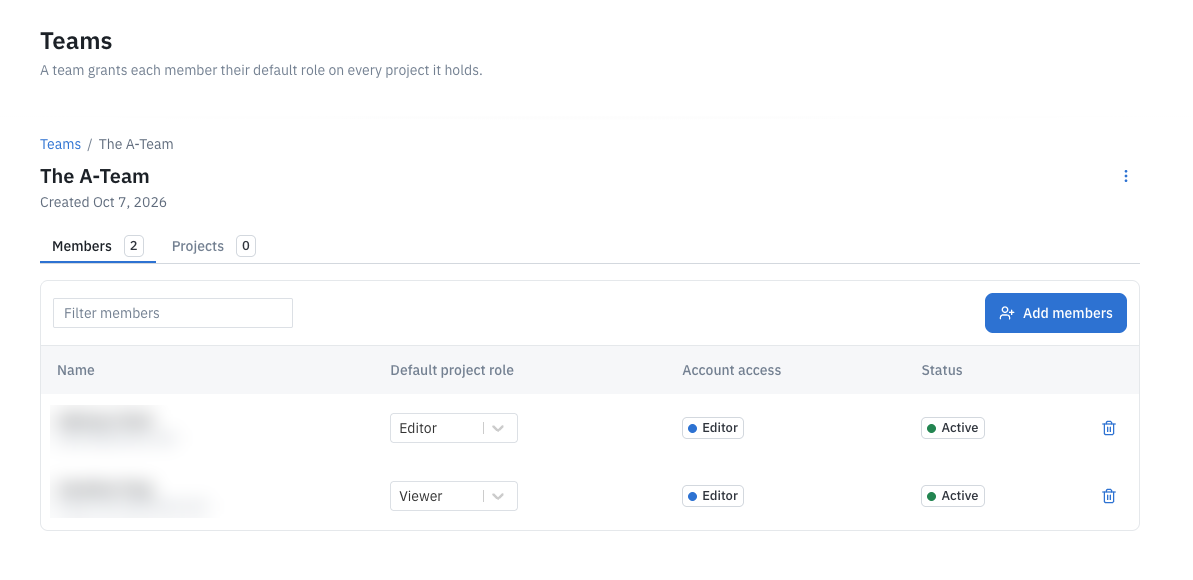
Assign projects: Designate projects for the team. All members will automatically gain access to those projects based on the team’s assigned role.
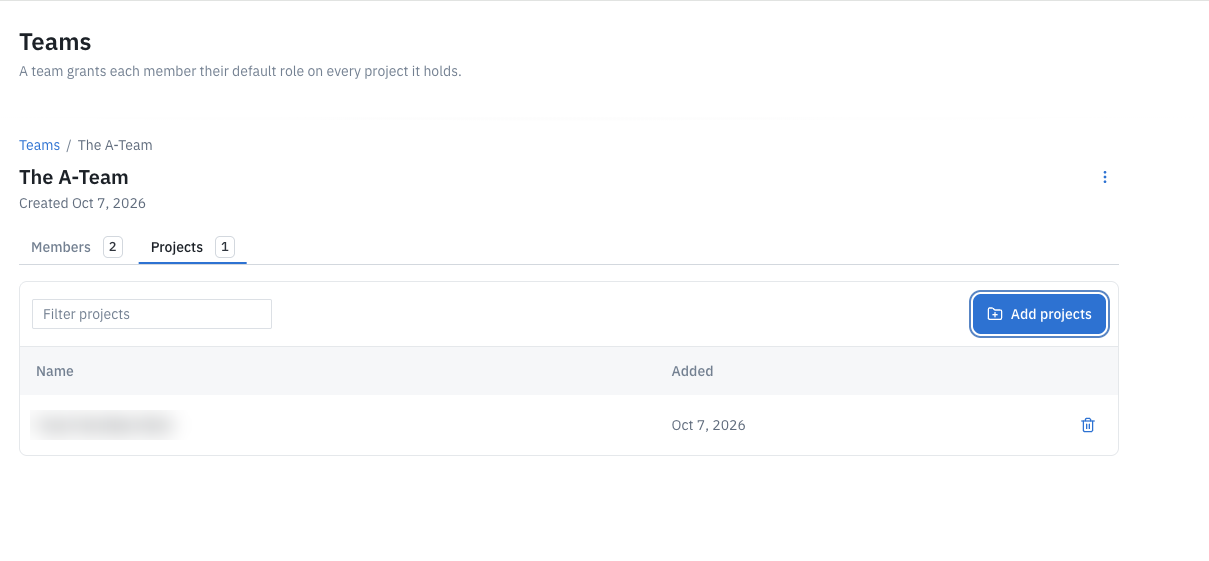
Add members later: New members added to the team will automatically receive access to every project assigned to that team.
Invite non-PIONEER users: You can invite people who are not yet on PIONEER by adding their name and email addresses. Once they accept the invitation, they will join both PIONEER and your team in one step.
Assign teams to projects: While creating or editing a project, you can select which teams should have access to it.
You can create as many teams as needed, each with as many members as required.
Who it's for: This feature is ideal for cities managing multiple contractors, engineering firms working with subcontractors and clients, and contractors with several crews or offices.
The team builds on the new Account Settings experience we launched earlier this year. Read: Manage Your Team with Greater Control →
📎 Inspection Attachments: Keep Proof with your Inspections
Field photos and documents now live with the inspection, not in a camera roll or shared drive.
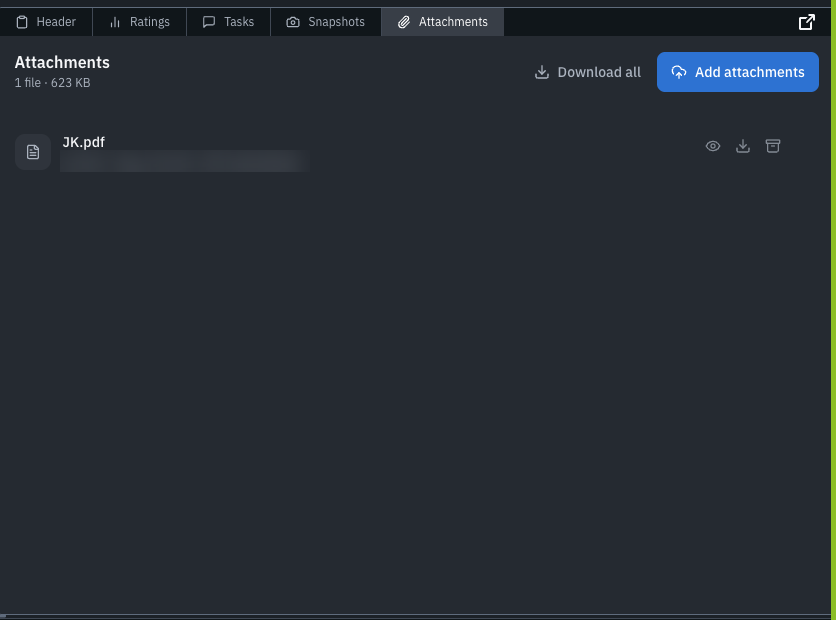
Many city contracts require documentation beyond what NASSCO specifies, such as above-ground photos of the manhole area or images of the cover. Previously, these files were kept separately, and someone in the office had the task of matching them to the correct inspection. Now, you can conveniently attach images and PDFs directly to an inspection in PIONEER.
How it works
From an existing inspection: Open the inspection in Review and use the new Attachments section to add images or PDFs.
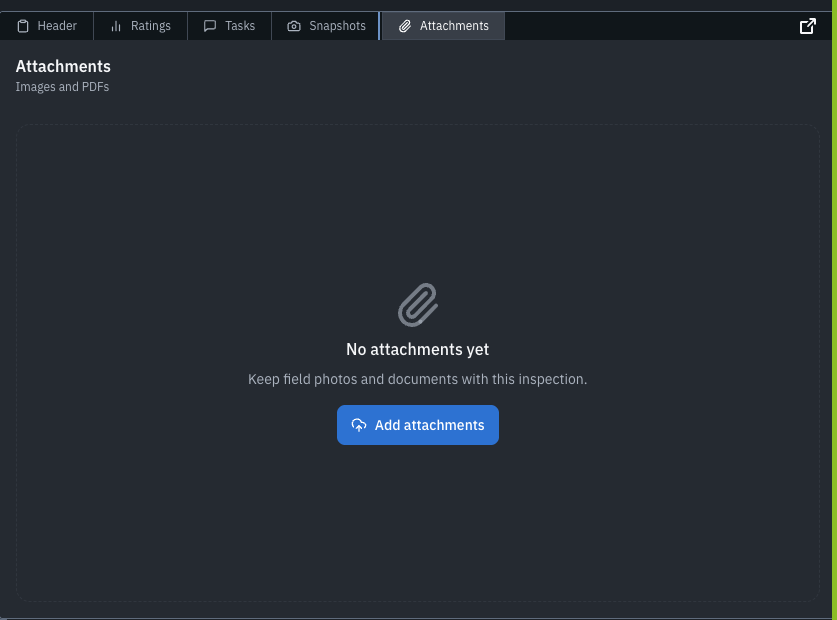
From the Field (before the inspection exists): On Inspection Maps, select the pipe, lateral, or manhole and choose Upload Attachments. PIONEER will create the inspection for that asset and attach your files.
Using your phone or tablet: Tap Take Photo to use your camera, or Gallery to select existing photos.
Preview, download, or remove: Open files directly within PIONEER. You can download them or use the archive icon to remove them. Archived files will be retained but won’t appear in the inspection.
Good to know
This feature works for PACP, LACP, and MACP inspections.
Supported file formats include JPG, PNG, GIF, TIFF, BMP, WebP, HEIC, and PDF, with size limits of 50 MB per image, 100 MB per PDF, and 250 MB per batch upload.
Images previously stored in your NASSCO databases (the extra photos that were often left behind during uploads) will now automatically come in as attachments.
Attached images are included in PDF reports and NASSCO database exports. Please note that Quick Reports and CSV exports do not include attachments.
Admins, Editors, and Uploaders can add and remove attachments, while Viewers can only see them.
Photos uploaded from a phone may be compressed to facilitate faster uploads on weaker connections. If you require the original file, consider uploading from a desktop.
This feature is now live in PIONEER!
🔗 Related Inspections: See the Whole Story of a Pipe
Access every inspection on the same line, all in one place.
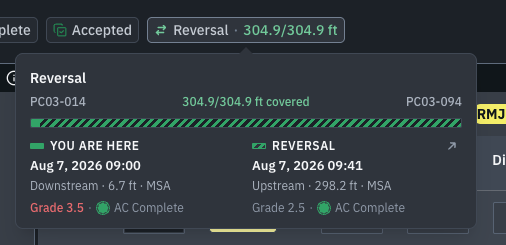
A crew gets 55 feet into a pipe and can’t go any further. They pull out, move to the other manhole, and shoot it from the other side. Back in the office, those two surveys used to live in PIONEER as separate records. Miss the reversal, and most of the pipe looks uninspected. Miss the history, and you can’t tell whether that break is new.
Now, the top of every inspection page highlights related information:
What you'll see
Reversals: Inspections conducted from the opposite direction on the same pipe.
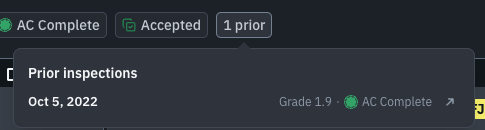
Prior inspections: Earlier surveys of the line, each graded, so you can track how the pipe's condition has changed over time.
Newer inspections: If the pipe has been surveyed more recently, PIONEER alerts you, and the newer inspection is just one click away.
Connected manholes: Inspections of the manholes at both ends of the pipe.
Missing reversals: If no one returns from the other end within 48 hours, PIONEER will flag this issue.
Related Inspections use the pipe segment reference and upstream and downstream manholes already in your inspections, so you don’t need GIS for it to work.
This feature is live in PIONEER now.
❓ FAQ
Who can create and manage Teams?
Only account admins have the ability to create and manage Teams. Team members will have the role assigned to them within the team.
Is there a limit on the number of teams or team members?
No, you can create as many teams and add as many team members as you need.
Can I add attachments before the video is uploaded?
Yes, you can. Start from Inspection Maps, select the asset, and choose "Upload Attachments." PIONEER will create the inspection for you. Or add attachments to any Upload Pending Inspections.
Will attachments be included in my deliverables?
Attached images will be included in PDF reports and NASSCO database exports. However, Quick Reports and CSV exports will not include them.
What if I attach a file to the wrong inspection?
You can remove it by clicking the trash icon and then upload it to the correct inspection.
How does PIONEER decide which inspections are related?
PIONEER matches inspections that share the same pipe segment reference or the same upstream or downstream manhole across all projects in your account.
Do I need to enable any of these features?
No, Attachments and Related Inspections are already active. Teams are currently being rolled out to accounts. If you do not see it under Account Settings yet, please reach out to your Customer Enablement contact.
See what else is new in PIONEER →
Questions we didn't cover here? Reach out to your Customer Enablement contact or submit a ticket, and we're happy to help.