Using Notifications in PIONEER
Last updated: April 6, 2026
Notifications in PIONEER help you stay on top of important activity like completed AutoCode batches, finished downloads, and upload issues — without needing to constantly check the platform.
What are Notifications?
PIONEER uses notifications to alert you when certain actions are complete or when something needs your attention.
Notifications can help you:
know when AutoCode has finished processing,
know when a download package is ready,
and catch upload issues more quickly.
Your notification preferences can be managed directly from your account settings.
Where to Find Notifications
You can access your notifications by clicking the bell icon in the top-right corner of PIONEER.
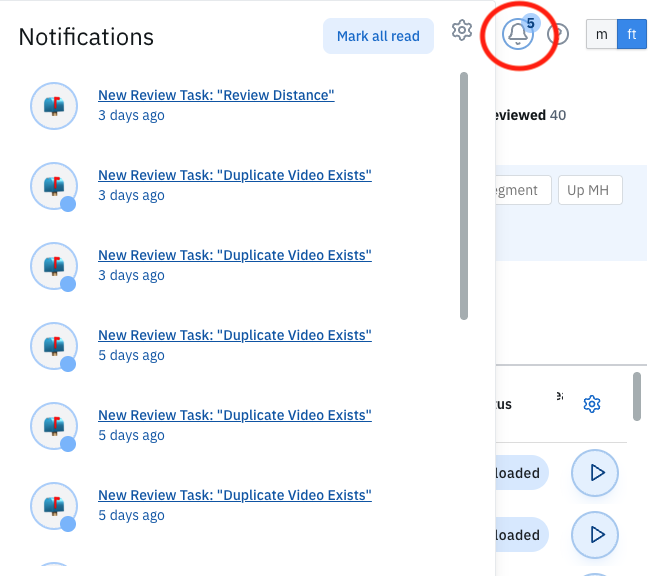
This notification center displays in-platform alerts for supported events so you can quickly review recent activity without leaving the application.
What PIONEER Currently Sends Notifications For
PIONEER currently notifies users about the following:
AutoCode Complete
You’ll receive a notification when a batch of AutoCode (AI-enabled condition assessment) has finished processing.
This is especially helpful when running larger batches so you know when inspections are ready for review.
Download Ready
You’ll receive a notification when a download package you kicked off is ready.
This can include exports or generated deliverables that may take a few minutes to process before becoming available.
Video Encoding Issues
You’ll receive a notification if a video you uploaded encountered an issue during processing.
These notifications can help you identify files that may need to be re-uploaded or reviewed.
Enabling Notifications in PIONEER
To manage your notification preferences in PIONEER:
To manage your notification preferences in PIONEER:
Click your profile or open Account Settings
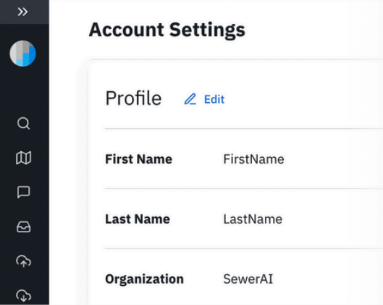
Navigate to the Notifications section
Toggle the available notification checkboxes on or off based on your preferences

Enabling Browser Notifications in Chrome
PIONEER leverages your Chrome browser to provide notifications for work in progress.
If you want to receive browser pop-up notifications while working, you’ll need to allow notifications for PIONEER in Chrome.
To enable notifications in Chrome:
Open PIONEER in Google Chrome
Click the lock icon (or site settings icon) to the left of the URL bar
Find Notifications
Change the setting to Allow
Refresh the page
If Chrome previously blocked notifications, you may need to:
Open Chrome Settings
Go to Privacy and security → Site Settings
Click Notifications
Find PIONEER / pioneer.sewerai.com
Change the permission to Allow
Once enabled, Chrome can surface notifications while PIONEER is open and active in your browser.
Troubleshooting
If you’re not receiving notifications, try the following:
Check your PIONEER settings
Make sure the relevant notification checkboxes are enabled in Account Settings.
Check Chrome permissions
Verify that notifications are allowed for pioneer.sewerai.com in Chrome.
Refresh your browser
After changing browser permissions, refresh PIONEER and try again.
Confirm you’re using a supported browser
For the best experience, PIONEER is optimized for Google Chrome or Microsoft Edge.
Still not seeing notifications?
If notifications still aren’t appearing, contact SewerAI Support through Live Chat or your standard support channel for help.