Adding Users to Your PIONEER Account
Last updated: April 6, 2026
PIONEER makes it easy to securely share inspection data with teammates, stakeholders, and external collaborators.
If you’re an Account Administrator, you can invite users directly from Account Settings and choose whether they should have access to all account data or only specific projects.
Who Can Add Users?
Users with administrator access can add other users to the account.
This can be used to give access to:
team members inside your organization,
contractors or consultants,
municipalities or clients,
or any other collaborators who need visibility into your data.
How to Add a New User
To invite a new user to your account:
Open Account Settings from the bottom of the left-hand navigation
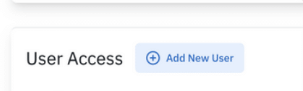
Scroll to the User Access section
Click Add New User
Enter the user’s email address
Optionally, enter their first and last name
Choose whether they should have access to:
All account data (default), or
Specific projects only
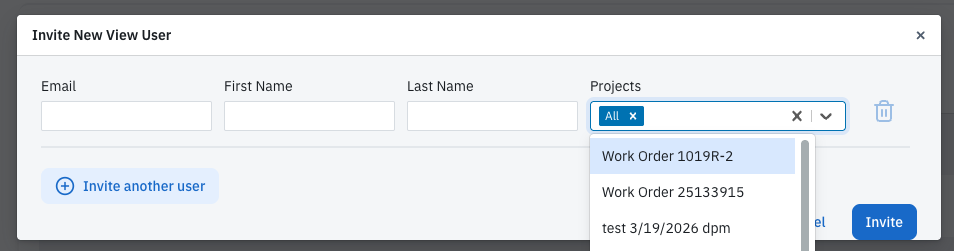
Click Invite

How to Limit Access to Specific Projects
When inviting a user, you can choose whether they should have access to your entire account or only to select projects.
If you want to limit access:
Use the Projects dropdown in the invite window
Select one or more projects the user should be able to view
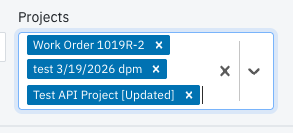
Complete the invitation as normal
PIONEER supports selecting multiple projects at once, making it easy to grant more tailored access for vendors, clients, or project-specific collaborators.
How to Invite Multiple Users at Once
Need to add several users at the same time? You can invite multiple people in a single workflow.
To do this:
In the invite window, click Invite Another User
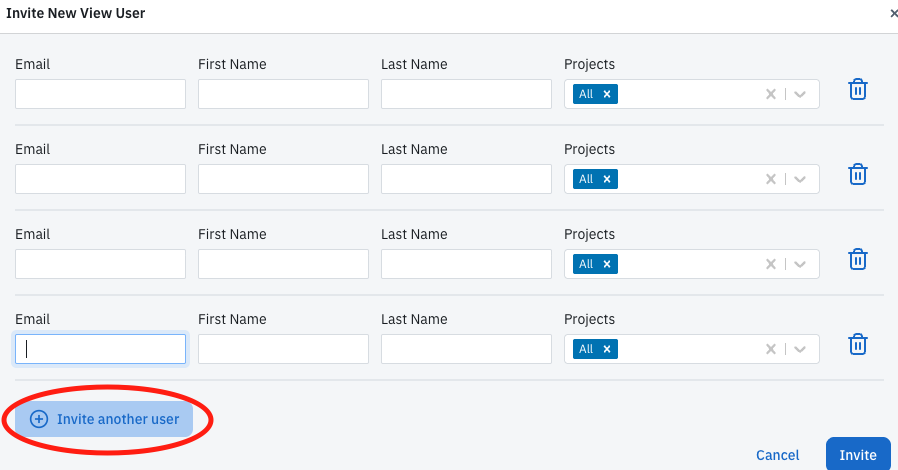
A new row will appear
Enter the next user’s information
Repeat as needed
Click Invite when you’re ready
What Happens After You Send an Invite?
Once invited, the user will receive an email invitation to access PIONEER.
If they already have an account, they can simply log in.
If they do not already have an account, they’ll be prompted to create a free PIONEER account before accessing the data you shared.
Important Note About Inspector (Edit) Access
The Add New User workflow is best for adding View Users.
That means invited users can be given access to see the data you’ve shared, but this process may not automatically assign an Inspector / Edit seat.
If someone needs editing access or a more advanced permission level, please contact SewerAI Support for assistance.
Contact Support
For help with user permissions or access requests, you can reach out to:
Live Chat in the bottom-right corner of PIONEER
Email: help@sewerai.com
Alternative Ways to Add Users
Option 1: Contact SewerAI
If you’d prefer, the SewerAI team can help add users to your account.
When reaching out, include:
the user’s email address
whether they need full account access or project-specific access
and, if project-specific, which projects they should be able to view
Option 2: Self-Signup (Not Recommended)
Anyone can sign up for a free PIONEER account, but self-signup alone does not automatically give access to your organization’s data.
If a teammate or collaborator signs up on their own:
they may land in a separate or trial environment,
and they still won’t have access to your organization’s data until they are properly added to your account.
For the smoothest experience, we recommend inviting users directly through Account Settings instead.