Find Anything in PIONEER: New Filters & Bookmarks
Last updated: October 19, 2026
🔍 Search any field. Keep the filters you use. Skip the rest.
The Inspections page is the first thing you see when you log in to PIONEER, and it's where most work starts. We've rebuilt it so you can find exactly the inspections you need, set the page up the way you work, and get back to your saved views in one click.
We know a new look on a page you use every day takes some getting used to. So here's what changed, why, and how to make it yours:
💡 Why We Changed It
For years, PIONEER offered around 25 filters that we created by hand. If you needed a filter that wasn't available, you had to export your data to a spreadsheet or ask for our help.
Now you can filter any data in PIONEER. This includes common fields like project, status, and inspection date, as well as more specific details like pipe material, rating, or a particular header field. You can even filter for something as precise as a manhole's chimney clear opening. If it exists in your inspection data, you can filter on it.
Additionally, we've listened to your feedback during our early rollout. Many of you wanted your favorite quick filters back on the toolbar, so we reintroduced them. This time, you can choose which ones you want to see.
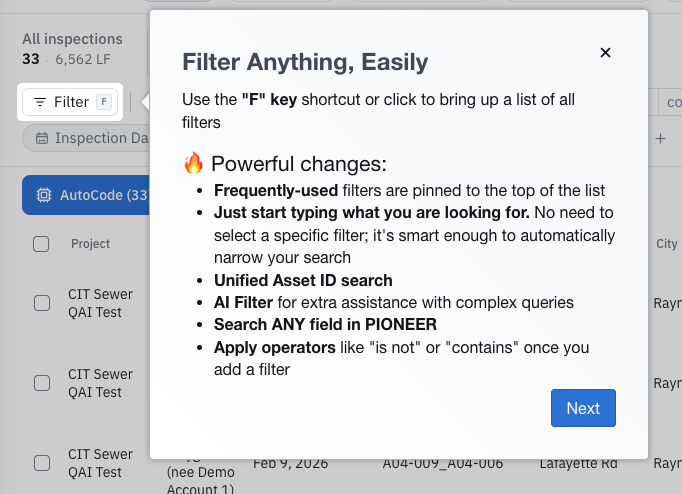
🔧 What's New
Filter on Any Data Field
Click the Filter button to search for the data you need. Use familiar operators such as "contains," "is not," "starts with," "is blank," "before," and "after" for dates, as well as "greater than" or "less than" for numbers.

Pin Your Most Used Filters
Go to your Preferences page in Account Settings and open the Pinned Filters section. Select which filters you want displayed on your toolbar and in what order. You can choose a long list of quick filters or keep it minimal, with the account filter always first.

Request What You Need
Type your request in plain language, such as "uploaded inspections in Riverside from last month," and the AI Filter will construct it for you. The result will appear as standard filters that you can adjust.
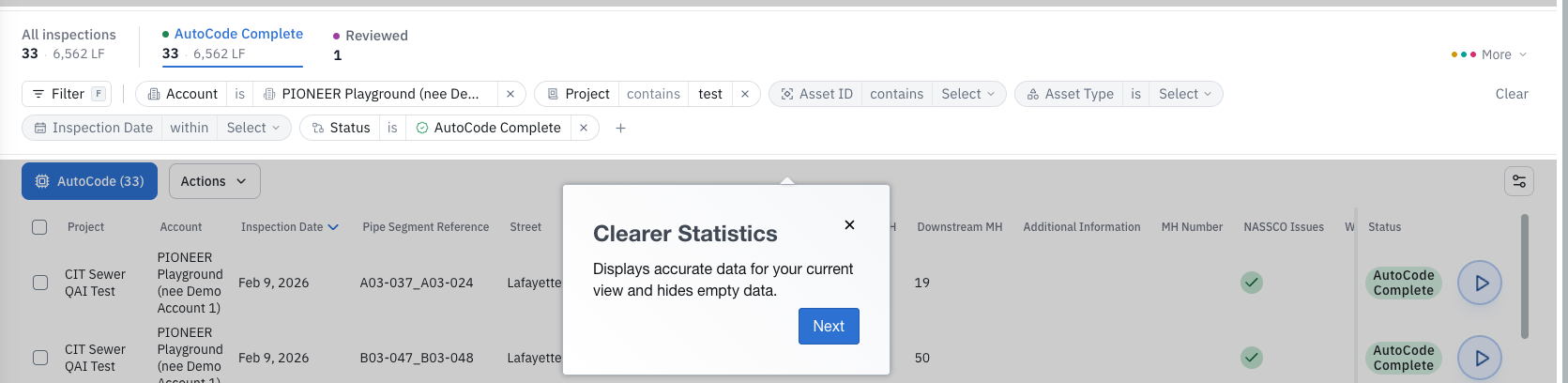
Click a Status to Filter
The status cards at the top of the page, such as Uploaded, AutoCode Complete, or Rejected, now function as one-click filters.
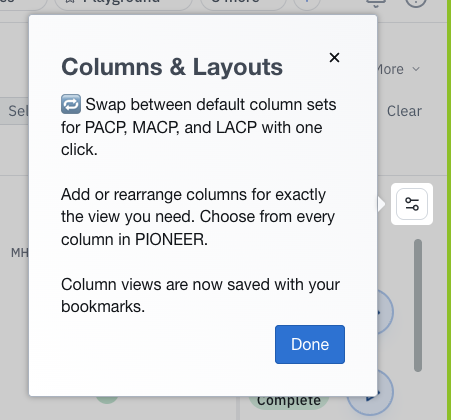
Add Any Column
Choose the columns you want to display, drag them into your preferred order, or start with a preset from PACP, MACP, or LACP.
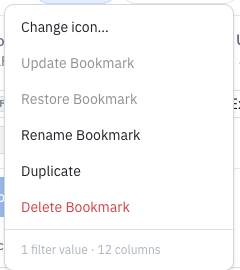
Bookmarks are Now at the Top of the Page
Each bookmark saves your filters and column settings together, letting you create completely different views. You can update, duplicate, and rename bookmarks, and you can access them from any computer when you sign in.

Share Your View with a Link
Copy the URL from your browser and share it with a teammate. They will see the same filters and columns tailored to the inspections you have access to.
🔖 How Bookmarks Work Now
When you are using a bookmark and change a filter, the bookmark will turn off. This happens because the current view no longer matches what you saved. From there, you have two options:
Save the new view as a new bookmark if you want to keep those changes.
Click the original bookmark to return to the saved view.
We tested a version that tracked unsaved changes for each bookmark, but that became confusing quickly. This approach simplifies things: a highlighted bookmark always indicates that you are viewing exactly what you saved.
📌 What to Keep in Mind
Your existing bookmarks will be transferred automatically the first time you open the new page. Please allow the page to finish loading before you refresh it.
We are rolling this out gradually, and more accounts will gain access every few days. Once it reaches your account, a short in-app tour will guide you through the new features.
Rest assured, nothing about your data will change. This new page offers a different way to search for and view your inspections, but your inspections, projects, and exports will function just as they did before.
Everything you previously accessed is still available. AutoCode, exports, reports, tagging, and other actions can be found in the bar just above your table.
❓ FAQ
I liked my old filters. Can I get them back?
Yes! Open Preferences, then go to Pinned Filters, and pin the filters you use most frequently. You can also arrange them in your preferred order.
How do I find a filter that isn't on my bar?
Click the Filter button and type the name of the field you're looking for. Every field in PIONEER is searchable.
Will my bookmarks carry over?
Yes, existing bookmarks will be migrated automatically.
Why did my bookmark turn off when I changed a filter?
Your current view no longer matches the saved bookmark. You can either save it as a new bookmark to keep it or click the original bookmark to return to that view.
Can different bookmarks show different columns?
Yes, each bookmark saves its own filters and columns.
Can I share a filtered view with a coworker?
Yes! Simply copy the page URL and send it to them. They will see the same view for the inspections they have access to.
When will I get the new page?
We are gradually enabling it for more accounts every few days. If you’d like it sooner or have questions about timing, please reach out to your Customer Enablement contact.
Questions we didn't cover here? Reach out to your Customer Enablement contact or submit a ticket, and we're happy to help.