The New Inspection Review Page
Last updated: October 30, 2026
Arrange the tabbed Inspection Review workspace to keep the video, observations and inspection details where you need them.
These steps cover the tabbed Inspection Review workspace in PIONEER on the web. Use a full-width browser window to see the workspace shown below. A narrow or mobile window has different controls.
Move and stack panels
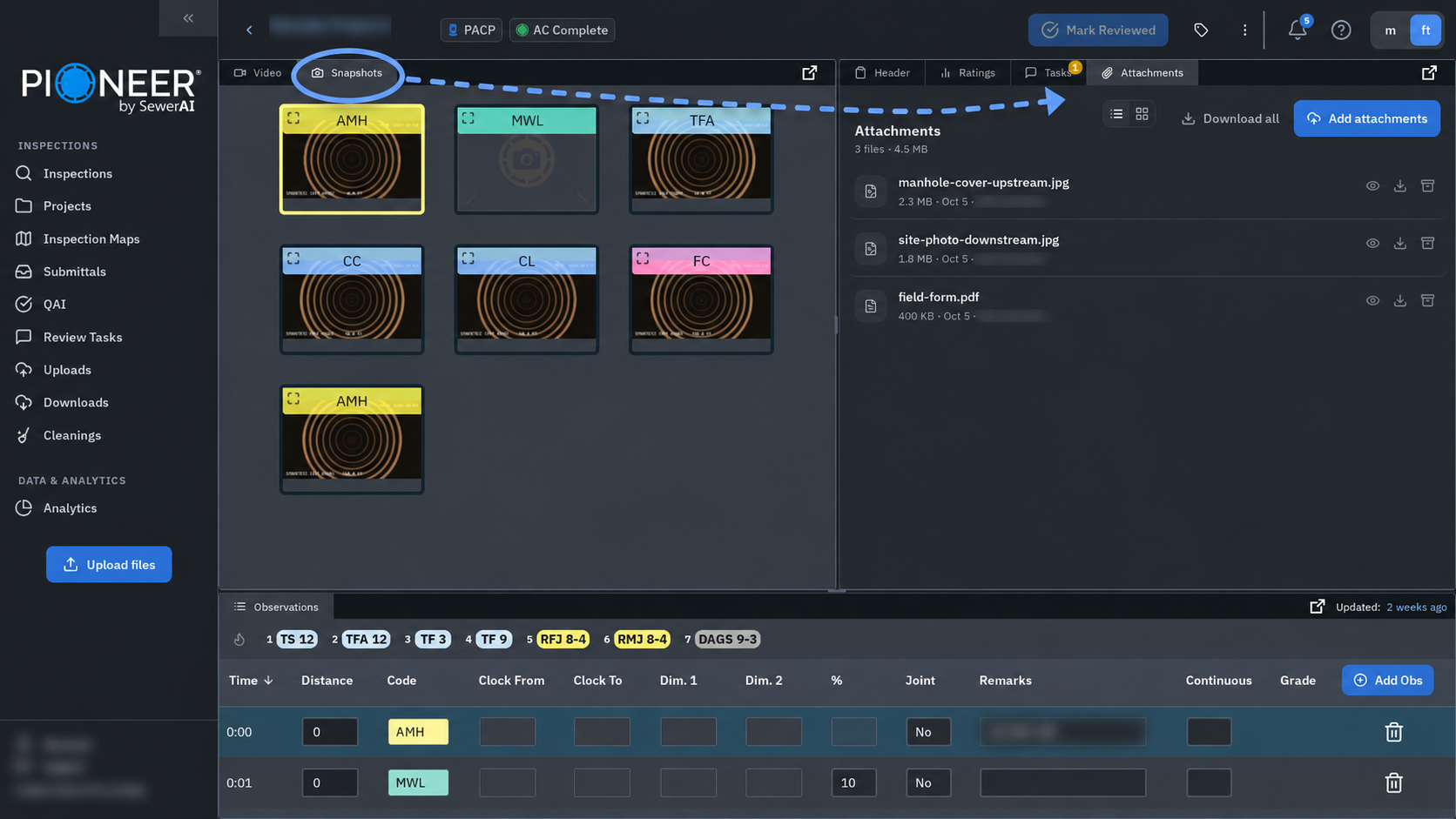
Drag a panel’s tab toward the position where you want it.
Use the docking preview to place it beside another panel, or drop it into a tab bar to stack the panels.
Select a tab to switch between stacked panels.
Resize panels
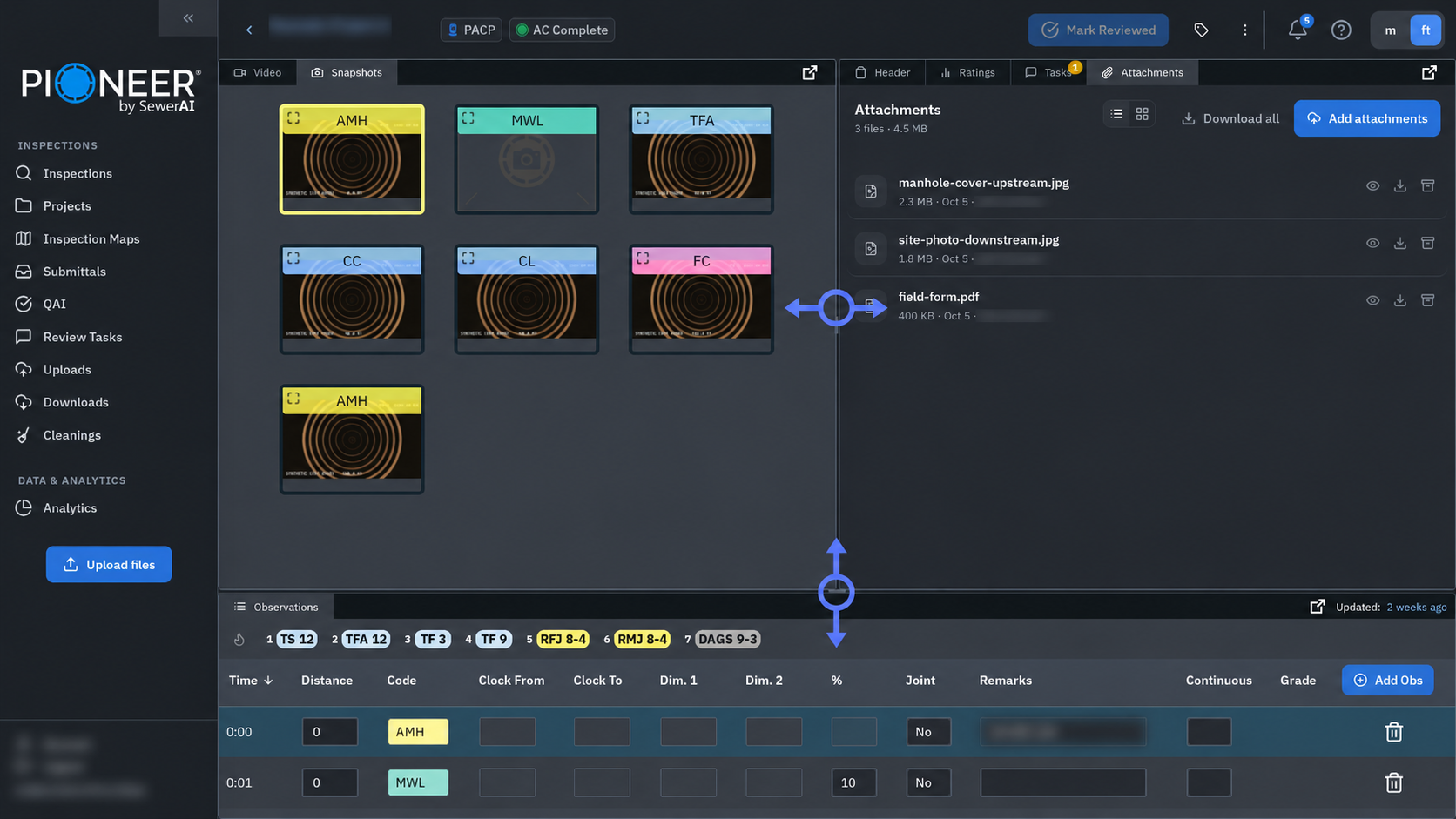
Drag the divider between panel groups to change their width or height. For example, widen Video for detailed review or give Observations more room when checking coded conditions.
Open a group in another window
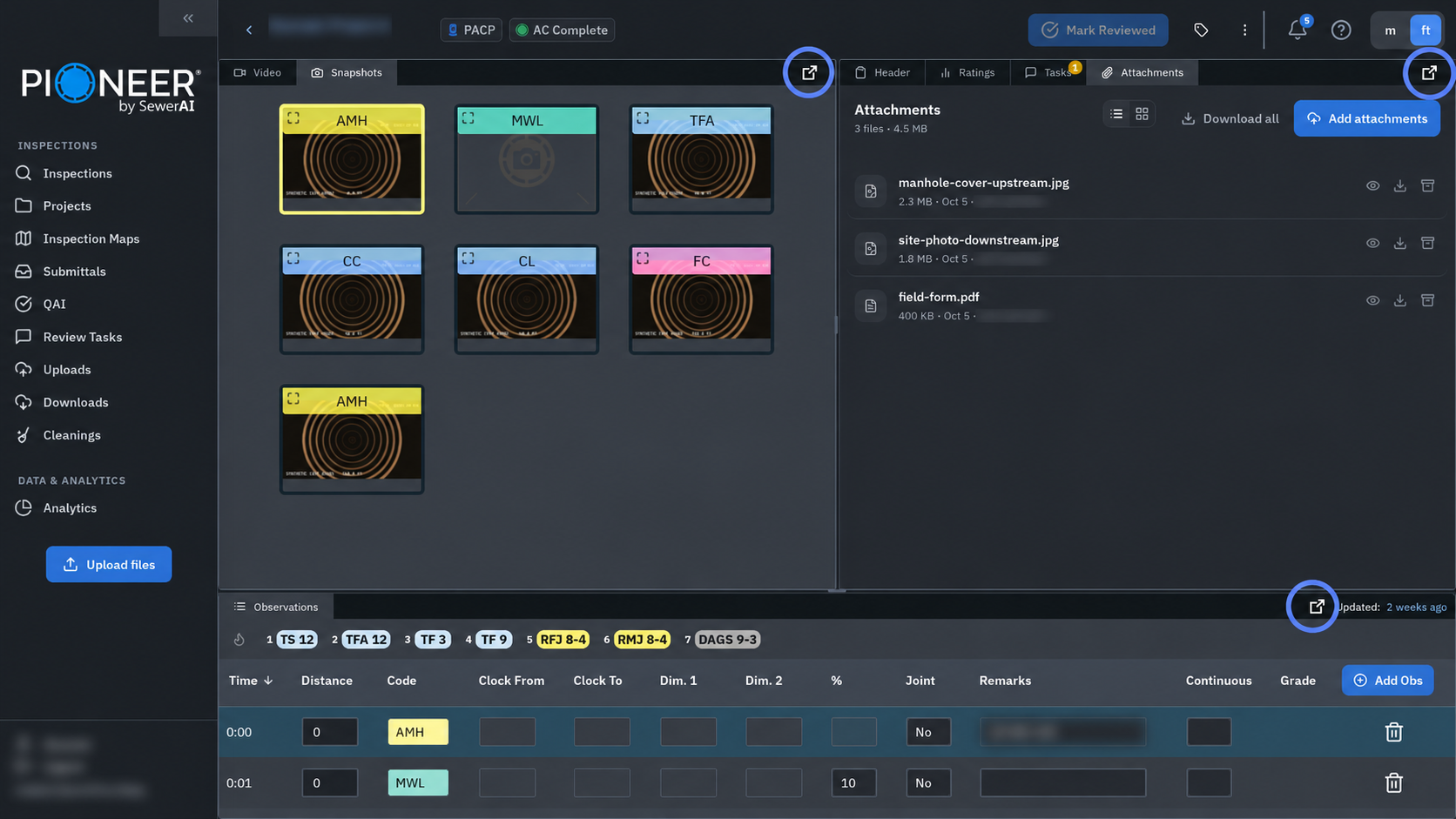
Select Open in new window, the square-arrow icon at the right of the group’s tab bar.
Move the new window to the screen you want to use.
Close the pop-out window to return the group to the review page.
The action opens the group of tabs together. If the window does not open, check whether your browser blocked the pop-up. Reloading the review page also returns popped-out groups to the page.
Choose panels for the inspection type
The default PACP and LACP workspace includes Video, Header, Ratings, Tasks, Snapshots, Attachments and Observations. A 360° PACP workspace also includes Full Pipe. MACP adds Full Pipe, 3D Model and Pipe Connections.

A tab’s presence does not establish that the inspection has the media or model data needed to display content in it.
Layout preferences
Panel arrangements save automatically in the browser you are using. The tabbed workspace does not provide controls for creating, naming or switching among multiple saved layouts. See Saved Layouts on the Video Review Page for storage and reset details.
Reset the layout
Open the individual inspection’s review page.
Open More options (⋮) in the upper-right corner.
Select Reset Layout.
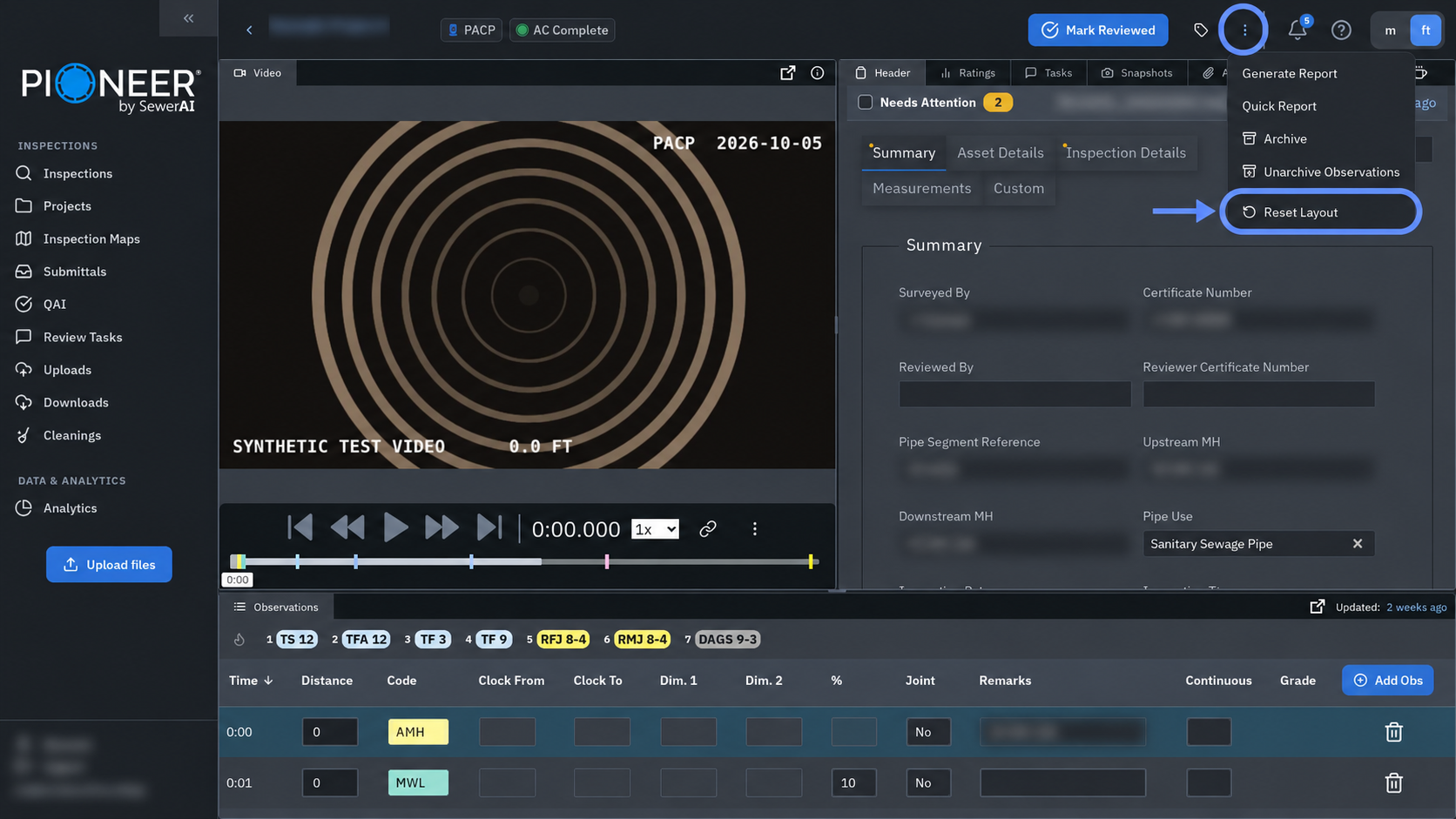
On the web, Reset Layout immediately restores the default panel arrangement for the current workspace. If a panel remains missing or the arrangement does not reset, contact support with the inspection link.
Video overlays
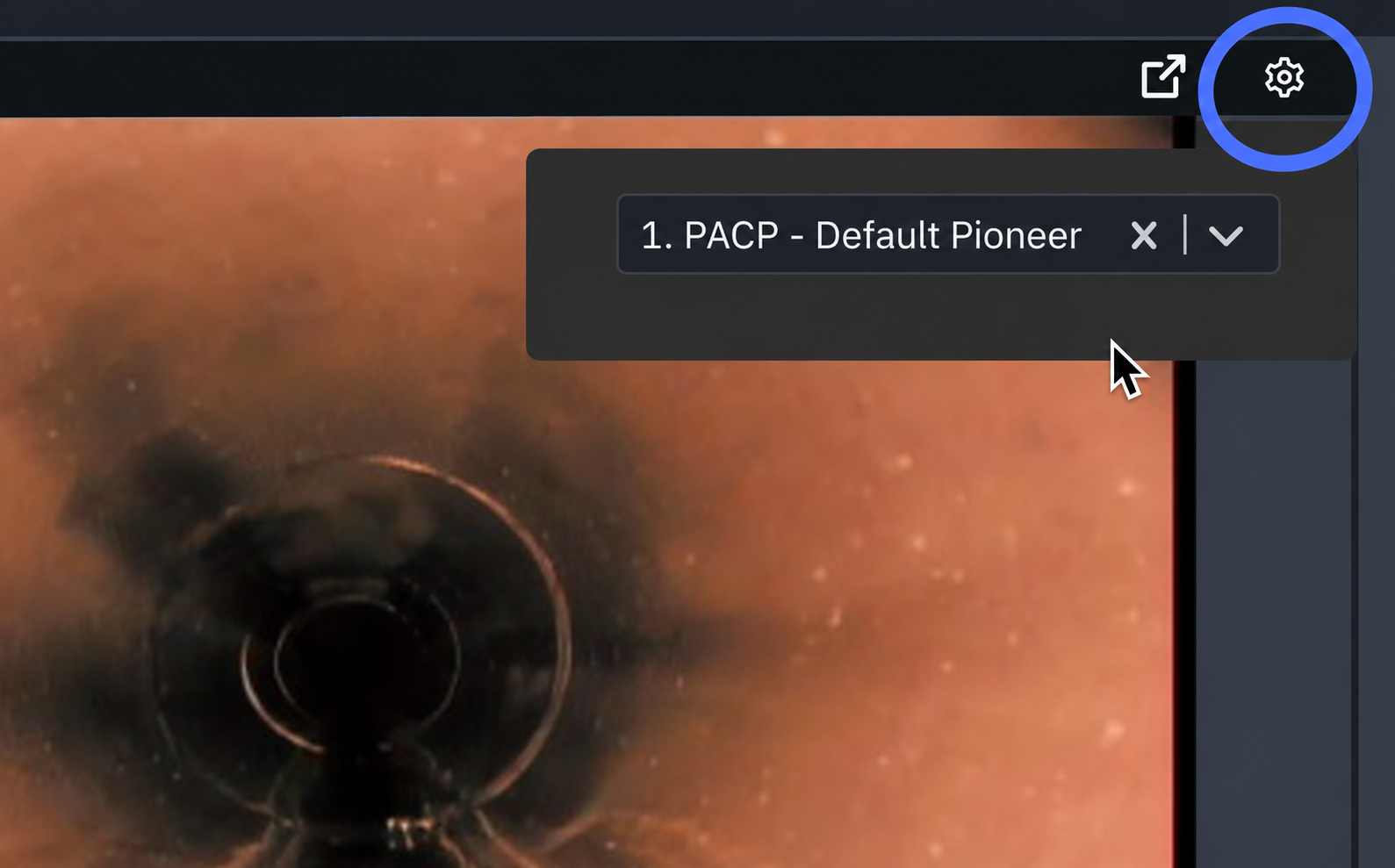
Where the Video tab bar shows an overlay settings gear, use it to choose an available overlay template. Available controls depend on your access. Changing the workspace layout does not change the underlying inspection data.
Still Need Help?
Use the chat widget in PIONEER to contact our support team.
If you cannot access the chat widget, email help@sewerai.com.