How to Bulk Select and AutoCode Multiple Videos
Last updated: April 15, 2026
You can run AutoCode on multiple videos at once within a project. Each batch can include up to 300 videos.
Processing Videos in Bulk
To run AutoCode on multiple videos:
Navigate to your Project
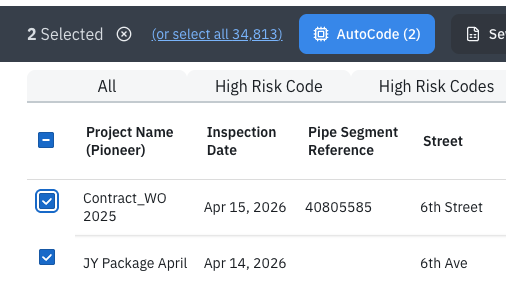
Use the checkbox selection tool to select the videos
Click AutoCode to begin processing
Working with More Than 300 Videos
If you need to process more than 300 videos, break them into smaller batches.
Recommended approach:
Use filters (such as inspection date) to group videos into manageable sets
Process each group separately
Example:
Batch 1: First half of your date range
Batch 2: Second half of your date range
Important Notes
The 300-video limit applies per batch
You can run multiple batches sequentially to process larger datasets
Using filters helps ensure clean segmentation and avoids overlap
Best Practices
Organize videos using filters before bulk processing
Double-check your selection before running AutoCode
Process in logical groups (e.g., by date, project, or region) for easier tracking
Need Additional Help?
If you’re working with large datasets and need assistance batching or processing videos, contact Support for guidance.