Filtering and Saving Bookmarks in PIONEER
Last updated: April 6, 2026
PIONEER makes it easy to quickly find, organize, and return to the inspections that matter most.
You can:
Filter inspections using a wide range of criteria
Refine results using advanced filters
Save filtered views as Bookmarks for quick access later
Using Filters
The Inspections Dashboard includes a set of commonly used filters directly above the table.

Use these to quickly narrow your dataset
Click the filter (funnel) icon to access additional filters
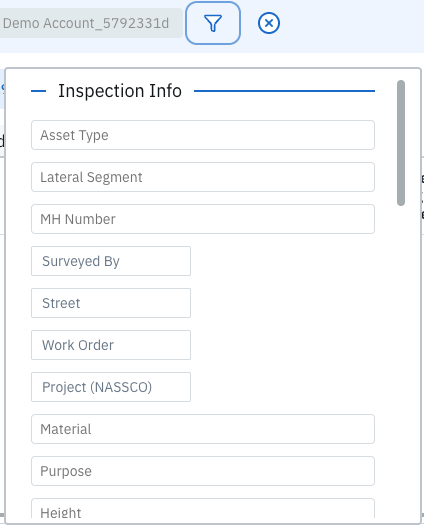
Filters update results in real time
You can clear all filters at any time using the “X” on the far right.
Understanding Key Filters
Date Filters
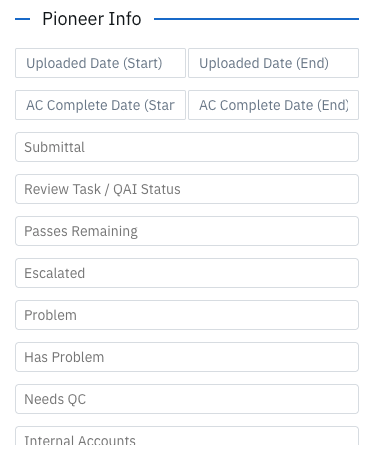
There are multiple date fields depending on what you’re trying to analyze:
Date From / Date To → Inspection date from the header
Uploaded Date → When the data was uploaded into PIONEER
Completed Date → When AutoCode processing was completed (if applicable)
Status Filters
PIONEER includes multiple status types:
Status (PIONEER) → System status (e.g., Uploaded, AutoCode Running, Complete)
Status (NASSCO) → Status from inspection header (e.g., Complete Inspection)
Reviewed → Indicates if someone on your team marked the inspection as reviewed
NASSCO Issues → Flags inspections with validation issues that may block export
Ratings & Grades
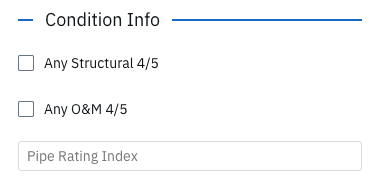
Use filters like:
Structural 4/5
O&M 4/5
These return inspections that contain at least one observation with those grades.
Saving Filters as Bookmarks
Once you’ve created a useful filtered view, you can save it as a Bookmark to quickly return to it later.
How to Create a Bookmark
Apply your desired filters
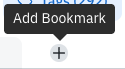
Click “+ Add Bookmark" above the inspections table
Enter a name for your Bookmark
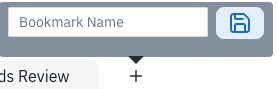
Save
How to Use Bookmarks
Bookmarks appear as tabs above the table
Clicking a Bookmark will instantly return you to that filtered view
Important: Bookmarks Are Dynamic
Bookmarks automatically update as your data changes.
This means:
New inspections that match your criteria will automatically appear
You don’t need to recreate filters each time
Example Use Cases
Bookmarks are especially helpful for:
High-risk inspections (e.g., Structural 4/5)
City- or project-specific views
QA / review workflows
Weekly reporting datasets
Specific pipe materials or conditions