Downloading Inspections
Last updated: March 31, 2026
Once your inspections have been reviewed or AutoCoded, you can export deliverables for your customer or send them directly using Digital Submittals.
PIONEER allows you to package multiple outputs—including NASSCO databases, videos, PDF reports, and snapshots—into a single downloadable file.
Export Options
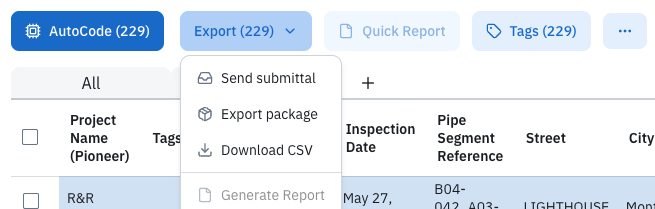
From the Inspections page, click Export to access the following options:
Export Package – Download inspections and deliverables
Download CSV – Export inspection data in spreadsheet format
Send Submittal – Share inspections digitally (no download required)
Create an Export Package
Use Export Package when you need to download inspection data for delivery via USB, hard drive, or file-sharing platform.
Step-by-Step
Select your inspections
Use filters to narrow your dataset
Use checkboxes to select specific inspections
If nothing is selected, all filtered inspections will be included
Important 💡
All NASSCO validation issues must be resolved before exporting
Filtering helps ensure you only export what you need
Click Export → Export Package
In the export window:
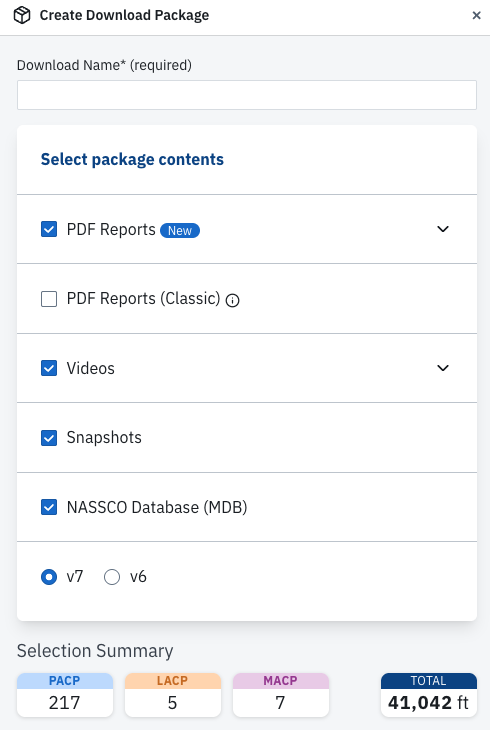
Enter a Download Name
Select the files you want to include:
PDF Reports
Videos
Snapshots
NASSCO Database (MDB)
Click Package
Customize Your Export
During the Export Package step, you can tailor exactly what gets delivered.
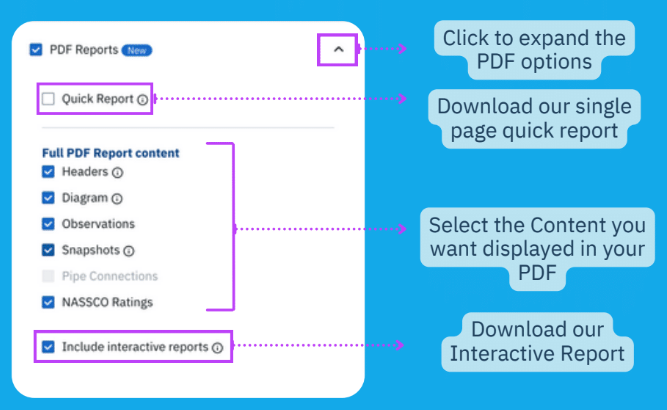
PDF Options
Choose between:
Quick Report (single-page summary)
Full PDF Report (detailed report with diagrams, observations, and ratings)
Select which sections to include (headers, observations, snapshots, etc.)
Option to include Interactive Reports
Video Options (Overlays & Annotations)
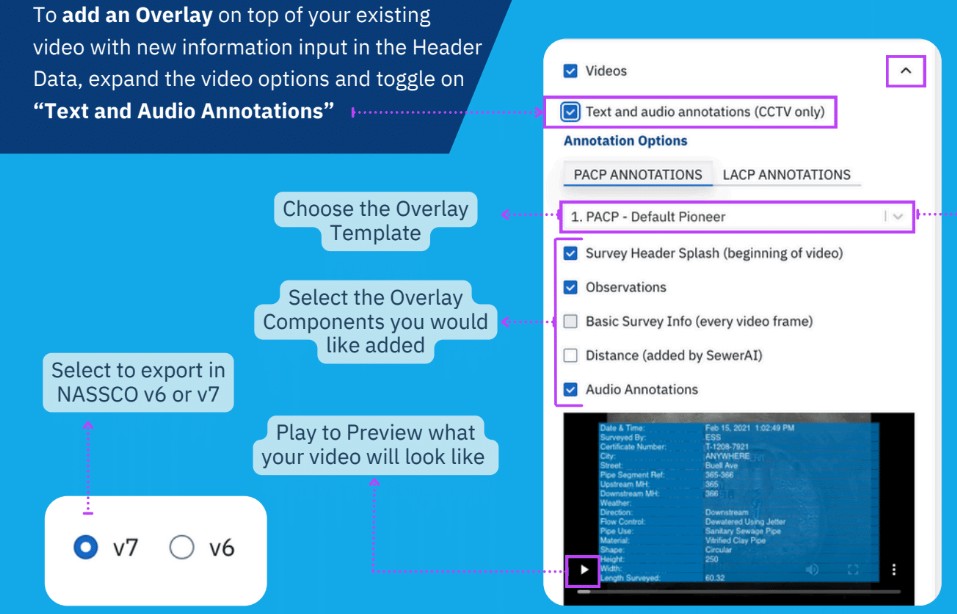
Add overlays to videos using inspection data
Enable Text and Audio Annotations
Customize:
Overlay template
Displayed components (survey info, observations, distance, etc.)
Preview the video before exporting
NASSCO Version
Select export format:
v6 or v7, depending on project requirements
💡 Need a custom overlay? Contact support to configure one.
Download Your Package
Once your export is packaged:
You’ll be redirected to the Downloads tab
Your file will go through a short packaging process
A cloud icon appears when ready
Click the ZIP icon to download your files
Recommended for larger downloads

Cloud Download (if used)
Allow permissions for:
“View Files”
“Save Changes”
Save files to a local drive
Completion
A green check mark indicates the download is complete

Download time depends on file size and internet speed
💡 Note: Packaging may take longer if overlays or annotations are included.